Files Getting Deleted Automatically Without Asking Windows 10/11
Overview
Files automatically getting deleted on Windows 10, how to fix?
"I have a new laptop with Windows 10 and Microsoft Office pre-installed. After two weeks of use, I find that some files disappeared completely. That is to say; my computer is automatically deleting files. I want to know how to fix this problem and how to recover the files deleted on Windows 10?"
Windows 10 users are familiar with the issue of files being automatically deleted, but don't worry if your desktop files disappear unexpectedly. You can recover lost files and folders using the methods outlined below, which are effective and reliable solutions.
The recovery process involves using a data recovery software to scan the affected drive or device for deleted files, including EXE files. The software can recover files that were deleted by mistake, accidentally formatted, or due to a virus attack.
Two Ways to Recover Files Getting Deleted Automatically in Windows 10
If you've accidentally deleted files on your Windows 10/8/7 computer, don't panic! There are two ways to recover them automatically. We highly recommend trying the first solution directly to save your time and recover your data as quickly as possible.
Method 1. Recover Deleted Files with Data Recovery Software
When Windows 10 deletes files by itself, using a file recovery software like Qiling data recovery program can quickly and effectively recover the deleted files, allowing you to recover lost data in Windows 10, 8, 7, etc. due to system upgrade, crash, careless deleting, or virus attacking, all within three simple steps.
Windows 10 Data Recovery Software
- Recover lost or deleted files, documents, photos, audio, music, emails, and other data easily with various recovery tools and techniques. These tools can help you restore accidentally deleted files, recover data from corrupted or damaged storage devices, and even retrieve data from formatted or reformatted drives.
- Restoring data after a Windows 11 update, formatting, emptying the recycle bin, a virus attack, system crash, or other issues can be a daunting task. However, there are various methods to recover lost data, including using built-in tools like File History and System Restore, as well as third-party software like Deep Data Recovery and Recuva.
- Repair corrupted videos from various devices, including SD cards, USB flash drives, and hard drives, to recover MP4, MOV, and other file formats.
To recover deleted files on Windows 10, you can download the software, then follow the steps below to recover your deleted files with ease. Once you have downloaded the software, simply follow the on-screen instructions to scan your system for deleted files, and then select the files you want to recover.
Step 1. Choose file types and click "Fast Scan" to start
Launch Deep Data Recovery. Choose file types and click "Fast Scan" to start the recovery process.

Note: You can choose different search modes based on where and why the data was lost.
Step 2. Select a location and start scanning
Locate the partition/drive where the deleted files were stored, then click "Scan" to initiate a search for lost files.

Step 3. Select the files you want to recover
After the scanning process is complete, select the deleted files you wish to recover. You can filter the results by file type using the filter option. Alternatively, you can search for a specific file by name using the "Search files or folders" box, which is the quickest way to locate the desired file.

Step 4. Preview and recover deleted files
Preview recoverable files, select desired files, and click "Recover" to restore them to a new storage location.
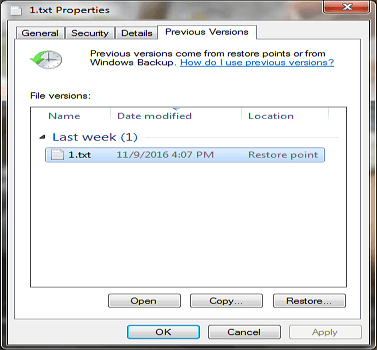
Method 2. Restore Deleted Files from the Previous Versions
- Notice:
- This method only works if you've created backups using Windows Backup. If you haven't turned on this feature, you may need to go back to Method 1 and use a reliable data recovery tool. Otherwise, this tip should help you recover your lost data.
- Open This PC/Computer.
- Go to the folder where you used to save deleted files, but now it's empty. You can't find the folder, so you need to search your computer to find it. You can use the search bar on your computer to search for the folder name.
- Right-click the folder and choose to "Restore previous versions".
- Select the versions that you need and click "Restore".
How to Prevent Windows 10 from Automatically Deleting Files
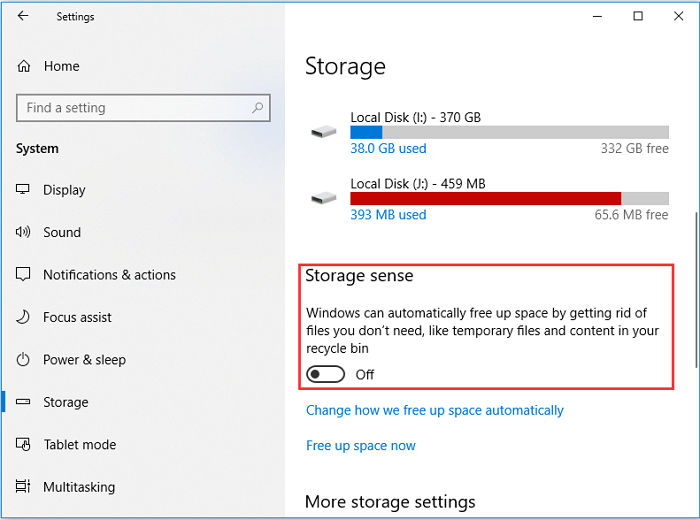
Storage Sense in Windows 10 is a feature that automatically deletes unused files and temporary files when your computer is low on disk space. It also deletes older files in the Downloads folder and the Recycle Bin to free up space. If you don't want Windows 10 to delete files by itself, you can turn off Storage Sense.
- To check storage on a computer, open the "Settings" app, click on the "System" category, and then click on "Storage".
- To turn off Storage Sense, move the switch to the off position, which will prevent it from automatically deleting files to free up disk space.
Related Articles
- Folder Shows Empty but Files Are There Windows 10/8/7
- Recover Files Deleted Long Time Ago
- Recuva Said File Is Unrecoverable | How to Repair or Recover
- How to Recover Permanently Deleted Emails from Gmail Account
- How to Recover Data from WD My Passport
If you're struggling to recover data from your WD My Passport, follow these steps. First, download the WD Passport hard drive recovery software. This tool will help you recover deleted or lost files from your drive. - How to Recover Data from a Wiped Hard Drive on Windows PC/Mac
Data recovery from wiped hard drive on Windows PC or Mac, if you can do it soon, then you'll recover data from wiped or reset hard drive easily. Free download the wiped hard drive data recovery software to do it.
Products
Articles & Tutorials
- Data Recovery
- Data Backup
- File Recovery
- File Backup
- System Backup and Restore
- Disk and Partition Clone
- Technical articles
- Mobile articles
- Disk Master Help
- Windows Data Recovery Tutorials
- Windows Secure Delete Tutorials
- Windows Partition Management Tutorials
- Windows File Backup and Restore Tutorials
- Windows System Backup and Restore Tutorials
- Windows Disk Backup and Restore Tutorials
- Windows Clone Tutorials