Recover Files Deleted Long Time Ago
Effective solutions are available to help restore deleted files on Windows hard drives, SSDs, external hard drives, USB drives, and Android phone SD cards, even if they were deleted a long time ago.
How Do I Recover Deleted Files Long Time Ago?
Unfortunately, it's highly unlikely that you'll be able to recover deleted files from an SD card that's been used for over 2 years. SD cards have a limited number of write cycles, and the more you write to them, the faster they wear out. When you deleted the files, the SD card's file system marked the space as available, but it didn't actually erase the data. However, over time, the data can become corrupted or overwritten by new files. If you haven't used the SD card since deleting the files, it's possible that the data is still intact, but it's unlikely that you'll be able to recover it without specialized software and expertise.
If you're looking to recover photos and memories from the SD card, you can follow the process below. First, try to recover the files yourself using the solutions provided.
If you're looking to restore deleted files, there are solutions available to help you recover them. Follow the provided solutions on this page to get assistance.
If you've deleted files years ago and don't have a backup, you can try using reliable file recovery software to see if it can help. If you still have a backup of the deleted files, you can follow a guide to recover them.
Method 1. Recover Files Deleted Long Time Ago with File Recovery Software
If you've deleted files a long time ago without making a backup, you can still try to recover them using data recovery software. These tools can scan your computer's hard drive or other storage devices for deleted files and attempt to recover them, even if they were deleted years ago.
There is still a chance to restore deleted files on storage devices if they haven't been overwritten by new data.
The key point of restoring deleted files is that it doesn't matter when the files were deleted - whether it was a week, a month, or even a year ago. What matters is whether you've saved new data onto the device where the deleted files were, as this can overwrite the original files and make them unrecoverable.
Deep Data Recovery software allows you to easily scan and restore deleted files on your Windows PC in just a few clicks, retrieving lost memories and valuable data with simplicity.
- Tip
- 1. This software can be used by both Windows and Mac users to recover deleted files from years ago, and Mac users can download the Mac version for assistance.
- 2. To recover lost files from a USB or SD memory card, connect the storage device to your PC and ensure it's properly recognized. This step is crucial, as it allows the computer to access the device and its contents, making it possible to scan for and retrieve lost files.
Then you shall begin the recovery process:
Step 1. Select file types and click "Fast Scan" to start
Launch Deep Data Recovery, select file types, and click "Fast Scan" to initiate the recovery process.

Note: You can choose different search modes based on where and why the data was lost.
Step 2. Select a location and start scanning
To recover deleted files, hover over the partition/drive where the deleted files were stored and click "Scan" to find lost files.

Step 3. Select the files you want to recover
After the scanning process is complete, select the deleted files you want to recover. You can filter the results by file type or search for specific files using the "Search files or folders" box. This is the fastest way to find the target file.

Step 4. Preview and recover deleted files
After previewing the recoverable files, choose the ones you wish to restore and click "Recover" to save them at a new storage location, bypassing the original disk where the data was initially lost.
Method 2. Recover Deleted Files Long Time Ago from Backup
You can restore lost files that were deleted a long time ago from personal backups, Windows backups, or mobile phone backups.
If you didn't create a backup of your lost files, you can try using Qiling file recovery software to help recover them. If you have a habit of creating backups for important files, you can simply restore them from your backup.
Here is how to recover lost files from a personal backup, Windows Backup, or cloud backup:
# 1. Restore from Personal Backup
Advantage: Free & Fast Recovery
If you've copied and saved the lost files to another storage device, you can recover them from the copies.
Step 1. Connect the storage device which contains the backup of your lost files to the PC.
Step 2. Open the storage device in File Explorer, locate and copy your lost files.
Step 3. Paste and save them to a secure location on your PC.
# 2. Restore from Windows Backup
Advantage: Free
If your lost files were saved on a Windows PC and you've created a backup of these files using Windows Backup, congratulations - you can easily recover them by using this backup. This backup can help you restore your lost files, so you can access them again. This is a great way to recover your lost files and get back to work quickly. Simply follow the steps to restore your files from the backup, and you'll be back up and running in no time.
The below steps are taken on Windows 10:
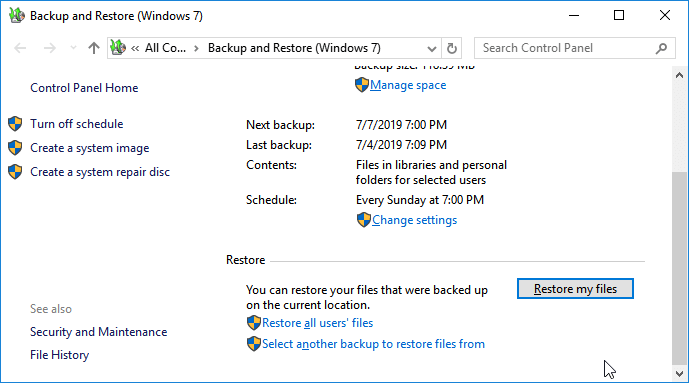
Step 1. To open the Backup and Restore (Windows 7) window, go to the Control Panel, navigate to the "System and Maintenance" section, and select the "Backup and Restore (Windows 7)" option.
Step 2. Click "Restore my files".
Step 3.To restore a backup, click on the "Browse for files" or "Browse for folders" option to select the previously created backup. This allows you to choose the specific backup file or folder you want to restore from.
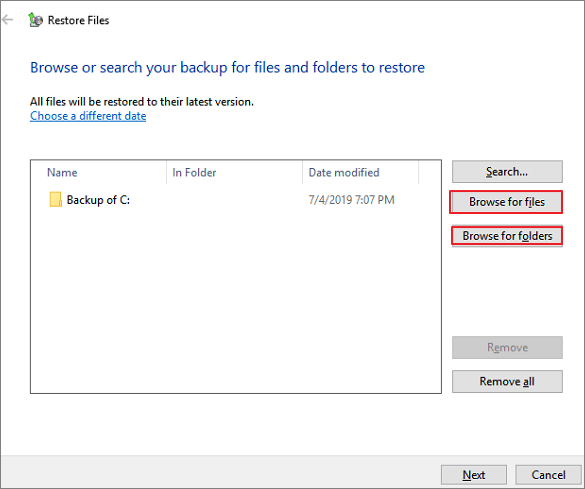
Step 4.To save the backup, navigate to a location of your choice. You can either save it in the original location where the backup was created, or choose a different location by specifying it in the following location field.
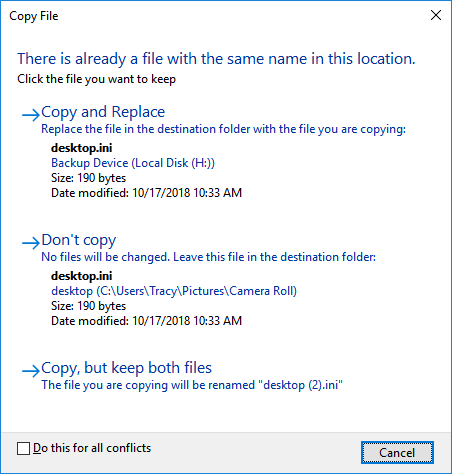
If there's a conflict, choose "Copy and Replace", "Don't copy" or "Copy, but keep both files" according to your needs.
Step 5. Wait for the restoring process to complete.
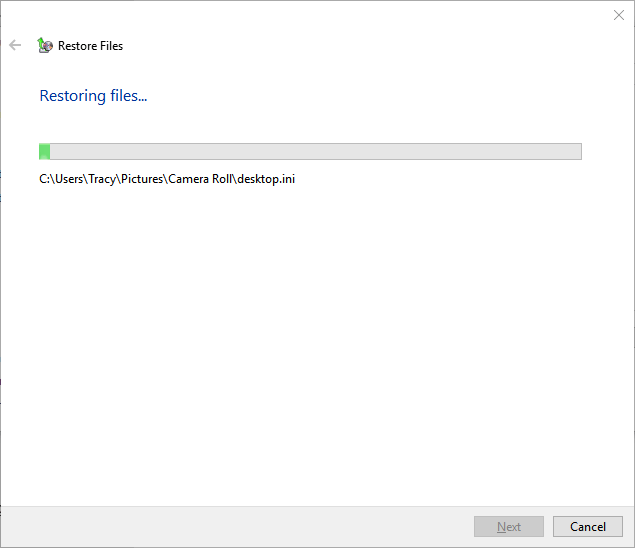
After deleting files, you can recover them by going back to the location where you saved them and viewing them again.
# 3. Restore from Mobile Phone Backup
Advantage: Free
If you're an Android user who's lost important files on your phone, you can restore them if you've created a backup of your files.
For Android users:
To restore your data, go to Settings, then select Back up & restore, and choose the latest backup files to restore all lost data.
For iPhone users:
To recover data from an iOS device without erasing the current device, consider using a third-party iOS data recovery software like Qiling MobiSaver, which can restore data from iCloud backups.
Bonus Tip: Protect Files with Regular Backup
Creating a full backup in advance is the best way to restore lost files from various disasters. To simplify the backup process, you can try using Qiling Backup, which can make it easy for you to create backups.
With just 3 simple steps, you can selectively back up files, giving you peace of mind and protection for your important data.
Step 1: Launch Qiling Backup and select the desired backup type: File Backup, Disk/Partition Backup, or System Backup.

Step 2: Choose the disk partition you want to back up, and select a destination to store the backup file.
Step 3: Click "Proceed" to start the data backup process.
Related Articles
- How to Fix 'Can't View Pictures on SD card in Camera or Computer'
- Downloads Not Showing up in Download Folder/Desktop
- View and Restore Firefox Cache Files
- Recover Deleted Chrome Downloads and Resume Canceled Chrome Downloads
- Recover Deleted LINE Attachments on iPhone/Android
If you've accidentally lost LINE attachments, they can be recovered. Qiling MobiSaver is a reliable tool that can help you retrieve deleted or lost LINE attachments from your iPhone or Android device. - Recover Deleted WhatsApp Messages on iPhone/Android with 4 Easy Ways
Accidentally deleted some essential WhatsApp messages? You can recover deleted WhatsApp messages on your iPhone with some quick fixes and professional software, even if you're using an Android device.
Products
Articles & Tutorials
- Data Recovery
- Data Backup
- File Recovery
- File Backup
- System Backup and Restore
- Disk and Partition Clone
- Technical articles
- Mobile articles
- Disk Master Help
- Windows Data Recovery Tutorials
- Windows Secure Delete Tutorials
- Windows Partition Management Tutorials
- Windows File Backup and Restore Tutorials
- Windows System Backup and Restore Tutorials
- Windows Disk Backup and Restore Tutorials
- Windows Clone Tutorials