Downloads Not Showing up in Download Folder/Desktop
| Workable Solutions | Step-by-step Troubleshooting |
|---|---|
| Fix 1. Downloads not showing Windows 10 | Press Ctrl+J to open the downloads window > click "Show in folder"...Full steps |
| Fix 2. Downloads not showing Desktop | Right-click your mouse and click "View" > select "Show desktop icons"...Full steps |
| Fix 3. Downloads not showing on Mac | Press ⌘+J on a Mac > open Downloads in the web browser > check downloaded files...Full steps |
Q: My recent downloads are not showing in my download folder?
You're experiencing an issue with downloaded files not appearing in the download folder or on the desktop in Firefox on Windows. The default download location for files on Windows is usually the "Downloads" folder, which might be located in the user's profile directory (e.g., C:\Users\Username\Downloads). Since you've checked the download folder and the desktop, and the computer shows taken-up space, it's likely that the files are being downloaded but not being saved to the expected location. You can try checking the Firefox settings to see if the download location has been changed or if there are any issues with the download process. Additionally, you can try looking for the files in the "Recent" or "History" folders in Windows, as they might be stored there instead. If you're still unable to find the files, you can try resetting Firefox to its default settings to see if that resolves the issue.
Many users experience the issue of downloaded files not showing up on their desktop or download folder, with no indication of their presence. To resolve this problem on Windows 10 or Mac, users can try various methods, including checking the download location settings, looking for the files in the default download folder, and verifying that the files were downloaded correctly.
Solutions to My Downloads Are Not Showing up
If your downloaded files aren't showing up on your desktop or download folder, check your web browser's settings to see where it's saving the files by default.
Fix Downloads Not Showing up on Windows 10
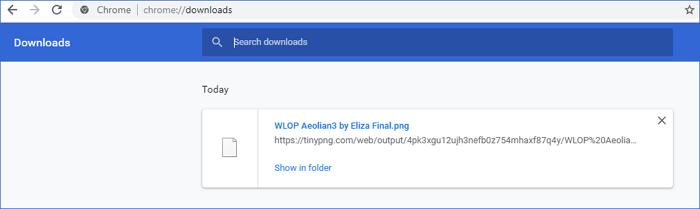
If you can't find your downloaded files in Windows 10, you can quickly view your recent downloads in various browsers by pressing Ctrl+J on your keyboard. This will open the Downloads window, showing the files you've recently downloaded. You can then click "Show in folder" to check the actual save location.
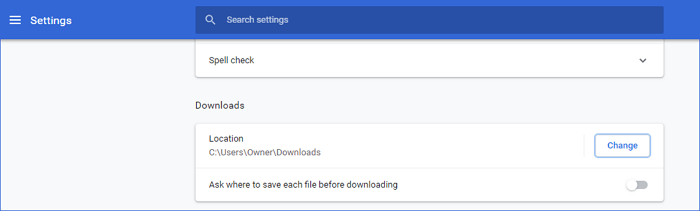
To change the default storage location for downloads, go to Settings, then Downloads, and click on Location. Click the "Change" button to complete the change. This process is similar to changing the location for files downloaded by other browsers.
Downloaded files not showing up on desktop?
If your downloaded files aren't showing up on your desktop, it might be because your computer is hiding the icon, even if the files are actually stored on the desktop.
1. Right-click your mouse and click "view".
2. Select show desktop icons
3. Click refresh and check your downloaded files
If downloaded files are not showing up on the desktop, try the three steps above. However, if these steps don't work, you can also find the missing files in the Downloads folder on your Windows. To do this, press the Windows key, type "Downloads", and then press Enter.
Fix Downloads Not Showing up in the Download Folder on Mac
On a Mac, you can use the shortcut ⌘+J to open the Downloads interface in the web browser, allowing you to view and manage downloaded files. This shortcut can also be used on a Windows computer to change the default save location of the web browser to a Mac.
To change the default storage location in Safari:
In the settings, go to the "Preferences" and under the "General" tab, click on "Save downloaded files to" to set the desired location.
If you're experiencing issues with downloaded files not appearing, and the above methods haven't resolved the issue, you can try using a data recovery application to recover your missing downloaded files.
Recover Downloaded Files Not Showing up on Windows 10/Mac
When you can't find a downloaded file anywhere, a useful final option is using Deep Data Recovery. This versatile file recovery program allows you to recover hidden, deleted, formatted, or virus-attacked documents, photos, audios, and videos.
Qiling data recovery software allows you to recover deleted files in Windows 10 on Windows and Mac computer in three steps, even if the downloaded files are completely removed and not showing up anyhow.
Step 1. Run Deep Data Recovery. Select file types and click "Fast Scan" to start the recovery process.

Note: You can choose different search modes based on where and why the data was lost.
Step 2. Choose the drive where you lost files and start scanning. This software allows you to recover lost data from a variety of devices, including HDD, SSD, USB drive, SD card, pen drive, and camera.

Step 3. You can browse the full scan results and choose the file type you need by clicking on the file type filter. Qiling data recovery software supports 1000+ file types, including photos, videos, documents, emails, audio files, and many more.

Step 4. To recover data from selected files, click the "Recover" button and choose a storage location to save the recovered data.
More Guides on View Downloaded Files
Here are the instructions: to view downloads on Android, go to the "My Files" app, then select "Downloads" from the list. On Android tablets, you can also check the "My Files" app and tap "Downloads".
How do I view and open downloaded files on Android?
On Android phones and tablets, you can find downloaded files in the "Files" or "My Files" app, which is located in the app drawer. The downloaded files are listed in chronological order, and you can access them by tapping the "Downloads" option within the app.
How do I find downloaded files on my iPhone?
On the iPad and iPhone, downloaded files are not saved in a single location like on Android devices, but rather go to the corresponding apps on your device.
When downloading or syncing files on your iPhone or iPad, they are automatically organized into their respective apps, such as Photos for photos, Music for songs, and TV/Videos for videos. If you're unsure where a specific file is stored, you can use a free iOS data manager to help you transfer, download, and organize your files.
Related Articles
- 3 Ways to Fix Google Chrome Bookmarks Disappeared
- How to Remove Shortcut Virus from PC/Laptop in Windows 11/10/8/7
- 2 Ways to Recover Deleted or Lost Saved Game Files on Xbox One
- Fixed: Windows 10 Freezes While Copying Files, No Data Loss
- [Solved] Windows Cannot Access the Specified Device Path or File
This tutorial addresses the issue of Windows being unable to access a specified device path or file, which may occur when trying to start a program in Windows 11, 10, 8, or 7, or when working in MS Word. - Windows Photo Viewer Can't Display This Picture Windows 11/10/8/7
Windows Photo Viewer can't display a picture on your Windows 10 computer, possibly due to a corrupted, oversized, or memory-lacking file. To fix this issue, try the solutions provided in this tutorial.
Products
Articles & Tutorials
- Data Recovery
- Data Backup
- File Recovery
- File Backup
- System Backup and Restore
- Disk and Partition Clone
- Technical articles
- Mobile articles
- Disk Master Help
- Windows Data Recovery Tutorials
- Windows Secure Delete Tutorials
- Windows Partition Management Tutorials
- Windows File Backup and Restore Tutorials
- Windows System Backup and Restore Tutorials
- Windows Disk Backup and Restore Tutorials
- Windows Clone Tutorials