3 Ways to Fix Google Chrome Bookmarks Disappeared
Quick Navigation - How to Recover Lost Bookmarks in Chrome
Here are three ways to fix the Chrome bookmarks disappeared error and restore lost bookmarks in Chrome:
| Workable Solutions | Step-by-step Troubleshooting |
|---|---|
| 1. Recover Bookmarks from PC | Launch Deep Data Recovery, hover on the partition where you lost data, then click "Scan"...Full steps |
| 2. Restore Bookmarks from Backup | Open Windows Explorer and plug the following location into its address bar, please replace "NAME"...Full steps |
| 3. Restore Bookmarks from History | Open Google Chrome > Then click the three-dot button > In the pop-up window...Full steps |
My Bookmarks Just Disappeared. How Do I Recover Them?
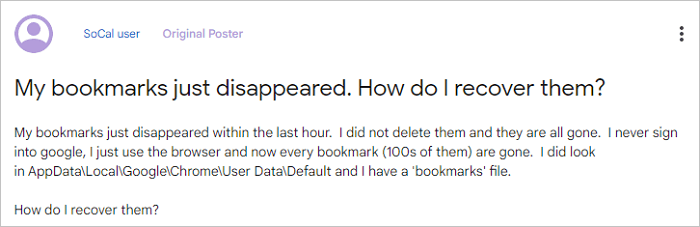
"My bookmarks just disappeared within the last hour. I did not delete them and they are all gone. I never sign into google, I just use the browser and now every bookmark (100s of them) is gone. I did look in AppData\Local\Google\Chrome\User Data\Default and I have a "bookmarks" file. How do I recover them?"
Losing essential bookmarks in Chrome is a frustrating experience, but it's more common than you think. Users often delete or lose their bookmarks due to various reasons, such as Chrome updates, Windows OS updates, or accidental removal. If you're one of them, don't worry! The good news is that you can recover your lost bookmarks with some effective solutions.
Fix 1. Recover Disappeared Chrome Bookmarks from PC
If Chrome's update thoroughly deletes all files, including local bookmarks on your PC, and you can't find any trace in the Chrome browser, you can try a reliable hard drive data recovery software like Deep Data Recovery. This professional tool can recover deleted, formatted, or inaccessible data from your local devices for various data loss situations, including local bookmarks backup files.
Qiling Chrome Bookmark Recovery Tool
- Recover lost or deleted files, documents, photos, audio, music, emails, and bookmarks easily with simple steps.
- To recover files from an SD card, emptied recycle bin, memory card, flash drive, digital camera, and camcorders, you can use data recovery software. This software scans the device for deleted files and recovers them.
- Data recovery software can help recover lost data after sudden deletion, formatting, hard drive corruption, virus attacks, system crashes, and other data loss scenarios.
Download and try this data recovery software to restore the deleted Chrome histories/favorites from your PC.
Step 1. Run Deep Data Recovery on your computer, select the file types you're looking to recover and click "Fast Scan" to initiate the recovery process.

Note: You can choose different search modes based on where and why the data was lost.
Step 2. To recover lost files, choose the drive where the files were lost, click "Scan", and ensure the external storage device is connected to the computer if the lost files were on an external drive.

Step 3. The software scans deleted files quickly, then performs a deep scan to find more lost files. After the scan, you can use the "Filter" feature to quickly filter specific file types.

Step 4. To access the recovered files, click the "Preview" button or double-click on a file for a full preview. Then, select the desired files, click "Recover", and choose a safe location to save them all at once.
To recover lost Chrome bookmarks or histories, you can copy the bookmarks to a local folder on your PC as a backup. Then, browse each bookmark to set it as a new bookmark in the new Chrome browser.
Fix 2. Restore Lost Chrome Bookmarks from Backup (Recommended)
When you lose important bookmarks or delete favorites in Chrome, you may still have a chance to find them on your PC, as Chrome usually creates a local file folder to back up all your browsing histories and bookmarks.
- Tip
- Before launching Chrome, ensure all Chrome windows are closed and do not reopen Chrome if it's already closed, as this will overwrite the saved backup each time.
Step 1. Open Windows Explorer and navigate to the following path (replace "NAME" with your Windows username):
- C:\Users\NAME\AppData\Local\Google\Chrome\User Data\Default
Step 2. The browser has two bookmark files: "Bookmarks" and "Bookmarks.bak", with the latter being the most recent backup created when the browser was last opened.
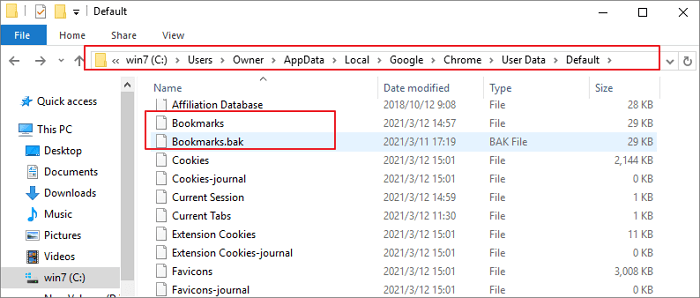
Step 3. Restore Chrome bookmark with these steps:
- Close all open Chrome browsers.
- Rename the Bookmarks file to Bookmarks.old.
- Rename your Bookmarks.bak file to just Bookmarks (removing the .bak extension).
Step 4. When you relaunch Chrome, your deleted bookmarks will reappear, but any bookmarks created since the last launch will be lost.
If you don't see the .bak file extension but notice two files named Bookmarks, try changing your settings to display file name extensions, which might reveal the .bak file.

If this method does not work, you can try deleting the Chrome folder in the AppData/Local/Google directory, then restart Chrome. Additionally, disabling the Google Stars bookmarking tool may help resolve the issue.
Fix 3. Restore Bookmarks in Chrome from Google History
This fixing method only works if you haven't cleaned up your Google History. If you've already cleared all browsing histories in Google, the steps below may not be effective.
Step 1. Open Google Chrome.
Step 2. Then click the three-dot button.
Step 3. In the pop-up window, choose "History".
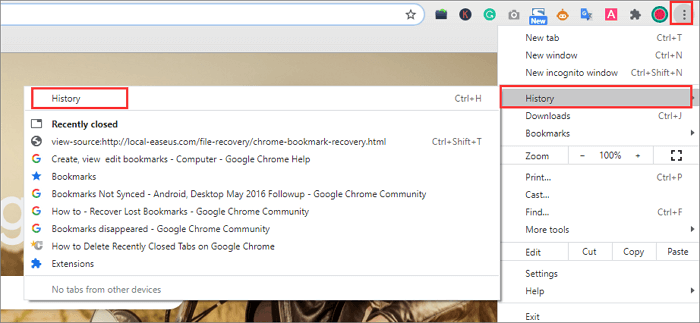
Step 4. Next, all your browsing histories will be listed here.
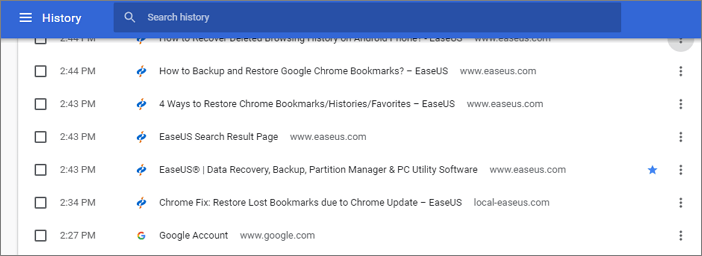
Step 5. Then, save them as bookmarks again.
How to Fix Chrome Bookmarks Disappeared on Android
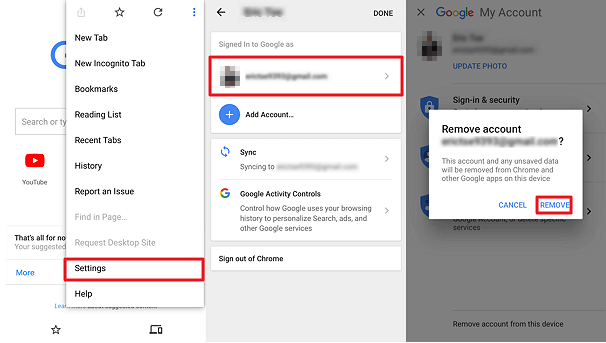
If your Chrome bookmarks bar is lost on your Android phone, you can re-login your Google account and then restore your bookmarks.
Step 1. On Google Chrome, tap the three dots and then click "Settings" to access the browser's configuration menu.
Step 2. Tap on your account.
Step 3. Tap "Sign out of Chrome" and again "Sign Out".
Step 4. Re-sign into your Google account.
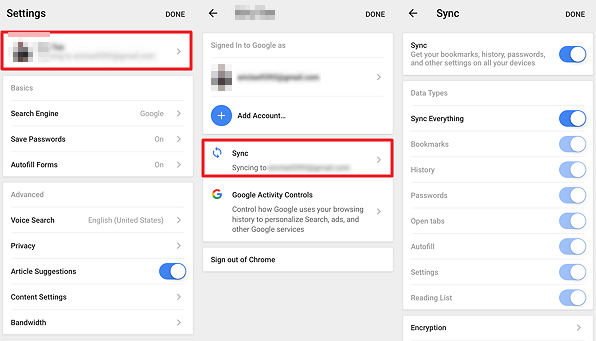
From then on, make sure that your bookmarks are syncing.
Step 1. Go to the three dots and "Settings".
Step 2. Tap on your account.
Step3. Click the "Sync" option.
Step 4. To sync your bookmarks across all your devices, ensure that the "Sync Everything" feature is enabled, or toggle the "Bookmarks" option on. This will allow your bookmarks to be synced and accessible from any device connected to your account.
Bonus Tip: Avoid Losing Chrome Bookmarks Again
To avoid losing your Chrome bookmarks, remember to regularly back them up to another hard drive or storage device. This way, you can easily restore them if needed by copying the backups into your PC Chrome backup folder.
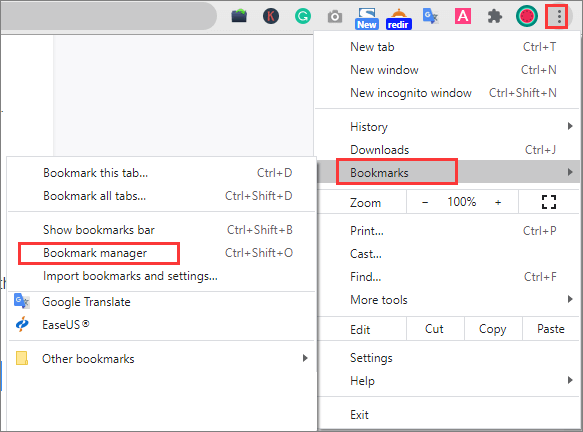
Step 1. In the top-right corner of the browser, click the three dots.
Step 2. Select "Bookmarks" > "Bookmark Manager".
Step 3. Click the "Organize" menu button in the center pane of the Bookmark manager.

Step 4. Select "Export bookmarks to HTML file...".
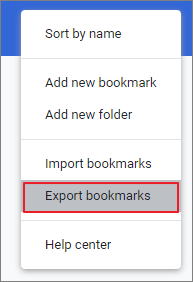
Step 5. Chrome allows users to export their bookmarks as an HTML file, which can be imported into Chrome or another web browser, providing a seamless transition of saved web pages.
Conclusion
If you've lost or deleted your Google bookmarks, there are three ways to recover them. My top recommendation is to try the first method, which is often successful for most users. If you don't have a backup, you can also try using Qiling data recovery software or Google History to see if they can help you recover your lost bookmarks.
Related Articles
- How to Recover Permanently Deleted Emails from Gmail Account
- How to Remove Password from Excel with or Without Password
- Downloads Folder Not Responding on Windows 10? Fix It Now!
- How to Restore IE Edge Favorites/Bookmarks? | IE Edge Recovery
- How to Recover (Permanently) Deleted Files from Google Drive [5 Proven Ways]
This guide provides a step-by-step solution to recover permanently deleted files from Google Drive, including photos and files. With five tested methods, you can easily restore your lost data. - How to Fix/Recover Corrupted Photos/Pictures Half Greyed Out
If your JPEG photos appear half or fully grayed out. You can recover and repair them using reliable file recovery software and picture repair tools. This can help you restore your cherished memories and get back to enjoying your photos.
Products
Articles & Tutorials
- Data Recovery
- Data Backup
- File Recovery
- File Backup
- System Backup and Restore
- Disk and Partition Clone
- Technical articles
- Mobile articles
- Disk Master Help
- Windows Data Recovery Tutorials
- Windows Secure Delete Tutorials
- Windows Partition Management Tutorials
- Windows File Backup and Restore Tutorials
- Windows System Backup and Restore Tutorials
- Windows Disk Backup and Restore Tutorials
- Windows Clone Tutorials