How to Recover (Permanently) Deleted Files from Google Drive [5 Proven Ways]
Can I Recover Permanently Deleted Files from Google Drive?
If you've permanently deleted files from Google Drive and need them now, you can try using Google Drive's built-in file recovery feature, which allows you to recover deleted files for up to 25 days. If the files are older than that, you can try using a third-party data recovery software that supports Google Drive, such as Deep Data Recovery or Qiling file recovery software. These tools can scan your Google Drive account and recover deleted files, but be aware that they may not work for all types of files or deleted files. It's also worth noting that Google Drive has a 24-hour restoration window, so if you've deleted files recently, you may be able to recover them within that timeframe.
Yes, you can recover deleted files from Google Drive and permanently deleted ones. Here are the solutions to recover deleted and permanently deleted files from Google Drive.
- Method 1. Recover Deleted Google Drive Files from the Trash Folder
- Method 2. Recover Deleted Google Drive Files from Backup
- Method 3. Recover Permanently Deleted Files from Google Drive with Software
- Method 4. Restore Lost Data from Google Admin Console
- Method 5. Restore Permanently Deleted Files from Google Drive with Official Support
How to Recover Permanently Deleted Files/Photos from Google Drive
Google Drive allows users to store, synchronize and share files across devices, protecting them from loss in various ways, including a Bin feature to keep deleted files and a Backup and Sync program to back up and sync computer files. Whenever files are removed from My Drive, they can be recovered from the Bin folder or backups.
Method 1. Recover Deleted Google Drive Files from the Trash Folder
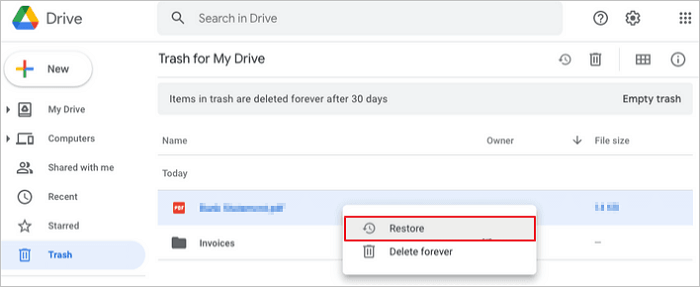
Google Drive's Bin is a temporary storage for files you've removed from the drive. Files in the Bin are preserved for one month, allowing you to recover them if needed. However, if you delete a file forever, empty the Bin, or let it sit for a month, the file will be permanently deleted.
To recover deleted Google Drive files from the Trash folder:
Step 1. On your computer, open your Google Drive.
Step 2. Navigate to the "Trash" option.
Step 3. Right-click the file you want to restore and select "Restore".
Also read: How to recover permanently deleted files from OneDrive.
Method 2. Recover Deleted Google Drive Files from Backup
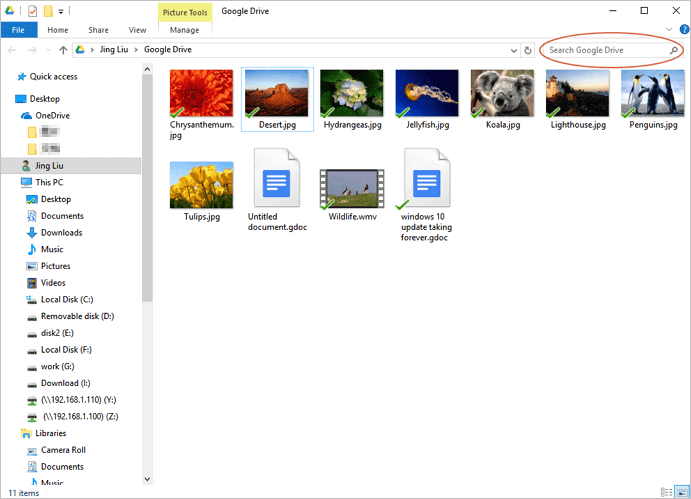
The 'Backup and Sync' program, installed on your PC, automatically syncs files from specific folders you set up, such as Desktop, Documents, and Pictures.
To recover permanently deleted files from Google Drive, follow the below steps.
Step 1. To find the path C:\Users\Your name\Google Drive, simply launch Backup and Sync and navigate to that location.
Step 2. All the copies of essential files are viewable on the pane.
Step 3.You can browse through the files by viewing large icon thumbnails or by directly searching for the file name in the search box.
Method 3. Recover Permanently Deleted Files from Google Drive with Software
If you regularly sync or upload files from your computer to Google Drive, there's a chance you can recover the original files even after they've been uploaded to the cloud. If you can recall where the original files were saved, things will be much easier. Even if they've been deleted after syncing, using data recovery software can help track them down from where they were saved.
Deep Data Recovery is a reliable data recovery software available for both Windows and Mac. It scans lost files from specific locations like a computer hard drive, external HDD, USB flash drive, or memory card. Note that it's not designed for recovering missing Google Drive files, but rather the original location where they were created. You can download the free version first, and the software will ask you to select the file location to scan. Be sure to choose the correct location to avoid scanning your local drive by mistake.
To recover permanently deleted Google Drive files from a storage location, follow the below steps.
Step 1. Choose file types and click "Fast Scan" to start
Launch Deep Data Recovery, choose the file types you want to recover, and click "Fast Scan" to begin the recovery process.

Note: You can choose different search modes based on where and why the data was lost.
Step 2. Select a drive and start scanning
To recover lost data, hover over the partition where the data was lost and click "Scan" to start the scanning process.

Step 3. Check and preview scanned files
To narrow down the scan results, use the file format filter on the left or upper right corner. This will help you find the specific files you're looking for. Once you've filtered the results, you can click the "Preview" button or double-click a file to see its content. This way, you can verify that you've found the right files.

Step 4. Recover lost data to a secure location
To recover a lost file, select the file, click the checkbox next to it, and then click "Recover" to restore the lost data to a secure location, avoiding the original disk where the data was lost.
Method 4. Restore Lost Data from Google Admin Console
As a G Suite user, you can recover permanently deleted files from Google Drive within 30 days, even after the 30-day trash limit.
Follow the information below to recover permanently deleted photos/videos/files from Google Drive.
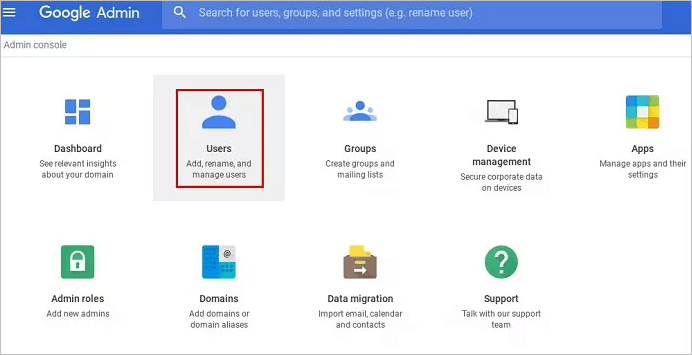
Step 1. Login into the Google Admin Console.
Step 2. Click on the "Users" icon.
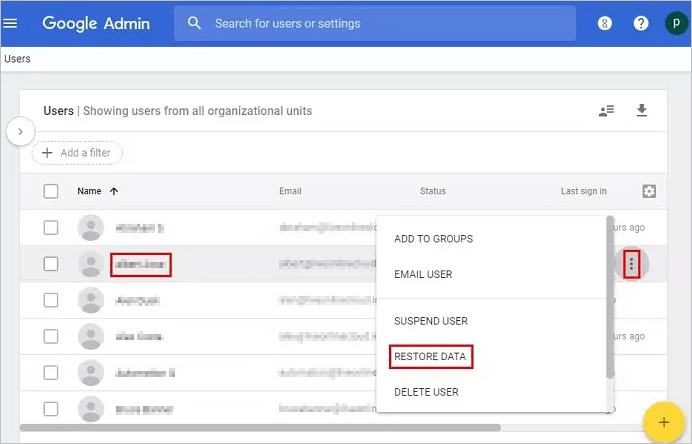
Step 3. Select the user for which you have to recover the files
Step 4. Click on the 3 dots on the right side.
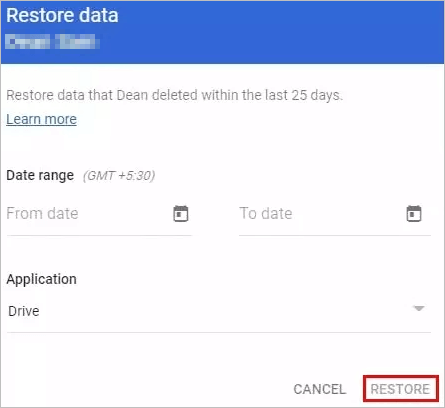
Step 5. From the pop-up menu, select the "Restore data" option.
Step 6. Select "Drive" as the application and click on "Restore".
Method 5. Restore Permanently Deleted Files from Google Drive with Official Support
You can try to recover deleted files by yourself if you have a backup of the files, if the files were not permanently deleted, if you have a system restore point, and if you have a third-party recovery software.
- The file must be created/uploaded to the Google Drive server by the same user or account that will be accessing it, in order for the file to be visible and accessible to them.
- The original owner of the file must grant the rights to it, which allows others to access and modify it.
Google account associated with a school, company, or organization, typically the administrator can recover deleted files.
If you're a paid Google Drive customer, writing to support is a surefire way to recover deleted files, but free users may face a slower response.
To restore permanently deleted files from Google Drive support, follow the below steps.
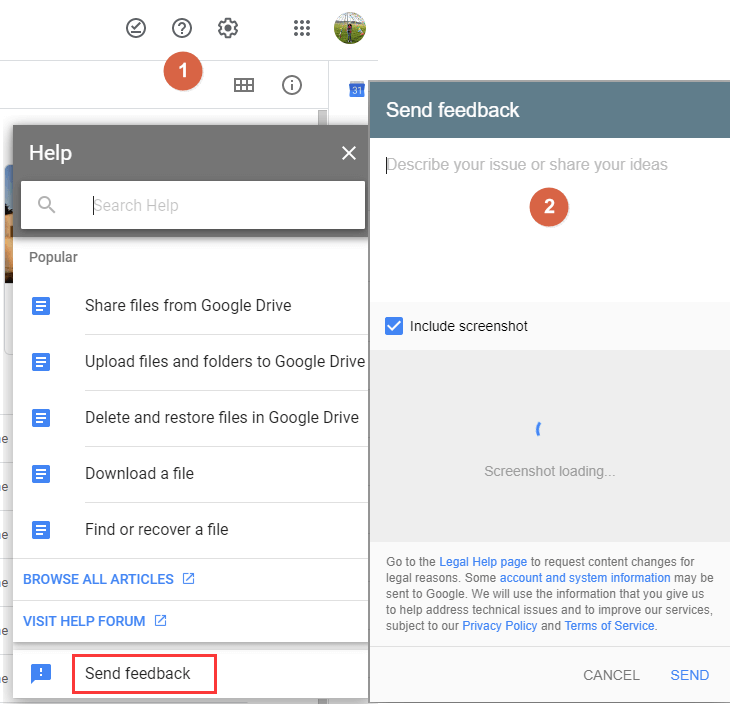
Step 1. To access Google Drive's help resources, click the question mark icon in a circle on the webpage or app interface, and select the "Help" option. This will provide you with information and support to help you use Google Drive effectively.
Step 2. From the drop-down list, click "Send Feedback".
Step 3. Describe your issue in the pointed area and add a screenshot if necessary. Click SEND.
How to Prevent Google Drive Data Loss
It's easy to recover deleted files from Google Drive. But it's hard to restore permanently deleted files from Google. Preventing data loss is better than losing precious data. You don't have to look for ways to recover Google Drive data. Follow the tips below to avoid data loss in advance.
Tip 1. Back Up Data Regularly
Use Google Backup and Sync to securely back up your files, photos, and videos in Google Drive and Google Photos.
Tip 2. Avoid Accidental Deletion
Before deleting a file, ensure you don't need it anymore and confirm you're deleting the correct file to avoid any potential data loss.
Tip 3. Run an Antivirus
To secure your Google Drive, ensure that you have a strong password and enable two-factor authentication. Additionally, be cautious when opening or downloading files from unknown sources, and avoid installing any third-party software. This will help prevent unauthorized access to your account and protect your sensitive data.
Conclusion
Google Drive is a convenient and safe data storage service, but data loss can still occur. Fortunately, you can recover deleted files using the provided solutions. If you encounter any further issues, Qiling can provide assistance with lost data recovery.
Recover Deleted Files from Google Drive FAQs
The new policy aims to reduce the number of students who drop out of school by providing them with additional support and resources. This includes access to tutoring, counseling, and other services that can help them stay on track and succeed academically.
1. Can you recover permanently deleted photos from Google Drive after 60 days?
You can recover permanently deleted photos from Google Drive after 60 days using the Trash and the Google Drive recovery tool.
- Recover from the Trash Folder
- Recover from Backup
- Restoring from G Suite Admin Console
- Restoring from Google Drive support
2. Where do permanently deleted files go?
When you delete a file or folder in Google Drive, it is moved to the trash, where it stays for 30 days before being permanently deleted.
Also read: Where do permanently deleted photos go?
3. How to recover permanently deleted files in Windows 10 without the software?
To recover permanently deleted files without software, you can try using the "Previous Versions" feature in Windows or the "Time Machine" feature in macOS. In Windows, right-click on the file or folder you want to recover and select "Properties.
Step 1. To access the Start menu, click on the Windows icon located at the bottom left corner of the screen. Then, type cmd in the search bar, and press Enter to open the Command Prompt.
Step 2. To run Command Prompt with administrator privileges, select the option "Run as administrator".
Step 3. The command "attrib -h -r -s /s /d drive letter:\*.*" and press Enter. This command is used to remove the hidden, read-only, and system attributes from all files and subdirectories on a specified drive.
4. How long does Google Drive keep deleted files?
Usually, Google Drive keeps deleted files for 30 days.
Related Articles
- SD Card/USB Drive/Pen Drive Shows 0 Bytes
- Fix An External Hard Drive That's Not Working/Responding/Showing Up
- Fix Hard Drive Disappeared in Windows 10 Without Losing Data
- How Do I Get My Computer to Recognize a USB Device [Solved]
- How to Recover MOV Files from SD Card/Formatted SD Card
Whether you want to recover deleted or lost MOV files from SD card, check out the guidelines for how to recover MOV files from SD card due to deletion or SD card format. - NTFS Partition Recovery - How to Recover NTFS Partition
Accidents can happen, but with the right tools, you can recover your NTFS partition without losing data. This article provides a guide on how to do so in Windows 10/8/7/Vista/XP, and recommends using free Qiling NTFS partition recovery software to restore deleted or lost NTFS drives.
Products
Articles & Tutorials
- Data Recovery
- Data Backup
- File Recovery
- File Backup
- System Backup and Restore
- Disk and Partition Clone
- Technical articles
- Mobile articles
- Disk Master Help
- Windows Data Recovery Tutorials
- Windows Secure Delete Tutorials
- Windows Partition Management Tutorials
- Windows File Backup and Restore Tutorials
- Windows System Backup and Restore Tutorials
- Windows Disk Backup and Restore Tutorials
- Windows Clone Tutorials