Fix Hard Drive Disappeared in Windows 10 Without Losing Data
User Issue: Hard Drive Disappeared After Windows 10 Update
"Does anyone know how to make the disappeared hard drive to show up again in Windows 10? My computer received the latest Windows 10 update last night, and it automatically installed the update. The problem is that I could not see the second hard drive in File Explorer after the computer restarted. I rebooted the computer but the hard drive still disappeared. Is there a way that can help me to make the disappeared hard drive show up in Windows 10?"
When a hard drive disappears on a Windows computer, it can cause data loss, storage space issues, and other problems. To resolve this issue, you can try to recover the data from the disappeared hard drive using data recovery software, check the disk management for any changes, and ensure that the drive is not disabled or removed in the device manager. If the issue persists, you can try to reinstall the operating system or seek professional help from a computer technician.
If your SSD is not showing up in Windows 10, you can refer to the other page for solutions. Additionally, some of the solutions on that page may also be applicable to the issue of a missing HDD, such as rescanning, initializing, and checking for hard disk errors.
| Workable Solutions | Step-by-step Troubleshooting |
|---|---|
| Case 1. Hard drive disappeared in Explorer |
Method 1. Run hardware device troubleshooter...Full steps Method 2. Perform partition recovery in 2 Ways...Full steps |
| Case 2. Hard drive disappeared in Disk Management |
Method 1. Update device driver...Full steps Method 2. Change the drive letter...Full steps |
Quick Fix Hard Drive Disappeared Issue in Windows 10
If your hard drive is not showing up on your Windows PC, try plugging it into a different USB port to see if it resolves the issue. If that doesn't work, try connecting the hard drive to a different computer to see if the problem persists. This can help determine if the issue is with the drive itself or with the original computer.
If the problem gets solved, you may need to replace the USB cable or hard drive cable.
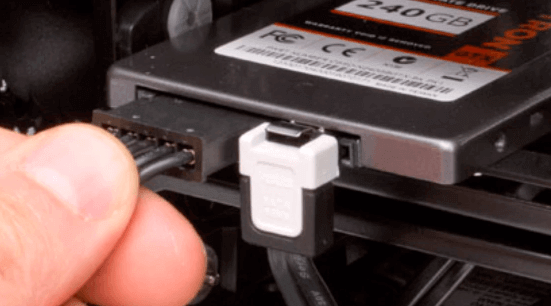
If the problem still exists, don't worry. Just follow the methods below to fix the hard drive disappeared in Windows 10 error now.
Fix Hard Drive Disappeared in File Explorer Error
If you can't see your hard drive partitions in File Explorer, try checking the drive letter assignments in Disk Management or using the Diskpart command to assign a drive letter to the partition. If that doesn't work, you can also try checking the partition's file system type and formatting it if necessary.
Method 1. Run Hardware and Device Troubleshooter to Fix Hard Drive Disappeared Issue
Step 1. Press the "Windows + R" keys.
Step 2. Type "control" and press enter to open the control panel.
Step 3. Type "troubleshooting" in the control panel search box and open it.
Step 4. Click "View all" on the left pane.
Step 5. Run the hardware and devices troubleshooter to identify and resolve hardware and device issues on your computer. Follow the on-screen instructions to complete the troubleshooting process.
Method 2. Perform Partition Recovery with Data Recovery Software
If you accidentally delete a hard drive partition in Windows 10, the hard drive will show up as 'unallocated space'. To recover it, you can create a new partition on the unallocated drive, which will make Windows recognize it again. However, this will result in the loss of all data on the original partition. Creating a new partition will essentially treat the hard drive as a new drive, erasing any existing data.
You can recover a lost partition using either Qiling data recovery software to restore data from the lost partition, or Qiling Partition Recovery to restore the entire hard drive, including data on it.
Recover Data from Lost Partition
If you need to recover data from a hard drive after creating a new partition on unallocated space, choose Deep Data Recovery to retrieve various file types, including photos, videos, documents, and emails, from a range of storage devices.
In addition to recovering lost files, Qiling data recovery can also repair corrupted files automatically after data recovery. However, it's essential to note that this software is designed to recover data from a partition that still exists, but has been deleted or corrupted, and won't help recover a completely disappeared partition.
Step 1. Select file types and click "Fast Scan" to start.
Launch Deep Data Recovery on your PC, select the file types you want to recover, and click "Fast Scan" to begin the recovery process.

Note: You can choose different search modes based on where and why the data was lost.
Step 2. Select and scan the lost partition
To recover lost data, select the "Lost Partition" option and click "Scan" to search for all the lost data. If there are multiple lost partitions, you can identify them by their partition size.
The Windows system doesn't support the Linux file system, so an Ext2 or Ext3 partition will be recognized as a lost partition with no drive letter. To recover data from an Ext2/Ext3 partition, follow these steps.

Step 3. Filter the scanned results
You can quickly filter scanned files by category, such as Pictures, Videos, Documents, Audio, and Others, or search for a specific file by name in the upper right search box.

Step 4. Preview and recover data from the lost partition
Before recovery, you can preview the file to ensure it's the data you need. Choose all the files you need and click "Recover" to restore them.
Restore Deleted or Lost Partition
To recover a disappeared hard drive and its data in Windows 10, download Qiling Partition Recovery from the product page, and follow the guide to show up the missing hard drive and its contents.
Step 1. Select file types and click "Fast Scan" to start.
Launch Deep Data Recovery on your PC, select the desired file types, and click "Fast Scan" to initiate the recovery process.
Note: You can choose different search modes based on where and why the data was lost.
Step 2. Run Qiling Partition Recovery on your PC.
Please scan the disk where you lost partition(s) to continue.
Step 3. Wait for the scanning process to complete.
Step 4. Preview and restore the lost partition(s).
Double-click on the partition marked as "Lost" with "Good" recoverability.
Let the program scan the selected disk and find the lost partition(s) to recover the lost data.
After scanning, the software will show a preview of the lost partition, click "OK" and then "Proceed" to start restoring the lost partition.
Step 5. Click "Recover" to finish the partition recovery process.
If the program warns you that there is a conflict, back up the listed partition with essential data to an external hard drive first, then execute the final operation to restore your lost partition.
Fix Hard Drive Disappeared/Not Showing up in Disk Management
If the hard drive disappeared or failed to show up in Disk Management, you can try booting your computer from a Windows installation media, such as a USB drive or CD/DVD, and then follow the on-screen instructions to select the correct hard drive and install the operating system. Alternatively, you can also try running the built-in Disk Management tool in Windows, and then select the "Re-Scan Disk" option to see if the hard drive will be detected.
Method 1. Update Device Drivers in Windows 10
Step 1. Right-click on the Start button and select "Device Manager".
Step 2. Expand one of the categories to find the name of your device, then right-click it, and select "Update Driver".
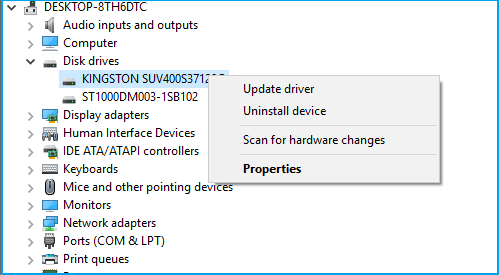
Step 3. Select "Search automatically for updated driver software".
If Windows doesn't find a new driver, you can try looking for one on the device manufacturer's website and follow their instructions. Otherwise, you can try to reinstall the driver by doing like this:
Step 1. Open Device Manager, right-click the name of the device and this time select "Uninstall device".
Step 2. Restart your PC and Windows will attempt to reinstall the driver.
Method 2. Change Drive Letter of Disappeared Hard Drive
Step 1. Press the "Windows + R" keys to bring up the Run dialog.
Step 2. Type "diskmgmt.msc" and press Enter to open disk management.
Step 3. The disappeared hard drive can be detected now. Right-click on it and select "Change drive letter and paths".
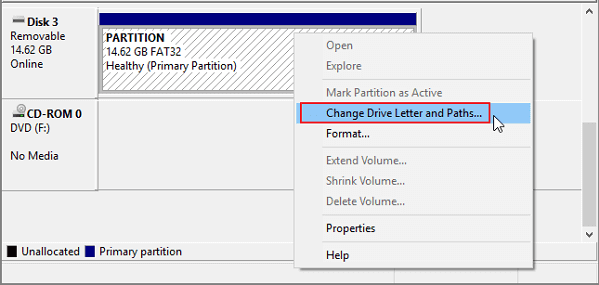
Step 4. Click "change" and assign a different drive letter.
Step 5. Save the changes, restart the computer and check again.
Related Articles
- SSD vs HDD Lifespan, Which Lasts Longer SSD or HDD? What's the Difference
- 4 WD My Passport Repair Tools: Fix Cannot Access My Passport External Hard Drive
- Recover Deleted Recordings/Shows on DirecTV
- 1TB HDD vs 256GB SSD, Which Is Better
- Best Data Recovery Services in Denver, Colorado | Top 6
this guide can help to find the best data recovery services in Denver. You can easily restore lost data with the recommended top six data recovery labs. Keep reading to explore detailed information. - The Top 9 Data Recovery Services in Washington, DC (2024)
Do you need assistance finding data recovery services and recovering photographs, documents, and emails from computers or laptops in Washington, DC? Your problems will be resolved once you read this post.
Products
Articles & Tutorials
- Data Recovery
- Data Backup
- File Recovery
- File Backup
- System Backup and Restore
- Disk and Partition Clone
- Technical articles
- Mobile articles
- Disk Master Help
- Windows Data Recovery Tutorials
- Windows Secure Delete Tutorials
- Windows Partition Management Tutorials
- Windows File Backup and Restore Tutorials
- Windows System Backup and Restore Tutorials
- Windows Disk Backup and Restore Tutorials
- Windows Clone Tutorials