4 WD My Passport Repair Tools: Fix Cannot Access My Passport External Hard Drive
WD My Passport Can't Access
"You're trying to access your 1TB WD My Passport external hard drive on a Windows 10 desktop, but it's prompting you to format the disk due to an error, despite the drive still containing data. Have you tried ejecting and re-reconnecting the drive, or is there another solution to access your data without formatting?"
If you're experiencing issues with your Western Digital My Passport hard drive, where the power LED is on but the drive is not accessible, you may receive error messages. This problem can occur due to various reasons, including a faulty drive, corrupted file system, or issues with the USB connection. To resolve this issue, you can try restarting your computer, checking the USB connection, or using a different USB port. If the problem persists, it may be necessary to contact Western Digital support for further assistance.
- You need to format the disk before you can use it.
- Drive X: is not accessible. Access is denied.
When checking the drive's status, you might see different signs such as error messages, unusual noises, or even physical damage to the drive itself. These signs can indicate a problem with the drive's mechanical or electronic components, which can be caused by various factors such as physical shock, overheating, or electrical surges. If you notice any of these signs, it's essential to stop using the drive immediately and take it to a professional for further inspection and repair.
- In Disk Management, the disk 0 or disk 1 shows as unknown, not initialized, or the type of file system is RAW, which means it needs to be initialized before it can be used. This is typically done using the Initialize Disk option in Disk Management.
- The drive's properties show that it has 0 bytes used and 0 bytes free, indicating that it is not being utilized or is not visible in the system.
How to Access, View or Recover Data from Inaccessible WD External HDD
If your WD My Passport drive shows an error and you can't access your data, don't panic - the files can still be recovered. You can use Deep Data Recovery, a top-ranking hard drive recovery software, to rescue your data from a corrupted or inaccessible drive, reducing the risk of losing your files when WD drives can't be accessed or opened.
Step 1. Select file types and click "Fast Scan" to start
- To recover your lost data, download and install Qiling Data Recovery software on your PC or laptop.
- Connect the external hard drive to your computer.
- Launch Deep Data Recovery software, select the desired file types, and click "Fast Scan" to initiate the recovery process.

Note: You can choose different search modes based on where and why the data was lost.
Step 2. Choose and scan the external hard drive
- To recover deleted files from an external drive, select the external drive from the External drives list, then click on "Scan for lost data".

Step 3. Check the scan results
- Qiling data recovery software scans the selected drive for all data, including deleted, corrupted, and existing data, immediately.
- You can use the Filter feature to quickly locate specific types of files, such as Pictures, Word, Excel, PDF, videos, or emails, and isolate them from other files.

Step 4. Preview and recover data
- Double-clicking a file from the scanned results to preview.
- Choose the files you want and click "Recover".
- To avoid overwriting the original files, save the recovered files to a different drive, such as an external hard drive or a USB drive, instead of the original drive where the files were lost. This will prevent any potential data loss and ensure the recovered files are safe and accessible.
How to Repair Not Accessible WD My Passport External Hard Drive
You can't access an external hard drive due to connection issues or hard drive corruption.
If you're unable to open a connected drive in Windows 10/8.1/8/7, first check the data cable, which may be loose or degraded from bending and flexing. The connectors can become bent or the internal pins may corrode from contact with contaminants. To troubleshoot, inspect the cable for any signs of damage or wear.
- Use a different data port
- Use a different data cable
- Use a different computer, if possible
If the data cable is perfectly intact, proceed with WD My Passport repair tools as recommended. If not, you may need to replace the cable.
What are the WD My Passport repair tools?
You can utilize various Windows built-in programs as effective tools for repairing your WD My Passport, including Windows Disk Management, Windows CHKDSK Command Prompt, and Windows Troubleshooter, which can help resolve hardware-related issues such as non-recognition, non-detection, or non-functionality. Before attempting repair, ensure that you've extracted your data from the inaccessible drive using a tool like Deep Data Recovery to prevent permanent data loss.
1. Windows Disk Management
If your WD My Passport external hard drive has turned RAW, it won't show up in File Explorer, but you can check if it's visible in Disk Management. To resolve this issue, you'll need to convert the RAW drive to NTFS or FAT32, which will allow Windows to read it normally. This process can help resolve hard drive corruption problems, including those where the file system is RAW.
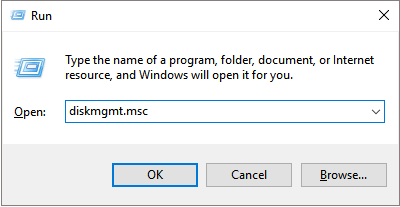
Step 1: Press the Windows key + R to open the Run dialog box, type "diskmgmt.msc", and press Enter to open the Disk Management utility.
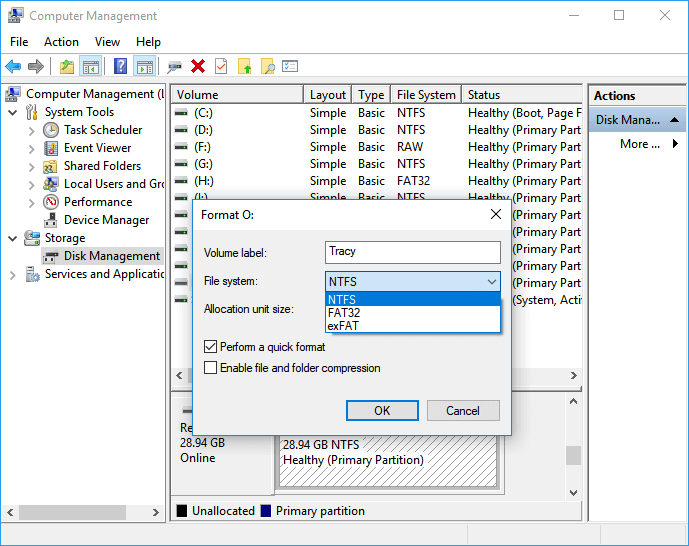
Step 2: Right-click on the WD My Passport external hard drive and choose "Format" from the context menu.
Step 3: Follow the onscreen wizard, choose a proper file system, and complete the process of fixing a not accessible WD My Passport external hard drive using Disk Management.
If the problem persists, try changing the drive letter by following the steps below and see if that resolves the issue.
Step 1: Choose "Change Drive Letter and Paths..." this time.
Step 2: To assign a new drive letter to the WD My Passport, click "Add, Change, and Remove", then click the "Change" button, select a drive letter from the list, and click "OK".
2. Windows CHKDSK Command Prompt
If your hard drive becomes inaccessible and access is denied, it's likely due to bad sectors that have grown. To check and repair these bad sectors and regain access to your hard drive data, you can use the CHKDSK command. This command is a good choice for checking for errors or repairing the hard drive, and can be run with the following command.
- Warning
- To resolve the hard drive inaccessible issue, running chkdsk may be an option, but it can also lead to total data loss. Therefore, it's recommended to perform data recovery in advance and then proceed with the CMD method.
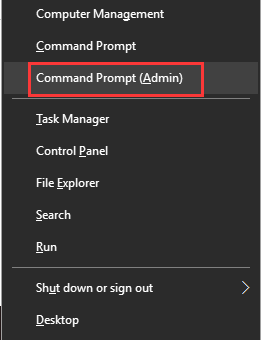
Step 1: In Windows 10/8.1/8/7, press Windows + X keys to bring up a context menu, and choose Command Prompt (Admin).
Step 2: Type chkdsk H: /f /r and hit enter.
H represents the drive letter of your WD My Passport external hard drive. Replace it with the correct drive letter of your own drive.
Use CHKDSK Alternative to Fix Problematic Device
Download Qiling CleanGenius and install it on your computer. Let's start checking and refixing file system error on your device now.
Step 1. Click "File Showing" to enter the next step.
Step 2. Choose the target device and tick the box of "Check and fix file system error". Click "Execute" to start fixing the problematic device.
Step 3. When the fixing process is complete, click "here" to access and use your device.
3. Windows Troubleshooter
This troubleshooter checks your computer for common issues and ensures that any new hardware or devices connected to your computer were installed correctly.
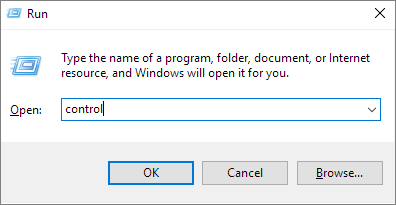
Step 1: To access the Control Panel, press the Windows + R keys to open the Run box, type "control" and press Enter. This will open the Control Panel on your Windows system.
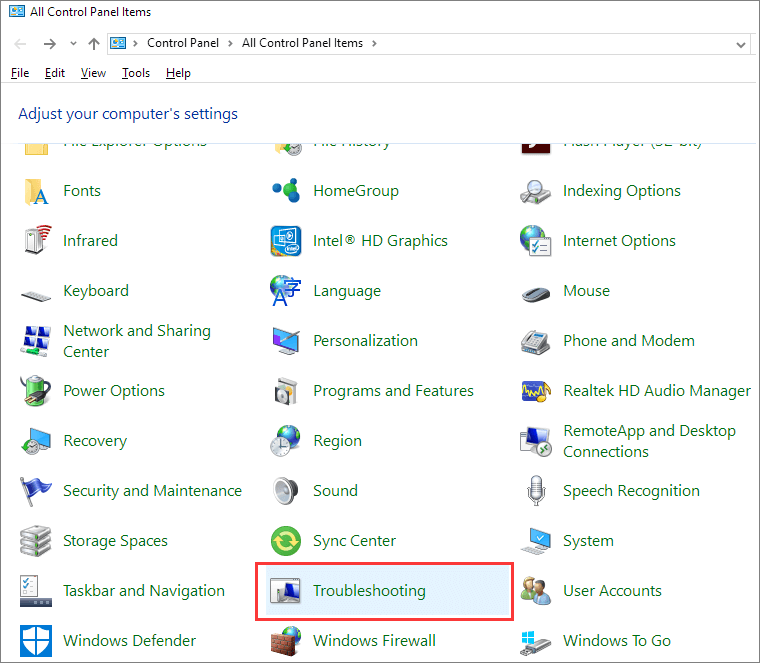
Step 2: Find Troubleshooting and click in.
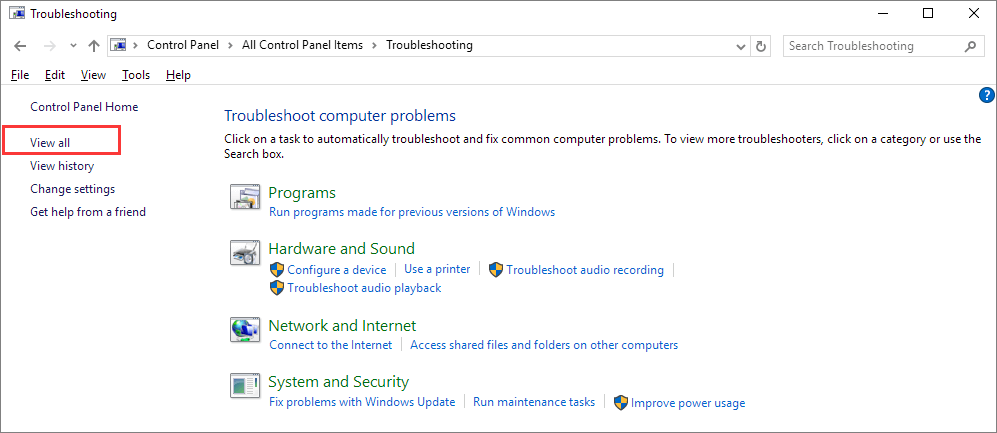
Step 3: Click "View all" on the left pane.
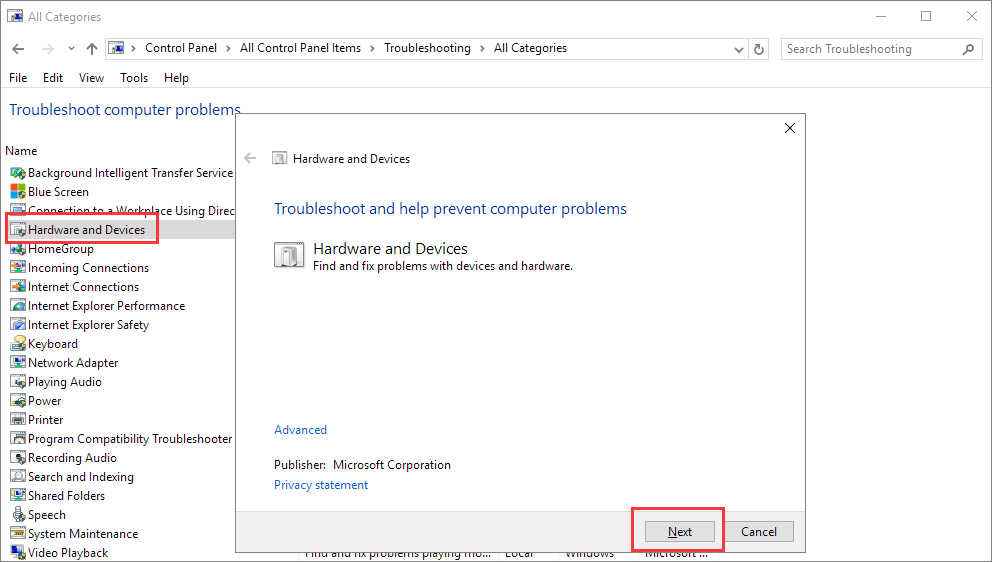
Step 4: Find and run "Hardware and Devices". Follow the onscreen instruction to til the end.
Related Articles
- Undo Disk Cleanup in Windows, No Data Loss
- 3+ Solutions: Cannot Format Raw Drive Error in 2022
- Fix SanDisk Cruzer Not Recognized Issue
- How to Recover Deleted Files from Network Drive Shared Folder
- 3-Step Solution to Recover Deleted Picasa Photos with Ease
Here is a 3-step solution to recover deleted Picasa photos. You can start by checking the Recycle Bin, as recently deleted files are stored there. If the photos are not found, you can use Qiling file recovery software, which can scan your device for deleted files and potentially recover them. - How to Recover Deleted SQL Server Rows [2022]
when you deleted a single or several rows in SQL Server. On this page, with the provided methods by Qiling software, you'll be able to recover deleted rows and repair corrupted MS SQL Server with ease.
Products
Articles & Tutorials
- Data Recovery
- Data Backup
- File Recovery
- File Backup
- System Backup and Restore
- Disk and Partition Clone
- Technical articles
- Mobile articles
- Disk Master Help
- Windows Data Recovery Tutorials
- Windows Secure Delete Tutorials
- Windows Partition Management Tutorials
- Windows File Backup and Restore Tutorials
- Windows System Backup and Restore Tutorials
- Windows Disk Backup and Restore Tutorials
- Windows Clone Tutorials