1TB HDD vs 256GB SSD, Which Is Better
Gaming consoles and tablets can also use external storage devices like solid-state drives, in addition to their internal storage.
When discussing 1TB HDD vs. 256GB SSD, it is important to note that these storage options are not limited to laptops and computers; they can be used with a variety of devices. Both options have their own advantages and disadvantages, which need to be considered.
256GB SSD vs 1TB HDD: A Detailed Comparison
What Are Advantages and Disadvantages of HDDs
Hard disk drives (HDDs) are devices that store files and data, available in various sizes, and commonly found in laptops and computers.
Compared to SSDs, hard disk drives have significant advantages, but they also have some notable disadvantages.
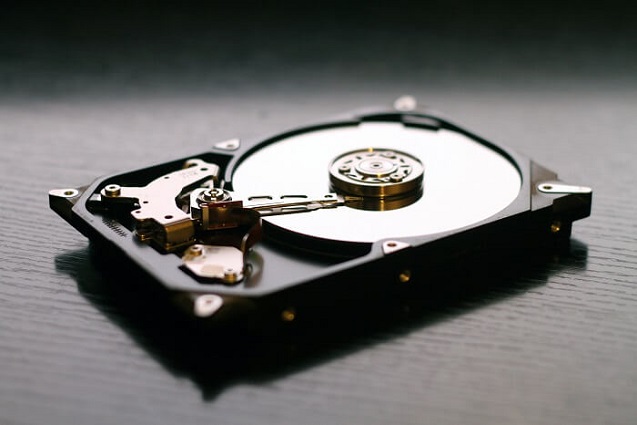
Advantages of HDD
Here are some of the best advantages of HDD.
- HDDs Are Affordable
HDDs are an affordable storage option, with a 500GB model costing around $50. They offer plenty of space to store files, making them a great choice for budget-conscious shoppers.
- They Last Longer Than SSD
One common misconception about technology is that SSDs (solid-state drives) are inherently better than HDDs (hard disk drives). Some people also believe that SSDs' lack of moving parts means they'll last longer, but this isn't always true. In fact, HDDs often have a longer lifespan than SSDs.
HDDs are a durable storage option that can last up to 10 years with minimal drops, making them a reliable choice for long-term storage needs.
The average capacity of a hard disk drive (HDD) is around 500GB, whereas the average capacity of a solid-state drive (SSD) is approximately 250GB, allowing for twice as much data storage on an HDD compared to an SSD.
Disadvantages of HDD
Hard disk drives (HDDs) have some notable downsides, including the potential for data loss due to mechanical failure, slower data access times compared to solid-state drives, and the risk of physical damage from drops or other impacts. Additionally, HDDs can be noisy and generate heat, which can be a concern for users who value quiet and cool operation. Furthermore, HDDs have a limited number of write cycles, which can lead to data degradation over time.
- Not That Fast
HDDs are slower than SSDs because they use spinning disks, causing latency, making them unsuitable for those who prioritize speed.
- The Heat Factor
HDDs produce more heat than SSDs, which can be a problem in small form factor cases or tightly packed systems, leading to throttling and reduced performance.
In a data center environment, using an HDD-based storage array can cause extra heat, which can lead to cooling issues and increased energy costs.
- Gets Damaged with Bumps
Another downside of HDDs is that they are susceptible to damage from bumps and knocks, which can cause files to become corrupted, requiring careful handling to prevent damage.
What Are Advantages and Disadvantages of SSDs
Now that we've covered HDDs in detail, let's shift our focus to SSDs.
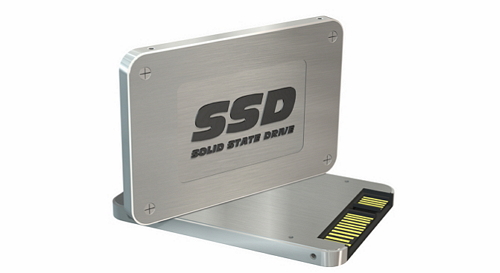
Advantages Of SSDs
Solid-State Drives (SSDs) excel in several areas, particularly in their read and write speeds.
- Increased Speed and Performance
SSDs have a significant advantage over traditional hard drives in terms of speed and performance, offering faster data transfer speeds that make them ideal for high-performance computing applications where every millisecond counts.
- SSDs Consume Less Power
Switching from a traditional hard drive to an SSD can significantly increase battery life in laptops, reduce power consumption in desktops, and lead to considerable energy savings in servers, ultimately adding up over time.
Disadvantages of SSDs
There are some SSD drawbacks that you need to know.
- They Are Expensive
SSDs are often more expensive than regular hard drives due to their faster transfer speed and fewer moving parts, making them a more expensive but reliable option, while regular hard drives may be a better choice for those on a budget or needing to store large amounts of data.
- Limited Write Cycles
One significant disadvantage of SSDs is their limited write cycles, which can translate into a shorter lifespan. This factor should be considered before opting for a solid-state drive.
Which to Go For, a 250GB SSD or a 1TB HDD
Now that we have examined the advantages and disadvantages of both HDDs and SSDs, let's summarize the key differences to help you decide which storage option is right for your needs.
A 250GB SSD would be more suitable for those who need faster write and read speeds, but have limited storage space. For professionals like gamers or video editors, a 250GB SSD would be sufficient.
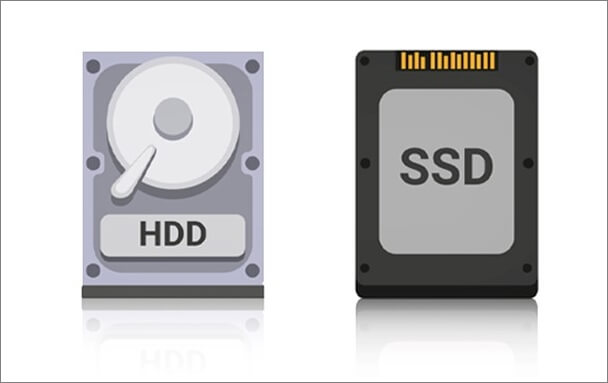
The 1TB HDD storage option offers a massive 1TB of storage space at an affordable price, making it suitable for casual users who need to store a large amount of data files. However, it does not offer faster speeds and can be prone to physical damage and heat buildup.
Bonus Tip: How to Perform Data Recovery When SSD/HDD Fails
Data loss can occur with any storage device, despite modern storage devices offering various functionalities. To recover lost files, download professional data recovery software instead of stressing about it.
Deep Data Recovery is a remarkable tool that provides instant access to lost data files, including photos, videos, documents, emails, and more. It can recover lost files from both SSDs and HDDs, making it a versatile file recovery program.
Qiling data recovery software is a powerful tool that can recover lost data due to accidental deletion, formatting, or OS crashes, and also repair corrupted files in various formats, such as repairing corrupted videos in MOV, MP4, GIF, etc.
For those under stress due to lost or corrupted data files, don't worry! Whether you're an expert or a novice, you can easily recover your data from an HDD or SSD with our assistance.
Step 1. Select file types and click "USB/SD Scan" to start
To start the Deep Data Recovery process, open the software and select the file types you want to recover. Once you've made your selections, click the "USB/SD Scan" button to begin the recovery process.

Note: You can choose different search modes based on where and why the data was lost.
Step 2. Scan the SSD
To recover data from a lost partition, select the SSD where the data was lost and click the "Scan" button. This will initiate the scanning process, allowing you to locate and recover your lost data.

Step 3. View the results
After the scanning process is complete, you can use the "Filter" and "Search" options to find lost SSD data by checking the "Deleted Files" and "Other Lost Files" folders. This allows you to locate and recover any missing data.

Step 4. Recover SSD files
Select the desired data and click the "Recover" button to retrieve lost SSD files.
Final Thoughts
If you're looking for a reliable and affordable storage option, consider an HDD. Just be aware of the potential downsides, such as slower speeds and mechanical failure risks.
For those who value speed, SSDs are the way to go, offering fast transfer speeds but at a higher cost. On the other hand, HDDs are more budget-friendly and suitable for users who prioritize storage capacity. Regardless of which storage device you choose, it's always a good idea to have a data recovery tool like Qiling at the ready, just in case of any data loss.
Related Articles
- Fix SanDisk Cruzer Not Recognized Issue
- How to Fix 'Photos Disappeared from Camera SD Card' Efficiently
- [2022 Tips] Fix Corrupted or Damaged SD Card Without Losing Data
- Repair a Corrupted Pen Drive/SD Card for Free
- Fix USB Access Denied Without Data Loss
If you're experiencing a “USB access denied” error when trying to access saved data on an internal/external hard disk, USB flash drive, pen drive, SD card, or file folder, this article provides can help. - [SOLVED] Hard Drive/External Hard Drive Only Shows Half Capacity
Many reasons would result in hard drive showing partial capacity, like a half(1tb ssd only showing 500gb). If your hard drive only showing partial capacity, so you can get 6 fixes to how to restore hard drive full capacity.
Products
Articles & Tutorials
- Data Recovery
- Data Backup
- File Recovery
- File Backup
- System Backup and Restore
- Disk and Partition Clone
- Technical articles
- Mobile articles
- Disk Master Help
- Windows Data Recovery Tutorials
- Windows Secure Delete Tutorials
- Windows Partition Management Tutorials
- Windows File Backup and Restore Tutorials
- Windows System Backup and Restore Tutorials
- Windows Disk Backup and Restore Tutorials
- Windows Clone Tutorials