Repair a Corrupted USB Flash Drive/SD Card for Free
Quick Start to Recover Data from a Corrupted USB Flash Drive
- Step 1. Connect the Corrupted Pen Drive to scan.
- Connect your pen drive to your computer and run Qiling pen drive recovery software to recover lost data.
- Step 2. Scan the pen drive and preview files by double-clicking them from the result.
- Step 3. Recover pen drive files and save.
- More details...
What to Do When A Pen Drive or SD Card Gets Corrupted?
Are you looking for a way to repair a corrupted pen drive, SD card, or hard drive on your PC, camera or mobile phone? Not sure what to do when a storage device suddenly stops working, gets corrupted, or even becomes unrecognized by your PC?
Here are three doable things for you if you don't know what to do when you are faced with pen drive, USB or SD card corruption: Try to recover data from the corrupted device using a data recovery software, format the device to its original state using a formatting tool, and contact the manufacturer or a professional for further assistance if the issue persists. These little tricks are easy to perform but powerful enough to resolve commonplace malfunctioning symptoms.
Tip 1. Try to connect your device to a nearby computer
If you're experiencing issues with a USB device not being recognized, try using a nearby idle computer to troubleshoot the problem. This can help rule out any connection issues between the device and the computer.
Tip 2. Change the drive letter and path
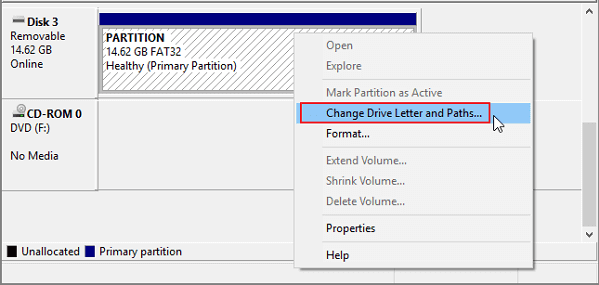
A drive letter conflict can cause a device to be undetectable. To resolve this, access Windows Disk Management by going to This PC/My Computer, clicking on "Manage", and then selecting "Disk Management".
To resolve the issue of the connected drive not showing up normally, try assigning a new drive letter to it. This can be done by right-clicking on "This PC" or "Computer" and selecting "Manage", then clicking on "Disk Management" and selecting the connected drive. Right-click on the drive and select "Change Drive Letter and Paths".
Tip 3. Update device driver
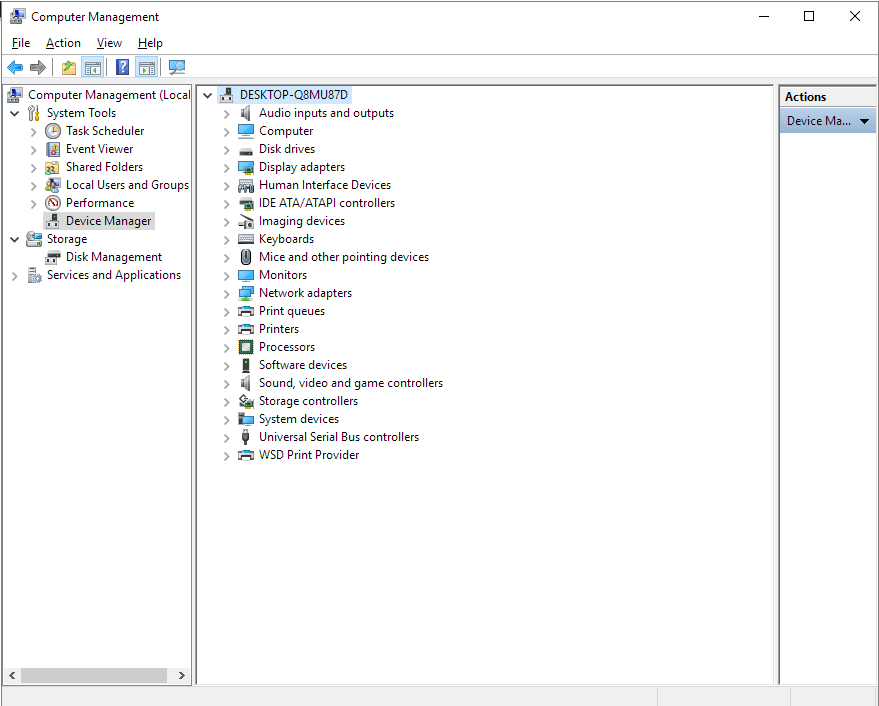
If you can't find a connected drive in Windows File Explorer or Disk Management, try checking the Device Manager. This PC/My Computer -> Manage -> Device Manager.
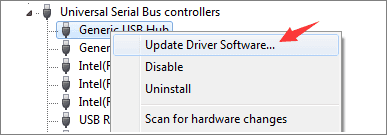
To get the Generic USB Hub to appear on the PC again, expand the Universal Serial Bus controllers, right-click on each Generic USB Hub, and select "Update driver" from the context menu. This process may need to be repeated for each Generic USB Hub until the device is recognized by the PC.
Tip 4. Turn to Manual Pen Drive Repair Service
If you're having trouble repairing a corrupted pen drive, you can seek help from pen drive repair experts. Qiling offers remote assistance services to fix various issues, including USB/HDD/SSD problems, partition recovery, and data wiping.
Consult with Qiling data recovery experts for one-on-one manual recovery service. We could offer the following services after a FREE diagnosis.
- To fix errors and restore data from various storage devices, including HDD, SSD, external hard drives, and USB flash drives, as well as RAID systems.
- To recover a lost partition that cannot be restored by data recovery software.
- To fix disks that cannot be read or accessed due to bad sectors, you can try running a disk check or scan using built-in tools like `chkdsk` in Windows or `fsck` in Linux. These tools can identify and repair bad sectors on the disk.
- Fix disks that become GPT protected partitions
- Wipe data, unformat hard drive, Install/uninstall software or driver, etc.
If all these quick fixes don't work for you, don't worry. You can try using specialized tools like Disk Drill, Deep Data Recovery, or Recuva to repair a corrupted pen drive or SD card. These tools can scan the drive for recoverable data and attempt to repair any issues that are preventing the drive from functioning properly.
Top 3 Pen Drive Repair Software
When a pen drive, USB flash drive, or SD card becomes corrupted, it can't be detected by a computer and the data on it may become inaccessible. To fix this issue and recover the data, you can use three common pen drive repair tools along with a data recovery software to perform a complete recovery.
The recommended tools are effective, so choose the one that best suits your needs.
No.1 Native Windows Check Disk Tool
If there are logical errors with the USB pen drive, you can easily fix it by repairing the file structure, which can be done using a tool available in Windows that initiates a check and repair.
Step 1. Connect the problematic pen drive to the computer. Open Windows File Explorer, right-click the removable disk and choose "Properties".
Step 2. Go to the "Tools" tab and then the "Check" button.
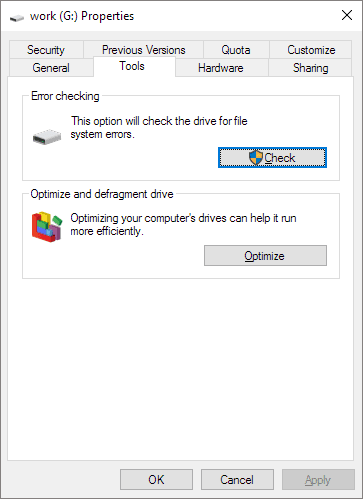
Step 3. Check both checkboxes in front of you: "Automatically fix file system errors" and "Scan for and attempt recovery of bad sectors".
Step 4. Click "Start" and wait. Close the window after the scanning and repairing process ends.
No.2 Windows Command Prompt - CHKDSK
The CHKDSK command is a tool that can repair a corrupted, damaged, or non-working USB flash drive, pen drive, SD card, or hard drive partition, and can also be used to repair a corrupted external hard drive or HDD/SSD.
Please be aware that this fix can cause serious file loss issues while running the command, so make sure to access and save your data to another safe location with the Qiling file recovery software before running CHKDSK.
Step 1. Connect the problematic storage device to your PC.
Step 2.To open the Command Prompt, click on Start and type: cmd, hit Enter.
Step 3. Type: chkdsk h: /f /r /x or chkdsk h: /f and hit Enter. (h: shall be the drive letter of your pen drive/sd card.)
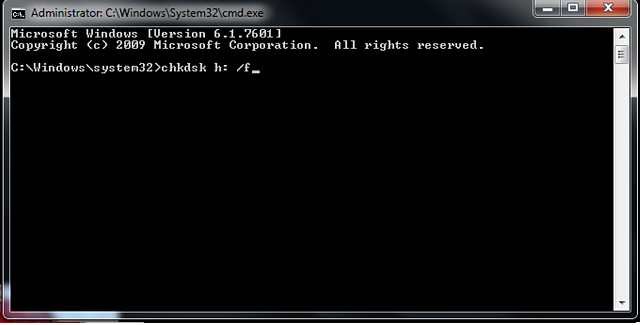
After the process is complete, you'll get your healthy pen drive, USB, or SD card back, free from malware and viruses.
No.3 Free Computer Fixing Tool from Third-party
If the command line isn't your thing, you can use Qiling CleanGenius, a one-click tool that can fix file system errors on your hard drive.
Step 1. Download Qiling CleanGenius on your computer for free.
Step 2. Run the software and click on "Optimization" in the left panel. From there, choose "File Showing".
Step 3.Go to "Choose drive" and select the drive with a file system error, then check the "Check and fix file system error" option and click "Execute".
Step 4. Once the Qiling CleanGenius has completed the repair process, you can click the "here" button to view the results. This will allow you to see the outcome of the cleaning and repair operation.
How to Recover Data from A Corrupted Pen Drive
Most corruption problems resulting from logical errors can be solved with a data recovery solution. If a pen drive displays error messages such as "you need to format it before you can use it", "invalid file system RAW", or "unallocated", a professional pen drive file recovery freeware can be used to retrieve data from it, even if it's currently inaccessible. If the files and data saved on the corrupted device exceed 2GB, an upgrade to the Pro version of the free pen drive recovery software may be necessary to restore unlimited data.
To recover lost files from a pen drive or any other Windows-compatible storage drive, you can follow these steps. The process is also applicable to other types of storage devices. You can use the methods described to retrieve lost files from your pen drive or any other Windows-compatible storage drive.
Step 1. Select file types
Connect your USB drive or pen drive to your computer and launch Qiling USB data recovery software. Select the desired file types and click "USB/SD Scan" to initiate the recovery process.

Note: You can choose different search modes based on where and why the data was lost.
Step 2. Select the drive which is labeled as a External drives
To recover lost files, select the drive labeled as an External drive and click "Scan" to initiate the search.

Step 3. Scan and Search Lost Files on a USB Drive
Deep Data Recovery scans a USB flash drive/pen drive to find lost data, and allows users to filter the results to find specific files.

Step 4. Restore All Lost Files from USB
A double-Click will allow you to preview the files. Select the target files to restore and click "Recover" to save them to a secure location on your PC or other external storage devices.
Additional Fix for A Corrupted Pen Drive - Format
After recovering data from a corrupted storage device, you can directly format it to repair the corrupted or damaged pen drive or SD card.
Step 1: Connect the pen drive/SD card to your PC.
Step 2: Right-click on This PC/My Computer and click on Manage.
Step 3: Click Disk Management.
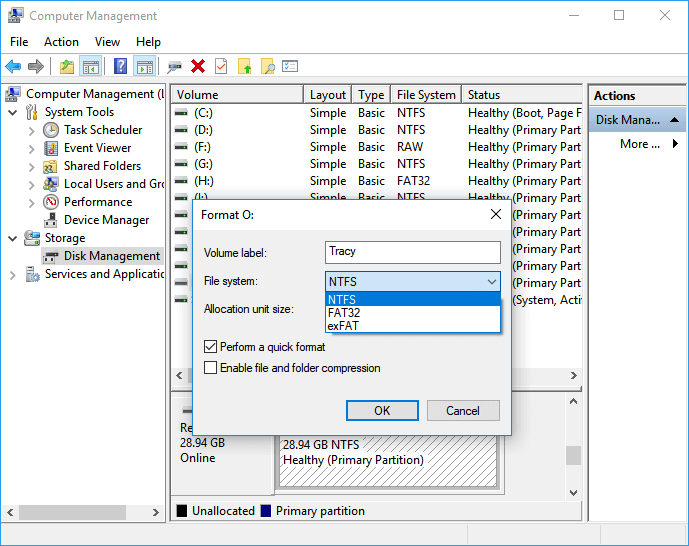
Step 4: Right-click the corrupted or non-working pen drive/SD card and select Format.
Step 5: Reset the drive letter, file system, and other necessary settings for the pen drive or SD card.
Step 6: Click OK to finish the process.
You can also watch a video guide to learn how to recover USB data in two ways, providing a visual tutorial to help with the process.
Related Articles
- Fixe Maxtor External Hard Drive Not Recognized/Not Working Without Data Loss
- USB Port Not Working? Here's How to Fix It!
- How to Recover Data from Corrupted or Scratched CD/DVD
- How Do I Get My Computer to Recognize a USB Device [Solved]
- How to Recover Deleted DCIM Folder on Samsung Galaxy
This article guides you on how to locate the DCIM folder in a Samsung Galaxy device and also provides a solution to recover a deleted DCIM folder using a DCIM folder recovery tool. - How to Recover Call Recordings in Mi Phone
If you've accidentally deleted call recordings from your Redmi note. You can recover them by following the guide for how to recover deleted call recordings in Mi Phone, which applies to models like Redmi note 3/4/5/6/7 Pro and more.
Products
Articles & Tutorials
- Data Recovery
- Data Backup
- File Recovery
- File Backup
- System Backup and Restore
- Disk and Partition Clone
- Technical articles
- Mobile articles
- Disk Master Help
- Windows Data Recovery Tutorials
- Windows Secure Delete Tutorials
- Windows Partition Management Tutorials
- Windows File Backup and Restore Tutorials
- Windows System Backup and Restore Tutorials
- Windows Disk Backup and Restore Tutorials
- Windows Clone Tutorials