USB Port Not Working? Here's How to Fix It!
If your USB flash drive or external hard drive isn't showing up on your computer, it's likely due to a malfunctioning USB port, causing your external storage device to be undetectable or unrecognized.
If your USB port is not working on Windows 11/10/8/7, don't worry, this guide will help you fix the issue without losing any data. To resolve the problem, you can follow the steps to troubleshoot and resolve the issue, making your external storage device visible again. By following this guide, you can successfully fix the USB port not working problem and get your external storage device up and running.
| Complete Solutions | Step-by-step Troubleshooting |
|---|---|
| 1. Diagnose If USB Port Not Working | 1. Restart PC and reconnect your device to PC 2. Change the USB cable and try another USB port 3. See if the computer pops USB port error...Full steps |
| 2. Fixes USB Port Not Working Issue | Method 1. Adjust Power Management...Full steps Method 2. Uninstall Universal Bus controllers...Full steps Method 3. Disable USB Selective Suspend...Full steps |
| 3. Restore Data from USB Drives | To recover lost files from USB, Run Qiling software, scan and recover data...Full steps |
Why Are USB Port Not Working
Case - USB Ports Not Working
You can try using a USB adapter or a USB hub to connect your device to a different port on your PC. If that doesn't work, you can also try using a USB drive reader or a USB card reader to connect your device to your PC. If none of these options work, it's possible that the USB port on your PC is damaged or faulty, and you may need to replace it. If you're still having trouble, you can try using a different PC or a different operating system to see if the issue is specific to your current setup.
How can I repair a not working USB port and make storage devices detectable on Windows 10? Help please."
When a USB port fails to work or stops working, Windows PCs or laptops won't be able to read or detect these external storage devices. This issue can be caused by a variety of factors, including hardware problems with the USB port itself, driver issues, or conflicts with other devices. To resolve the issue, users should first check the USB port for physical damage or corrosion, and ensure that the USB device is properly connected and powered on.
What Causes USB Ports Malfunctioning
A non-functional USB port can be caused by a variety of factors, including a faulty USB controller, a malfunctioning USB port itself, a corrupted driver, outdated or incompatible device software, a loose or damaged USB connection, or physical damage to the USB port or surrounding circuitry. Additionally, issues with the operating system, such as a malfunctioning USB hub or a problem with the USB root hub, can also prevent a USB port from functioning properly.
- Power surge on the USB port
- USB port driver is updated
- USB connection cable is broken
- USB port is faulty or broken
If your USB ports are not working, try restarting your computer and changing the USB cable. If that doesn't work, don't worry. To effectively repair not working USB ports and make external storage devices detectable again without losing any data, you can follow a guide (not specified in the text) to resolve the issue.
1. Disagonize If USB Port Is Not Working
To diagnose the issue, first check if the USB port is damaged or dirty by plugging in another device. If that doesn't work, try using a different USB cable, then a different USB port on the computer, and finally a different computer. If the issue persists, it may be a hardware problem with the computer's USB port, so try cleaning it with a soft brush or a cotton swab.
1. Restart PC and Reconnect Your Devices to PC via the USB Port:
To resolve the issue, simply unplug your storage device, restart your PC, and then reconnect your portable devices to the PC again. This should resolve the problem.
If the device shows up, it could be the loosened connection that caused the issue. If the USB or external drive doesn't show up, move to the next guide. If the device shows up, it could be the loosened connection that caused the issue.
2. Change USB Cable and Try Another USB Port:
Step 1. Check if the USB connection is loose.
If your USB drive is not showing up on your PC, try plugging it in tightly and checking again. If it still doesn't appear, try the next step.
Step 2. Check if the USB cable is broken.
If yes, change a new one and reconnect your external hard drive to your PC. If the device shows up, you can stop here. If it's still not working, continue with Step 3.
Step 3. Change the USB port.
If the device doesn't show up even after plugging it into a different USB port, try using a different computer or laptop to see if the issue persists. If it does, the issue is likely with the device itself. If the device shows up on the other computer, then the issue is likely with the original computer or laptop.
If your USB drive is not recognized, try plugging it into a different USB port on the same computer or connecting it to a different computer altogether.
- If the device is still not recognized, the problem lies with the device itself. To troubleshoot, please refer to the guide on how to resolve issues with USB drives not being detected.
- If the USB or external storage device shows up, it's likely a USB port error.
3. Check If Computer Pops Up Error Message:
If your computer shows an error message saying "Power surge on the USB port" and asks you to disconnect a device, the issue is likely with the USB port itself, not the device.
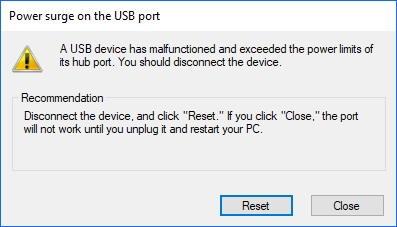
To fix a problematic USB port on your computer, you can try fixing the issue on your own.
2. How to Fix USB Port Not Working in 3 Ways
To fix the USB port not working issue and repair the USB port to work again, follow these methods. By doing so, you will be able to resolve the problem and get your USB port up and running.
Method 1. Adjust Power Management
Step 1. To access the Device Manager, press the Windows + R keys to open the Run dialog, type devmgmt.msc, and click "OK" to open the Device Manager.
Step 2. Expand Universal Serial Bus controllers, right-click USB Root Hub, select "Properties".
Step 3. In the Power Management tab, uncheck the box next to "Allow the computer to turn off this device to save power" and click "OK" to make the change.
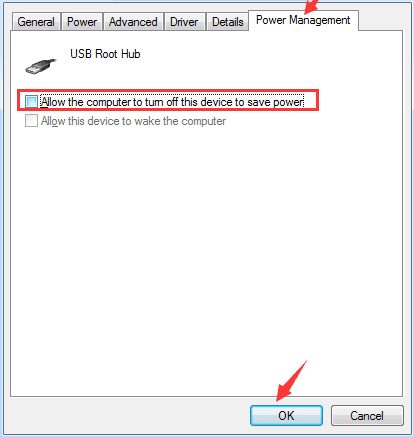
Step 4. Repeat steps 2-3 to just Power Management in each USB Root Hub.
If your USB ports aren't working, try unplugging all USB devices from your computer, including flash drives, external hard drives, and any other peripherals. Then, restart your computer. Once it's turned back on, try plugging in your USB devices one by one to see if they're recognized by your computer.
Method 2. Uninstall & Reinstall Universal BUS Controllers Drivers
Step 1. Right-click on the Windows icon, select "Device Manager".
Step 2. To expand "Universal Serial BUS controllers", find the USB root Hub with a yellow exclamation mark in the Device Manager.
Step 3. Right-click on it and select "Uninstall", click "OK".
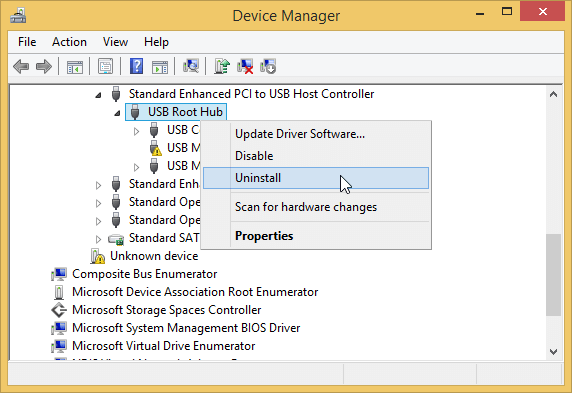
Step 4. Wait for the process to complete and restart PC.
Step 5. After the PC boots up, open the Device Manager window by going to the Action tab.
Step 6. Select "Scan for hardware changes".
After installing the USB drivers, you'll see the USB port appear. Reconnect your portable devices, such as USB drives or SD cards, to your PC, and they should now be visible on your PC.
If it still not working, relax and follow Method 3 to get your issue solved.
Method 3. Disable USB Selective Suspend Feature to Fix "USB Port Not Working" Issue
Step 1. Right-click on the Windows icon and click "Power Options".
Step 2. To make changes to your current power plan, you can click "Additional power settings" and then click "Change plan settings" next to your current plan option.
Step 3. To change advanced power settings, click on "Change advanced power settings" in the Edit Plan Settings window.
Step 4. Find and expand USB settings, expand USB selective suspend settings.
Step 5. Disable both On battery and Plugged-in settings and click "Apply" and "OK" to save the settings.
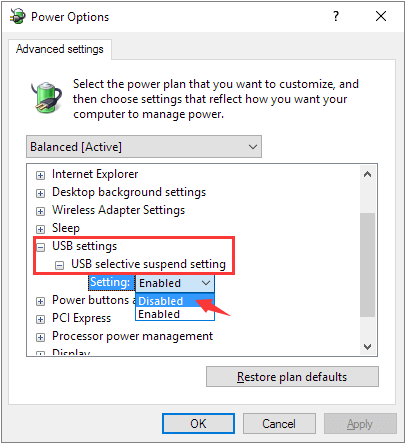
After finishing the process, you should be able to use your USB drive or external hard drive to save or transfer data to your PC again.
3. Restore Data from USB Devices After Fixing Not Working USB Port
After repairing the not working USB port in Windows PC, you can now try to connect your USB or SD card, etc portable storage devices to your PC to transfer data. If the storage devices are still inaccessible and you cannot read any saved data, it's likely that the storage devices themselves are faulty, not the USB port, so you may need to use a different device or seek further assistance.
Deep Data Recovery is a powerful hard drive data recovery software that can scan your USB storage devices and recover all lost data in just a few clicks, making it a simple and efficient solution for your data recovery needs.
- You can recover deleted files, restore formatted or corrupted data from a USB drive using data recovery software. These programs scan the drive for recoverable files and allow you to select and save them.
- To restore lost files from a USB drive due to accidental deletion, drive corruption, or damage, try using data recovery software like Deep Data Recovery. This tool can scan the USB drive and recover deleted files, even if the drive is RAW or corrupted.
- Repair corrupted files in USB, support photos, videos, and document repair
To restore lost data from a portable USB or other devices on Windows 11/10/8/7, follow these steps:
Step 1. Select file types and click "USB/SD Scan" to start
Launch Deep Data Recovery. Select file types and click "USB/SD Scan" to start.

Note: You can choose different search modes based on where and why the data was lost.
Step 2. Choose the USB drive to scan
To recover lost files from a USB drive, select the drive where the files were lost, and then click on the "Scan" button to initiate the scanning process.

Step 3. Check and preview USB drive data
When scanning is complete, you can quickly find a specific type of file using the Filter feature and the Search option.

Step 4. Restore flash drive data
After finding lost USB drive files, click "Recover" to restore them, and save the recovered files to a safe location on your PC, not the USB drive.
After reformatting, the portable storage devices can be reused for storing or transferring data again, with the option to format them into NTFS or FAT32.
Stay Calm When USB Port Is Not Working, You Can Fix It Here
If your computer's USB port is not working, this page can help you identify the issue and provide a step-by-step guide to diagnose the problem, which may be related to the USB port itself.
If the USB port is not working, you can update the USB Root Hub driver to fix the issue and make the port show up and work again.
After fixing the issue, your computer will be able to detect and use your external storage devices again. If you lost files during the process, let Deep Data Recovery help.
If your USB port isn't working, don't panic! Take action and follow this guide to troubleshoot the issue and get it up and running again.
Related Articles
- How to Fix Drive Is Not Accessible in Windows 10/8/7 [Real Fix]
- QNAP Recovery: How to Recover Deleted Files from QNAP Drive for Free
- How to Fix 'the device is not ready' on USB Flash Drive/HDD
- 5 Ways to Fix the Fatal Device Hardware Error Without Losing Data
- 3 Ways to Fix Google Chrome Bookmarks Disappeared
Lost your Chrome bookmarks after a Windows or Chrome update? Learn how to recover lost bookmarks in Chrome easily. Restore from backup, history, or use data recovery software to get your bookmarks back. - 7 Quick Ways to Reduce Chrome High Memory Usage Windows 10/11
Is Google Chrome using too much RAM on Windows 10/11? Learn 7 quick fixes to reduce Chrome's high memory usage, including closing tabs, disabling extensions, enabling hardware acceleration, clearing cache, and more.
Products
Articles & Tutorials
- Data Recovery
- Data Backup
- File Recovery
- File Backup
- System Backup and Restore
- Disk and Partition Clone
- Technical articles
- Mobile articles
- Disk Master Help
- Windows Data Recovery Tutorials
- Windows Secure Delete Tutorials
- Windows Partition Management Tutorials
- Windows File Backup and Restore Tutorials
- Windows System Backup and Restore Tutorials
- Windows Disk Backup and Restore Tutorials
- Windows Clone Tutorials