5 Ways to Fix the Fatal Device Hardware Error Without Losing Data
The request failed due to a fatal device hardware errorLosing files can be scary, but it's not necessarily as bad as it seems. With the right steps, you can recover your lost files and get back to normal. To fix this problem, read on to learn how to retrieve your files and avoid further stress.
Overview of The Request Failed Due to a Fatal Device Hardware Error
The 'fatal device hardware error' typically indicates that the operating system is unable to access the hard drive or perform read and write operations on it, usually due to a hardware issue with the drive itself.
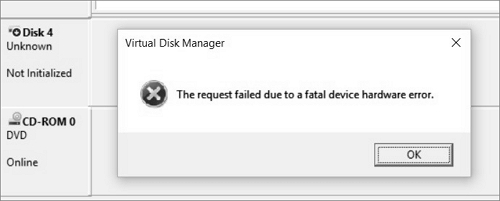
So what caused this error and how to define if you are having this error on your drive? Check the table below:
Causes:
- Faulty USB cable or a loose connection.
- Too many bad sectors on the disk.
- System or hardware fault.
- The hard drive is dying.
Symptoms:
- The "X: is not accessible" error message indicates that the requested drive, in this case, X:, is not accessible due to a fatal device hardware error. This error usually occurs when there's a problem with the physical drive itself, such as a faulty hard drive, disk controller, or other hardware-related issues. It's not typically a software issue, so you may need to consult a hardware expert or replace the affected device to resolve the problem.
- The error 0x800701E3 occurs when a fatal device hardware error prevents Windows from accessing a drive, resulting in a failed request. This error is often related to issues with the disk itself, such as bad sectors or a failing hard drive. It may also be caused by a faulty disk controller or a problem with the drive's firmware.
- The error "Virtual Disk Manager: The request failed due to a fatal device hardware error" typically indicates a serious issue with the virtual disk or its underlying hardware, preventing the Virtual Disk Manager from completing the requested operation. This error often suggests a problem with the virtual disk itself, such as a corrupted disk image, a malfunctioning virtual disk driver, or a hardware failure in the system hosting the virtual machine. It might also be related to issues with the physical disk on the host machine if the virtual disk is stored on a physical disk.
5 Ways to Fix The Request Failed Due to Fatal Device Hardware Error
If you're experiencing the "request failed due to fatal device hardware error" issue on your external hard drive, don't worry, there are ways to fix it. You can try checking the drive's cable and connection, running a disk check and repair, using a disk cloning software, booting from a live USB or CD, or even attempting a hard reset. These methods can help identify and resolve the problem, allowing you to access your data again.
- 1. Check the connection
- 2. Verify the SMART status
- 3. Check and repair bad sectors
- 4. Update storage device disk driver
- 5. Send problematic device for repair
Fix 1. Check Hard Drive Connection
- Check if the cable connections are loose, and push them firmly back into the ports if they are.
- Try unplugging then reconnecting the external hard drive or switching to another USB port.
- Replace the USB cable with a new one.
- If the drive is not recognized by the PC, it's possible that the issue lies with the computer rather than the drive itself. To troubleshoot, try connecting the drive to another computer to see if it's recognized there.
If these don't fix the problem, you can try the options outlined below.
Fix 2. Verify SMART Status
SMART stands for Self-Monitoring, Analysis, and Reporting Technology, which is a feature that helps determine if a drive is damaged It checks a drive's SMART attributes, providing valuable insights into its condition. By doing so, SMART technology enables users to identify potential issues before they become major problems, making it an essential tool for maintaining the health and longevity of their storage devices.
This is how to check a hard drive SMART status:
Step 1. Press the Windows key + X, then select Command Prompt (Admin) from the menu.
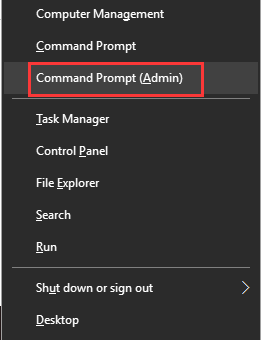
Step 2. Type wmic diskdrive get status and hit Enter.
Step 3. The command returns four different statuses: "OK", "Bad", "Unknown", and "Caution".
- Ok: Don't worry, try Fix 3 (see below) to restore your hard drive to its normal state.
- Bad, You can correct the error by using Fix 3, 4, or 5 (see below). It's also highly advisable to immediately use a data recovery solution.
- Caution: It seems like the hard drive corruption is severe, and taking it in for professional repair would be the best course of action.
Fix 3. Check and Repair Bad Sectors
Bad sectors on a hard drive are not as severe as they seem, unless they are widespread across the disk. The Windows DiskPart utility can be used to check and repair file system corruption and bad sectors, making it a useful tool for addressing hard drive inaccessibility issues.
- Warning
- Running chkdsk can potentially fix bad sector errors, but it may also result in total data loss. Therefore, it's recommended to perform data recovery in advance and then proceed with the CMD method.
This is how to run the Diskpart command to fix bad errors:
Step 1. To open the Command Prompt on Windows, press the Windows key + S, type "cmd" in the search box, and press Enter. This will open the Command Prompt window.
Step 2. Right-click Command Prompt, select "Run as Administrator".
Step 3. To run a check on the F: drive, type the command "chkdsk F: /f" and press Enter. This will scan the drive for any errors and attempt to fix them.
(F: represents the drive letter of the problematic HDD, so change the letter to match that of your drive when entering the command.)
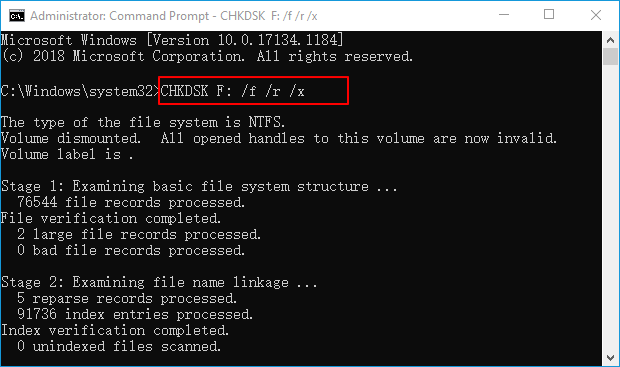
The syntax for check disk:
- /f fixes system errors.
- /r locates bad sectors and recovers readable information.
- /x forces the volume to dismount first, if necessary.
Fix 4. Update Disk Driver
If the driver for the problematic storage device is outdated, this can cause the fatal device hardware error. Upgrading the driver can resolve the issue.
Here are the steps:
Step 1.To update drivers, press the Windows key + S keys, type "device manager" into the search bar, and click on the result to open it. In the Device Manager window, find the device you want to update drivers for, right-click on it, and select "Update driver" from the context menu. Follow the prompts to search for and install updated drivers, and restart your computer to ensure the new drivers take effect.
Step 2. Expand "Disk drives", locate and check the state of the hard drive with fatal device error.
Check if there's a yellow exclamation mark on the "Other devices" section in Device Manager. If you see the yellow exclamation mark, it means the driver for the disk is outdated or corrupted.
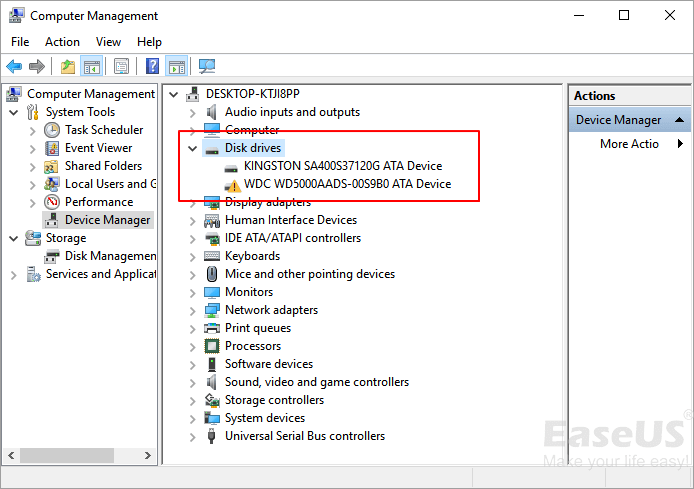
Step 3. Right-click the problematic hard drive and select "Update driver".
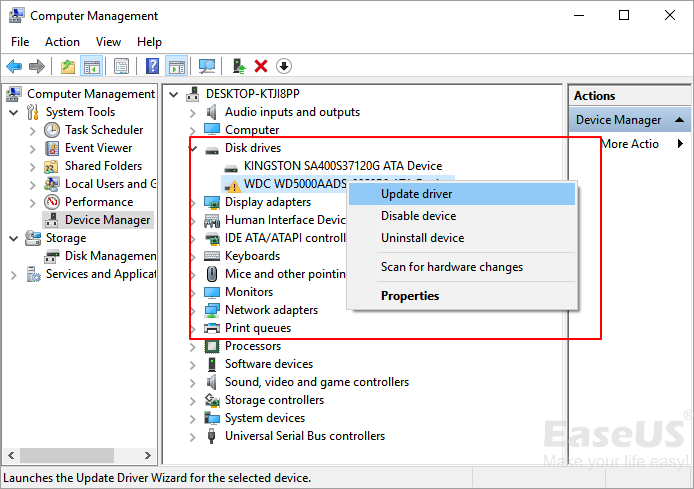
Step 4. Click on "Automatically search for driver software online" and wait for the process to complete.
If you're having trouble accessing a drive, try restarting your computer and see if that resolves the issue. This simple step can often resolve connectivity problems and allow you to access the drive as usual.
Fix 5. Send Problematic Device for Repair
If you've tried the methods outlined above, but still have a problem with the drive, the last option is to take it in for repair, where you'll typically have options such as replacing the drive, recovering data, or even just having it cleaned and maintained.
- 1. Contact the hardware manufacturer for help.
- 2. If your device is no longer under warranty, you can find a local repair center and send your device for repair. Many phone manufacturers have authorized repair centers where you can get your device fixed.
3 Steps to Recover Data After Fixing Fatal Device Hardware Error
When a fatal device hardware error occurs, your hard drive or external disk becomes inaccessible, and you must resolve the issue before proceeding.
If the 'fatal device hardware error' is resolved, you may still encounter missing data. In this case, a reliable recovery tool like Deep Data Recovery can help. This tool allows you to scan the problematic drive, identify all your files, and transfer them to a safe storage device.
Key features of Qiling hard drive data recovery software:
- Recover a wide variety of files, exceeding 1000 types, including photos, videos, documents, audio files, and more.
- To restore data from various storage devices, follow these steps: 1) Connect the device to your computer via a USB cable or adapter. 2) Open the file explorer or disk management tool on your computer.
- Data can be recovered from various situations such as deletion, formatting, partition loss, and RAW drive issues, among others.
- After data recovery, it's essential to repair corrupted files to ensure they're usable and accessible. This process involves fixing damaged files, such as Word documents, Excel spreadsheets, PDFs, videos, and photos, to restore their original functionality. By repairing these files, you can recover valuable data and prevent further corruption, making it easier to work with or view the recovered files.
3-Step Guide to Recover Data After Fixing Fatal Device Hardware Error:
Step 1. Select file types and click "Fast Scan" to start
Launch Deep Data Recovery. Select the desired file types and click "Fast Scan" to initiate the recovery process.

Note: You can choose different search modes based on where and why the data was lost.
Step 2. Scan the hard drive partition
Select the drive on your hard disk where you lost or deleted files, then click "Scan" to let Qiling data recovery software scan for all lost data and files on the selected drive.

Step 3. Check the results
After the scan is finished, you can apply the "Filter" feature or click the "Search files or folders" option to find the lost files on the hard drive.

Step 4. Restore lost hard drive data
Select the files you want to recover and click "Recover" to save them to a different location.
Hopefully now, after following the methods above, you will have a working hard drive or managed to recover your data. Hardware is prone to failure, so it's a good idea to have a backup plan, like Deep Data Recovery, to salvage your data in case of disaster.
Stop Using Fatal Device, You Can Fix The Hardware Error
If you're experiencing issues with your storage devices, stop using the drive immediately. A fatal device hardware error can occur, causing problems. Common symptoms include system crashes, data corruption, and unbootable devices.
If you have valuable files on the problematic device, run the best data recovery software - Deep Data Recovery - and restore your data immediately after fixing the error.
Related Articles
- CCTV DVR Data Recovery: How to Get Data From DVR Hard Disk
- Free Fix Hard Drive Partition Shows 0 Bytes Error in Windows 11/10/8/7
- Fix USB Access Denied Without Data Loss
- How to Recover Cache Files on Android SD Card (Only 3 Steps)
- How to Recover Formatted HDD Data with Unformat HHD Software
Want to recover formatted HDD data? Here is the guide that walks you through the whole process for used unformat HDD tool to help you quickly and effectively recover data from formatted HDD. - Unformat Pen Drive Software to Recover Formatted Pen Drive
It will saves you multiple important files to unformat pen drive on Mac or Windows. In this article, we talk about how to use pen drive unformat software to recover files from formatted pen drive.
Products
Articles & Tutorials
- Data Recovery
- Data Backup
- File Recovery
- File Backup
- System Backup and Restore
- Disk and Partition Clone
- Technical articles
- Mobile articles
- Disk Master Help
- Windows Data Recovery Tutorials
- Windows Secure Delete Tutorials
- Windows Partition Management Tutorials
- Windows File Backup and Restore Tutorials
- Windows System Backup and Restore Tutorials
- Windows Disk Backup and Restore Tutorials
- Windows Clone Tutorials