QNAP Recovery: How to Recover Deleted Files from QNAP Drive for Free
QNAP Data Recovery Overview
QNAP's NAS systems consist of connected hard drives that are accessible over the internet, making them a popular choice for home and business users to store and back up files, photos, videos, music, and documents.
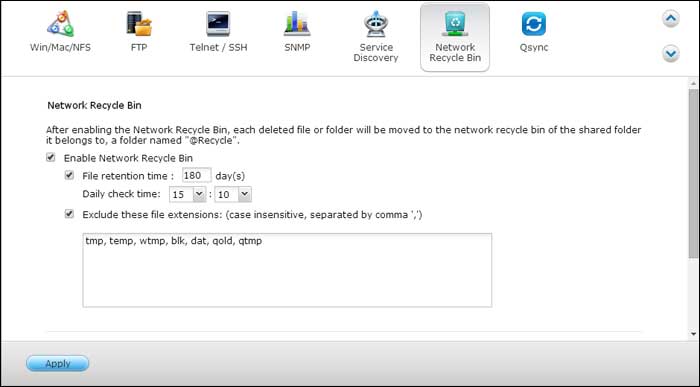
Unexpected accidents like accidental file deletion, disk formatting or corruption, system crash, etc. can happen and result in lost or inaccessible data on a QNAP NAS drive. However, QNAP data recovery is still possible. Users can recover deleted files from the Recycle bin (if enabled) or ask the NAS administrator for help. Alternatively, third-party QNAP data recovery software can also be used to retrieve lost files.
To recover deleted files from the Network Recycle Bin, right-click the files in the @Recycle folder and select "RECOVER".
To undelete files from QNAP network drives, choose a reliable software that is trustworthy and powerful, and follow the detailed user guide to quickly and thoroughly recover your deleted files.
- Warning
- Stop using the NAS and immediately cease writing to it if you've lost or deleted data, and temporarily halt backups that write to the NAS drives to increase the chances of successful data recovery.
What Is the Best QNAP Data Recovery Software
You can recover deleted files from QNAP drives or devices if you find reliable QNAP recovery software, which can be searched for using terms like "QNAP data recovery" or "QNAP data recovery software".
Here, we recommend Qiling NAS data recovery software, which is compatible with all popular QNAP products, such as TS-EC2480U R2, TS-EC1680U R2, and TS-1685, and can recover various file types including photos, videos, music, Word documents, Excel files, PDF files, and PPT files from QNAP NAS drives.
You can download QNAP data recovery software to easily restore your deleted or lost files in Windows 10/8.1/8/7/Vista/XP with simple steps.
How to Recover Deleted or Lost Files from QNAP Server
Connect the disks to a Windows computer, and then follow the steps to initialize and format the disks for use with the QNAP device. This may involve using the Disk Management tool in Windows to initialize and format the disks, and then installing the QNAP device's software to configure and mount the disks for use.
Step 1. Select a NAS server and start recovering.
Download and install Deep Data Recovery on your Windows 11/10 64-bit computer. Open the software, select "NAS Recovery", and it will automatically list all connected NAS servers. Choose your target NAS device and click "Scan" to proceed.

Note: You can choose different search modes based on where and why the data was lost.
Step 2. Enable SSH service on the NAS server.
To enable SSH service for remote access, go to the "Control Panel > Terminal & SNMP" and check the box next to "Enable SSH service". Note the port number for remote access, then proceed to Deep Data Recovery and click "Next".
Step 3. Connect to the NAS server remotely.
This software automatically detects your IP and Port, and all you need to do is input your user name and password. If the IP or Port is incorrect, you can manually correct it, then click "Connect Now" to proceed.

Step 4. Recover lost/deleted NAS data
Qiling data recovery software will connect to your NAS, scan it, and display all deleted, lost, or existing files on the server.
To find lost files on a hard drive, you can use the "Filter" feature or search for them by clicking "Search files or folders". Select the files you want to recover and click "Recover" to save them to a different location.
Click the "Recover" button to restore deleted NAS files.

How to Recover Deleted or Lost Files from QNAP RAID Drive
If you're not an expert in recovering QNAP data, consider turning to experts. Qiling offers a manual RAID/NAS data recovery service, providing the following services after a free diagnosis.
Consult with Qiling data recovery experts for a one-on-one manual recovery service, which includes a free diagnosis. Our experienced engineers can repair damaged RAID structures and restore data from all RAID levels, offering a range of services after the initial assessment.
- Data can be restored from various RAID levels, including RAID 0, RAID 1, RAID 5, RAID 6, RAID 10, and others.
- Recover data from enterprise RAIDs such as QNAP, Synology, WD, Buffalo, and others, which are commonly used in businesses and organizations for data storage and backup. These systems often contain critical data that needs to be restored in case of a hardware failure, software corruption, or other issues.
- Retrieve lost RAID data caused by any issues
- Fix disks that become GPT protected partitions
- Recover data from RAID remotely, no need to ship
Related Articles
- Fix Saved Game Corrupted Error on Xbox 360
- Fix/Repair Unallocated External Hard Drive without Losing Data
- Fix Hard Drive Not Detected/Recognized in BIOS Without Losing Data
- Recover Data from Dead, Failed or Crashed SSD in Windows 11/10
- Fix Unreadable SD Card and Recover Data
If you're experiencing a Micro SD card unreadable problem, this page provides easy solutions using Qiling file recovery software to help fix the issue and recover your data. - Recover Data from WD My Passport Hard Drive
WD Passport data recovery software is a helpful tool when files are accidentally deleted or a WD HDD, external HDD, or SSD becomes inaccessible, corrupted, or virus-infected.
Products
Articles & Tutorials
- Data Recovery
- Data Backup
- File Recovery
- File Backup
- System Backup and Restore
- Disk and Partition Clone
- Technical articles
- Mobile articles
- Disk Master Help
- Windows Data Recovery Tutorials
- Windows Secure Delete Tutorials
- Windows Partition Management Tutorials
- Windows File Backup and Restore Tutorials
- Windows System Backup and Restore Tutorials
- Windows Disk Backup and Restore Tutorials
- Windows Clone Tutorials