Fix/Repair Unallocated External Hard Drive without Losing Data
When an external hard drive becomes unallocated, you can fix the issue without losing any data by following the solutions outlined on this page.
How to access unallocated external hard drive data
"Hey there, do you know how to fix an external hard drive with an unallocated error? My 1TB WD external hard drive suddenly shows up as unallocated in Disk Management on my PC. I don't want to format it for that I've saved quite a lot of important files on it.
I cannot access saved data on the unallocated external hard drive, either. Help me please."
External hard drives or storage devices may become unallocated due to various reasons, including physical damage, corrupted file systems, power surges, firmware issues, or software glitches, which can render the device unusable and result in loss of data.
- File system and internal device error
- Improper operations
- Virus attack
- Outdated disk driver
If you're experiencing an issue where an external hard drive is showing as unallocated, stop using the device to prevent data loss. To restore data, you can try using data recovery software. To repair the unallocated external hard drive, you can try running a disk check or using a disk repair tool. To avoid the unallocated issue in the future, make sure to regularly back up your data and avoid sudden power outages or physical damage to the device.
Part 1. Restore data from unallocated external hard drive
External hard drives are often used to store valuable files and essential data. When an external hard drive becomes unallocated, restoring data becomes a top priority, as users rely on these devices to safeguard their important information.
With the help of professional data recovery software such as Deep Data Recovery, you may still be able to recover data from the drive.
To recover lost data from unallocated space on a hard drive or external hard drive, download Qiling hard disk recovery software and follow the guide below to restore data with ease.
Step 1.To recover data from your external hard drive, connect it to your computer using a correct USB cable. Then, run Deep Data Recovery, which supports all popular external disk brands, including WD, Seagate, Toshiba, LaCie, SanDisk, Samsung, and more. Your external disk should be listed under External drives, allowing you to proceed with the recovery process.

Note: You can choose different search modes based on where and why the data was lost.
Select the external hard drive and then click the "Scan" button.

Step 2. As soon as the scan process starts, the software will find more and more lost and deleted data and display it in the scan results, with the recovered data nicely organized for easy searching by file type or exact file name.

Step 3. After scanning, you can preview the files found by Deep Data Recovery's algorithms. Select the desired files and click "Recover" to save them to a different drive than the original Seagate drive to avoid data overwriting.
When restoring found files, activation is required. Additionally, it's essential to save the recovered data to a separate secure device to ensure its safety.
Part 2. Repair unallocated external hard drive
To fix the external hard drive's unallocated issue, simply create a new partition on the drive and set the file system to NTFS or FAT32. This will resolve the problem and allow you to use the drive as usual.
Here, you can try two free methods provided below to fix the unallocated external hard drive issue.
1. [Automated] Repair unallocated external hard drive with partition manager freeware
A user can revive an unallocated external hard drive by creating a new partition on it with a compatible file system, allowing them to store files on the device once again.
Free partition manager software like Qiling Partition Master Free allows you to resize a partition within just 3 steps.
- Notice:
- To create a partition on an empty USB, SD card or external hard drive, simply connect it to your PC beforehand. This will allow you to access the drive and create a partition on it.
Step 1. Launch Qiling Partition Master and on the main window, right-click on the unallocated space on your hard drive or external storage device and select "Create" to proceed with the partitioning process.
Step 2. Adjust the settings for the new partition, including its size, file system (selecting one that suits your needs), label, and other relevant options.
Step 3. Click on the "Proceed" button to create a new partition.
Watch the following video tutorial to learn how to create a partition in various file systems, including NTFS, FAT, and EXT.
After restoring the data, you can save the previously restored data back to the external hard drive and save more files on it again.
2. [Manual] Create a new partition on an external hard drive with Disk Management
To create a partition on the unallocated device using Disk Management, follow these steps: Open Disk Management, right-click on the unallocated device, select "New Simple Volume", assign a drive letter, and format the partition. Be cautious when selecting the partition size and drive letter to avoid conflicts with existing partitions. If the drive was previously formatted, you may need to initialize it first.
Step 1Connect your unallocated external hard drive to your PC and open Disk Management, which can usually be accessed by right-clicking on the Start menu and selecting "Disk Management".
Right-click on This PC/My Computer > Manage > Disk Management.
Step 2To create a new partition on an external hard drive, locate the unallocated space and right-click on it, then select "New Simple Volume" from the context menu.
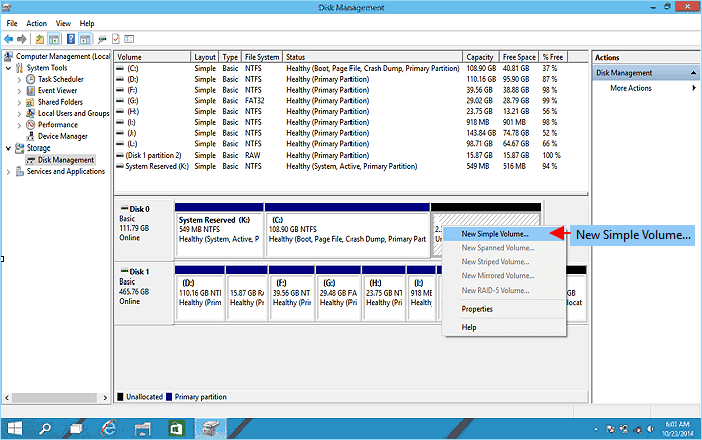
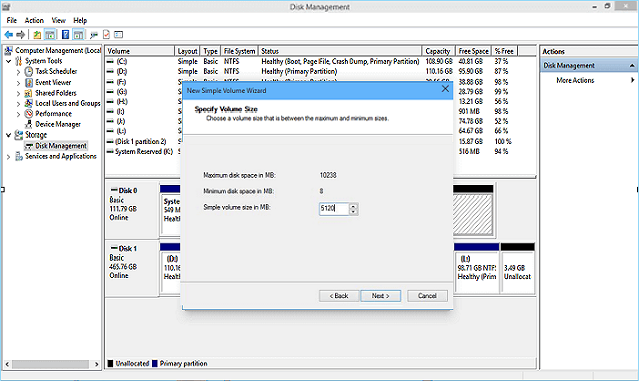
Step 3: Set partition size, drive letter and file system (NTFS), etc.
Step 4: Click "Finish" to complete the process.
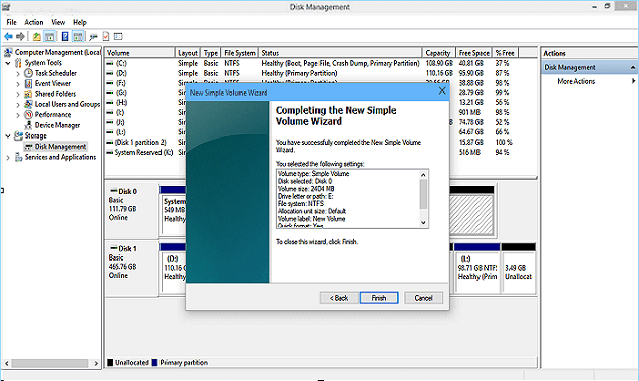
After this, you'll be able to use the external hard drive to save and store important data again. You can also transfer the previously restored data back into the external hard drive again.
Tips to prevent the external drives from becoming unallocated
Here are some tips to prevent further unallocated errors on external hard drives and other storage devices: Regularly back up your data, check for software updates, and run disk clean-up and disk error-checking tools to maintain your device's health and prevent data loss. Additionally, avoid sudden power failures, physical shocks, or extreme temperatures that can cause data corruption, and handle your devices with care to prevent physical damage.
- 1. Update external hard drive driver.
- 2. To repair a file system error on an external hard drive, you can use either the CHKDSK command in Windows or a partition manager software like Qiling. CHKDSK is a built-in utility that can scan and fix errors on the drive, while Qiling is a third-party software that offers more advanced features and options for repairing and managing partitions.
- 3. Run anti-virus software to scan and clean up any viruses found in your PC and external hard drive. This will help ensure your devices are free from malware and other online threats.
- 4. Use storage devices and unplug carefully from your PC.
Related Articles
- SD Card/USB Drive/Pen Drive Shows 0 Bytes
- 4 Fixes to You Must Initialize a Disk Problem
- How to Recover Files from Dead Laptop Hard Drive in Windows 10/8/7
- All Things You Should Know About RAID 1
- Deleted File Not in Recycle Bin | Proven Fixes
If you've accidentally deleted a file and it's not in the Recycle Bin. This tutorial will cover three tested solutions to help you restore the deleted file with ease. - [4 Fixes] Desktop Files Disappeared in Windows 7
If your desktop files have disappeared in Windows 7, this guide can help. We've got 4 feasible solutions to help you recover missing desktop folders and files with ease.
Products
Articles & Tutorials
- Data Recovery
- Data Backup
- File Recovery
- File Backup
- System Backup and Restore
- Disk and Partition Clone
- Technical articles
- Mobile articles
- Disk Master Help
- Windows Data Recovery Tutorials
- Windows Secure Delete Tutorials
- Windows Partition Management Tutorials
- Windows File Backup and Restore Tutorials
- Windows System Backup and Restore Tutorials
- Windows Disk Backup and Restore Tutorials
- Windows Clone Tutorials