How to Recover Files from Dead Laptop Hard Drive in Windows 10/8/7
- Difficulty Level: Easy.
- Reading Duration: 2-4 minutes.
- Best for: All levels of Windows users, specially designed for beginners.
- Applies to: You can recover files from a dead laptop by using specialized data recovery software or taking it to a professional data recovery service. If your laptop is broken, you can try to retrieve data from it by using a USB drive or external hard drive to transfer files, or by using a data recovery service.
If your laptop suddenly stops booting up or crashes, don't worry about losing your data. There are two solutions available to recover files from a dead laptop hard drive in Windows 10/8/7/XP, etc. immediately.
| Workable Solutions | Step-by-step Troubleshooting |
|---|---|
| Part 1. Recover Data from Dead Laptop Disk |
Method 1. Recover Files from Dead Laptop Drive...Full steps Method 2. Get Data off from Dead Laptop Disk...Full steps |
| Part 2. Fix Dead Laptop Issue |
Fix 1. Fix Dead Laptop with BSOD Error...Full steps Fix 2. Reinstall Windows OS...Full steps Fix 3. Get A New Computer...Full steps |
Unfortunately, if your Mac computer is completely dead, it's unlikely that you'll be able to recover any files from it. However, if your Mac is just not turning on or is showing a blank screen, you might be able to recover some files using a bootable external drive or a USB drive.
Can I Recover Files from a Dead Laptop
To recover files from a dead laptop hard drive, you can try using a data recovery software on your new laptop, connecting the old hard drive as an external drive via a USB adapter or cable, and then running the software to scan and recover your files. This method doesn't require the old laptop to power up. Alternatively, you can send the hard drive to a professional data recovery service, which can attempt to recover your files using specialized equipment and techniques. It's worth noting that the success of data recovery depends on the condition of the hard drive and the type of failure."
If your laptop is not turning on, you can try charging it for a while to see if it will turn on. If it still won't turn on, you can try to access your files by removing the hard drive and connecting it to another computer or a USB drive. If your laptop is still under warranty, you can contact the manufacturer for assistance. If not, you can consider taking it to a professional repair service.
Is your laptop really dead or not?
Before attempting to fix a dead laptop or recover data from a dead laptop hard drive, it's essential to verify whether the laptop or computer is indeed "dead" or if there are other issues at play. This involves checking the power supply, battery, and other components to determine if the problem lies with the hardware or if it's a software glitch that can be resolved.
A "dead" laptop or computer usually refers to a device that is no longer functioning, ranging from being truly dead to simply not displaying anything. To determine if your laptop or computer is dead, look out for symptoms such as no power, no display, or no response to input. If you're experiencing any of these issues, it may be a sign that your device has died and needs to be repaired or replaced.
- If your laptop boots up but goes black screen of death or blue screen, try booting in safe mode, checking for loose connections, updating drivers, running a virus scan, and checking for overheating issues. If the issue persists, consider reinstalling the operating system or seeking professional help.
- A laptop hard drive won't boot up at all.
- A computer is physically damaged or broken.
Yes, it is still possible to recover files from a dead laptop. The process involves using specialized software or hardware tools to access and extract files from the laptop's hard drive, even if the laptop itself is no longer functioning. This can be done by removing the hard drive from the laptop and connecting it to another computer or using a data recovery tool specifically designed for this purpose. The goal is to recover files like photos, documents, and other important data that may be lost due to the laptop's failure. If you're experiencing a dead laptop hard drive error, there are steps you can take to try and recover your files, which will be covered in the next part of this guide.
Part 1. How to Recover Files/Data from a Dead Laptop Hard Drive
Applies to: To recover data from a dead laptop hard drive or a computer that won't boot or with a BSOD error, you can try using a data recovery software such as Deep Data Recovery or Qiling file recovery software. These tools can scan the hard drive and recover data even if the computer is not booting properly.
When your computer fails to boot up, it's essential to prioritize retrieving data from the hard drive before attempting to revive the system. You have two primary options to achieve this: using a data recovery software or taking the hard drive out and connecting it to another computer as an external drive. Both methods allow you to access and save your important files, giving you a chance to recover your data before deciding on the next course of action for your computer.
- Recover files from a dead laptop hard drive using hard drive recovery software, which is an easy and effective method. This software can be used to retrieve lost data from a non-functional hard drive, even if the laptop itself is no longer operational. Simply connect the hard drive to a working computer, run the recovery software, and follow the prompts to scan and recover your files.
- To transfer data from a dead laptop hard drive to a new PC, you'll need a few tools: a USB cable, a USB adapter, and a laptop hard drive enclosure. First, connect the dead hard drive to the enclosure using the USB cable. Then, connect the enclosure to the new PC using the USB adapter.
IMPORTANT: For an easy & efficient hard drive data recovery solution, you can take either Method 1 or Method 2 for help. If you prefer using hard drive recovery software, you can use it to recover data from the dead laptop hard drive. Alternatively, you can try to get data off the dead laptop hard drive without using software.
Method 1. Retrieve Data from a Dead Laptop Hard Drive That Won't Boot
Works to: Get files off a laptop that won't turn on in Windows 10/8/7, XP, and even Vista.
Best for: A laptop that won't turn on, but has a chance to be repaired, often due to a software or hardware issue that can be resolved with troubleshooting and possibly replacing or repairing specific components.
Qiling bootable data recovery software, Data Recovery Wizard with Bootable Media, allows you to boot a dead laptop from a WinPE environment bootable disk, run the software to scan and recover data with ease.
Pros: The bootable disk can recover data from a dead laptop in Windows 10/8/7, XP, Vista, allowing users to retrieve important files even if their laptop is no longer functioning.
Preparations: To fix the issue, you'll need to download and install the software on another well-functioning computer, and then transfer the installed software to the affected USB flash drive.
Process: To recover data from a dead laptop hard drive, start by creating a bootable disk on a USB drive. This can be done using a tool like Rufus or a similar software.
To create a bootable disk and retrieve files from a dead laptop hard drive, you can use a tool like Hiren's BootCD or a Linux-based bootable USB drive. First, create a bootable USB drive using a tool like Rufus or Etcher, and then insert it into the dead laptop.
Step 1. Create a bootable disk
Before creating a bootable disk, back up any important data on the USB by copying it to another device, as the process will erase the existing data. Then, you can use Deep Data Recovery WinPE Edition to create the bootable disk.
Connect a USB drive to your PC, then launch the Deep Data Recovery WinPE Edition software. From there, select the USB drive and click "Create" to create a bootable disk.
Step 2. Boot from the bootable USB
Connect a bootable disk to a PC that won't boot, then change the computer's boot sequence in the BIOS settings. Restart the PC and press F2 at the same time to enter the BIOS, where you can change the boot sequence to prioritize the bootable disk. This often resolves the issue and allows the PC to boot successfully.
To boot the PC from a device other than the hard drive, press F10 to save and exit the BIOS settings. This allows you to select a bootable USB drive or CD/DVD as the primary boot device.
Step 3. Recover data from a hard drive that won't boot
When booting from a USB, you can run Deep Data Recovery from the WinPE bootable disk. Select the desired file types and proceed by clicking "Next".

Note: You can choose different search modes based on where and why the data was lost.
Step 4. Recover data from a hard drive that won't boot
To recover lost files, select the drive you wish to scan and click "Scan" to initiate the scanning process.

After scanning, you can preview and recover your files by selecting them and clicking the "Recover" button, and it's recommended to save the recovered data to another location to avoid overwriting.

You can recover lost data from a failed laptop hard drive without any technical skills by using a data recovery software that can revive the dead hard drive and retrieve your lost files, making it possible to get your data back from the dead laptop hard drive.
Method 2. Transfer Data from a Dead Laptop Hard Drive on a New PC
Applies to: Connect and transfer data from the dead laptop hard drive to another laptop/computer, self-troubleshooting.
Best for: A computer that has been physically damaged or broken beyond repair, and is no longer functional.
If you're comfortable with DIY troubleshooting, you can try a method that requires a second computer with a healthy operating system. This approach works on both Windows and Mac computers, allowing you to troubleshoot your issue from a separate device.
Pro: Free.
Preparations: A screwdriver, a new computer, and a hard drive connection cable (such as a USB 3.0 or SATA cable) are the three items listed.
Process: Take out the failed hard drive from the laptop > Install or connect the hard drive on a new computer > Get or transfer data out of the hard drive.
Option 1. Manually Get Files Off Dead Laptop Hard Drive on New PC:
To retrieve data from a broken computer or dead laptop hard drive on a new PC, you can try using a data recovery software or a USB drive to connect the old hard drive to the new PC. Some popular data recovery software includes Deep Data Recovery, Deep Data Recovery, and Deep Data Recovery.
Step 1. Uninstall the hard drive from the dead laptop.
Remove the screws from the laptop case using a screwdriver, then unplug the hard drive cable and carefully take out the hard drive.
Step 2. Install or connect the hard drive to your new computer.
If your new computer supports installing a second hard drive, remove the case and install the new drive via a SATA cable and a power cable. This will allow you to expand your storage capacity and potentially improve your computer's performance.
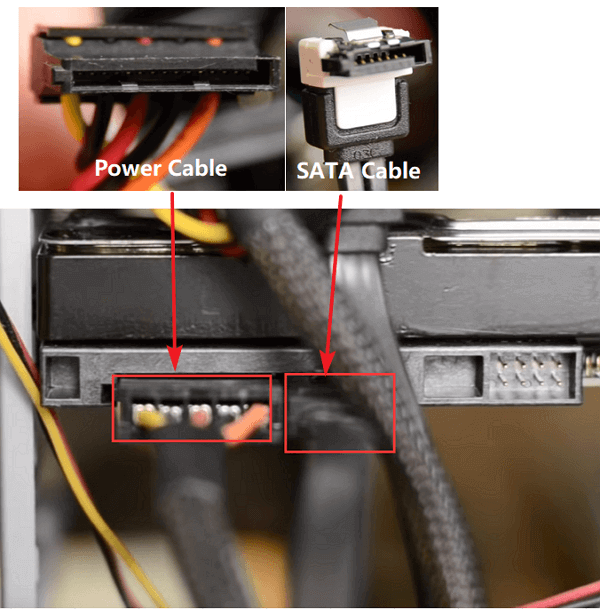
If the new computer doesn't have a second drive slot, you can connect the drive as an external disk to your new PC via a USB 3.0 connection cable.
Step 3. Restart PC and enable hard drive in new computer if it's installed as a second disk.
If your old laptop's hard drive is still working, you can use it as an external hard drive to transfer data to your new computer. Simply connect the old laptop's hard drive to your new computer using a USB cable, and you'll be able to access its contents. If this is the case, you can skip to step 4.
To resolve the issue, put back the computer case, restart the computer, and press F2/F11/Del to enter the BIOS. Then, navigate to "Advanced" > "IDE Configuration" and select "Configure SATA".
In the SATA Option menu, select "AHCI" and save the changes.
Step 4. Now restart your new computer, you can open the hard drive in File Explorer to view files on it.
If there are errors on the disk, copy and transfer the files to a secure location, such as the desktop computer or another external drive, as soon as possible to prevent further data loss.
If you've tried the previous steps but still can't access your hard drive, you might consider seeking professional help from Deep Data Recovery.
Option 2. Recover Data from Inaccessible Dead Laptop Hard Drive on New PC
If you can't access or visit saved data on a dead laptop hard drive in the new computer's file explorer, you can first get files off the drive using reliable data recovery software.
You can use software to scan and recover data from an inaccessible drive by scanning the drive and finding all data that can be recovered.
Step 1. Select the file types and click "Fast Scan".
Note: You can choose different search modes based on where and why the data was lost.
Step 2. To recover lost data, select the drive where the data was lost and click "Scan" to begin the recovery process.
Step 3. When the scan is finished, you can use the "Filter" or "Search" feature to locate the lost files. This will help narrow down the results and make it easier to find what you're looking for.
Step 4. Select all the files you want and click "Recover". Then, browse another secure location to save them.
After recovering data from a damaged hard drive, it's essential to save the recovered data to another secure location. Once that's done, format the hard drive to NTFS again to make it usable. If the disk still contains other problems, you may try additional fixes to resolve any remaining issues.
- Repair Corrupted Hard Drive
- Fix Hard Drive Not Spinning
- Hard Drive Won't Power Up
- Fix Hard Drive Not Showing Up/Detected
Method 3. Turn to Hard Drive Data Recovery Service
If both Method 1 and Method 2 don't work, you may not be able to recover any files from your problematic hard drive. In this case, you may need to consider hiring a professional data recovery service to help you recover your files. These services have the expertise and equipment to recover data from damaged or failed hard drives.
Here, you can try the Qiling data recovery service or contact a local disk repair center for data recovery.
Consult with Qiling Data Recovery Experts for a personalized manual recovery service, which includes a FREE diagnosis and the following services offered thereafter.
- To repair a corrupted RAID structure, unbootable Windows OS, and corrupted virtual disk file, you can use a combination of tools and techniques. For a corrupted RAID structure, you can try to rebuild the RAID using a tool like RAID Reconstructor or by booting from a Linux live CD and using the mdadm command. If the Windows OS is unbootable, you can try to repair it using the Windows Recovery Environment or by booting from a Windows installation media and using the System File Checker to scan and replace corrupted system files. For corrupted virtual disk files, you can try to repair them using a tool like VMDK Repair or by using the VirtualBox or VMware tools to rebuild the virtual disk. It's also a good idea to regularly back up your data to prevent data loss in case of a system failure.
- Recover/repair lost partition and re-partitioned drive.
- Unformat hard drive and repair raw drive(Bitlocker encrypted drive)
- Fix disks that become GPT protected partitions
Part 2. Fix Laptop After Restoring Data from Dead Hard Drive
Works to: To fix a dead laptop or repair a "dead" hard drive from a BSOD (Blue Screen of Death) error, start by checking the power source and cable connections. Ensure the laptop is properly plugged in and the power cord is securely connected.
Unfortunately, once a laptop's hard drive has failed, it's often a lost cause. However, if you're able to retrieve data from the drive, you can try to revive the laptop by replacing the hard drive with a new one.
If your computer is experiencing issues such as a black screen, no boot, or no power, you can try the following steps to revive it:
- A laptop that boots up but displays a black screen or blue screen of death error may be experiencing a hardware or software issue. The black screen could indicate a problem with the display, graphics card, or video cable, while the blue screen of death (BSOD) suggests a critical system error, possibly due to a driver issue, overheating, or a failing hard drive.
- The computer won't boot due to a system error.
- The computer is broken.
Here's a one-paragraph summary of the solution to fix a dead laptop from different problems on your own:
- #1. Fix BIOD Error in Dead Laptop
- #2. Reinstall Windows on Dead Laptop
- #3. Take Out of Hard Drive and Buy a New Computer
#1. Fix Dead Laptop That Has BSOD (Black or Blue Screen) Error
This video guide provides three effective fixes to resolve a dead laptop with a BSOD (Blue Screen of Death) error, helping to revive the device.
The video provides a step-by-step guide on how to repair a dead laptop, including fixing system file errors, boot errors using a Windows installation disc, fixing BCD errors, and uninstalling software or drivers in Safe Mode. By following the video, you can potentially revive your laptop and get it back to normal functioning.
#2. Reinstall Windows to Fix Dead or Unbootable Laptop
If your laptop died due to an OS crash or system error, you can try reinstalling the Windows OS to resolve the issue.
For a step-by-step guide, you may follow:
#3. Take Out of Hard Drive and Buy a New Computer
If your computer is physically damaged or broken, the best solution is to take it to a professional repair service or a authorized service center for the specific brand of your computer. They have the necessary tools and expertise to diagnose and fix the issue, and can also provide guidance on whether it's more cost-effective to repair or replace the device.
Step 1. Remove the hard drive from your dead laptop or broken computer to salvage its contents. This can be done by taking out the screws that hold the hard drive in place, gently prying it loose, and then disconnecting any cables or connectors attached to it.
Step 2. Install the disk to a new computer and recover data from the hard drive, following the steps shown in Part 1 Method 2, to restore the lost data.
Step 3. If the old computer is no longer functioning properly, consider replacing it with a new one to avoid any potential issues or downtime.
The Bottom Line
If your laptop is experiencing symptoms that suggest it may be dead or temporarily unbootable, it's essential to determine the cause of the issue. Regardless of the reason, it's crucial to retrieve your data from the hard drive before attempting any further troubleshooting or repair.
To recover data from a non-bootable Qiling drive, you can either use Qiling's data recovery software to assist with the process or manually transfer the saved data to a new PC.
For those who are new to data recovery or prefer a simpler approach, Deep Data Recovery with Bootable Media can be a helpful option.
It's crucial to back up valuable files to another secure device, in addition to data recovery solutions and manual fixes, to prevent data loss.
Related Articles
- Fix 'Card Cannot Be Accessed' Error in Canon Without Losing Data
- FIX: HDD/SSD Unknown Device in Device Manager Windows 10/8/7
- Fix 'This Drive Is Read Only' on SD Card/USB/Hard Drive [5 Methods]
- Fix and Restore External Hard Drive Shows Only 32GB to Full Capacity
- 5 Ways for How to Recover Deleted Games on Windows 10 PC [2021 Guide]
Here in this article, 5 ways are provided for you to recover deleted games on PC. And you can try Deep Data Recovery to recover the deleted game data. - GoPro Recovery | How to Recover Deleted GoPro Videos/Photos
If you want for how to recover deleted GoPro videos, photos, and other files from SD card after accidental deletion, you need GoPro recovery software for help. You can easily for GoPro recover deleted files on Mac or Windows.
Products
Articles & Tutorials
- Data Recovery
- Data Backup
- File Recovery
- File Backup
- System Backup and Restore
- Disk and Partition Clone
- Technical articles
- Mobile articles
- Disk Master Help
- Windows Data Recovery Tutorials
- Windows Secure Delete Tutorials
- Windows Partition Management Tutorials
- Windows File Backup and Restore Tutorials
- Windows System Backup and Restore Tutorials
- Windows Disk Backup and Restore Tutorials
- Windows Clone Tutorials