Best Hard Drive Recovery Solutions | Recover Data from Hard Drive
Can a hard drive be recovered? Yes, it is possible to recover data from a hard drive, especially when files are lost or removed due to deleting, formatting, or other reasons. With the right approach, you can easily recover your files on both Windows and Mac computers.
How Do I Perform Hard Disk Recovery to Recover All My Lost Files?
It sounds like you might have accidentally deleted your important files and they're now in the recycle bin. If that's the case, you can try checking the recycle bin to see if they're still there. If you've already emptied the recycle bin, you might need to use a data recovery software to scan your hard disk and try to recover the deleted files.
If your internal or external hard drive is malfunctioning or inaccessible, losing valuable data in the process, don't panic. With the following practical tricks, you can quickly restore lost disk files and get your hard drive working properly again.
About Hard Drive Recovery
In this part, you will learn:
- 1. What is hard drive recovery?
- 2. HDD recovery solutions for different hard drive errors
What Is Hard Drive Recovery
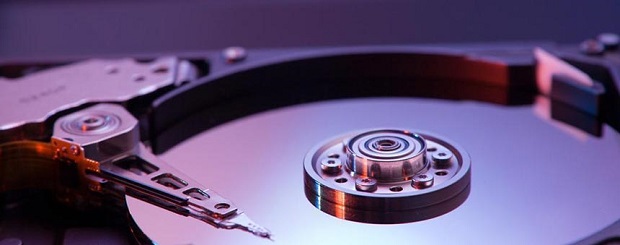
Hard drive recovery is the process of restoring lost files from a malfunctioned hard disk and making it work properly again. It involves retrieving data from a hard drive that is no longer functioning as intended, often due to physical damage, software issues, or other technical problems. The goal of hard drive recovery is to recover as much data as possible from the affected drive, allowing users to access their important files and information once again.
To recover data from a malfunctioned hard drive, you need to take two steps: first, recover the data from the hard disk drive, and second, fix or repair the drive itself.
HDD Recovery Solutions - For Different Hard Drive Errors
Here are three solutions for hard drive recovery in one paragraph:
- #1. Use Hard Drive Data Recovery Software
- #2. Try Manual HDD Recovery Fixes - For Logical Errors
- If you're experiencing physical errors with your hard drive, such as a crashed drive or a drive that's no longer recognized by your computer, it's recommended to turn to a professional hard drive recovery service. These services specialize in recovering data from damaged or corrupted hard drives and can often retrieve data that would otherwise be lost. They have the necessary expertise, equipment, and software to diagnose and repair the issue, and can even provide a quote for the recovery process before any work is done.
To recover data from a hard drive that can be detected by the computer, first try to recover data from it using the methods in Part 1, and then attempt to repair and make it work properly again using the fixes in Part 2.
If your hard drive is physically damaged or partially broken, you need to seek a hard drive recovery service to revive it.
Follow the guidelines below, and let's start to make your hard drive or external hard drive work again.
Part 1. Hard Drive Recovery Software
Applies to: Recover files from hard drives due to various issues such as deletion, formatting, internal errors like RAW, corrupted, bad sectors, and virus infections, among others.
You can recover data from a hard drive, SSD, or external hard drive using disk recovery software, as long as the drive itself is not physically damaged or broken.
Go through the following two phrases, you'll successfully get everything out of your problematic hard drive with ease.
#1st. Best Hard Drive Recovery Software Free Download (Recommend)
To save time and energy, we recommend using Deep Data Recovery software to recover various types of files from storage devices, including corrupted or crashed hard drives.
Deep Data Recovery is designed for all levels of hard drive users, including beginners. It can help with file recovery on a hard drive, whether you have experience with data recovery or not.
- Supported OS: Windows 10/8/8.1/7/Vista/XP, Windows Server 2019/2016/2012/2008/2003
- Supported Cases:Deleting, formatting, virus infections, OS crashes or reinstallation, disk becoming RAW or inaccessible, and partition loss are some common scenarios that can lead to data loss.
- Supported Devices: The storage devices include Hard Disk Drive (HDD), Solid State Drive (SSD), External hard drive, Hybrid Hard Drive (SSDH), USB, Secure Digital (SD) card, and Compact Flash (CF) Card, which are used in computers, digital cameras, and other electronic devices.
You May Also Interest: 15 Best Hard Drive Recovery Software.
If you need to restore unlimited data, it's recommended to activate the software to its full version beforehand.
#2nd. Recover Data from Hard Disk Drive
Qiling data recovery software is a user-friendly tool that allows for easy hard drive data recovery with minimal clicks, enabling users to quickly recover data from their hard disk.
Step-by-Step Guide: Recover Files from Hard Drive
If you prefer a detailed step-by-step guide, follow to learn how to perform hard drive recovery with ease.
Step 1. Scan the file types
Select the file types and click "Fast Scan" to start.

Note: You can choose different search modes based on where and why the data was lost.
Step 2. Scan the hard drive partition
Select the drive on your hard disk where you lost or deleted files, click "Scan" to let Qiling data recovery software scan for all lost data and files on the selected drive.

Step 3. Check the results
After the scan is complete, you can apply the "Filter" feature to narrow down the search or click "Search files or folders" to locate the missing files on the hard drive.

Step 4. Restore lost hard drive data
Select the files you want to recover and click "Recover" to save them to a safe location.
Mac users can download the Mac version of Deep Data Recovery to effectively recover data from a hard drive on their Mac.
After restoring data from the problematic hard drive, you can try manual fixes to repair the malfunctioned disk. These fixes include the listed solutions to get the disk working again.
Part 2. Try Manual HDD Recovery Fixes (Fix Logical Disk Errors)
Applies to: To recover a hard drive with logical errors, start by running a disk check and disk error check using built-in tools like Check Disk (chkdsk) on Windows or fsck on macOS and Linux. If the drive is not detected, try booting from a live USB or CD and accessing the drive from there.
If you are having one of the following symptoms on your computer disk, it means that your disk contains a logical error:
- You received the "you need to format the disk in drive X before you can use it" error message
- Your hard drive has a RAW file system and thus becomes inaccessible
- The hard disk is not showing files in Windows
- Your hard disk is crashed, damaged, corrupted, or dead
If you're experiencing issues, consider reverting back to Part 1 and restoring vital data from the hard drive first. Once you've done that, you can try the following fixes to repair your disk and get it working normally again.
- Fix 1. Use CHKDSK Command
- Fix 2. Format Disk to NTFS using Disk Management
- Fix 3. Update Hard Disk Driver
Fix 1. Fix Inaccessible/Unreadable Hard Drive using CHKDSK Command
Applies to: A corrupted file system can render a hard drive inaccessible, inaccessible, and unreadable, leading to frustrating issues. This type of error can occur due to various reasons, including power outages, hardware failures, or software glitches. When a file system becomes corrupted, the operating system may struggle to read or write data to the affected drive, resulting in a range of problems, from inability to access files and folders to complete failure to boot up the computer.
- Warning
- Running chkdsk may help fix file system errors, but it can also result in total data loss. Therefore, it's recommended to perform data recovery in advance, followed by the CMD method.
Step 1. Press the Windows + R keys and type cmd.
Step 2. Right-click "Command Prompt" and choose "Run as administrator".
Step 3. To run a disk check on the E: drive, type the command `chkdsk E: /f /r /x` and press Enter. This command will initiate a thorough scan of the drive, searching for any errors or inconsistencies, and will attempt to fix any issues it finds.
Go to the Disk Management console by typing `diskmgmt.msc` in the Run dialog box (Windows key + R).
Step 4. Type exit to close the command window.
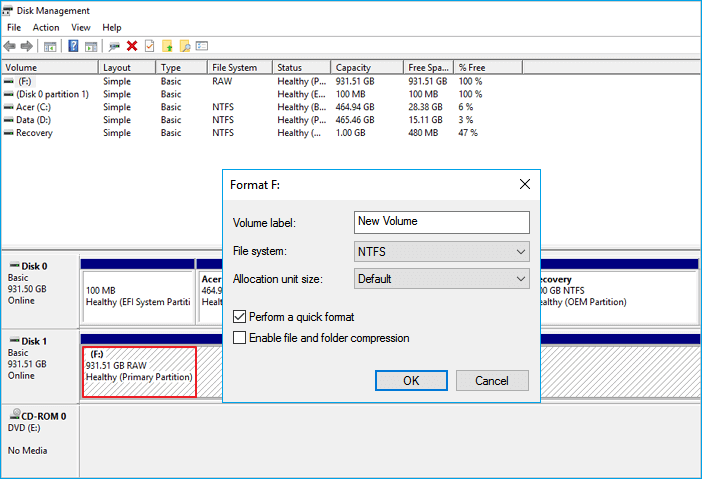
Fix 2. Fix Inaccessible or RAW Hard Drive by Formatting to NTFS in Disk Management
Applies to: To fix an inaccessible RAW hard drive, you can use the built-in Disk Management utility to format it and change its file system to NTFS. This process will erase all data on the drive, so be sure to back up any important files before proceeding.
When your hard drive becomes RAW or inaccessible, you can try formatting the disk to change its file system to NTFS, but this method may cause data loss, so it's recommended to use hard disk recovery software to restore your data first.
Then you can start with the following steps:
Step 1. Right-click on This PC or My Computer, select "Manage".
Step 2. On Computer Management, click "Disk Management".
Step 3. Right-click on the RAW hard drive, select "Format Volume".
Step 4. Reset the Volume label, change the File system to NTFS, and tick "Perform a quick format".
Click "OK" to confirm.
Fix 3. Fix Hard Drive Not Showing Up/Not Recognized by Updating Hard Drive Driver
Applies to: To resolve the issue of a hard drive not showing up or being recognized, updating the disk drive driver can be a potential solution. This involves going to the Device Manager, locating the disk drive in question, right-clicking on it, and selecting "Update driver.
If your hard drive fails to show up or is not recognized by your computer, you can try fixing it by updating its drive driver. To do this, follow these steps:
Step 1. Right-click on This PC or My Computer, select "Manage".
Step 2. On Computer Management, select "Device Manager".
Step 3. To resolve the issue of a hard drive not showing up, expand the Disk drives section, right-click on the unresponsive hard drive, and select the option to "Update driver".
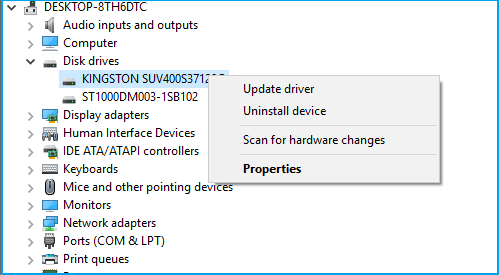
Step 4. Select "Search automatically for updated driver software".
Wait for the process to complete and then restart your computer. This should allow you to access your hard drive again. If the issue persists, refer to Part 3 for further assistance.
Part 3. Turn to Hard Drive Recovery Service
Applies to: Recovering files from a physically damaged hard drive, even if it's partially broken, is possible. This process involves using specialized software and hardware tools to access and retrieve data from the damaged drive.
If your hard drive or external storage device is damaged or physically broken, you may experience symptoms such as data loss, inability to access files, or complete device failure. In such cases, a manual hard disk recovery service is often the best solution to retrieve your valuable data.
- Data recovery software fails to restore hard drive data
- Hard drive gets water-drawn
- Hard drive gets broken or burnt
- Hard drive gets partially damaged
- Hard drive spins then stops, or spins loudly
- Hard drive is covered with scratches, not detected
Hard drive recovery service providers are located around the world, but their services come with a hefty price tag, making it a decision to carefully consider.
Here are 3 manual data recovery service providers for you to consider:
- #1. Qiling Manual Hard Drive Recovery Service
Consult with Qiling Data Recovery Experts for a one-on-one manual recovery service. After a free diagnosis, we offer a range of services, including manual recovery.
- To repair corrupted RAID structure, unbootable Windows OS, and corrupted virtual disk file (.vmdk, .vhd, .vhdx, etc.), you can use specialized tools like DiskInternals RAID Recovery, Deep Data Recovery, or VMDK/VHD/VHDX Recovery. These tools can scan and repair damaged RAID structures, recover data from unbootable Windows OS, and restore corrupted virtual disk files.
- Recover/repair lost partition and re-partitioned drive.
- Unformat hard drive and repair raw drive(Bitlocker encrypted drive)
- Fix disks that become GPT protected partitions
- #2. Ontrack
Ontrack is a global leader in data recovery services, offering solutions for a variety of devices, including computer hard drives and mobile phones.
- #3. Seagate
Seagate offers a comprehensive data recovery service plan that caters to both small and big business owners, providing them with a reliable solution in case of data loss.
NOTE: The average cost of hard disk recovery service is around $500-$1200, making it an expensive option. For those who don't have valuable data, buying a new hard drive might be a more cost-effective choice, as data recovery or hard drive recovery services are not typically a financially viable option for the average person.
Top Questions About Hard Disk Data Recovery
If you have questions about recovering a hard disk or hard drive, refer to the following Q&A for answers.
Question 1. How much does it cost to recover hard drive data?
The cost of recovering a hard drive and retrieving missing files can range from zero to thousands of dollars, with the average cost in 2022 being variable.
The average price of hard drive recovery software is around $50-$100, while the average price of hard drive recovery service is around $200-$500, depending on the complexity of the data recovery and the provider.
- Hard Drive Recovery Software: $0- $100
- Hard Drive Recover Service: $500 - $1200, even more
Some professional data recovery service providers offer free data recovery software that can recover a limited number of files from a hard drive, and Qiling's free data recovery software is one such option.
Question 2. What is the best hard disk data recovery software in 2022?
When searching for hard disk data recovery software, you can find numerous options online, making it overwhelming to choose the right one. To simplify the process, you can Google the topic and explore the various tools provided by different producers. This will help you find a suitable solution for your specific case.
Compared to worldwide software, we've compiled a list of the 15 best hard drive recovery software that you can try, providing a comprehensive solution for recovering lost data from your hard drive.
- #1. Deep Data Recovery
- #2. Stellar Data Recovery
- #3. Disk Drill
- #4. Recuva
- #5. Recover My Files
- #6. Acronis Revive
- #7. R-Studio
- #8. Data Rescue
- #9. OnTrack EasyRecoery
- #10. Wise Data Recovery Software
- #11. Puran Data Recovery
- #12. Glary Undelete
- #13. Orion File Recovery
- #14. PC Inspector File Recovery
- #15. TestDisk Data Recovery
Deep Data Recovery is a practical and affordable data recovery software that can help recover data from a hard drive as long as it's not physically damaged and the lost data hasn't been overwritten by new content.
Question 3. What to do when a hard drive loses data?
When you lose data on a hard drive or SSD, stop using the drive right away and don't save any new files on it.
If you are having trouble with your computer, you may want to try using a reliable hard drive recovery software to help you recover your data. This type of software can help you recover lost or deleted files, and can even help you recover data from a crashed hard drive.
Question 4. Can files be recovered from a failed hard drive?
If your hard drive fails to boot or is unable to boot up, you won't be able to access the saved data on the drive, making data recovery necessary. In this situation, a reliable bootable data recovery software can be a helpful tool to recover the data.
Deep Data Recovery Pro with Bootable Media is designed for data recovery in cases of system crashes or starting problems, allowing you to rescue files when a hard disk is dead, damaged, or failed.
If your hard drive has failed or become unresponsive, don't worry, there are still ways to recover your data. First, stop using the drive immediately to prevent any potential data loss.
Question 5. How to perform hard drive recovery on Mac?
Losing important files can be very frustrating and stressful, especially if they hold sentimental value or are crucial for work or business purposes. It's a good idea to regularly back up your files to an external hard drive, cloud storage service, or both, to ensure they are safe and can be easily recovered in case of a system failure, hardware malfunction, or other data loss scenario.
Qiling Mac data recovery software makes data recovery simple, allowing you to quickly recover files from a Mac hard drive - whether internal or external - in just 3 easy steps.
To recover lost data on a Mac, you can scan the hard drive to locate the missing files, preview them to confirm their recoverability, and then recover the data.
For a step-by-step guide, you may refer to Mac Hard Drive Recovery for help.
The Bottom Line
This page explains what hard drive recovery is, and the differences between using hard drive data recovery software and seeking a hard drive recovery service.
If your internal hard drive, SSD, or external storage device loses data due to false operation or logical error, you can try using professional hard drive data recovery software to recover your lost data. A recommended option is Deep Data Recovery, which can help you recover your data quickly and securely.
If your hard drive is damaged or broken, you may need to use a hard drive recovery service, such as Ontrack, which has a good reputation.
Our Suggestion:
It's more effective to make a backup of your important files elsewhere, allowing for easy recovery from the backup when data loss occurs, rather than relying on data recovery after the fact.
Related Articles
- Top 6 Best Data Recovery Services
- How to Recover Illustrator File After Crash
- Zoom Meeting Disappeared for No Reason? Fix It and Recover Zoom Meetings Now
- Windows Cannot Find GPEDIT.MSC on Windows 11/10, Fixed Now!
- Windows File Recovery Tutorials
Read this guide to learn Windows File Recovery Tutorials with clear steps, practical tips, and safer troubleshooting methods. - Call of Duty Mobile Account & Data Recovery [2023 Troubleshooting]
In rare cases, players may lose their Call of Duty account and game data, even if they have a Facebook account.
Products
Articles & Tutorials
- Data Recovery
- Data Backup
- File Recovery
- File Backup
- System Backup and Restore
- Disk and Partition Clone
- Technical articles
- Mobile articles
- Disk Master Help
- Windows Data Recovery Tutorials
- Windows Secure Delete Tutorials
- Windows Partition Management Tutorials
- Windows File Backup and Restore Tutorials
- Windows System Backup and Restore Tutorials
- Windows Disk Backup and Restore Tutorials
- Windows Clone Tutorials