How to Recover Illustrator File After Crash
To recover a crashed Illustrator file, check the Autosave folder, usually located in the same directory as your Illustrator document. If you can't find it there, try looking in the 'Recent Files' section in Illustrator, or check the 'Recover' option in the 'File' menu. To set up Autosave options, go to 'Preferences' > 'File Handling' in Illustrator, and adjust the Autosave interval and location to your liking. This should help prevent future file loss.
| Workable Solutions | Step-by-step Troubleshooting |
|---|---|
| 1. Recover Illustrator Files from Backup | To recover unsaved Illustrator files from an auto-recovery backup, go to the Illustrator backup location: C:/Users/[username]/AppData/Roaming/Adobe/Adobe Illustrator [version] Settings/en_US*/x64/Adobe Illustrator Prefs. Select the file you want to recover...Full steps |
| 2. Restore the Illustrator Files with Software | To recover deleted or lost Illustrator files, use a professional file recovery tool. Run Deep Data Recovery on your computer. Choose the drive where you lost files, start scanning, and then preview and restore data...Full steps |
Adobe Illustrator Crash Problem
When working with Illustrator, the editor may crash due to various reasons. If data recovery is enabled, the software may pause briefly while backing up large or complex files. Other causes of crashes include outdated software, incompatibility issues, third-party plugins, and software bugs.
If your Illustrator file disappears after a software crash, don't panic! Most vector designs, 3D renderings, and perspective drawings take a long time to create, so losing your work without a save is a nightmare. Fortunately, Illustrator has an Autosave feature that can help you recover lost files. If you've already enabled this feature, you can move on to learn how to recover files from backup files. If not, follow the steps to turn it on and avoid further data loss.
Enable Illustrator Autosave to Prevent Data Loss After Illustrator crashes
Turning on Autosave in Illustrator, although it may cause brief pauses during large file saves, is still necessary. This feature creates a backup file that allows you to recover your unsaved work in case of a crash, accidental shutdown, or closing the software without saving.
Steps to enable Illustrator Autosave:
Step 1: To recover lost data, go to the "Preferences" menu, then select "File Handling & Clipboard", and finally choose "Data Recovery".
Step 2: To turn on data recovery, select the "Automatically Save Recovery Data Every" checkbox in the settings menu.
Step 3: Set a time interval, such as "xx minutes", to automatically save a file, striking a balance between minimizing interruptions and reducing data loss risk.
Step 4: To set a location for Illustrator to store backup files, click on the "Choose" button. This will allow you to select a specific folder or location where Illustrator will save its backup files.
Step 5: To avoid your workflow being interrupted and Illustrator crashing, select the checkbox "Turn off Data Recovery for complex documents".
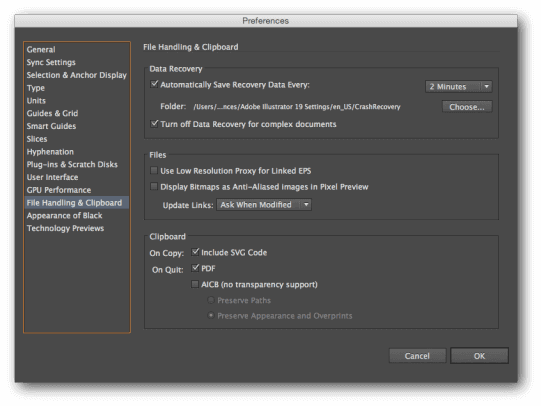
- Notice:
- Whenever Illustrator crashes, the data recovery function is automatically turned off, so it's essential to re-enable the Autosave function each time to increase the chances of recovering lost files.
Method 1. Recover Illustrator Files from Backup
If the Illustrator program crashes, the file you were working on might be recovered and appear as a "recovered" file when you relaunch the program. To avoid losing your work, save the recovered file as a new file and continue working on it. If this doesn't work, try recovering the lost file from backups or use Adobe's file recovery software to see if it can recover your Illustrator artwork. This might help you recover your lost file.
If you have turned on Illustrator Autosave, Method 1 will work perfectly for you. By default, the location of Illustrator backup files is set to the same location as your original file, so you can easily find them in the same directory as your original file.
To recover files from the backup files made by the Autosave feature, locate the autosave folder, which is typically found in the user's AppData\Roaming folder for Windows users. Inside the autosave folder, you'll find a list of autosave files with timestamps.
Step 1: To locate the backup files, go to the designated storage location, whether it's the default folder or a custom folder you've set. This is where you'll find the saved copies of your data, allowing you to restore them as needed.
Step 2: Locate the files with names containing "recovery" or files with unfamiliar extensions, select the one you want to recover, and rename the file.
Step 3: Double-click the file to open it with Illustrator.
Step 4: To save a file, go to the "File" menu and select "Save As". Then, type a new name for the file in the Name field, choose a folder to save it in, and click the "Save" button.
Unfortunately, if Illustrator crashes, you can only recover the last auto-saved version of your file. If the crash occurs between auto-save intervals, any work done after the last save may be lost.
Method 2. Restore Illustrator Files by using Deep Data Recovery
If you've experienced a crash and lost Illustrator files without a backup, you can try recovering them using data recovery software like Deep Data Recovery. Alternatively, if you've misplaced or deleted your backup files, you can use file recovery software like Qiling to quickly locate and recover them in just three steps.
Qiling Illustrator Data Recovery Tool
- Recover lost or deleted files, documents, photos, audio, music, emails and more easily with a reliable data recovery software.
- Data recovery software can restore data after deleting, formatting, emptying recycle bin, virus attack, system crash, and other data loss scenarios.
- The software supports over 1000 types of files, including popular document formats like DOC/DOCX, XLS/XLSX, and PPT/PPTX, image formats such as JPG/JPEG, as well as audio and video files like M4A, MP3, AVI, MOV, and MP4.
Step 1. Launch Qiling file recovery software on your Windows computer. Select the file types you want to recover and click "Fast Scan" to proceed with the recovery process.

Note: You can choose different search modes based on where and why the data was lost.
Step 2. To recover lost files, go to the location where the files were stored and click the "Scan" button. This will start the recovery process.

Step 3. The software will immediately start scanning the drive and display deleted files soon. If you find the target files during the scan, you can stop it. To quickly find the desired file, use the file format filter.

Step 4. To recover files, select the desired files (such as Word, Excel, PDF, photos, videos, or emails) and click the "Recover" button. You can then choose a new location to save the recovered files.
- Important
- The software can recover lost files, but not lost content within a file. If you're trying to recover content, use Method 1. If no backup is available, it's likely the files can't be recovered.
The Bottom Line
To minimize the chance of losing your work in Adobe Illustrator, it is highly recommended to turn on the Autosave feature, which can help prevent data loss in case of software crashes or other unexpected situations.
Related Articles
- How to Access HP Boot Menu with HP Boot Menu Key [Full Guide]
- League of Legends Replays & Highlights, Where to Find and How to Recover
- How to Reset Windows 10 Password in 4 Ways (Step-by-Step Tutorial)
- CR2 Photos Not Opening, How Do I Fix and Open CR2? Your Guide Is Here
- How to Recover Deleted Call Recordings from SD Card/Memory Card
It's a horrible thing when you realized that you've lost or deleted the call recordings from SD card and memory card. Let's learn the basic information for how to recover deleted call recordings from SD card and memory card, solving the problem you encounter. - How to Recover Deleted DCIM Folder on Samsung Galaxy
This article explains how to locate the DCIM folder on a Samsung Galaxy device and provides a guide on how to recover a deleted DCIM folder using a DCIM folder recovery tool.
Products
Articles & Tutorials
- Data Recovery
- Data Backup
- File Recovery
- File Backup
- System Backup and Restore
- Disk and Partition Clone
- Technical articles
- Mobile articles
- Disk Master Help
- Windows Data Recovery Tutorials
- Windows Secure Delete Tutorials
- Windows Partition Management Tutorials
- Windows File Backup and Restore Tutorials
- Windows System Backup and Restore Tutorials
- Windows Disk Backup and Restore Tutorials
- Windows Clone Tutorials