Mac Hard Drive Recovery: Recover Files from Internal/External Hard Drive on macOS
Part 1. How to Recover Files from Mac Hard Drive
If you've lost critical business documents, music, photos, or videos from your Mac or Windows PC, it can be a desperate situation. Fortunately, Qiling's data recovery software makes it easy to recover lost files. Whether you need to recover data from a Mac's internal or external hard drive, Qiling can quickly get your files back.
What Causes Mac Hard Drive Data Loss
Data loss from a Mac hard drive can occur due to various reasons, including accidental deletion, formatting, virus attacks, logical corruption, physical damage, and hardware failure. These incidents can lead to the loss of important files, documents, and other data, causing inconvenience and stress.
- macOS/Mac OS X reinstallation or upgrade
- Hard drive file system corrupted.
- Format hard drive without backup by mistake
- Lose partition due to improper operation
- The partition table on the hard drive is corrupted, making the stored data inaccessible.
- Malware or ransomware attack...
The most effective way to recover files on a Mac hard drive is by using Mac data recovery software, such as Deep Data Recovery for Mac, which can help recover over 200 file types at a high recovery rate.
How to Recover Files from Any Mac, Macbook, iMac
With the Qiling Mac data recovery tool, you can easily recover permanently deleted or lost data from a Mac hard drive, and have the option to restore files to the original Mac internal hard drive, a safe external hard drive, or even recover data to a PC.
To recover lost files from an external hard drive on Mac:
Step 1. Select the file types. Click the "Fast Scan" button to start.

Note: You can choose different search modes based on where and why the data was lost.
Step 2. Select the disk location where you lost data and files, then click the "Scan" button.

Step 3. Deep Data Recovery for Mac will immediately scan your selected disk volume and display the scanning results on the left pane.

Step 4. In the scan results, select the files you want to recover and click the "Recover" button to retrieve them.
What Else Can Qiling Mac Hard Drive Recovery Do for You
The Deep Data Recovery for Mac is a user-friendly and accessible program that allows regular computer users to recover unlimited data on macOS or Mac OS X devices with just a few clicks, requiring no advanced technical expertise.
- The system is compatible with all operating systems, from Mac OS X 10.9 to the latest macOS 10.15 (Catalina).
- The software supports full file system recovery from various file systems, including NTFS, HFS, HFS+, HFSX, HFS Wrapper, FAT, and APFS, allowing for the recovery of data from Mac-formatted hard drives.
- This software has the ability to recover data from various storage devices and locations, including hard drives, emptied trash bins, USB drives, pen drives, SD cards, and digital cameras.
- Numerous data file types can be recovered, including over 200 types, such as recovering deleted Word, Excel, and PPT documents, photos, videos, and music files from your Mac's internal or external hard drive.
Part 2. How to Repair Undetected or Damaged Mac Hard Drive
If your Mac experiences a power outage, it may cause the hard drive to crash or an external hard drive to become undetected. To resolve this, you can try the following solutions.
Method 1. Repair Mac Hard Drive with Disk Utility
Step 1. Reboot macOS and immediately press "Command + R" simultaneously.
Step 2. You can boot in the Recovery Mode. Click "Disk Utility."
Step 3. Select your failed Mac hard drive, and run "First Aid" to repair your damaged hard drive on Mac. This tool can help fix problems like disk corruption, which can cause your Mac to freeze or crash.
Usually, your failing hard drive can be repaired successfully.
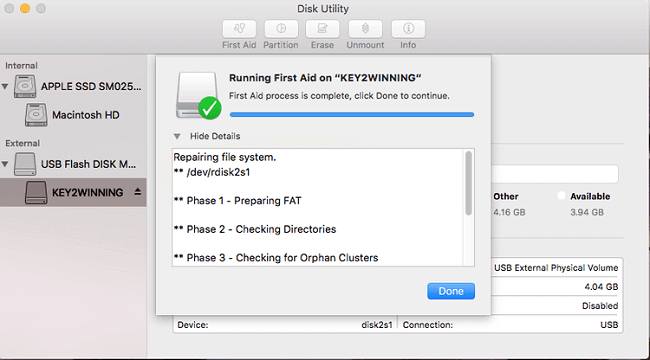
Method 2. Repair Mac Start-up Drive with FSCK
When your hard drive starts to fail, Disk Utility offers useful disk repair tools. However, if these tools are unable to repair the issue, you can use the FSCK command, which stands for File System Consistency Check, to review and repair the underlying structure of the hard drive. This command-line tool can help restore your hard drive to a functional state.
Step 1. To restart your Mac and enter the Single User Mode, simply restart your Mac and press the keys "Command + S" simultaneously. This will take you to the Single User Mode.
Step 2. Type the following command: /sbin/fsck_hfs -fy and press "Return."
The command line could analyze Macintosh HD and return the message "The action performed" as the action performed.
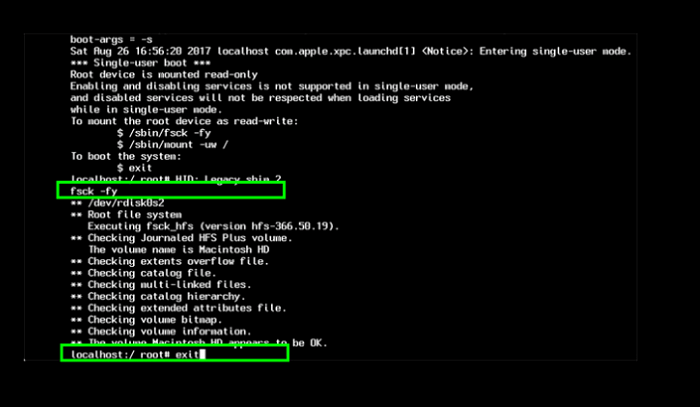
After running FSCK to repair a damaged disk drive, if it shows "The Volume (name) appears to be OK", you can re-run FSCK until the file system is corrected.
Method 3. Other Quick Fixes You May Try
If the previous solutions didn't work well, you can try these quick fixes to repair your Mac HDD. Some of these fixes include running a disk utility to repair permissions, running a disk repair to fix any disk errors, resetting the System Management Controller (SMC), and restarting your Mac in Safe Mode to isolate the problem. Additionally, you can try running the built-in Diagnostic and Repair tool, resetting the PRAM, and using a third-party disk repair tool like Disk Utility or DiskWarrior.
1. Format HFS hard drive
- Open the disk utility and select the drive you want to format.
- To erase the drive, click on the "Erase" button, and then select the exFAT volume format from the options provided.
2. Connect Mac Hard Drive to PC
If your HDD cannot be detected, you can try taking out the drive and connecting it to the PC to see if it can be detected.
- To safely remove the internal Macintosh HD from your Mac, first shut down the computer completely. Then, unplug the power cord and any other cables connected to the Mac. Next, locate the screws that hold the internal hard drive in place and remove them.
- Prepare an external hard drive enclosure.
- Place the external hard drive into it and connect the enclosure and PC via a USB cable.
Now you can check your hard drive and copy wanted data.
3. Recover Mac Hard Drive Data Again
Qiling data recovery software is advanced software that supports APFS, HFS, HFS+ formatted hard drive recovery, allowing retrieval of data from various storage devices, including personal computers, USB drives, and external hard drives, and is compatible with both Windows and Mac computers.
To Sum Up
Recovering Mac hard drive data is effortless with Deep Data Recovery, allowing you to quickly restore data on both Windows and Mac systems. It's also a good idea to create a backup of your important files to avoid any potential data loss.
People Also Ask - Mac Hard Drive Recovery Related Questions
The best Mac data recovery software varies depending on the specific needs and circumstances, but popular options include Disk Drill, Data Rescue, and Deep Data Recovery. The data recovery process typically takes anywhere from a few minutes to several hours or even days, depending on the size of the drive, the type of data being recovered, and the complexity of the recovery process. Factors such as the presence of physical damage, corruption, or encryption can also impact the duration and success of the recovery. It's always a good idea to create regular backups to minimize the risk of data loss and to use reputable software that can help recover your important files and documents.
What is the best Mac data recovery software?
For macOS users, there are several reliable data recovery software options available, including Disk Drill, Deep Data Recovery, Wondershare Data Recovery, Stellar Data Recovery, and iBoysoft Data Recovery. These tools can help recover lost or deleted files, photos, and other data from various storage devices, including hard drives, solid-state drives, and external drives.
- Deep Data Recovery
- Stellar Data Recovery Professional
- Disk Drill
- Data Rescue 5
- Ontrack EasyRecovery
How do I recover files on my Mac for free?
To recover lost files from an external hard drive on a Mac, follow these steps: Connect the external hard drive to your Mac. Open Disk Utility and select the external hard drive.
Step 1. Download and install Qiling Mac hard drive recovery software.
Step 2. Select the disk location and click the Scan button.
Step 3. Select the file and click Recover Now button to have them back.
How long does data recovery take?
Data recovery can take a variable amount of time, depending on the scope and type of recovery, as well as the quantity of data being restored.
How does data recovery software work?
Data recovery works by taking advantage of the way modern operating systems perform deletions, allowing deleted files to be restored with specialized software.
Related Articles
- [Easy Tip] Recover Data on Mac For Free
- Follow 5 Effective Ways to Fix Mac Fusion Drive Not Showing Up
- Best Data Recovery Solutions for Mac with T2 Chip in 2022
- 2 Best Ways to Recover Oxygen Not Included Game Save File
Your saved files were lost from Oxygen Not Included's save file location. To recover the lost game data, you can try two methods: download Qiling data recovery software to recover the game save, or open Steam to retrieve data from the cloud. - Fix Exracted Files or Files Not Showing in Folder Windows 10
Here are four solutions to resolve the issue of files not showing up in folder or extracted files not showing up in Windows 10: Try to check the file type association, reset the File Explorer, check for corrupted system files, and run a full. - How to Fix Inaccessible Boot Device (Stop Code 0x0000007b)
The Inaccessible Boot Device error code 0x0000007b is a common Blue Screen of Death issue that often occurs on Windows 10 computers and laptops.
Products
Articles & Tutorials
- Data Recovery
- Data Backup
- File Recovery
- File Backup
- System Backup and Restore
- Disk and Partition Clone
- Technical articles
- Mobile articles
- Disk Master Help
- Windows Data Recovery Tutorials
- Windows Secure Delete Tutorials
- Windows Partition Management Tutorials
- Windows File Backup and Restore Tutorials
- Windows System Backup and Restore Tutorials
- Windows Disk Backup and Restore Tutorials
- Windows Clone Tutorials