How to Fix Inaccessible Boot Device (Stop Code 0x0000007b)
What Is Inaccessible Boot Device
The Inaccessible Boot Device error, often accompanied by stop code 0x0000007b, is a common blue screen of death (BSOD) issue that occurs when Windows 10 fails to start normally, especially after a major update, software update, or system reset. This error prevents the computer from booting and accessing data, as Windows loses its ability to locate the system partition, rendering the startup process inaccessible.
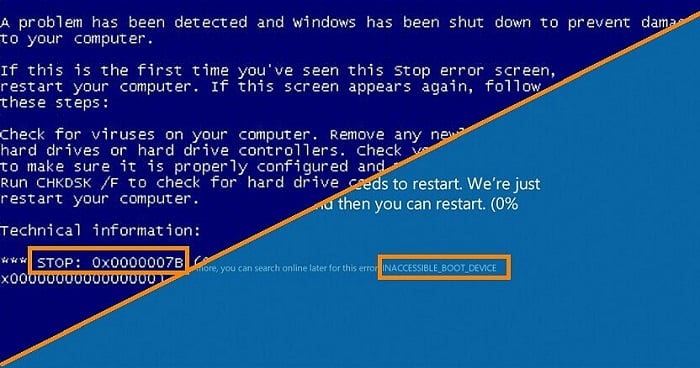
The general boot devices include hard drives, SSDs, CDs/DVDs, and USB drives, among others. According to reports, the BSOD problem is more commonly experienced in computers that use an SSD.
To resolve the inaccessible boot device issue and fix the 0x0000007b error code, and prevent the blue screen of death, start by identifying the possible causes of the problem. Then, attempt to access your computer data using a reputable third-party bootable data recovery program, which can help you recover your important data without having to start from scratch.
What Causes Inaccessible Boot Device
The boot device is not accessible due to various reasons, similar to other blue screen of death messages. The underlying culprits can be a malfunctioning operating system, a critical process failure, or other hardware-related issues, such as a faulty hard drive or a malfunctioning BIOS. These problems can prevent the computer from accessing the boot device, resulting in the blue screen error.
- Drivers corrupted, outdated or configured inaccurately with current hardware
- The boot drive, which is the primary hard drive that contains the operating system and essential system files, has been corrupted, damaged, or failed, making it unable to boot up the computer normally.
- Hardware conflicts with the system updates and changes
- Other minor factors that may cause the issue include a loose or faulty data cable connected to the software, or malware or virus infections.
How to Recover Data from Inaccessible Boot Device
You don't need to be an expert to recover data from a blue screen of death, as there is software that can do it for you. Deep Data Recovery Pro with Bootable Media is designed to retrieve data when Windows won't boot or shows a blue screen of death.
If your computer is displaying the error "Inaccessible Boot Device" and is unbootable, you can recover your data by using a normal computer to download and install data recovery software, then creating a bootable CD/DVD or USB drive on it. This process involves three stages of data recovery.
To revive a dead computer, create a bootable drive on another computer, then use it to boot the dead computer. This will allow you to perform a full data recovery.
Step 1. Create a bootable disk
Before creating a bootable disk, make sure to copy any important data from the USB to another device, as the process will erase the data on the USB. Once you've cleared the USB, you can use Deep Data Recovery WinPE Edition to create a bootable disk.
Connect the USB drive to your PC, then launch Deep Data Recovery WinPE Edition. From there, select the USB drive and click "Create" to create a bootable disk.
Step 2. Boot from the bootable USB
Connect a bootable disk to a non-booting PC, change the boot sequence in BIOS settings, and restart the PC while pressing the F2 key to enter BIOS. This often resolves the issue.
To boot your PC from a device other than the hard drive, press F10 to save and exit when prompted, then select "Removable Devices" (bootable USB disk) or "CD-ROM Drive" (bootable CD/DVD) as the boot device.

Note: You can choose different search modes based on where and why the data was lost.
Step 3. Recover data from a hard drive that won't boot
When you boot from a USB, you can run Deep Data Recovery from the WinPE bootable disk and select the drive to scan to find lost files.
Click "Scan" to start the scanning process.

To recover data from a computer or laptop, scan the device after installing a data recovery software. Once the scan is complete, preview all recoverable files, select the desired files, and click "Recover" to restore them. Save the recovered data to a different location to avoid overwriting.

How to Fix Inaccessible Boot Device (6 Proven Ways)
For computer users with limited technical skills, encountering the Inaccessible Boot Device blue screen can be daunting. However, with the help of a reliable data recovery solution like Qiling, it's possible to access and export important data to a safe location. Fortunately, there are five simple troubleshooting methods that can help the operating system find the boot device and start the computer correctly, making it easier for users to resolve the issue on their own.
Fix 1. Solve inaccessible boot devices with Windows Repair Services
To resolve system startup errors, consider consulting Windows repair services. They can address various issues such as system failure, BSOD, BIOS problems, boot device issues, and more.
Consult with Qiling data recovery experts for one-on-one manual recovery service, which includes the following services after a FREE diagnosis:
- Fix Windows boot issues, including BSOD
- Fix Windows error and configure Windows environment
- Restore the system when it fails to boot
- Optimize Windows computer to make it run quickly
Fix 2. Uninstall the recently installed packages
You can invoke the Windows Command Prompt to remove recently-installed packages that might be causing the error. To do this, open the Command Prompt, navigate to the directory where the packages were installed, and use the `uninstall` command to remove them.
To open Windows Command Prompt, go to Settings > Update and Security > Recovery > Advanced Startup, and restart. In the blue screen window, select Troubleshoot > Advanced Options > Command Prompt.
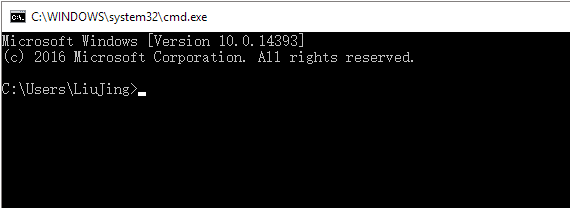
Once the Command Prompt window appears, go through the steps to uninstall the unwanted packages you recently installed.
Step 1. The command "dir c:" is a Windows command that lists the files and subdirectories on the C: drive. When you type "dir c:" and press Enter, it will display a list of all the files and subdirectories on the C: drive, including their names, sizes, and timestamps. This can be useful for finding specific files, checking disk space, or troubleshooting issues related to the C: drive.
Step 2. Run the command Dism /Image:c:\ /Get-Packages to view all installed packages on your system. Identify the most recent package installed by looking for the date, and write down the package's name.
Step 3. The command to delete a troublesome package using the DISM tool is `dism.exe /image:c:\ /remove-package /[package name]`. This command is used to remove the specified package that is causing issues.
Step 4. Reboot your computer.
Fix 3. Remove "Update Pending" packages
Windows 10 sometimes installs updates without notification, and it can be unclear if the update has finished. Some updates may get stuck during or after installation, leading to a situation where pending packages cause an "Inaccessible Boot Device" error. In such cases, you can try to remove the unfinished packages using the Windows Command Prompt.
Step 1. To open the Windows Command Prompt, go to the Start menu, type "cmd" in the search bar, and press Enter. Alternatively, you can also type "powershell" in the search bar and press Enter.
Step 2. Run the three commands as listed to delete the SessionsPending registry key, and press Enter after each line.
reg load HKLM\temp c:\windows\system32\config\software
reg delete "HKLM\temp\Microsoft\Windows\CurrentVersion\Component Based Servicing\SessionsPending"/v Exclusive
reg unload HKLM\temp
Step 3. To prepare for the upgrade, type "dism /image:C:\ /get-packages" to get a list of pending updates. Note any updates with the "Install Pending" tag, as these will need to be moved into a temporary file to complete the upgrade.
Step 4. To create the temporary file, type MKDIR C:\temp\packages and press Enter.
Step 5. To remove a pending package from the DISM log, type "dism /image:c:\ /remove-package /packagename:[package name] /scratchdir:c:\temp\packages" and press Enter, moving all pending packages into the temporary file.
Fix 4. Enable AHCI mode in BIOS
Different manufacturers, such as Lenovo, Dell, and Acer, have their own methods of entering the BIOS environment, and the BIOS menu layout also varies between them. This means that the process and appearance of accessing and navigating the BIOS settings can differ significantly from one brand to another.
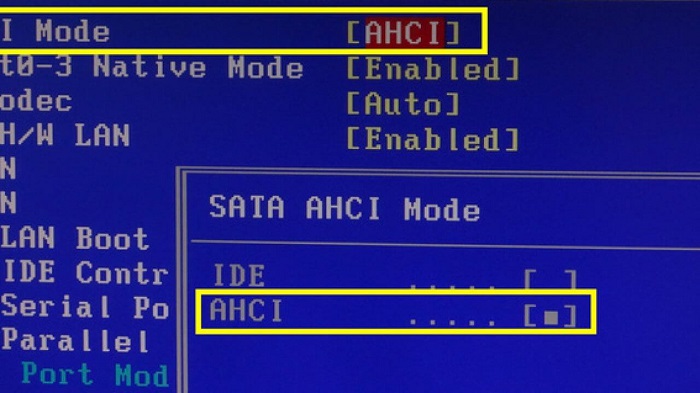
To solve the Inaccessible Boot Device error, toggle the AHCI mode value in BIOS to Enabled by entering the BIOS settings, usually by pressing F2, Escape, or Delete, and navigating to the Advanced Options menu to change the AHCI Mode value to Enabled.
Fix 5. Update Drivers
Drivers play a crucial role in Windows, ensuring hardware functions correctly. However, when a driver becomes outdated, corrupted, or incompatible with Windows 10, it can cause issues, including the Inaccessible boot device error.
To update your faulty driver, you can go to the official website of your hardware manufacturer and download the latest controller drivers, such as IDE ATA/SATA, if you remember the manufacturer. Alternatively, you can try other methods.
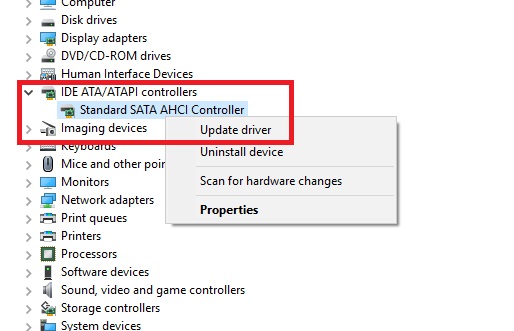
To update the driver automatically in Device Manager, press the Windows + R keys simultaneously, type "devmgmt.msc" in the Run box, and hit Enter. Then, in the Device Manager, navigate to and expand the "IDE ATA/SATA controller" sub-menu, right-click on "Standard SATA AHCI Controller," and select "Update Driver. Windows will automatically check and install the necessary driver after a restart.
Fix 6. Check and repair hard drive corruption
The boot device not accessible, so C drive corruption should be responsible for the case. To check and repair the system C drive state of health, you need to get to the recovery console to boot into Windows and perform the below command.
Note: Running chkdsk to repair hard drive corruption may cause total data loss, so it's recommended to perform data recovery in advance. Once the data is safe, you can proceed with the CMD method to fix the issue.
Step 1. Press Windows + X keys and select Command Prompt (Admin).
Step 2. Type chkdsk /r C: and hit Enter.
The video provides solutions to troubleshoot the Blue Screen of Death (BOSD) error, including three commonly applied methods that can also help resolve the Inaccessible Boot Device error. These solutions can help get your computer out of the BOSD error and are worth trying to resolve the issue.
Conclusion
The article discusses the "Inaccessible Boot Device" error, which causes a blue screen of death (BSOD) with a stop code of 0x0000007b. When faced with this issue, users are unable to boot their computer, but can potentially recover critical data using a bootable data recovery software like Qiling.
People Also Ask about Inaccessible Boot Device
1. How do I fix inaccessible boot device error?
Here are the possible fixes for the inaccessible boot device error - 0x0000007b, which can be tried:
- #1. Uninstall the recently installed packages
- #2. Remove "Update Pending" packages
- #3. Enable AHCI mode in BIOS
- #4. Update Drivers
- #5. Check and repair hard drive corruption
For a step-by-step guide, refer to the 6 proven ways on this page for help:
2. If your computer says "no bootable device," it means that the computer is unable to find a device (such as a hard drive or USB drive) that contains an operating system (like Windows or macOS) that it can use to boot up. This can be caused by a variety of issues, such as a faulty or disconnected hard drive, a malfunctioning BIOS or UEFI settings, or a corrupted operating system.
The Inaccessible Boot Device error code 0x0000007b is a common Blue Screen of Death issue that affects Windows computers and laptops, causing them to crash and display a blue screen with this specific error code.
"No Bootable Device Available" means your computer can't find its hard drive, where it stores data like files, programs, and the operating system, making it unable to load or access these.
You may encounter a Blue Screen of Death (BSOD) error when booting up your computer. This is a serious error that occurs when the operating system encounters a critical problem that it cannot recover from, resulting in a blue screen with an error message. The exact cause of the BSOD can vary, but it is often related to hardware or software issues that need to be addressed in order to resolve the problem.
3. How do I fix 0xc0000001?
To fix the 0xc0000001 error on Windows 10/8/7/XP, follow this quick guide: First, try booting in Safe Mode to isolate the issue. If that doesn't work, try running a System File Checker (SFC) scan to replace corrupted system files.
- Step 1. Restart your computer.
- Step 2. Press SHIFT + F8 when booting to open the Recovery screen.
- Step 3. Select the Advanced repair options.
- Step 4. Go to Troubleshoot and then Advanced Options.
- Step 5. Select Windows Startup Settings.
- Step 6. Click Restart.
Related Articles
- USB Unreadable: Recover Files from Unreadable USB Flash Drive
- SD Card/USB Drive/Pen Drive Shows 0 Bytes
- DIY Solutions | Fix/Repair Corrupted USB Drive Without Formatting
- How to Recover Deleted Files from Network Drive Shared Folder
- How to Recover JPEG from SD Card
It's very easy to recover JPEG from SD card no matter in what cases you lost the JPEG files, deleted it, formatted memory card or your SD card just go corrupt. Check out the SD card JPEG recovery process to get it now! - How to Recover Kaspersky Deleted Files
How can I recover deleted files from Kaspersky? The answer is quite simple and easy to restore files deleted by Kaspersky antivirus.
Products
Articles & Tutorials
- Data Recovery
- Data Backup
- File Recovery
- File Backup
- System Backup and Restore
- Disk and Partition Clone
- Technical articles
- Mobile articles
- Disk Master Help
- Windows Data Recovery Tutorials
- Windows Secure Delete Tutorials
- Windows Partition Management Tutorials
- Windows File Backup and Restore Tutorials
- Windows System Backup and Restore Tutorials
- Windows Disk Backup and Restore Tutorials
- Windows Clone Tutorials