SD Card/USB Drive/USB Flash Drive Shows 0 Bytes

Possible Reasons: The camera's flash is not getting enough power from the USB port, possibly due to overloading the ports or using a damaged cable, which can cause the flash to show 0 bytes and "No Media". Alternatively, the issue could be caused by a virus infection that has damaged the files on the USB drive.
If your USB flash drive shows no media and 0 bytes, you can try to resolve the issue through the quick navigation bar below, which offers a quick fix to your problem.
Many users experience a common issue where their computer fails to recognize a USB flash drive, SD card, or pen drive when inserted, resulting in a "no media" and 0 bytes display in Windows Disk Management. This problem can be frustrating, but it's easily solvable by following some simple steps.
What Causes USB No Media and Shows 0 Bytes
The "USB no media 0 bytes" problem can occur due to various reasons. This issue can arise when the USB drive is not recognized by the system, or when the drive is faulty or damaged. Additionally, issues with the USB controller or port, corrupted file systems, or outdated drivers can also cause this problem.
- The files are still present but have been inadvertently set as hidden, making them invisible in the normal file view.
- No recognized partition on your USB drive.
- If you remove a USB drive without properly ejecting or safely removing it, you risk damaging the files stored on the drive as well as the Master Boot Record (MBR) or Partition Boot Record (PBR) of the device. This could result in data loss or corruption.
- The flash drive shows 0 bytes and No Media due to insufficient power supply from the USB port, which can be caused by overloading the USB ports or using a damaged USB cable.
- The files on the USB drive may be damaged by computer viruses.
- A failing flash drive, typically due to NAND flash failure, can cause a "No Media" error. This occurs when the flash memory controller can't communicate with the NAND flash memory, prompting Windows to treat the drive as an empty disk drive.
After knowing the reasons for the USB showing no media phenomenon, it is time to learn how to get this problem fixed in a quick way.
- Important
- To avoid unexpected data loss troubles in 0 bytes storage devices, it's recommended to retrieve hidden files or restore data before addressing the 0 bytes issue.
How to Fix USB Drive Showing 0 Bytes
USB flash drives may display errors such as showing no media and 0 bytes, or displaying as unallocated and RAW in the disk management. If you're experiencing these issues, you can find a solution in this article. Keep reading for more details.
Part 1: USB Shows 0 Bytes in Disk Management
If you see a prompt to format your drive, don't do it immediately as it will erase all data. Instead, check your USB drive or other portable devices in Disk Management if they show up as 0 bytes.
1 - If your device shows 0 bytes in Disk Management, you'll need to take your device to a local data recovery service center and ask for help.
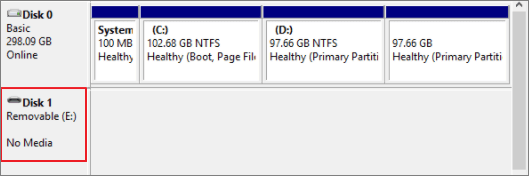
2 - If Disk Management shows your USB drive as "Online" or "Healthy" but incorrectly displays its capacity, try these fixes.
- Unplug, replug the device and reboot the computer
- Replacing the USB ports and STATA cable, and then restarting the computer to see if that resolves the issue.
- Connect a 0-byte storage device to another computer to check data.
- Connect the USB cable to the USB port on the computer motherboard, which is usually located on the back of the desktop computer.
Part 2: USB Shows Other States in Disk Management
If the USB does not show as 0 bytes in Disk Management, you can solve this issue by following the guide. Press "Windows + X" and select "Disk Management", then check the USB to see if it's recognized. If it is, you can proceed with the next steps to resolve the problem.
1 - Showing as Unallocated
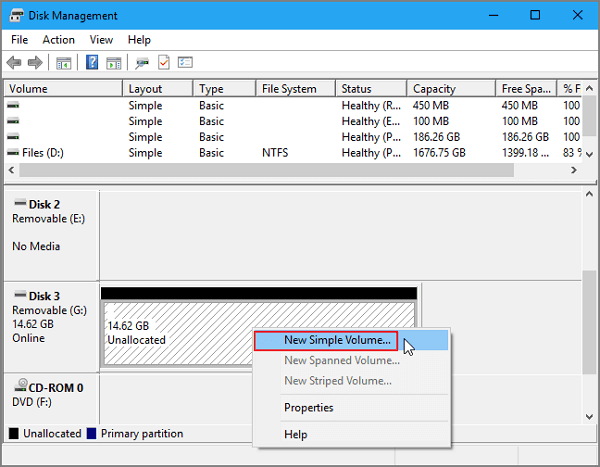
If the device is showing as unallocated, you can solve this by creating a new partition. You can follow the manual guide below, or create a new partition using the software.
Step 1: To connect an unallocated USB/SD card or other device to the PC, right-click on "This PC/My Computer" and select "Manage" from the menu. Then, click on "Disk Management" from the resulting menu. This will allow you to access and manage the connected device.
Step 2: Right-click on the unallocated space of the pen drive, select "New Simple Volume" from the context menu.
Set the partition size, drive letter, and file system (NTFS) and click "Finish".
2 - Shows RAW in Disk Management
If a USB drive shows as RAW online with a healthy state, it means you can't access the device, but it's not corrupted. To fix this without losing data, you need to recover your data first, and then troubleshoot the RAW issue.
First: Recover Data
We highly recommend using professional data recovery software to recover your data, and Qiling disk data recovery software is a good option that can support RAW partition recovery and help solve your problem.
- Recover data from a dead hard drive.
- Perform USB recovery, hard disk recovery, or external hard drive recovery.
- Support users to preview all recoverable files.
- 100% secure and works well on both Windows and Mac computers, with a user-friendly interface that is easy to navigate and understand, making it a reliable choice for individuals and businesses alike.
You can download a tool to quickly and securely recover data from a USB drive, SD card, or other storage devices that have a "0 bytes" issue, allowing you to retrieve your files.
Step 1. Select file types and click "USB/SD Scan" to start
Launch Deep Data Recovery software, select the desired file types, and click "USB/SD Scan" to initiate the recovery process.

Note: You can choose different search modes based on where and why the data was lost.
Step 2. Choose the USB drive to scan
Launch Deep Data Recovery and select the USB drive where your important files were lost. Click "Scan" to begin the recovery process.

Step 3. Check and preview USB drive data
When the scan is complete, you can quickly find a specific type of file by using the Filter feature and the Search option.

Step 4. Restore flash drive data
After finding lost files on a USB drive, click "Recover" to restore them. Save the recovered files to a safe location on your PC, not back to the USB drive.
Second: Format 0 Byte RAW USB/SD Card
After restoring the USB data, you can format the 0 bytes RAW hard drive partition.
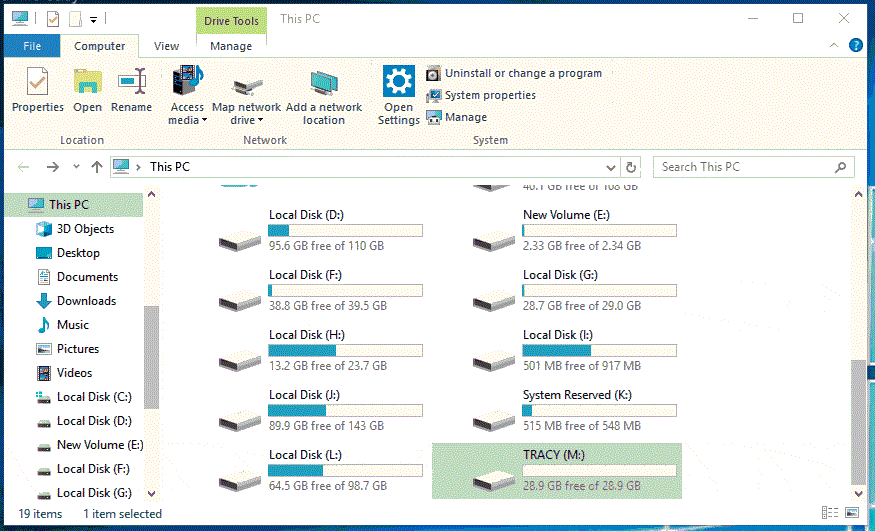
Step 1: In "This PC/My Computer", select the USB.
Step 2: Right-click the 0 bytes USB, then choose "Format".
Step 3: Select FAT32 or NTFS as the file system for the USB drive and click "OK" to confirm the selection.
Consult with Qiling Data Recovery Experts for one-on-one manual recovery service, which includes a FREE diagnosis, followed by the following services.
- Repairing a corrupted RAID structure, an unbootable Windows OS, or a corrupted virtual disk file (.vmdk, .vhd, .vhdx, etc.) requires a comprehensive approach. This involves identifying the root cause of the issue, whether it's a hardware failure, software glitch, or user error.
- Recover/repair lost partition and re-paritioned drive.
- Unformat hard drive and repair raw drive(Bitlocker encrypted drive)
- Fix disks that become GPT protected partitions
The Bottom Line
Whenever you encounter the issue of a USB flash drive showing 0 bytes, you can try the provided solutions. If your USB shows a different status, don't hesitate to ask Qiling for assistance. They offer professional help through live chat or email (support@idiskhome.com).
If the USB drive shows 0 bytes and you need its files, follow the USB 0-byte file recovery steps before attempting a format or other write operation.
Related Articles
- Fix the Error that Memory Card Not Show Up or Detected in Mobile/PC
- Fix Hard Drive Disappeared in Windows 10 Without Losing Data
- How to Recover Data from Corrupted or Scratched CD/DVD
- Fix Unknown USB Device - Device Descriptor Request Failed
- Top List of Data Recovery Services in USA [2023 NEW]
To find a data recovery service near you in the USA, you can use a service finder to locate a data recovery service in your area. - Deleted File Recovery Software Free Download Full Version with Key
Deleted file recovery software can help you recover unlimited deleted or lost files from various storage devices, including hard drives, external hard drives, USB flash drives, SD cards, and more, on Windows and macOS.
Products
Articles & Tutorials
- Data Recovery
- Data Backup
- File Recovery
- File Backup
- System Backup and Restore
- Disk and Partition Clone
- Technical articles
- Mobile articles
- Disk Master Help
- Windows Data Recovery Tutorials
- Windows Secure Delete Tutorials
- Windows Partition Management Tutorials
- Windows File Backup and Restore Tutorials
- Windows System Backup and Restore Tutorials
- Windows Disk Backup and Restore Tutorials
- Windows Clone Tutorials