Fix the Error that Memory Card Not Show Up or Detected in Mobile/PC
"Hey there, have you ever met this issue that the memory card suddenly disappeared from the mobile phone? The memory card suddenly becomes invisible and cannot be detected by mobile and PC. I'm now having this issue on my phone that my memory card fails to show up and it cannot be detected by my computer either. This is why I post my question here. If you know how to fix my problem, help me. Thank you."
If your mobile memory card suddenly disappears from your phone or fails to read the card, you can fix and repair your corrupted memory card without losing any data. To do this, simply follow the instructions provided, which will guide you through the process of recovering your valuable data. Your phone and computer should be able to detect the card again, and you'll be able to access all your stored information without any issues.
How to Repair the memory SD card not showing up/not detected error
If your memory card, such as an SD card, fails to show up or can't be detected by your mobile device or PC, don't immediately format it. Instead, stop using the device right away and explore methods to repair or fix the undetectable or failed memory card. Several solutions are available to help repair corrupted, not detected/recognized, or failed memory cards, as suggested by professionals and reliable websites.
Method 1. Update memory card driver to make memory card show up
If a memory card driver is outdated, it may not function properly, causing mobile phones or computers to fail to detect or recognize the card. To resolve this issue, follow these steps to update the memory card driver and fix the "memory card fails to show up" error in mobile or PC.
Step 1. Insert your memory SD card to a card reader and connect it to your PC.
Step 2. Open "Computer" and choose "System Properties".
Step 3. In the Taskbar troubleshoot a USB issue, go to the Taskbar on the left, click "Device Manager", and under "Universal Serial Bus controllers", click the "+" (plus) symbol. This will expand the list, and a yellow exclamation mark will appear, indicating a problem with one of the USB devices.
Step 4. Right-click and choose "update driver software".
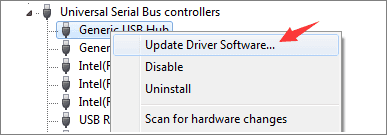
Step 5. Click "Search automatically for driver software online"...
Wait patiently and let the driver to be installed and reboot your computer. Now you can reconnect your memory card to your PC to check out whether it can be recognized or not.
Method 2. Run CHKDSK to fix the memory card error
When a memory card fails to show up and can't be detected by a mobile phone or PC, check if it's detected in Disk Management. If it's visible there but can't be opened, run the CHKDSK command to fix internal errors and make the memory card readable again.
Be sure to recover data from the inaccessible memory card before attempting to repair the internal error using the command, as it may cause a file loss error.
Let's see the detailed steps:
Step 1. Click Start and go to Control Panel.
Step 2. Click Administrative Tools and then click Computer Management.
Step 3. When the window opens, click on Disk Management and then find the device in the drive viewer.
Step 4. Press Win+R > Type: cmd and hit Enter.
Step 5. Type chkdsk D: / f and hit Enter. (D is the drive letter of your memory card)
If the command line isn't your preferred choice, you can use the Qiling CleanGenius tool as an alternative. This one-click tool allows you to fix file system errors on your hard drive with ease.
Step 1. Download Qiling CleanGenius on your computer for free.
Step 2. Run the software and click "Optimization" on the left panel, then choose "File Showing".
Step 3.In the "Choose drive" section, select the drive with a file system error. Then, check the "Check and fix file system error" option and click "Execute" to proceed.
Step 4. Once the Qiling CleanGenius has completed the repair process, click on the "here" button to view the results of the repair.
If your Windows system fails to read your memory card, try running the command "chkdsk D: /f /offline" and hit Enter. This may allow you to access your memory card and read data on it again. If this doesn't work, try running the command again with the different parameters: "chkdsk D: /f".
A damaged or corrupted memory card is often the primary cause of detection issues, requiring additional solutions to repair the corrupted SD card.
How to restore data from inaccessible SD card before formatting Free
Before inserting the undetectable memory card into your mobile phone, it's recommended to format it first to ensure everything works fine. However, before formatting, it's suggested to restore valuable data from the memory card using professional data recovery software to prevent any potential loss.
If you've lost important data on a memory card that was previously undetectable or you're still unable to access crucial data, there is a solution - Deep Data Recovery software can help.
Step 1. To recover data from an SD card, memory card, or CF Card, connect it to your computer and launch the Qiling memory card recovery software. Then, choose the file types you want to recover and click "USB/SD Scan" to begin the process.

Note: You can choose different search modes based on where and why the data was lost.
Step 2. To recover lost data from an SD card, go to the Devices section, select the SD card, and click "Scan" to initiate the data search process.

Step 3. The software will automatically start a scan, which is powerful enough to find all lost files, including those with lost file names. After scanning, you can find deleted items in the tree-view panel on the left. If you're looking for a specific file type, such as photos, documents, videos, or emails, you can click "Filter" to narrow down your search.

Step 4. To recover deleted files, you can double-click on them to preview the content. Then, select the desired files and click "Recover" to restore them to a secure location on your PC or external storage.
How to format a corrupted SD card
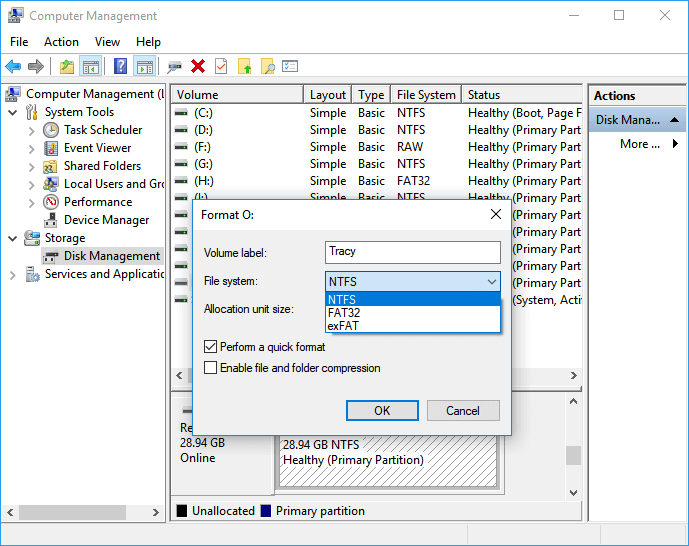
If you're still having trouble using your memory card after following the previous steps, don't worry. You can format it to the NTFS file system or FAT32 file system to reuse it again.
Step 1. Click My Computer/This PC > Manage > Disk Management
Step 2. Right-click on the memory card with the issue, and choose Format.
Step 3. Select a file system and perform a quick format.
Now you can move and store the found data onto the memory card to continue using those data and insert it into your mobile phone to expand storage space again.
Related Articles
- SD Card Keeps Deleting Files by Itself
- 6 Fixes for Xbox One Won't Turn On Issue
- Fix 'This Drive Is Read Only' on SD Card/USB/Hard Drive [5 Methods]
- How Do I Get My Computer to Recognize a USB Device [Solved]
- 3 Ways to Recover LOST.DIR Files on Android SD Card
The LOST. DIR folder on Android devices is a temporary storage area for deleted files, and it can be safely deleted. However, if you accidentally delete files from your Android device and find them in the LOST. - Free Toshiba HDD Recovery: Perform Toshiba Hard Drive Recovery for Free
Download free Toshiba hard drive recovery software, scan the drive to recover deleted, formatted, inaccessible data, and retrieve with simple steps.
Products
Articles & Tutorials
- Data Recovery
- Data Backup
- File Recovery
- File Backup
- System Backup and Restore
- Disk and Partition Clone
- Technical articles
- Mobile articles
- Disk Master Help
- Windows Data Recovery Tutorials
- Windows Secure Delete Tutorials
- Windows Partition Management Tutorials
- Windows File Backup and Restore Tutorials
- Windows System Backup and Restore Tutorials
- Windows Disk Backup and Restore Tutorials
- Windows Clone Tutorials