Fix Unknown USB Device - Device Descriptor Request Failed
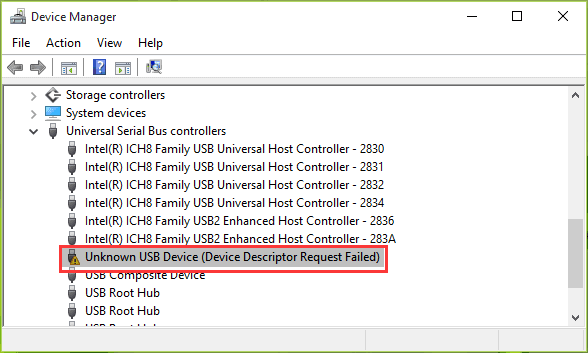
Unknown USB Device (Device Descriptor Request Failed)The error "USB Device Not Recognized" (Code 43) appears under the "Universal Serial Bus controllers" section in the Windows Device Manager. It indicates that the current device status has reported problems, resulting in Windows stopping the device. The error message specifically states that a request for the USB device descriptor failed.
What Is a Device Descriptor?
The device descriptor (USB_DEVICE_DESCRIPTOR) is the root of the descriptor tree, containing basic device information. It uniquely identifies devices to the Windows operating system, allowing it to load the correct device driver, through its idVendor and idProduct members.
To resolve the issue of a failed device descriptor request, you can try restarting your device, ensuring that the device is properly connected and recognized by your computer, and checking for any driver updates. If the issue persists, you may want to consider reinstalling the device drivers or seeking further assistance from the manufacturer or a technical support team.
How Do I Fix Device Descriptor Request Failed?
The issue of an unknown USB device on HP, Lenovo, Dell, and many computers is often attributed to driver problems. The generic "device descriptor request failed" error is a common indication of this issue, suggesting that the problem lies with the driver rather than the device itself. This can occur with a variety of devices, including flash drives, pen drives, Android devices, digital cameras, and other digital gadgets that are supposed to be used on a Windows machine.
In the next part, we mainly show you the common troubleshooting methods for the device descriptor request failed error in Windows 10. As a matter of fact, Windows 7 and Windows XP users are also having the same problem. Never mind applying the solutions to your own Windows operating system. They're all-OS-versions compatible.
3 Quick Fixes to Unknown USB Device (Device Descriptor Request Failed) in Windows 10
In case that unknown USB device (device descriptor request failed) error happens because the USB port is not working or USB device is damaged, the following three fixes are significant to try before going to further troubleshooting.
- 1. To troubleshoot the issue, try plugging in a working USB drive to the computer to see if the USB port is functional or if it's damaged.
- 2. To troubleshoot the issue with your USB drive, plug it into a different PC to see if it's functioning properly or if the problem lies with the drive itself. This simple test can help determine if the issue is with the PC or the USB drive.
- 3. If the USB device is inaccessible, check if it shows up in Disk Management. If so, download Qiling free data recovery software to recover data from the device in advance, as long as the data matters.
Step 1. Choose file types and click "USB/SD Scan" to start
Launch Deep Data Recovery, select the desired file types, and click "USB/SD Scan" to initiate the recovery process.

Note: You can choose different search modes based on where and why the data was lost.
Step 2. Choose the USB drive to scan
Choose your USB drive where you lost important files, click "Scan" to start the recovery process.

Step 3. Check and preview USB drive data
When scanning is complete, you can quickly find a specific type of file using the Filter feature and the Search option.

Step 4. Restore flash drive data
After finding lost USB drive files, click "Recover" to restore them, and save the recovered files to a safe location on your PC, not back to the USB drive.
5 Advanced Fixes to Unknown USB Device (Device Descriptor Request Failed) in Windows 10
Due to the uncertainty of the exact factor causing your USB drive to malfunction, the solutions provided may not be effective. Therefore, it's essential to implement each solution patiently until the problem is resolved.
1. Use Hardware and Devices troubleshooter
- Press Win+R, type Control Panel and hit Enter.
- To resolve the issue, go to the Control Panel, type "troubleshooter" in the search box, and select "Troubleshooting" from the results.
- After that select Configure a device under Hardware and Sound and follow the on-screen instruction.
- Click on Apply this fix if any problem is found.
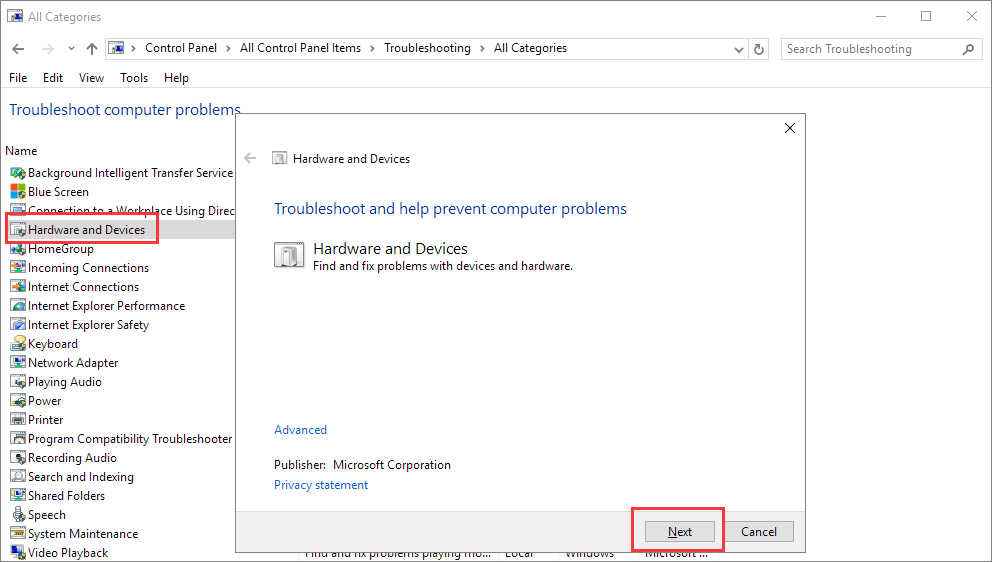
If the unknown USB device error is caused by hardware issues, it should resolve itself after trying the steps above. If not, further troubleshooting methods will be necessary to resolve the issue.
2. Try to Uninstall USB Drivers
- Open Device Manager (Right Click on Windows Logo and Click Device Manager).
- To resolve the issue, find and expand Universal Serial Bus controllers, then right-click on each USB drive and select Uninstall, repeating the process for all USB drivers.
- Restart your PC then Windows will reinstall the device automatically.
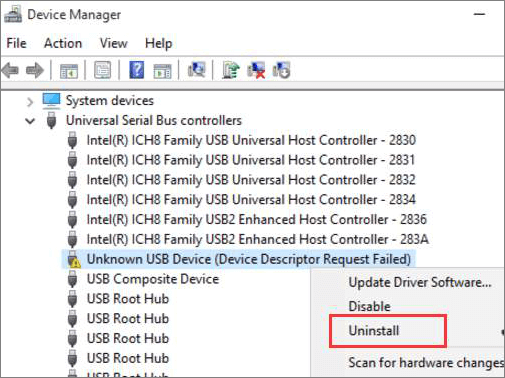
Some people may find that uninstalling and reinstalling the driver only works once, as the issue persists after the next plug-in, resulting in the device descriptor request failed error reappearing. An experienced user discovered that this method may not be effective due to a specific cause, but they also found a solution to make it work.
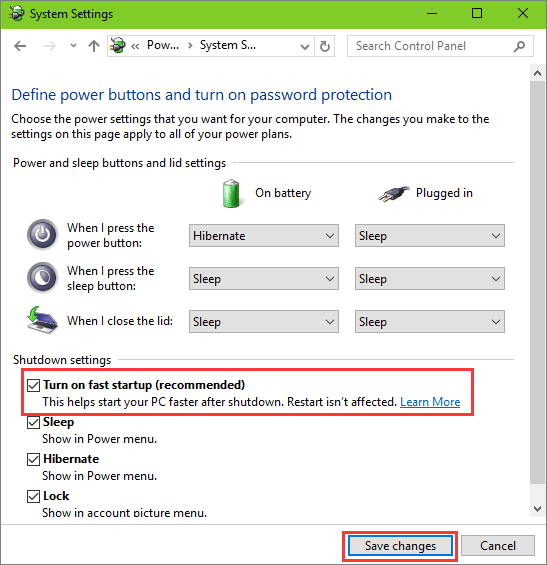
3. Disable Fast Startup
- Press Win+R, type Control Panel and hit Enter.
- Click on Power Options and select Choose what the power buttons do in the left pane.
- Click on Change settings that are currently unavailable.
- To disable fast startup, go to Settings, then click on Power, and under Shutdown settings, uncheck the box next to "Turn on fast startup (recommended)" and click on Save changes.
4. Turn on Plug and Play in Windows Services
- Press Win+R, type services.msc and hit Enter.
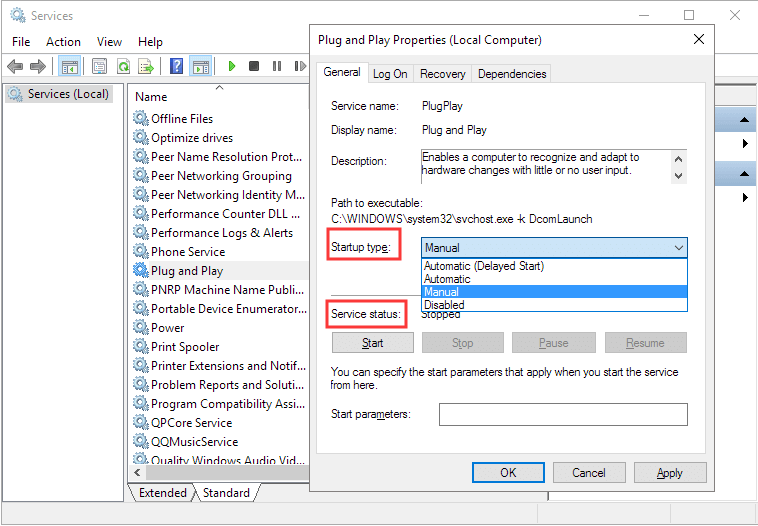
- In Windows Services, find the name "Plug and Play" and double-click on it to open the Properties window.
- If the Startup type is currently Manual and the Service status is Running, try to change it to Disabled and Stopped, save the changes, then switch it back to Manual and Running again. Click OK and Apply.
- If the Startup type is currently Disabled and the Service status is Stopped, change it to Manual and Running, then click OK and Apply.
If you're experiencing issues with an unknown USB device in Windows 10, try restarting your PC. If that doesn't resolve the problem, you can try performing a system restore to revert your system to a previous point when the issue wasn't present.
5. Restore Your PC To Previous Recovery Points
- Press Win+R, type Control Panel and hit enter.
- Now find and open the Recovery option.
- Select System Restore, follow the on-screen guide, and wait until all the recovery points are shown.
- Restore your PC from the right recovery point.
Related Articles
- Fix The Parameter Is Incorrect on External Hard Drive in Windows
- Repair and Recover Corrupted/Unreadable VHD or VHDX Files
- Fix/Repair Unallocated External Hard Drive without Losing Data
- Recover Data from Dead External Hard Drive
- 6 Ways to Solve Desktop icon Reappears after Delete
Desktop icon reappears after delete? This post lists six feasible fixes for you to delete shortcuts from desktop. Besides, you can restore desktop icons/files Windows 10 and get relevant desktop data recovery tips. - Guide: Use Dir/Attrib Command to Show Hidden Files
Learn how to use DIR and ATTRIB commands to show hidden files in Windows, and how to view hidden files with File Explorer.
Products
Articles & Tutorials
- Data Recovery
- Data Backup
- File Recovery
- File Backup
- System Backup and Restore
- Disk and Partition Clone
- Technical articles
- Mobile articles
- Disk Master Help
- Windows Data Recovery Tutorials
- Windows Secure Delete Tutorials
- Windows Partition Management Tutorials
- Windows File Backup and Restore Tutorials
- Windows System Backup and Restore Tutorials
- Windows Disk Backup and Restore Tutorials
- Windows Clone Tutorials