Recover Data from Dead External Hard Drive
"How many of you guys have ever met such a problem that the memory card is dead and there is no access to data stored in the card. I'm now having such a problem that my camera SD card is not working on my camera. I tried to connect it to my computer to see whether the computer can read it. It seemed that the card was dead and nothing was checked or detected. Does anyone of you know how to fix this issue?"
Can You Recover Data from Dead/Failed External Hard Drive
To determine if you can recover files from a dead external hard drive, check its status in Disk Management. Go to "This PC" > "Manage" > "Disk Management" and see if the dead USB drive is listed. If it's not listed, it may be physically damaged or the USB port may be malfunctioning. If it is listed, check its status: it may be marked as "RAW", "Offline", "Not Initialized", or "Unknown".
- The USB drive is not recognized/detected by Windows at all
- The external hard drive appears to be connected and accessible in Disk Management, as indicated by the "Online" status, but the partition is either RAW or has been lost, preventing access to its files.
- The external hard drive displays an error message such as "Missing", "Not Initialized", or "No Media" in Disk Management, indicating a problem with the drive's configuration or connection. This issue can be caused by a faulty drive, incorrect drive letter assignment, or a corrupted drive configuration.
If your external hard drive is not showing in Windows, and you've checked the connection and updated the driver, but it still doesn't work, it's likely that the drive is dead or has mechanical/electrical issues. In this case, recovering your data will require professional help through manual data recovery services.
However, if your device can still be recognized or detected by your computer like in the last two situations or external hard drive light blinking but not working, you still have a chance to recover data from the dead USB drive and fix the failed device by yourself.
How to Recover Data from Dead External Hard Drive
Depending on the situation, the time to perform failed external hard drive recovery can vary.
Method 1. Retrieve Data from Dead External Hard Drive and Format It
If your external hard drive shows a RAW file system or a lost partition, try to recover files from it first, and then format it directly. This approach can help prevent potential data loss.
When your external hard drive is detectable but inaccessible, the hard drive recovery software - Deep Data Recovery can help you rescue data from your dead external hard drive, supporting deleted/formatted/lost data recovery from local/external hard drives, USB flash drives, memory cards, and other conventional storage devices.
To recover data from your external hard drive:
Step-by-Step Guide:
Step 1. Connect your external hard drive to your computer using a correct USB cable, then run Deep Data Recovery, select the file types you want to recover, and click "USB/SD Scan" to begin the process.

Note: You can choose different search modes based on where and why the data was lost.
Step 2.You will see your external disk listed under External drives in the next window. This software supports a wide range of popular external disk brands, including WD, Seagate, Toshiba, LaCie, SanDisk, Samsung, and others.
Select the external hard drive and then click the "Scan" button.

Step 3. As soon as the scan process begins, the software will identify and display lost and deleted data, organizing the recovered data in a clear and concise manner. Users can quickly locate target files or folders by file type or use the search box to find specific files with exact names.

Step 4. After scanning, you can preview the files found by Deep Data Recovery's algorithms and select the ones you want to recover. Simply click "Recover" and save the files to a different drive than the original Seagate drive to avoid data overwriting.
Now that you've successfully retrieved all your files, you can format your external hard drive to make it usable again. This will erase all data on the drive, so make sure to back up any important files before proceeding.
Step 1. Connect your external hard drive to your computer.
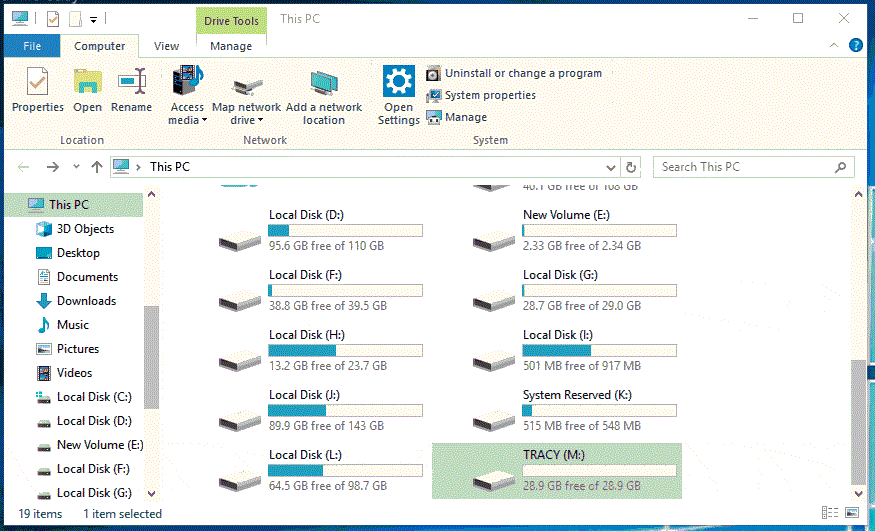
Step 2. Open "This PC". Right-click your hard drive and choose "Format".
Step 3. In the Format window, choose a file system (such as NTFS or exFAT), and click the "Start" button to begin the formatting process.
Step 4. Click "OK" to start formatting your device in the Warning window.
Method 2. Fix the Dead External Hard Drive and Then Recover Data
If your external hard drive shows "Missing", "Not Initialized", or "No Media" in Disk Management, try to fix the dead drive first, and then use Qiling data recovery software to get back your files.
When your external hard drive shows "Missing" in Disk Management, it's likely due to a damaged or disconnected USB device. Try reconnecting the USB flash drive or hard drive and reactivate it by right-clicking the USB in Disk Management and choosing "Reactivated Disk". If that doesn't work, use data recovery software like Qiling to rescue as much data as possible.
You can try to fix your dead external hard drive if it shows "Not Initialized" or "No Media" in Windows 10, and if it's still not working, send it for manual repair. If it's fixed, you can recover files from the external hard drive with Deep Data Recovery.
The Bottom Line
Recovering data from a dead external hard drive can be a relatively straightforward process if the device is still recognizable, but it can also be challenging if it's not. If the drive is still accessible, using Deep Data Recovery can be effective, and attempting to repair the dead USB drive may also work. Otherwise, referring to related articles for additional troubleshooting tips can be helpful.
External hard drives or storage devices may become corrupted, damaged, or dead due to various reasons. To prevent losing valuable files, it's a good idea to back up your data regularly.
When a device is connected to a computer using a USB cable, it can be read and written to using the computer's operating system. This allows users to transfer files from the device to the computer, and vice versa.
Related Articles
- Fixe Maxtor External Hard Drive Not Recognized/Not Working Without Data Loss
- Fix The Parameter Is Incorrect on External Hard Drive in Windows
- How Do I Get My Computer to Recognize a USB Device [Solved]
- Unlock USB Drive | Decrypt Write Protected USB Drive and Restore Data
- Lexar Image Rescue 5 Is Not Available – Download Alternatives
Lexar Image Rescue 5 is no longer available. If you want to recover files, you need to find and download Lexar image rescue alternatives. - Memory Card Recovery Free Download - Recover Lost Data
If you want to perform memory card recover to recover lost or deleted photos, videos, documents, pictures and more, try the 6 steps to recover memory card.
Products
Articles & Tutorials
- Data Recovery
- Data Backup
- File Recovery
- File Backup
- System Backup and Restore
- Disk and Partition Clone
- Technical articles
- Mobile articles
- Disk Master Help
- Windows Data Recovery Tutorials
- Windows Secure Delete Tutorials
- Windows Partition Management Tutorials
- Windows File Backup and Restore Tutorials
- Windows System Backup and Restore Tutorials
- Windows Disk Backup and Restore Tutorials
- Windows Clone Tutorials