USB Unreadable: Recover Files from Unreadable USB Flash Drive
If your USB flash drive becomes unreadable, it's essential to determine whether the issue is physical or logical. Physical issues, such as physical damage or wear and tear, may require professional repair or replacement, while logical issues, such as corruption or formatting problems, can often be resolved with data recovery software or other troubleshooting methods.
When a removable storage device is not accessible, you can try using third-party data recovery software to retrieve vital files. However, if the issue is physical, not just logical, data recovery software may not work, and you may need to seek a manual data recovery service for assistance.
How to Identify the USB Corruption Problem
You can try to determine how serious your storage device has been corrupted by observing symptoms and using disk check tools to run for errors.
Symptoms suggest for a logical corruption
The issue is likely related to Master Boot Record (MBR) or Partition Boot Record (PBR) or directory structure corruption, which can cause error messages.
- Windows reports the disk is not formatted continuously.
- You can try running the command `fsck` on the drive to fix the file system. If that doesn't work, you may need to reformat the drive.
- Your flash drive partition has lost, showing as unallocated space.
- Windows reports the drive is not accessible, with an error message stating that the file or directory is corrupted or unreadable.
Symptoms suggest for a physical corruption
Common physical corruption issues include broken connectors, dead drives, damaged circuits, or failed NAND gates. If the USB flash drive is physically damaged, stop using it and consider professional repair or recovery services before trying software fixes.
- The flash drive's light starts blinking, makes noise or unpleasant whirling sounds, and the computer freezes or crashes, indicating a hardware failure or a problem with the drive's firmware. This can be caused by a faulty drive, corrupted data, or a malfunctioning USB port. In such cases, it's recommended to safely eject the drive, try to recover data using a data recovery software, and then replace the drive if necessary.
How to Recover Files from Logically Corrupted USB Flash Drive
Before attempting to repair a corrupted, unreadable, or unresponsive USB flash drive, it's highly recommended to back up any present data on the drive first. Unfortunately, many people don't create regular backups until their data becomes inaccessible.
Since you can't open an unreadable flash drive, you'll need to use professional USB file recovery software to access the data. Qiling file recovery software can help with data recovery in most scenarios, such as when the storage drive has been corrupted, become RAW, formatted, or had its partition removed. To retrieve files from a removable drive when Windows can't read it, download Qiling for free, install and run it, and follow the guide to recover your files.
Step 1. Select file types and click "USB/SD Scan" to start
Connect the USB drive or pen drive to your computer and launch Qiling USB data recovery software. Select the desired file types and click "USB/SD Scan" to begin the recovery process.

Note: You can choose different search modes based on where and why the data was lost.
Step 2. Run USB Data Recovery Software
To recover lost files, select the external drive labeled as an External drive, and click "Scan" to initiate the scanning process.

Step 3. Scan and Search Lost Files on a USB Drive
Deep Data Recovery will thoroughly scan your USB flash drive/pen drive and find all your lost data on it. When the scan process completes, use the Filter feature to find wanted files.

Step 4. Restore All Lost Files from USB
A double-Click will allow you to preview the files. Select the target files to restore and click "Recover" to save them to a secure location on your PC or external storage devices.
How to Fix Unreadable USB Flash Drive [3 Methods]
You can try to repair your corrupted USB drive by using a data recovery software, such as Deep Data Recovery, or by formatting the drive and then restoring your data from a backup. If the drive is still not working, you can try to use a USB drive repair tool, such as Deep Data Recovery, to scan the drive and recover any recoverable data. If the drive is physically damaged, you may need to replace it. If you're unable to repair the drive yourself, you can seek the help of a professional disk repair and recovery service.
Consult with Qiling data recovery experts for one-on-one manual recovery service. After a FREE diagnosis, we could offer various services, including manual recovery, which involves our experts manually recovering your data in a controlled environment. This approach ensures the highest success rate and minimizes data loss, giving you peace of mind knowing your precious data is in good hands.
- A data recovery software can be used to fix errors on HDD, SSD, external hard drives, and USB flash drives. It can also restore data from all RAID levels, including RAID 0, RAID 1, RAID 5, RAID 6, and RAID 10.
- If a partition is completely lost due to a system crash, hardware failure, or accidental deletion, and cannot be restored by data recovery software, you can attempt to recover it by using specialized tools or techniques. One method is to use a partition recovery tool like Qiling Partition Recovery or R-Studio, which can scan the hard drive for lost partitions and attempt to recover them.
- Bad sectors on a disk can cause it to become unreadable or inaccessible. To fix disks with bad sectors, you can try running a disk check using the built-in disk utility on your computer.
- Fix disks that become GPT protected partitions
- Wipe data, unformat hard drive, install/uninstall software or driver, etc.
Method 1. Repair Logical Errors
Windows has an in-The tool is a built-in repair utility that scans a disk drive for common errors and attempts to fix them.
Step 1. Connect the flash drive to your computer system. Open My Computer/This PC.
Step 2. Right-click the Removable Disk that represents your flash drive, and then choose Properties.
Step 3. Under the Tools tab, click Check to initiate the scan process.
Step 4. Once you've completed the setup process, if any errors are encountered, you can use the wizard to correct them and ensure a smooth and error-free experience.
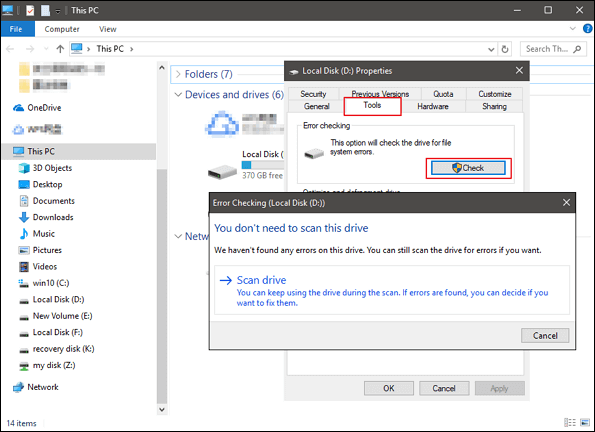
Step 5. Safely eject the flash drive. Re-connect it again. See if it's now readable.
Method 2. Format The Corrupted USB Device in Disk Management
To make a corrupted or unreadable USB drive work again, you can try formatting it. This will erase all data on the drive, so be sure to back up any important files before proceeding.
Step 1. To open the Disk Management tool, press the Windows key + R to open the Run dialog box, then type "diskmgmt.msc" and press Enter.
Step 2. In Disk Management, locate the unreadable flash drive, check its disk information. If it's shown as Raw file system, right-click on it and choose Format, then select the correct file system type (FAT32 or NTFS) and allocate a drive letter. If it's shown as Healthy or Healthy (Boot), try to recover data from it using a data recovery software, and if unsuccessful, then format the drive. If it's shown as Unknown or Unallocated, try to assign a drive letter to it, and if that doesn't work, then format the drive. If it's shown as RAW, try to convert it to a healthy state by running the built-in Check Disk (chkdsk) utility or a third-party disk repair software.
Step 3.To start, choose a file system like NTFS, FAT32, or exFAT, and select the "Perform a quick format" checkbox.
- Warning
- Performing a quick format will erase data, but it's recoverable using the Qiling software. This will erase all data on the drive, but it's a faster way to format a drive compared to a full format. However, the data can be recovered using the Qiling software, so be aware of this before proceeding.
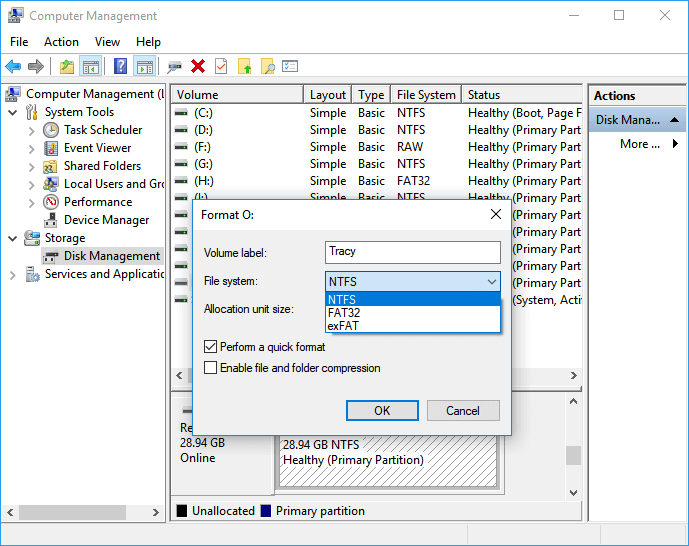
Method 3. Delete and Create a New Partition on the Corrupted USB Device
If the first two methods didn't work, try using the Disk Management tool to delete and create a new partition on the corrupted USB drive. This might help restore it to a normal state.
Step 1.In Disk Management, locate the corrupted USB drive and right-click on it, selecting Delete Volume to remove the existing partition and start fresh.
Step 2. To confirm the deletion of the volume on the USB drive, follow the on-screen instructions provided. This will ensure a safe and proper removal of the volume, preventing any data loss or corruption.
Step 3. After the USB drive has become the unallocated space, right-click the unallocated space and select New Simple Volume...
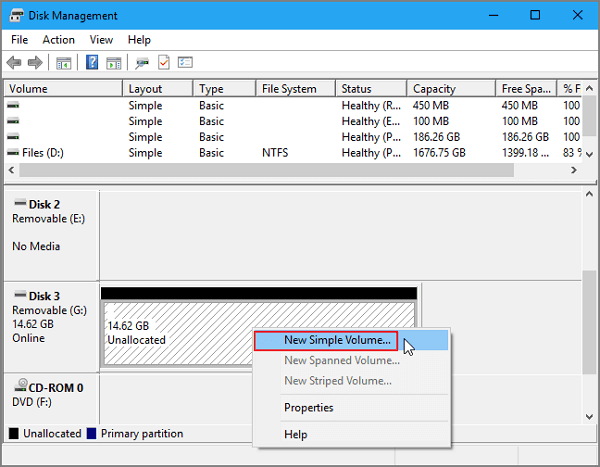
Step 4. To restore your USB drive to normal functionality, rename the drive, set the file system to NTFS or FAT32, and create a new partition on the drive, following the on-screen instructions. This will allow you to use the USB drive as usual.
Related Articles
- USB Port Not Working? Here's How to Fix It!
- Fix SanDisk Cruzer Not Recognized Issue
- Fix Hard Drive Disappeared in Windows 10 Without Losing Data
- How to Fix Seagate External Hard Drive Not Working in Windows/Mac
- How to Back up System - Free Download Backup System Software
Backing up your system is an essential step in ensuring the security and integrity of your computer. It provides a safeguard against system crashes, data loss, and other potential issues that can arise due to hardware or software failures. - HP External Hard Drive Data Recovery Software Free Download
HP external hard drives are popular for their high storage capacity and durability. However, like any other storage device, they can be prone to data loss due to various reasons such as physical damage, logical corruption, or accidental deletion.
Products
Articles & Tutorials
- Data Recovery
- Data Backup
- File Recovery
- File Backup
- System Backup and Restore
- Disk and Partition Clone
- Technical articles
- Mobile articles
- Disk Master Help
- Windows Data Recovery Tutorials
- Windows Secure Delete Tutorials
- Windows Partition Management Tutorials
- Windows File Backup and Restore Tutorials
- Windows System Backup and Restore Tutorials
- Windows Disk Backup and Restore Tutorials
- Windows Clone Tutorials