Best Data Recovery Solutions for Mac with T2 Chip in 2022
With the Apple T2 Chip providing an additional layer of security, it's essential to have a reliable data recovery tool to safeguard your Mac's data. Qiling data recovery software, among other solutions, can help protect your Mac's data in case of any unexpected events.
Discover the 6 solutions to recover your lost data encrypted by the T2 chip on new Mac computers, and learn the 3 additional tips to protect your Mac data safe. From restoring your data to preventing future losses, find the best way to keep your Mac data secure.
The methods provided work on both new and old Macs, including those produced in 2022, 2019, 2018 with a T2 chip, and some earlier models.
Part 1. Can't Restore Data from T2-Secured Mac Computers? Something You Must Know
Mac computers produced in 2018, 2019, 2020, and 2022 are equipped with the Apple T2 security chip, which significantly improves integration and security. However, this chip also makes it more challenging to restore Mac data, as it secures the system.
The Apple T2 chip, found in newer Mac computers, makes it challenging to apply standard methods for restoring deleted or lost data. This is because the T2 chip has enhanced security features that protect the data on the computer, making it difficult for standard data recovery tools to access the data.
1. What Is Apple T2 Security Chip? What Does It Do?
The Apple T2 Security Chip is the second-generation of Apple's security chips, which are integrated into Mac computers. It combines several controllers, including a System Management controller, Image signal processor, audio controller, and SSD controller, to provide enhanced security and functionality.
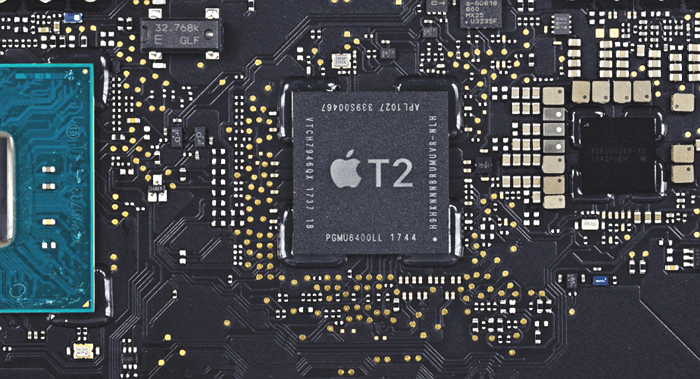
The T2 chip enhances Mac security by protecting Touch ID data, enabling new encrypted storage, and secure boot capabilities, further securing Macs to a new level.
| The Good | The Bad |
|---|---|
|
|
2. T2 Chip Supported Devices
Mac computers produced in 2018, 2019, 2020, and 2022 come with a T2 chip, which is a System-on-Chip (SoC) designed to provide additional security and functionality to the system. The T2 chip is responsible for managing various system tasks, such as encryption, secure boot, and hardware authentication, and is typically installed on Macs with Intel processors.
- 2020/2022 New MacBook Air
- 2020/2022 New MacBook Pro 13
- 2020/2022 New Mac Mini
- iMac Pro
- Mac Pro (introduced in 2019)
- Mac Mini (introduced in 2018)
- MacBook Air (introduced in 2018, 2019)
- MacBook Pro (introduced in 2018, 2019)
3. Is It Possible to Recover Data from iMac/MacBook Pro/Mac Mini with T2 Chip?
The T2 chip on newer Mac devices has raised concerns about data recovery, with some providers claiming it's almost impossible to recover data from Macs with this chip installed.
However, it's not the end yet.
Yes, you can restore data from a Mac that installs with T2 chips. If you're looking to recover precious lost data, you can continue reading to find the best solution.
Part 2. 6 Best Data Recovery Solutions for Mac With T2 Chip
If you've lost data on your Mac computer, such as an iMac, MacBook Pro, or Mac Mini, don't worry - we've can help. We've compiled a list of the six best and most practical data recovery solutions to help you retrieve your lost data and get back to work.
The sooner the resolution is presented, the higher the success rate will be in recovering your lost Mac data.
#1. Qiling Mac Data Recovery Software - Recover Lost Data from T2-secured Macs [Exclusive]
This Mac data recovery software can scan and restore encrypted data on Mac computers with a T2 chip, as well as older Mac machines, without the need for a backup.
Best for:All Mac users, regardless of skill level, can restore lost encrypted data on their Macs with a T2 chip by using the built-in recovery mode, Disk Utility, or Deep Data Recovery software. These tools can help recover data from encrypted volumes, even if the user has forgotten their password or can't access the data due to a hardware or software issue.
Recommend: Deep Data Recovery for Mac is a specialized service that uses proprietary technology to recover data from Macs that have been secured with the T2 chip, a security feature that was introduced by Apple in 2017. This technology allows for the recovery of data from Macs that were previously thought to be unrecoverable, making Deep Data Recovery for Mac the exclusive provider of this service.
Deep Data Recovery for Mac is the only Mac data recovery software that resolves the T2 chip data encryption issue at a technical level, allowing users to scan and restore deleted or lost data due to formatting, virus attacks, and other reasons, all in a few simple steps.
Feature List:
- Don't need to disable SIP.
- Directly scan T2-secured Macs.
- Instantly recover data from Macs with T2 chip.
- 3-step data recovery, no extra operation is required.
- The No.1 software that resolves the T2 chip data encryption issue, making direct data recovery possible, is available.
Restoring lost files on a T2-secured Mac device is a straightforward and easy process that doesn't require any extra operation.
Tutorial: T2 Chip Data Recovery on Macs with Deep Data Recovery for Mac
To recover lost data from a T2-encrypted Mac, follow these steps: First, boot your Mac in recovery mode by restarting it and immediately holding down the power button until the login window appears. Then, select your user account and enter your password to access the Utilities folder.
Step 1. Launch Qiling file recovery software on your Windows computer. Select the file types you want to recover and click "Fast Scan" to start the recovery process.

Note: You can choose different search modes based on where and why the data was lost.
Step 2. To recover lost data and files, select the T2-secured volume where the issue occurred, and then click the "Scan" button.

Step 3. Deep Data Recovery for Mac scans the Mac volume, displaying the results on the left pane, and can recover data from T2-secured Mac volumes without additional user operation.

Step 4. When the scan completes, select and double-click the files you want to preview, then click the "Recover" button to retrieve them.
Note: Before making any changes to the Mac drive, save your data to another secure location, such as an external storage device, to ensure it remains safe.
Deep Data Recovery for Mac not only supports T2 chip data recovery but also handles more complex cases, such as APFS recovery, recovering data from a dead MacBook, and retrieving deleted files without Time Machine. Whenever you experience sudden data loss, this software can be a lifesaver.
#2. New Data Recovery Process Introduced by Apple (for Macs with T2 Chip)
The tool is designed to transfer data from Macs with the T2 chip to another Mac computer, primarily for Apple's repair staff.
This guide is specifically designed for Apple repair staff to repair Macs with problematic T2 chips and restore user data.
Apple has introduced a new data recovery process that allows for data transfer from Macs with T2 chips, even when the logic board needs to be repaired.
Note: If you're not a professional repair staff, it's recommended to revert to Method 1 and use Mac data recovery software for assistance. This approach is more accessible and user-friendly, allowing you to recover your data without requiring extensive technical expertise.
Here is how the process works:
Precondition:The T2 chip on the Mac computer's logic board is at least partially functional.
Required Tools:
- A new functional host Mac computer
- A Thunderbolt (USB-To convert from Thunderbolt 3 (USB-C) to USB-A cable, you can use a USB-C to USB-A adapter or a USB-C to USB-A cable. This will allow you to connect your Thunderbolt 3 device to a USB-A port, such as a traditional computer port.
- An external hard drive
Step 1. To prepare the external hard drive, use Apple's built-in Disk Utility tool to partition it. This process can take around 10-20 minutes to complete.
Step 2. Connect the host Mac computer, the iMac/MacBook Pro/Mac Pro, and the external hard drive via the Thunderbolt cables.

Step 3. The malfunctioning Mac needs to be switched into DFU mode, and then Apple's internal diagnostic tool should be used to initiate the data recovery process.
Data will be transferred from the source Mac to the host Mac, taking up to 2 days or more depending on the amount of data.
#3. Trash Recovery
To undo a Mac Trash delete, you can use the "Put Back" feature. Simply open the Trash, select the item you want to recover, right-click (or control-click) on it, and choose "Put Back".
Best for: Mac beginners, simple file deletion cases.
Step 1. To empty the Trash Bin on a Mac, click on the Trash Bin icon on your desktop, then click on the "Empty" button in the top right corner of the window. This will permanently delete the files that you dragged into the Trash.
Step 2. To recover deleted files, drag the files you want to recover back to the desktop or right-click on the file and select "Put Back".
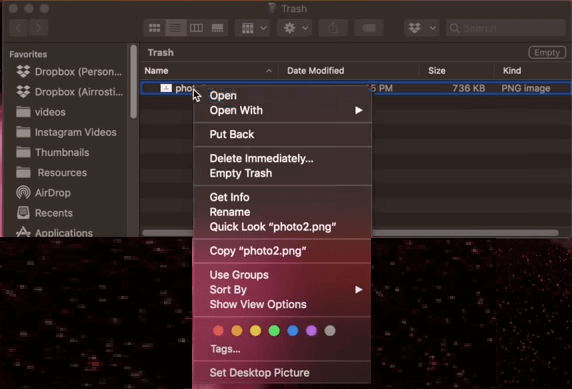
Files will be returned to their original locations on your Mac.
#4. Time Machine Backup Recovery
Works to: Recover lost Mac data from Time Machine backup, free.
Mac users can recover data from both old and new Macs, with or without a T2 chip, using this solution.
Time Machine backup recovery only works if you've created a backup in advance. If you've lost data on your Mac, you can follow these tips to recover your data quickly.
Step 1. To set up a Time Machine backup on your Mac, connect your Time Machine backup disk to the computer and ensure it's turned on. This will allow the backup process to begin automatically.
Step 2. To restore items, open a window that contains or once contained the items you want to restore.
To recover a deleted picture, start by opening the Picture folder, then select the folder where the picture was originally stored, and follow the on-screen instructions to recover the picture.
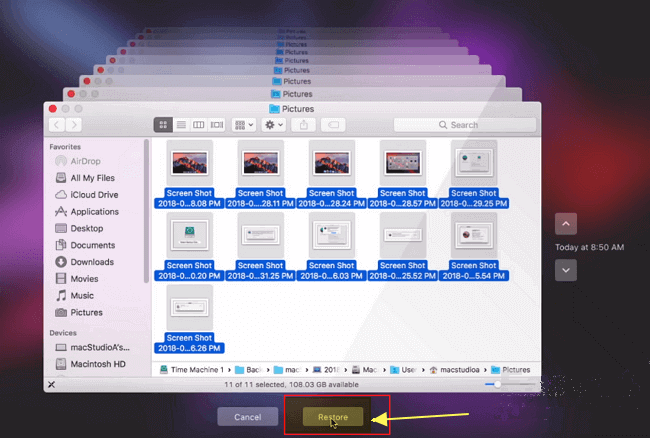
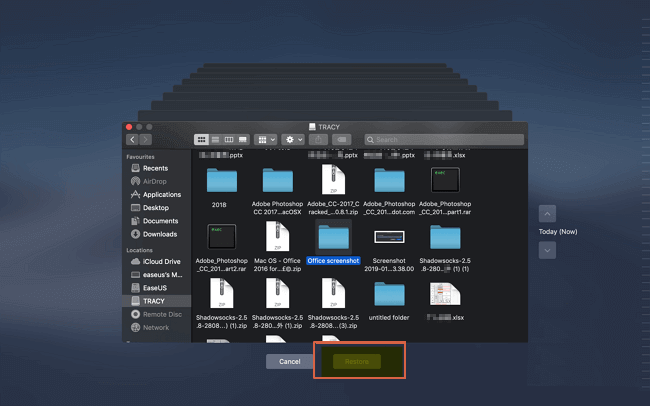
Step 3. Click "Enter Time Machine" from the Time Machine menu.
Step 4. To find lost files from a Time Machine backup, use the timeline to browse and locate the files, or use the onscreen up and down arrows to view deleted or lost data.
Step 5. Select the items you want to restore and click "Restore" to retrieve your files.
#5. Run Local Snapshot Recovery via Time Machine
Data recovery software for Mac that restores lost data from a local snapshot, allowing users to quickly retrieve deleted files and folders.
For both new and old Mac users who have taken a local snapshot of their Mac data on the hard drive, this applies.
Time Machine creates a local snapshot, saving the backup on the Mac's hard disk, similar to a Time Machine backup.
Step 1. Enter "Time Machine" from the Time Machine menu.
Step 2.You can restore a lost file or folder by going to the timeline or using the up and down arrow to browse and select an older version of the lost file or folder.
Step 3. The Space bar is used to move the cursor to the next line or to scroll through a document. It's not used to preview the content of a document.
Step 4. Click "Restore" to restore the selected file.
#6. iCloud Backup Recovery
Works to: Restore lost Mac data from iCloud backup without limit.
For Mac users who have iCloud storage, it's best to use iCloud for saving Mac data backups, allowing for easy access and recovery in case of system crashes or other issues.
Regardless of whether you're a new MacBook or Mac Pro user or an old Mac computer owner, you can safely restore deleted or lost files from iCloud on your Mac.
Here are the steps:
Step 1. Go to iCloud.com and sign in with your Apple ID and password.
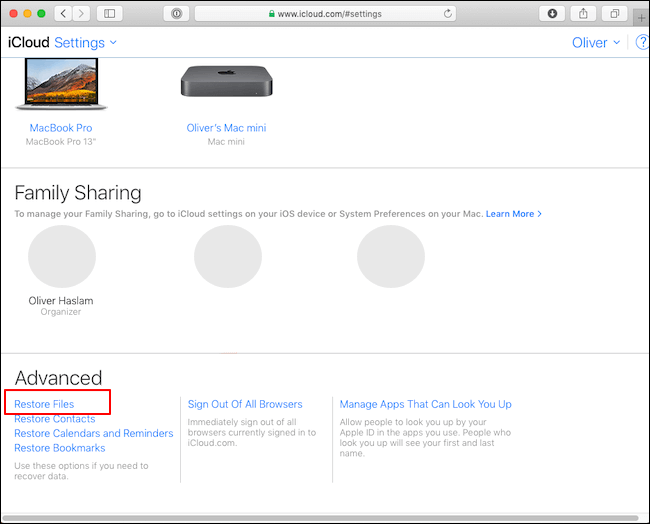
Step 2. To restore files from iCloud, click on iCloud Settings and scroll to the bottom, then click "Restore Files" under the Advanced section.
Step 3. Tick the boxes of your deleted files on Mac, and click "Restore".
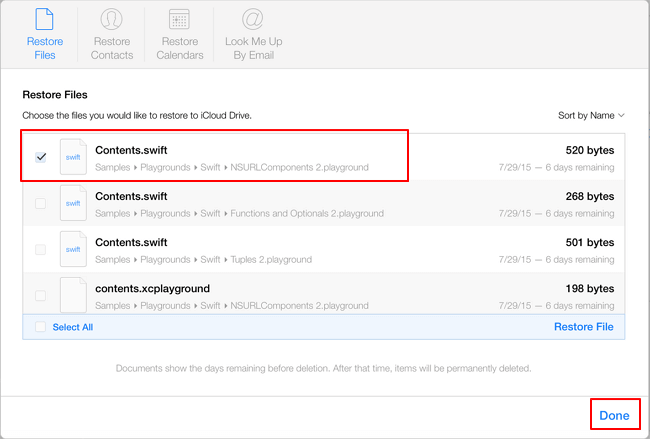
Once you've finished the process, you can download the deleted files back on your Mac computer again.
To recover deleted or lost Mac data, follow these 6 practical resolutions: restore from Time Machine backups, use built-in Disk Utility, employ third-party recovery software, check the Recently Deleted folder, boot from a recovery drive, and try data recovery on both old and new Mac computers with or without a T2 chip.
Part 3. Tips to Guard Data on T2-secured Mac Computers
In addition to providing solutions for immediate data recovery on new Macs secured by the T2 chip, we also offer 4 tips to help you protect your Mac data beyond encryption.
To make data recovery on Macs straightforward, follow these 4 simple tips: regularly back up your data, use a reliable backup software, keep your Mac's operating system and software up to date, and maintain a healthy and organized file system. By doing so, you'll be able to recover your data quickly and efficiently in case of any data loss or corruption.
#1. Open FileVault
FileVault is Apple's encryption feature that encrypts a Mac's startup disk, starting with the T2 chip.
Here is how to open it:
Step 1. Go to System Preferences, click Security & Privacy.
Step 2. Click the FileVault tab and then click the Lock icon located at the left corner.
Step 3. To enable FileVault, enter an administrator's name and password, and then click "Turn On FileVault" to initiate the encryption process.
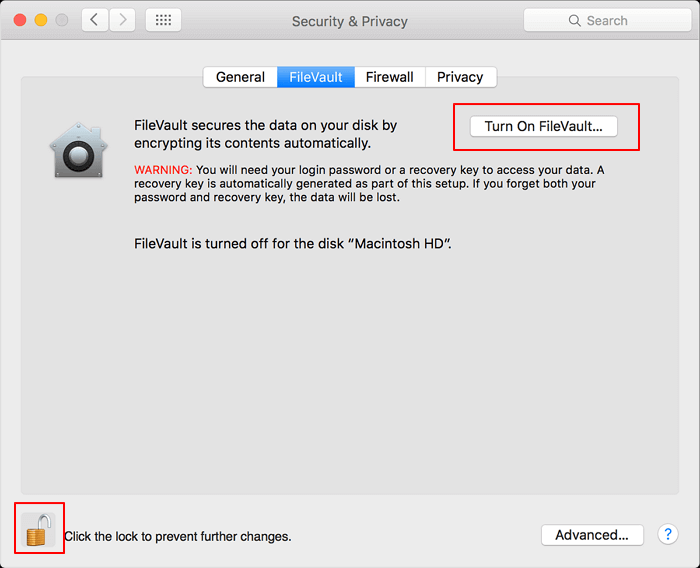
Turning on FileVault on your Mac device can provide an additional layer of security, but it may also make data recovery more challenging. If you've lost data after enabling FileVault, Qiling Mac data recovery software can assist in recovering your lost files.
#2. Back-Up Mac Data using Third-Party Backup Software
To safeguard your Mac data, consider utilizing third-party backup software, which can efficiently protect and guard your data.
Qiling Backup for Mac allows for easy backup of Mac data to an external hard drive, and supports recovery without restrictions from the T2 chip encryption.
Here are the steps to back up your Mac:
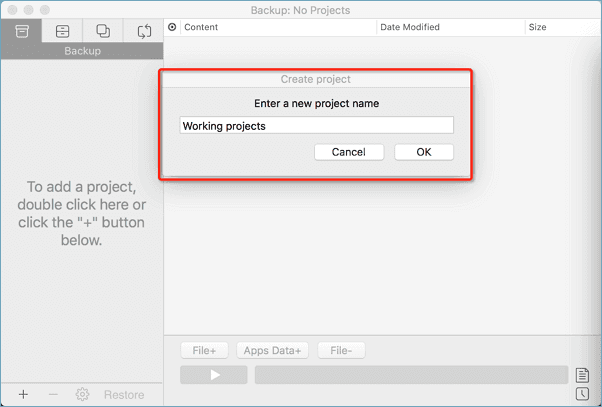
Step 1. Launch and run Qiling Backup for Mac.
To create a backup project, click on the first Backup tab or the + button in the bottom-left corner, then name the backup project and click OK.
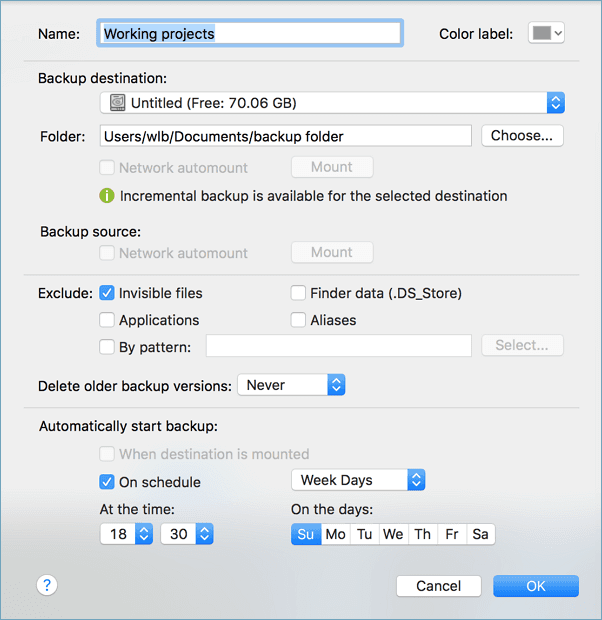
Step 2. Set up the backup destination where you want to store Mac files as backups, automatic backup frequency, etc, and click OK.
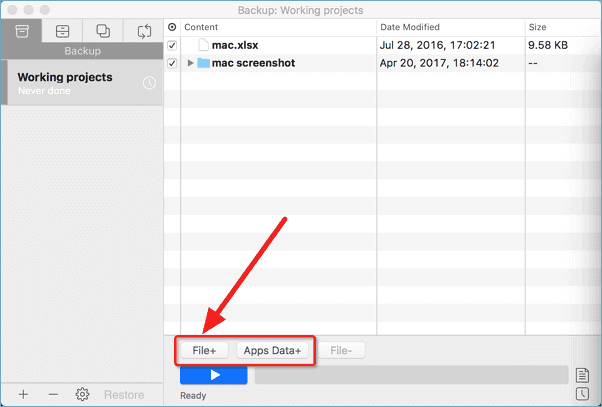
Step 3. Add files and folders to the backup project.
To back up your Mac, click File+ and select the files and folders you want to include in the backup. Then, click the blue "Start" button to initiate the backup process, which will copy the chosen files and folders to another drive or external device.
#3. Use Time Machine
Time Machine is a Mac built-A utility for Mac users allows them to safeguard their Mac data independently, with the option to save it to a local disk or an external storage disk.
To save your Mac disk space, create a shadow copy of your data to an external hard drive by following these steps:
Step 1. Connect an empty external hard drive to Mac.
Step 2. To enable Time Machine on your Mac, click on the Apple menu and select "System Preferences". From there, click on "Time Machine" and make sure the checkbox next to it is selected.
Step 3. To start a backup using the Time Machine, switch the Time Machine to "On" in the Time Machine dialog box, then click "Select Backup Disk".
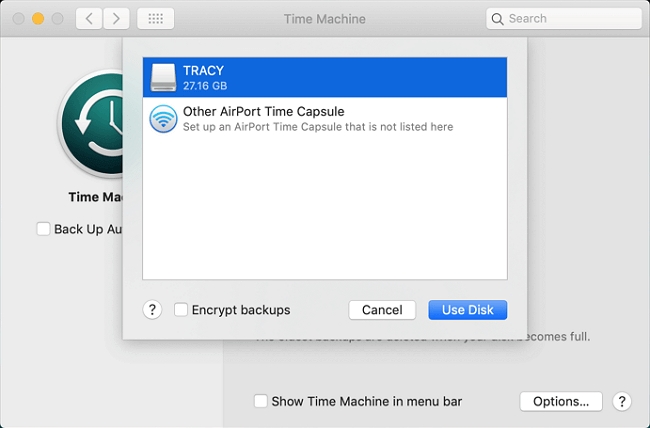
Step 4. Connect an external hard drive to your Mac, select it in the Time Machine preferences, and click "Use disk" to save your Time Machine backup files on it.
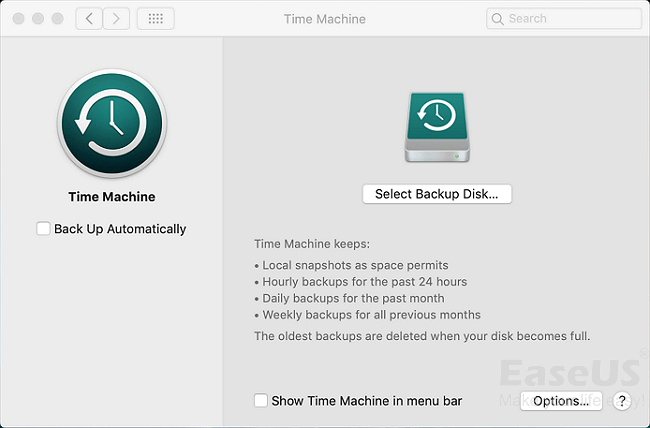
Step 5. To set Time Machine to back up everything on your Mac automatically, tick the "Back Up Automatically" option.
When you lost data on your new Mac, you can effectively revert to solution 4 in Part 2 to instantly bring your lost files back.
#4. Use iCloud
Another way to protect your Mac data is to store Mac files on an iCloud drive as a backup. This way, even if your Mac is lost, stolen, or damaged, your files will still be accessible from any device with an internet connection.
Here are the steps:
Step 1. Go to System Preferences on Mac, click Apple ID.
macOS Mojave and earlier users don't need to click Apple ID.
Step 2. Sign in with your Apple ID and password if necessary.
Step 3. Select iCloud Drive and click "Options" next to iCloud Drive.
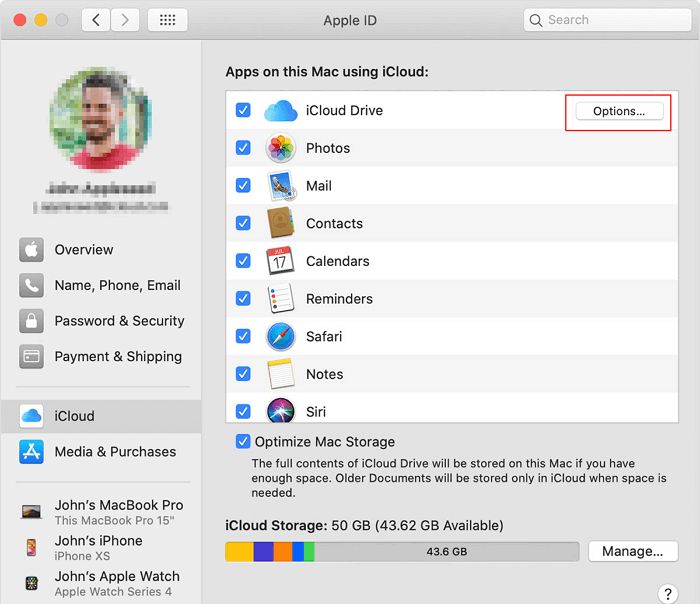
Step 4. Choose "Desktop & Documents Folders" and click "Done".
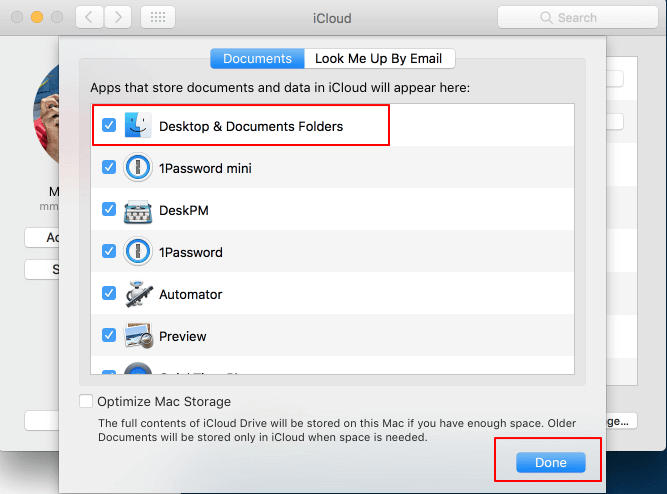
After completing the process, you have successfully stored your Mac data to the iCloud drive. You can refer to the iCloud recovery method in Part 2 for help when you lost any files.
Part 4. Further Related Questions and Answers
In Part 2 and Part 3, we gathered ten resolutions to help Mac users protect and restore their data efficiently, despite the T2 chip encryption, which makes it possible to recover data from Macs.
Here are the top queries that most Mac users asked online:
1. How do I recover data on Mac without Time Machine?
When you've lost data on your Mac but didn't create a Time Machine backup, a reliable Mac data recovery software can be a lifesaver. These tools can scan your Mac's storage devices, identify and recover deleted or lost files, and even retrieve data from corrupted or damaged storage devices.
Third-Deep Data Recovery software can scan and recover lost data on Mac without a Time Machine backup, and is compatible with the latest Macs with a T2 chip, allowing for quick and effective data recovery in a few clicks.
2. How do I get data off a Mac that won't boot?
There are two ways to retrieve data from a Mac that won't boot:
One way to recover data from a Mac is to remove the disk and connect it to another computer, then access and save the desired files from the drive.
If you're unable to access your Mac, you can try creating a WinPE bootable disk and using reliable Mac data recovery software like Deep Data Recovery for Mac to recover your data. This method allows you to bypass the unbootable Mac and directly access your files.
If you're experiencing issues with your MacBook Pro and need help, you can find more detailed information and assistance on how to recover data from a dead MacBook Pro by following the link provided.
3. Can you recover files from a water-damaged MacBook?
If your Mac or MacBook computer gets water damaged and won't boot, you have two options: take it to a local Apple store for repair or data recovery.
To troubleshoot the issue, you can try removing the Mac hard disk and connecting it to another computer to see if you can access all the data. This will help determine if the problem lies with the hard disk itself or the Mac computer.
Conclusion
If you're experiencing data recovery issues on your 2020/2022 Mac, such as an iMac, Mac Pro, MacBook, MacBook Pro, or Mac Mini, don't panic. The culprit is likely Apple's T2 security chip, which encrypts the computer, making it more secure but also complicating data recovery processes.
While T2 encryption on Mac computers can't be removed or disabled, data recovery is still possible. Fortunately, there are several resolutions and tips that can help you restore and protect your data, with over a dozen solutions available on this page.
If you're using a Mac computer from 2018, 2019, 2020, or 2022, Qiling Mac data recovery software is your go-to choice for instant data recovery. It's reliable and won't let you down.
Related Articles
- Full Guide: Easily Format Text on Mac without Making Mistakes
- [macOS Guide] | How to Reinstall macOS
- Fix Slow External Hard Drive on Mac
- Video Recovery on Mac | How to Recover Deleted Videos on Mac
- Detailed Guide | How to Recover Deleted Videos from DJI
How do I recover deleted videos from DJI? For DJI users, it might be disappointing to lose images or videos on a DJI drone due to an accident. But there is no need to worry. Please read this article and learn how to recover deleted videos from DJI. - How to Recover Files from Fdisked Hard Drives in Windows 10/11
Deep Data Recovery is a powerful data recovery software that can recover data from fdisked drives. It can automatically run partition recovery and quickly recover files!
Products
Articles & Tutorials
- Data Recovery
- Data Backup
- File Recovery
- File Backup
- System Backup and Restore
- Disk and Partition Clone
- Technical articles
- Mobile articles
- Disk Master Help
- Windows Data Recovery Tutorials
- Windows Secure Delete Tutorials
- Windows Partition Management Tutorials
- Windows File Backup and Restore Tutorials
- Windows System Backup and Restore Tutorials
- Windows Disk Backup and Restore Tutorials
- Windows Clone Tutorials