Fix Extracted Files or Files Not Showing in Folder Windows 10
Here are the effective solutions to fix files not showing up issue.
| Workable Solutions | Step-by-step Troubleshooting |
|---|---|
| Fix 1. Use file recovery software | Use Qiling file recovery software to restore hidden or deleted files. Download Qiling data recovery software > choose a location to scan > preview and recover...Full steps |
| Fix 2. Show hidden files with File Explorer Options | You can make the files show up in the folder in File Explorer. Click on "Start" > type "folder options" in Search, choose File Explorer Options > click View...Full steps |
| Fix 3. Show extracted files in CMD | If the extracted files are not showing up, you can solve the problem by using CMD. Click on "Start" > type cmd in Search > type: attrib -h -r -s /s /d e:*.*...Full steps |
| Fix 4. Use another zip tool | If your extracted files still don't show up after you've tried all the solutions, you can use a different compression tool, such as WinZip, WinRAR, 7-Zip...Full steps |
Issue: Files Not Showing Up in Folder Windows 10
Case 1: Files Not Showing in the Folder Windows 10
"When I connect my USB drive to PC and try to open a folder for data transfer, I couldn't see any files. I'm quite sure that I have stored some important working documents there. It seems that something goes wrong and makes the files not showing in the folder. Is there any way to find and retrieve my data back?"
Case 2: Extracted Files Not Showing Up
"I am attempting to write a command that calls 7-zip from the command line. My command is: 7z x z:\dev\archive.7z. Anytime I run this command in the command prompt, it acts like it's working, but when I navigate to the folder after the fact, the extracted files aren't there, although they are there if I run 7-zip from the contextual menu. Is there something I'm missing here?" - A user problem from stackoverflow.com
The issue of files not showing up in a folder usually happens in two cases: the folder not showing files in Windows File Explorer or extracted files not showing up. Sometimes, you may also get an error message that says "This folder is empty". If you're a victim of these problems and can't see files in a folder on a hard disk, USB drive, or other memory storage devices, you can use the following three data recovery solutions to find a way out.
If you're having trouble opening a folder and are unable to access your data, try troubleshooting the issue by following the steps outlined in "File Explorer won't open" in Windows 10.
What Are My Files Not Showing Up
Files may not show in a folder or Windows Explorer due to various reasons, including hidden files, malware or viruses hiding or deleting files, or issues with compression tools.
If files are not showing up, try the following solutions. Regardless of the cause, these steps can help resolve the issue.
Fix 1. Using File Recovery Software to Find Files Not Showing Up
To prevent data overwriting or further file loss, the safest way to recover missing or extracted files is to use a file recovery tool, such as Qiling, which can retrieve hidden, deleted, formatted, and corrupted files in complex situations.
Qiling data recovery software is effective in recovering files from various sources, including emptied Recycle Bin, formatted or damaged hard drives, USB, Pen drives, and SD cards. Additionally, it can also repair corrupted videos, photos, and documents.
Step 1.Launch Qiling file recovery software on your Windows computer and select the file types you want to recover. Click "Fast Scan" to begin the recovery process.

Note: You can choose different search modes based on where and why the data was lost.
Step 2. Click on the location where you lost the files, then click the "Scan" button to start the recovery process. This will begin a search for the deleted files on the selected location.

Step 3. The software will start scanning the drive, displaying deleted files soon. If you find the files you need, you can stop the scan. To quickly find the target file, use the file format filter.

Step 4. Select files such as Word, Excel, PDF, photos, videos, or emails, and click the "Recover" button. You can then browse for a different location to save the recovered files.
Fix 2. Show Hidden Files to Fix Files Not Showing in Folder Windows 10
If you've lost files on your Windows computer, you can try using the built-in "unhide" feature to make them visible again. This can be a useful alternative to using a third-party file recovery program. To access this feature, go to the File Explorer, select the View tab, and click on "Show" and then "Hidden items.
Step 1. To start, click on "Start" and type "folder options" in the search box, then press Enter.
Step 2. In the File Explorer Options window, click on the "View" tab.
Step 3. To view hidden files and folders, check the box next to "Show hidden files, folders or drives" in the File Explorer settings. Additionally, uncheck the boxes next to "Hide protected operating system files" and "Hide extensions for known file types" to ensure all files and folders are visible and their extensions are shown.
Step 4. Click the "OK" button to save all the changes.
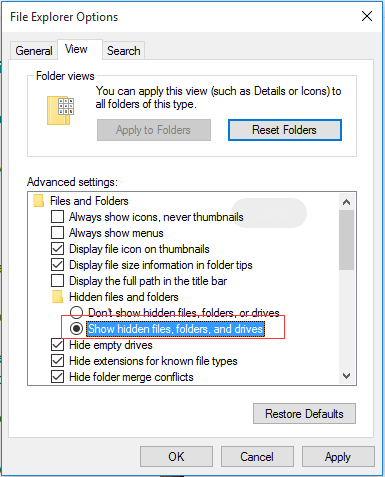
If your files or folders are missing due to human operation or a virus attack, try the following steps to unhide them. First, check the folder for your files, and they should reappear if they were hidden. If this doesn't work, try the next solution.
Fix 3. Using CMD to Show Files or Extracted Files
Step 1. Click on "Start". In the search box, type cmd.
Step 2. Right-click the Command Prompt and choose "Run as administrator".
Step 3. The command `attrib -h -r -s /s /d e:*.*` is used to display files on the E: drive that are normally hidden, read-only, or system files. The `/s` and `/d` options are used to search subdirectories and the `*.*` is used to match all file extensions.

The command will quickly find and recover your hidden files or folders. Once it's finished, refresh your external hard disk or USB drive and you'll find that the files not showing in folder issue is fixed, and all your files are now visible.
Fix 4. Use Another Zip Tool
If the extracted files still don't appear after trying the methods in this guide, consider using a different compression tool, such as WinZip, WinRAR, 7-Zip, or Zip Archiver.
Concluding Words
To resolve files not showing up issues and recover deleted or lost files, you can use Qiling file recovery software, which not only supports data recovery but also fixes corrupted files such as photos, videos, Word, Excel, PDF, and others.
If your files are hidden and not showing up in a folder, you can display them by using File Explorer Options and CMD. Alternatively, try using a different zip tool to troubleshoot the issue with extracted files not showing up.
Related Articles
- How to Recover Deleted OneNote Files
- How to Recover Deleted YouTube Videos with or Without Link
- 3 Steps to Recover Deleted iTunes Backup
- .Bak File Recovery Software Free Download
- How to Recover Hidden Files from Pen Drive and Open It
If you're struggling to recover hidden files from a pen drive on your Mac or Windows 10/8/7/XP, this step-by-step guide is here to help. By following the instructions in this guide, you'll learn how to access and open the hidden files on your pen drive. - How to Recover Hidden Folder in Windows 7
If you're having trouble recovering a hidden folder in Windows 7, With a few simple steps, you can easily unhide the folder and retrieve the files you need. Just follow along and learn the quick and easy way to access your hidden folders and get back to work in no time.
Products
Articles & Tutorials
- Data Recovery
- Data Backup
- File Recovery
- File Backup
- System Backup and Restore
- Disk and Partition Clone
- Technical articles
- Mobile articles
- Disk Master Help
- Windows Data Recovery Tutorials
- Windows Secure Delete Tutorials
- Windows Partition Management Tutorials
- Windows File Backup and Restore Tutorials
- Windows System Backup and Restore Tutorials
- Windows Disk Backup and Restore Tutorials
- Windows Clone Tutorials