3 Steps to Recover Deleted iTunes Backup
When you've lost or deleted your iTunes backup, stop using your device right away. Then, follow the solutions on this page for assistance.
How to recover lost or deleted iTunes backup
If you've accidentally deleted your iPhone backup from iTunes, don't panic! You can still restore the lost backup by following a few simple steps. First, go to the iTunes menu and select 'Preferences' or 'Settings' (depending on your operating system).
I created an iTunes backup about 6 months ago and it's all about my photos, videos. Last Friday, I run a large file clean program on my computer, it accidentally deleted my iTunes backup. And I didn't find it in the recycle bin. So, if you know a way to bring my iTunes backup back, please help."
When you accidentally delete the iTunes backup on your PC, you risk losing valuable data such as photos, videos, contacts, and messages, which can be a significant disaster.
To recover lost iPhone data, follow the step-by-step guide to make everything ready.
Preparations
iOS users can sync their iPhone, iPad, or iPod with iTunes to create a backup file for important data, including years of documents, notes, photos, videos, SMS messages, and contacts for all their friends and family.
If you accidentally delete one or more of your iTunes backups, stay calm and follow these steps to recover them.
- 1. Download Qiling file recovery software for help
Qiling's Data Recovery Wizard software allows you to scan a specific folder or location on your Windows PC and recover deleted or lost iTunes backups in just 3 easy steps.
- Supports: File recovery on Windows 10/8/7 and Vista/XP computers.
- To recover a lost iTunes backup on a Windows hard drive, you can use a data recovery software to scan and locate the backup file. This process involves using a program like Deep Data Recovery or Qiling file recovery software to search for the backup file on your hard drive.
- 2. Locate or find the iTunes backup location on your PC
The iTunes backup is typically saved to a fixed path on a Windows computer, which can be accessed by following a specific directory path.
C:Users\USER\AppData\Roaming\Apple Computer\MobileSync\Backup.
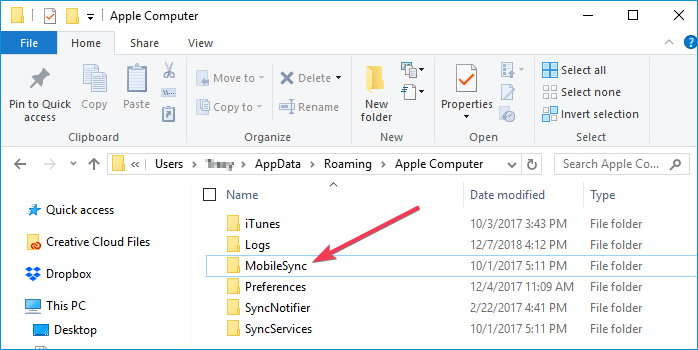
To restore a deleted or lost iTunes backup file, start by checking your computer's Recycle Bin or Trash to see if the backup file is still there. If it is, simply restore it from there.
Recover deleted iTunes backup
The Data Recovery Wizard software allows you to select a specific folder and scan to find lost files, and can also locate deleted iTunes backup files by following their storage path.
To recover a lost iTunes backup file, follow these steps:
Step 1.Launch Deep Data Recovery. Select file types and click "Fast Scan" to begin the recovery process.

Note: You can choose different search modes based on where and why the data was lost.
Step 2. Choose "Select Folder" under Specify a location. Browse for the location where you lost the folder, click "OK" to scan.

Step 3. To search for the target folder, you can type its name in the search bar. Alternatively, you can use the Filter feature to narrow down your search by selecting a specific file type, such as documents, images, or videos. This will help you quickly locate the desired folder and its contents.

Step 4. After the recovery process, you can preview the recovered folder. To finalize the recovery, click "Recover" and select a new, secure location on your PC to store the recovered data.
The most important part of an iTunes backup is a file saved with the .plist extension.
Conclusion
After completing the steps, you can restore and save the created iTunes backup file back to its original location on your PC. Once saved, you can open iTunes to view and access the recovered files, and even restore them to your iPhone, allowing you to continue using them again.
If you accidentally deleted iPhone data, you can use Qiling iPhone data recovery software to scan your device and recover lost files from an iTunes backup.
Related Articles
- View and Restore Firefox Cache Files
- How to Repair Corrupted Files After Recovery
- Word 2010/2013/2016/2019 Keeps Crashing When Saving [Solved]
- Unlock PDF Without Password | Remove Password from PDF Files [2022 Real Fix]
If you're looking to open a password-protected PDF file without entering the password, there are a few ways to do so. You can use Google Chrome to open the file, Adobe Acrobat to access the contents, or a free online PDF password remover tool to bypass the password. - Unlock USB Drive | Decrypt Write Protected USB Drive and Restore Data
When a USB flash drive is locked, it becomes write-protected, read-only, or encrypted. To unlock it, you can either ask for permission to receive the password or edit the StorageDevicePolicies.
Products
Articles & Tutorials
- Data Recovery
- Data Backup
- File Recovery
- File Backup
- System Backup and Restore
- Disk and Partition Clone
- Technical articles
- Mobile articles
- Disk Master Help
- Windows Data Recovery Tutorials
- Windows Secure Delete Tutorials
- Windows Partition Management Tutorials
- Windows File Backup and Restore Tutorials
- Windows System Backup and Restore Tutorials
- Windows Disk Backup and Restore Tutorials
- Windows Clone Tutorials