Word 2010/2013/2016/2019 Keeps Crashing When Saving [Solved]
| Workable Solutions | Step-by-step Troubleshooting |
|---|---|
| Fix 1. 3 solutions to Word crashing | Fix the problem by running the Office Repair tool, opening Word in Safe Mode, and disabling the Add-ins...Full steps |
| Fix 2. Recover unsaved Word | Start Word > click "File" > "Options" > "Save". Copy the AutoRecover file location path...Full steps |
| Fix 3. Recover deleted/lost Word | Use Deep Data Recovery to recover lost Word as a result of accidental deletion, formatting...Full steps |
Microsoft Word users are experiencing a frustrating issue where the program keeps crashing when saving files, leaving them unable to save their work in time. This problem is not the first of its kind, as previous posts have discussed other common Word errors, such as the program freezing or becoming unresponsive. However, the current issue of Word crashing during saving is a frequent and troublesome problem that needs to be resolved.
Part 1. How to Fix "Word keeps crashing when saving"
If Word crashes or freezes when you save a document, there are three tips worth trying. First, try saving the document in a different format, such as a text file or a PDF, to see if the issue persists.
Fix 1. Run the Office Repair Tool
- To uninstall Microsoft Office in Windows 10, 8, or 7, open the Control Panel, click on "Programs and Features", and then select Microsoft Office from the list of installed programs. Clicking on it will prompt a window where you can click the "Uninstall" button to begin the uninstallation process.
- On the window, click "Repair" and then "Continue".
- To fix the issue, go to Settings, then choose "Update and Security", followed by "Recovery". Select "Online Repair" or "Quick Repair" and let the process complete. Once finished, restart your computer.

Fix 2. Run and Open Word in Safe Mode
Starting a Microsoft Office application in Office Safe Mode allows you to use it when it has encountered problems, enabling you to open files that couldn't be accessed in normal mode due to crashes.
- To open Word quickly, press and hold the Ctrl key while double-clicking the Word shortcut icon.
- To open Microsoft Word in Safe Mode, click "Yes" at the prompt to confirm. This will allow you to access the program without any add-ins or templates being loaded, which can help troubleshoot issues or resolve conflicts.
- To save the Word document, click on the "File" tab, then select "Save As" from the drop-down menu. Choose a location to save the document, give it a name, and select the file type. Click "Save" to save the document.
Fix 3. Disable the Add-ins
Word crashing when saving can be caused by several factors, including the incompatibility of add-ins, which can lead to conflicts and instability in the program.
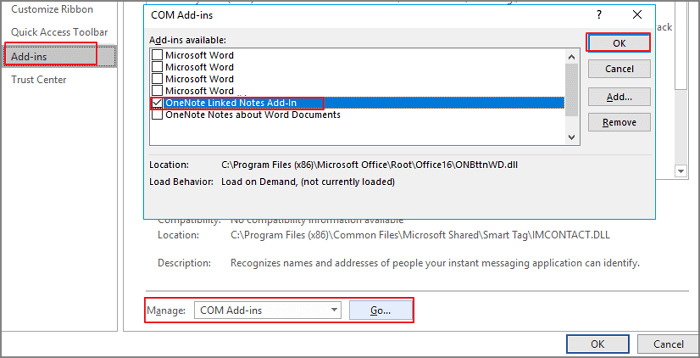
- Go to "File" > Word "Options" > "Add-ins" tab.
- Click the "Go" button near the drop-down box named "Manage: Com-in Add".
- To disable add-ins, click on the "Manage" button in the "Add-ins" section, then click on the "COM Add-ins" tab. In the list of add-ins, click on the checkbox next to each add-in you want to disable, and then click "OK".
If Word keeps crashing, try changing the Office Word application location to a different drive, using a tool like Qiling Disk Master to safely transfer programs from the C drive to another local drive on your computer. This may resolve the issue caused by conflicting programs.
Part 2. How to Recover an Unsaved Document When Word Crashes
When Word crashes while saving, it's common for the document to be lost. However, there's still a chance for recovery. If Word automatically opens the unsaved document when you restart it, you can try to recover it. If not, you'll need to search for the AutoRecover file, which may be located in a specific folder, to retrieve your document.
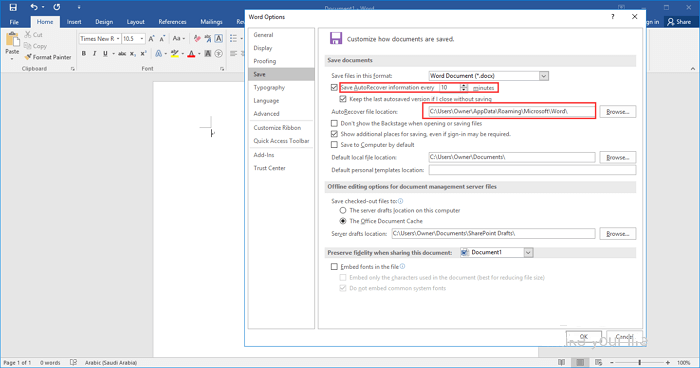
1. To access the AutoRecover file location in Word, go to the "File" menu, select "Options", then click on "Save". From there, you can copy the path to the AutoRecover file location. This will allow you to locate and access the AutoRecover files for your Word documents.
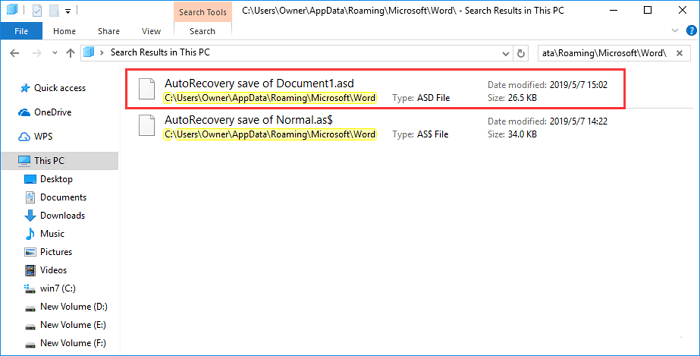
2. To locate an unsaved document, go to the File Explorer, paste the location path, and find the unsaved document. Then, copy the .asd file.
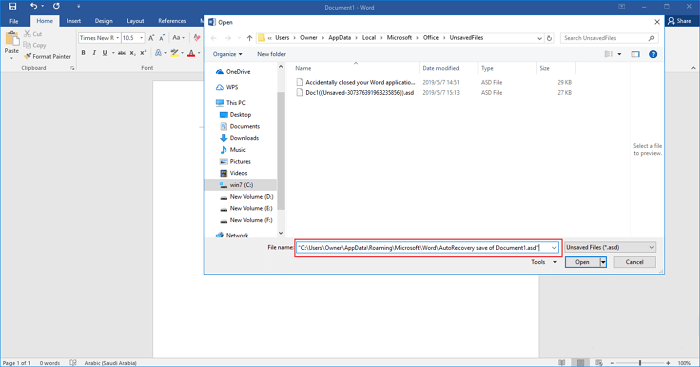
3. To recover an unsaved Word document, go to the "File" menu, select "Open", and click on "Recover Unsaved Documents" at the bottom. Then, paste the copied .asd file into the File Name box that appears, and open the recovered Word file.
If you've lost an unsaved Word document in Windows 10, there are ways to recover it. Check out the details for other methods besides recovering unsaved Word documents, which can help you retrieve your lost work.
Part 3. How to Recover Deleted/Lost Word Document
Word documents often get lost due to crashes, accidental deletion, storage device formatting, partition loss, or hard drive damage. In such cases, recovering the lost Word document, even if it's permanently deleted, is possible with the help of data recovery software like Deep Data Recovery.
This powerful data recovery software allows you to restore lost documents from various devices, including HDD/SSD, USB flash drive, pen drive, and external hard drive, supporting file types such as Word, Excel, PPT, PDF, HTML, and more.
Step 1. Select file types
Launch Deep Data Recovery, select file types, and click "Fast Scan" to initiate the recovery process.

Note: You can choose different search modes based on where and why the data was lost.
Step 2. Choose the Word file location
Select the drive or a specific folder you want to scan and click the "Scan" button.

Step 3. Locate your Word files
The software will immediately scan the selected drive for lost data, and after the scan, you can click on the "Documents" option in the left panel, choose "Word" from the category bar, and then click "Preview" to view the recovered files.

Step 4. Recover Word files
After previewing the lost Word files, select the desired Word files and click "Recover". Then, select a folder to store the Word files.
Related Articles
- Recover Sticky Notes in Windows 10/8/7
- Restore Deleted or Lost Thunderbird Emails
- Accidentally Closed Word Without Saving in MS Word 2003/2007/2010/2013/2016
- CMD File Recovery - Recover Deleted Files Using Command Prompt
- Download Nikon Photo Recovery Software
You can download Qiling photo recovery software to retrieve deleted and lost image files from Nikon digital camera storage card, and also fix corrupted NEF files. - Free PST Recovery Software
When Outlook PST files become corrupted and won't open, free PST repair tools and PST file recovery software can help. If PST files were accidentally deleted, formatted, or missing, PST recovery software can be downloaded to restore lost Outlook emails immediately.
Products
Articles & Tutorials
- Data Recovery
- Data Backup
- File Recovery
- File Backup
- System Backup and Restore
- Disk and Partition Clone
- Technical articles
- Mobile articles
- Disk Master Help
- Windows Data Recovery Tutorials
- Windows Secure Delete Tutorials
- Windows Partition Management Tutorials
- Windows File Backup and Restore Tutorials
- Windows System Backup and Restore Tutorials
- Windows Disk Backup and Restore Tutorials
- Windows Clone Tutorials