Accidentally Closed Word Without Saving in MS Word 2003/2007/2010/2013/2016
If you've accidentally closed Microsoft Word without saving your document, there are possible ways to recover the unsaved file. The solutions provided can be applied to restore lost or unsaved Word files in MS Office Word 2003/2007/2010/2013/2016, regardless of whether you're using Windows 10/8/7/Vista/XP.
| Workable Solutions | Step-by-step Troubleshooting |
|---|---|
| Fix 1. Recover from Recent Documents | Open Word > "File" > "Open" > "Recent Documents"...Full steps |
| Fix 2. Recover from Manage Versions | Open Word > "Files" > "Info" > "Manage Document"...Full steps |
| Fix 3. Recover from Temporary Files | Open Word > "File" > "Options" > "Save" > AutoRecover folder...Full steps |
How Can I Recover A Word Document That I Closed Without Saving
If you're looking to recover a closed Word file without saving, this guide can help. This guide will help you recover an unsaved Word document after a computer restart, shutdown, power off, or unexpected Microsoft Word shutdown.
Microsoft's AutoSave feature in Office applications allows users to restore unsaved documents, providing a better experience in using Microsoft Office. This feature can be particularly helpful in situations where Word document loss has occurred, allowing users to recover unsaved files, including Excel files.
Here, we've collected all the possible solutions for restoring closed Word without saving. Continue reading and you'll find the best method for your case.
If you've turned on AutoSave in MS Office, you're in luck. You can recover an unsaved Word document that was closed without saving or lost due to other reasons from Recent Documents, Manage Version, or Temporary files.
If AutoSave is not enabled, a reliable file recovery software can be used to try and restore the lost Word file.
Three Solutions to Recover Unsaved Word File
To restore an accidentally closed Word without hitting the Save button in MS Word 2003/2007/2010/2016, follow these steps. First, open a new Word document and click on "File" > "Recent" > "Reopen a Recent Workbook" to view the list of recently opened documents.
Solution 1. Recover closed Word from Recent Documents (Word 2013)
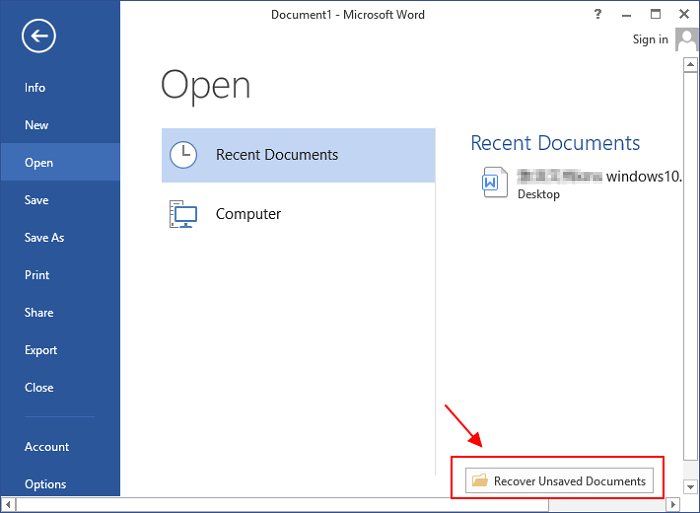
Step 1. To recover an unsaved Word document, open the Word application, go to File > Open > Recent Documents, and click "Recover Unsaved Documents".
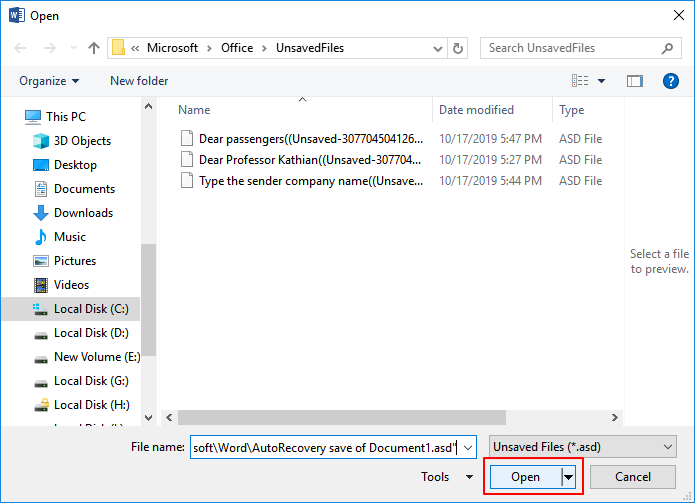
Step 2. To access the unsaved document, select it from the list and click the "Open" button to open it in a new window within Word.
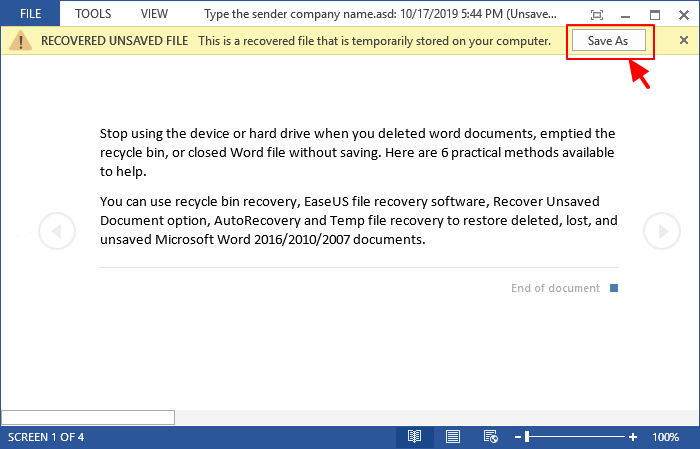
Step 3. Click the "Save As" button in the top banner.
Solution 2. Recover Unsaved Word from Manage Versions
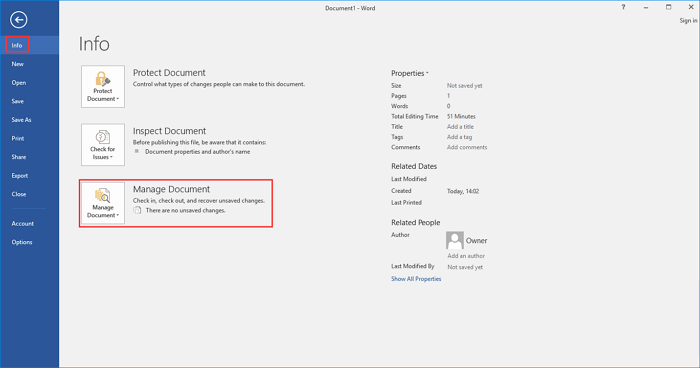
Step 1. To access the "Manage Document" feature in Word, open the Word application, navigate to the "Files" tab, and then click on "Info". From the dropdown menu, select "Manage Document".
2. Click "Recover Unsaved Documents" from the drop-down menu.
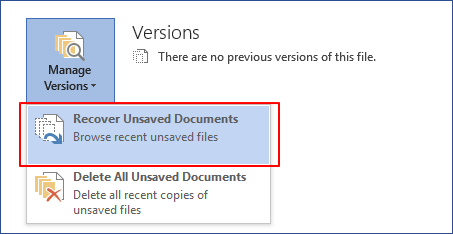
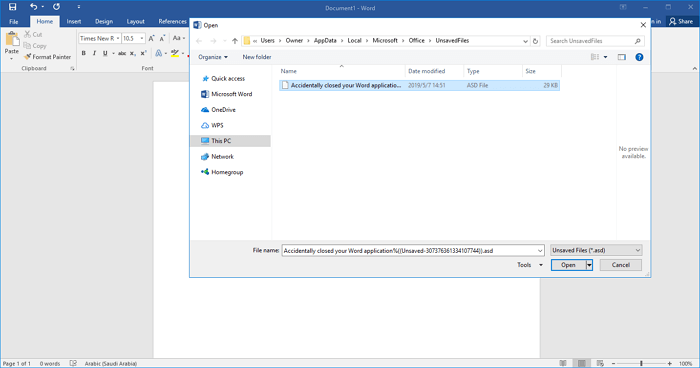
3. Select the unsaved file and click the "Open" button. To save the image, click on the three dots at the top right corner of the browser, then select "Save as" from the dropdown menu. This will open a pop-up window where you can choose the location and file name for the saved image.
Solution 3. Recover Unsaved Word Document from Temporary Files
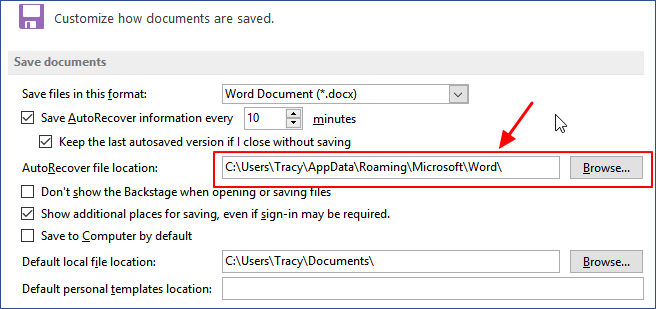
Step 1.To access the AutoRecover folder in Word, open the Word application, go to File > Options > Save, and locate the AutoRecover folder on your PC.
Step 2. To recover an unsaved Word document, navigate to the AutoRecover folder in File Explorer, copy the file path, and find the document saved with .asd extension.
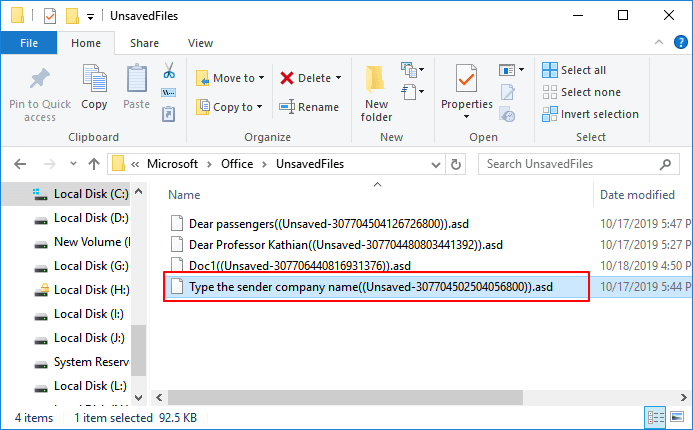
Usually, the temporary file is saved in C:\Users\UserName\AppData\Roaming\Microsoft\Word\ or C:\Users\UserName\AppData\Local\Microsoft\Office\UnsavedFiles.
Step 3. To recover an unsaved Word document, open Word, go to "File" and select "Open" from the dropdown menu, then choose "Recover Unsaved Documents" from the options. This will allow you to retrieve the document that was not saved.
Step 4. To open the .asd file, simply paste the file name at the designated column and click "Open". Once the file is open, you can check its content and save it to a new location, effectively preserving the file's integrity and making it accessible for further use.
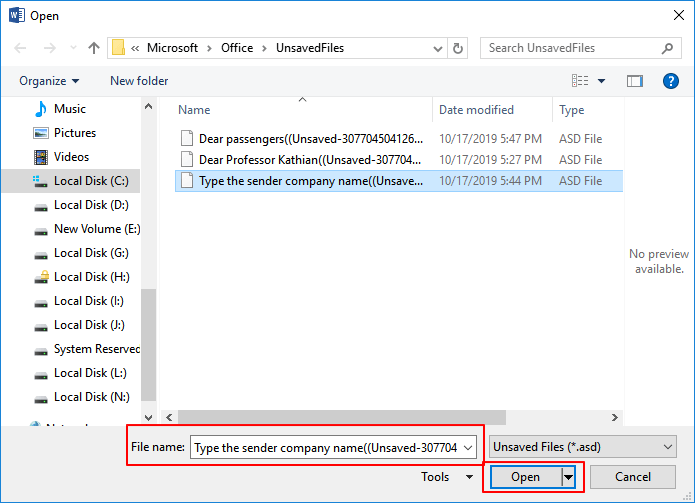
If Word experiences an error, a warning message will appear saying "Word experienced an error. Would you like to recover the document?" If this happens, click "Open and Repair" at the open Unsaved Document window. This will attempt to recover the document and allow you to continue working on it.
If you're having trouble recovering an unsaved Word document, you can try checking the AutoRecover file, which is a temporary copy of your work that Word saves periodically. To do this, open Word, click on "File" and then "Open", and select the location where you saved the document.
Extra Tip - Deleted or Lost Word Recovery in 3 Steps
If you need to restore a closed Word document without saving, the previous solutions can help. However, if the saved Word document has been deleted or lost due to device error or other reasons, you may need to use a reliable file recovery software to recover it.
Deep Data Recovery can scan your entire hard drive to locate a lost Word document, helping you recover it in just 3 steps.
Step 1. Choose file types and click "Fast Scan" to start
Launch Deep Data Recovery, select the file types you want to recover, and click "Fast Scan" to begin the recovery process.

Note: You can choose different search modes based on where and why the data was lost.
Step 2. Choose the Word file location
Select the drive or folder you want to scan and click the "Scan" button to start the process.

Step 3. Locate your Word files
The software will immediately start scanning all lost data on the selected drive, and after the scan, you can click the "Documents" option in the left panel, choose "Word" from the category bar, and then click "Preview" to view the recovered files.

Step 4. Recover Word files
After previewing the lost Word files, select the desired Word files and click "Recover" to save them to a specified folder.
Conclusion
If your Word file has closed without saving on your Windows PC, don't worry! There are 3 reliable solutions to restore it. Alternatively, if you've lost locally saved Word files and other data, you can use Qiling file recovery software to instantly recover them.
To prevent file loss, enable AutoSave in Microsoft Office Word, Excel, and PowerPoint, which can recover unsaved work in case of unexpected events.
Here are the steps to turn on AutoSave in MS Word:
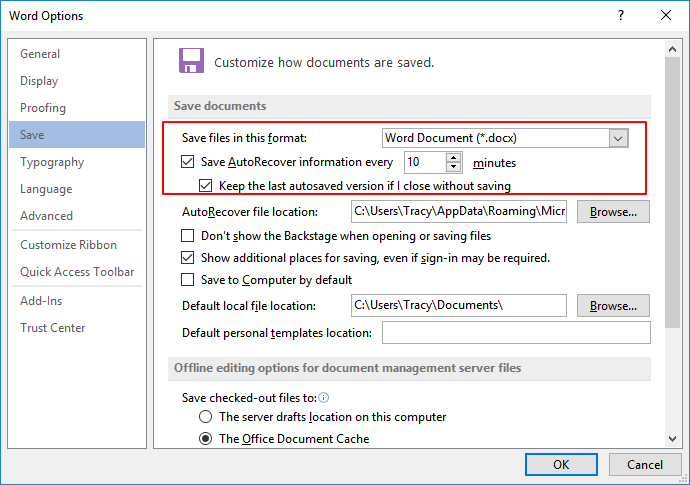
Step 1. To save a file in Word, open the Word application and navigate to the "File" tab, then select "Options" from the drop-down menu, and finally click on "Save" in the left-hand menu.
Step 2. Click the Save option, check the below two boxes:
- To prevent losing unsaved work, set Word to save AutoRecover information every 10, 5, or 2 minutes, helping to recover your work in case of a crash or unexpected shutdown.
- "Keep the last autosaved version if I close without saving"
Step 3. Click "OK" to save all the changes.
To back up local Word documents and other files on your PC, you can use a reliable file backup software.
Further Office FAQs
If you're wondering about restoring Office files on a Windows PC, you're not alone. Some users have similar questions about restoring other Office files, and here are three related questions with brief answers to help you out:
1. How do I recover an unsaved Word document?
Answer: Yes! When a Word or Office file gets closed without saving, it is still possible for you to recover the unsaved document as long as you have enabled the AutoSave feature. To do so, you can use the Recent Document, Manage Version or locate the temporary files saved on your PC to bring the lost file.
The solutions toward this question are available here on this page for you to refer to now.
2. Can I retrieve a PPT or PowerPoint that you didn't save?
Microsoft Office PowerPoint also has the AutoSave feature, which allows you to recover unsaved PPT files efficiently. With this feature enabled, you can easily recover unsaved files from the Recent > Recover Unsaved Presentation or Temporary Files saved in the AutoRecover folder on your PC.
For a more detailed guide, you can refer to this link for help on recovering deleted or unsaved PowerPoint files.
3. How do I recover Word after MS Office Word has stopped working?
To resolve the issue with the Word application not working, you can try repairing the Word application, ending the MS Word task in Task Manager, booting Windows into Safe mode, repairing the Office installation, installing the latest update, reinstalling Office, or disabling Add-ins in Word. These steps can help restore the functionality of the Word application.
To recover lost Word files, you can restart Word and restore the files using the AutoSave feature. Alternatively, you can use Qiling file recovery software to recover all lost files. This approach can help bring back the lost files in a quick and efficient manner.
For additional help with recovering files in Word, Excel, PowerPoint, and other applications, you can explore the Qiling website's File Recovery page, which offers comprehensive guides and solutions.
Related Articles
- How to Solve We're Sorry but Word Has Run Into an Error and How to Repair Corrupted Word/Excel/PPT Files
- How to Recover Unsaved Word Document 2019/2018/2016/2013/2010/2007
- How to Remove Folders and Files from Quick Access Windows 10/11
- Windows 10 Startup Folder Location, How to Change Startup Programs
- How to Correct #DIV/0 Error in Excel | Check Your Full Guide 2022
#DIV/0 is one of the most frequent errors in tables when we are in middle of work. It is frustrated to see such annoying error. How to correct #DIV/0 error? And how to avoid #DIV/0 error in Excel down the line? Read and bookmark this page, check methods to fix the #DIV/0 error. - How to Corrupt a File So It Won't Open on PC and Mac [Easy Guide]
If you want to corrupt a file on purpose so it won't open, you can try renaming it, using Notepad to edit its contents, or using an online file corrupter or file compression tool.
Products
Articles & Tutorials
- Data Recovery
- Data Backup
- File Recovery
- File Backup
- System Backup and Restore
- Disk and Partition Clone
- Technical articles
- Mobile articles
- Disk Master Help
- Windows Data Recovery Tutorials
- Windows Secure Delete Tutorials
- Windows Partition Management Tutorials
- Windows File Backup and Restore Tutorials
- Windows System Backup and Restore Tutorials
- Windows Disk Backup and Restore Tutorials
- Windows Clone Tutorials