How to Solve We're Sorry but Word Has Run Into an Error and How to Repair Corrupted Word/Excel/PPT Files
Facing the error "Word has run into an error that is preventing it from working correctly" when trying to access MS Office can be frustrating. This issue occurs due to various reasons, including corrupted files, outdated software, or conflicting applications. To resolve this issue, you can try quick fixes such as repairing Microsoft Office, running a System File Checker, or uninstalling and reinstalling the software. These solutions can help you get back to work without any further interruptions.

Causes for We're Sorry, but Word Has Run Into an Error
The error message "We're Sorry, but Word has run into an error that is preventing it from working correctly" may appear when a user attempts to upgrade the Microsoft Office application to a new version.
If a user runs the MS Office application in compatible mode, they may encounter an error.
The main problem is that when a user tries to upgrade MS Office, other applications like Excel, PowerPoint, Word, and Excel start configuring automatically in compatibility mode, leading to an error message being displayed to the user.
To fix the "We're Sorry, but Word Has Run into an Error" issue, try the following fixes: remove the add-ins, close unnecessary programs, and update Office, and if the problem persists, reset Word to its default settings. If none of these solutions work, you may need to reinstall Office or seek further assistance from Microsoft support.
How to Fix Word Has Run Into an Error in Windows 10
Here are four quick and reliable fixes to resolve your issue. Follow the exact steps to immediately resolve your problem.
Before making any changes, it's a good idea to back up all essential files to ensure they're safe in case something goes wrong. This precautionary step is always a better option, even if you're confident in your ability to resolve any issues that may arise.
Fix 1. Fix the issue with commands
Step 1. To access the Run dialog box, right-click on the Start menu and select Run. Then, type the command "C:\Program Files\Microsoft Office\root\Office16" and press Enter.
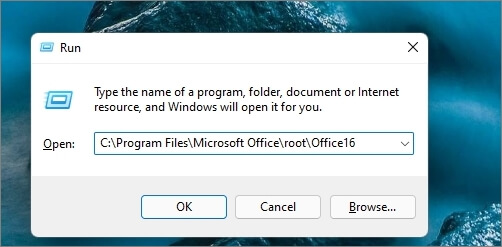
Step 2. The command will open the Office version folder from the Program Files; here, you have to locate the following files
- For Microsoft Word, find winword.exe or just WINWORD
- For Microsoft Excel, find excel.exe or just EXCEL
- For PowerPoint, find powerpoint.exe or just POWERPOINT
- For Outlook. locate outlook.exe or just OUTLOOK
- For Access, locate msaccess.exe or just MSACCESS
Step 3. Right-click on the respective files above the selected "Properties". When the WORD or EXCEL or POWERPOINT or OUTLOOK or MSACCESS Properties dialog box opens, locate the "Compatibility" tab, uncheck the checkbox next to "Run this program in compatibility mode for" and click "OK".
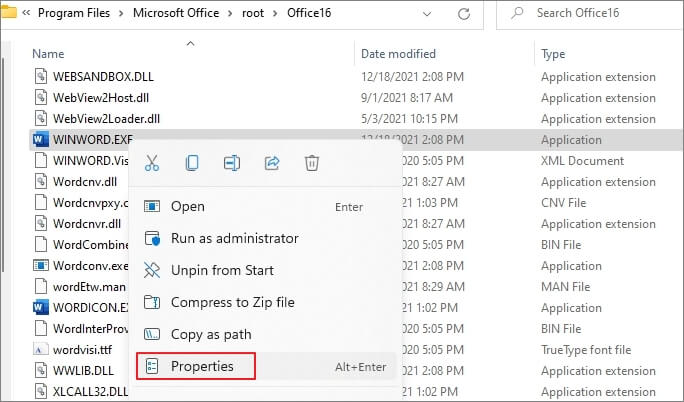
If the issue is resolved, you can create a shortcut to run the applications in compatibility mode unless a proper fix is rolled out.
Fix 2. Disable or Remove the Add-in
Sometimes, errors occur due to add-ins, and you can resolve this issue by removing or disabling the particular add-in. To do so, follow these steps:
Step 1. Go to the "File > Options" from the Word menu bar.
Step 2. Click on the "Add-ins" button from the opened Excel options window.
Step 3. To get the list of all add-ins currently executing in the Excel application, press the "Go" button.
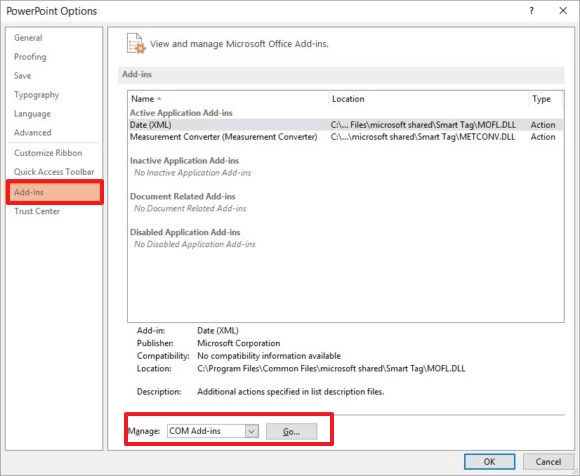
Step 4. To troubleshoot the issue, disable each add-in one by one and see if the error persists. Start by unticking the first add-in, check if the error is resolved, if not, move on to the next add-in and repeat the process until the error is fixed. This will help identify which specific add-in is causing the problem.
After disabling the extension, check if the issue is resolved. If yes, the issue is likely caused by the extension and you may need to upgrade or update without it. Alternatively, you can reach out to the extension developer and share your feedback to help them fix the issue.
Note: To troubleshoot issues with browser extensions, try disabling them one by one, rather than disabling all of them at once. This will allow you to identify which specific extension is causing the problem, making it easier to resolve the issue.
Fix 3. Disable Compatibility Mode
The problem can occur if the compatibility mode is on, which is usually no longer needed. Disabling it and using the Program Compatibility Troubleshooter can help fix the issue.
Step 1. Open the Start menu, search for "Program Compatibility Checker", click to launch it, and give a Yes to the UAC prompt.
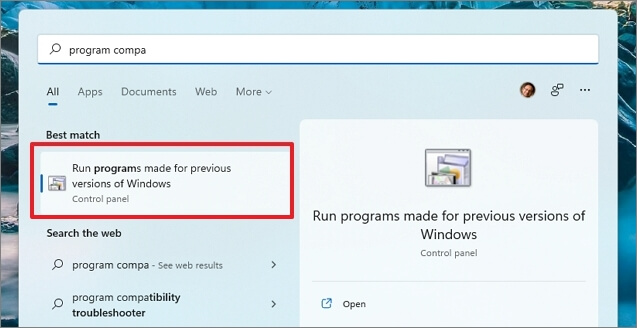
Step 2. To view the installed programs on a PC, one can use the Programs and Features tool, which is typically found in the Control Panel. By clicking on it, it will reveal the list of programs installed on the PC. Then, locate the specific program, such as Word, Excel, or PowerPoint, and click on the "Next" button to proceed with the uninstallation process.
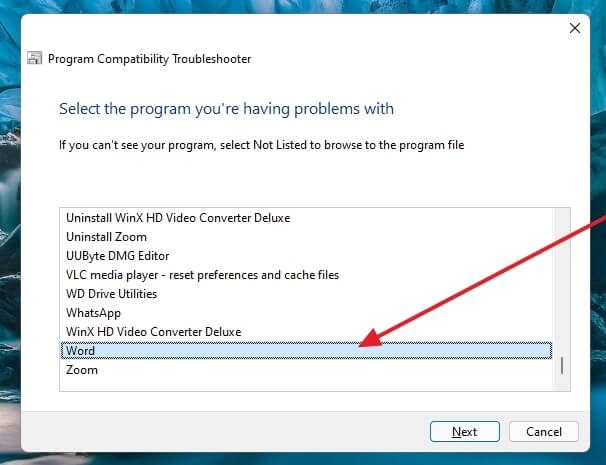
Step 3. It will then offer you "Try recommended settings" or "Select option to choose the compatibility settings" options.
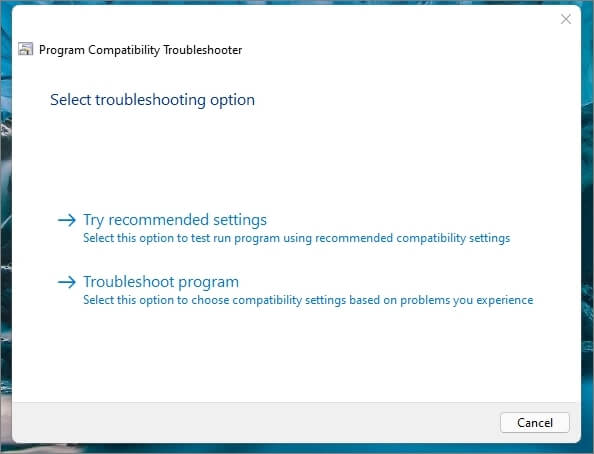
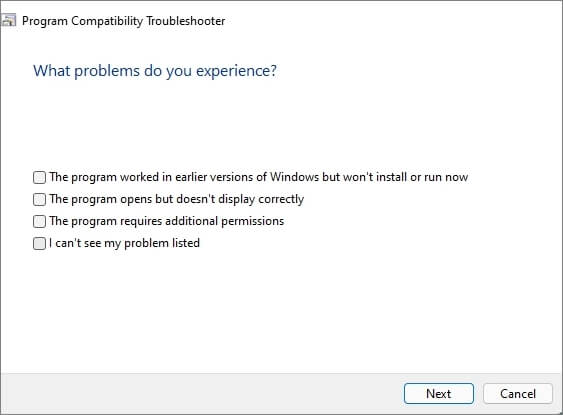
Step 4. You may need to select settings and troubleshoot, potentially repeating this with various other options displayed in custom settings, as you'll be asked multiple questions throughout the process unless the issue is resolved.
Fix 4. Repair MS Office Installation
Microsoft Office has a built-in repair tool that can fix corrupt or missing files from the installation, potentially resolving the error.
Step 1. To access the list of installed applications, open the Control Panel and click on the "Programs and Features" section, which will display a window showing all the applications currently on your system.
Step 2.To uninstall Microsoft Word, first, search for the Microsoft Word application from the list, then right-click on it and select the "Change" option. This will allow you to modify or remove the application.
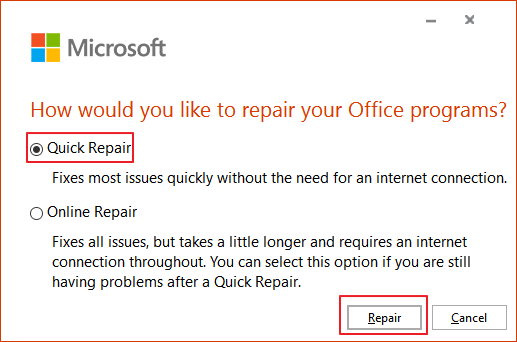
Step 3. After running the Office Repair Tool, a new window will open with two options: Quick Repair and Online Repair. Click the "Repair" button and follow the Wizard's instructions.
After completing the process, check whether your issue is resolved or not!
How to Repair Corrupted Word/Excel/PPT/PDF Efficiently
If you've found your essential Word, Excel, or PPT files corrupt, you're not alone! Fortunately, there's a solution to this problem. We recommend using the Deep Data Recovery tool, which is a top-notch file repair and data recovery tool that can resolve your issue with just a few clicks. It's a fantastic tool that can help you recover your corrupted files and get back to work quickly.
- Repair Corrupted Word Files
This advanced tool can quickly repair severely corrupted Word files and recover complete file data with original formatting, promptly fixing any Microsoft Word corruption files.
- Repair Corrupted Excel Files
This tool can recover severely damaged or corrupted XLS and XLSX files, allowing you to retrieve everything from Excel in its original format. It can even recover files that the Office app cannot read, including images, charts, tables, cell comments, and formulas.
- Fix Damaged PDF Files
The Qiling file repair tool has a feature that allows you to quickly repair corrupted PDF documents, which can be located on your PC or external storage devices.
Get this reliable file repair program for free in just a few clicks!
Step 1. Launch Deep Data Recovery, select the file types you want to recover and click "Fast Scan" to proceed with the recovery process.

Note: You can choose different search modes based on where and why the data was lost.
Step 2. This software allows you to fix damaged Word, Excel, PPT, and PDF files in the same steps, making it easy to recover corrupted documents.

Step 3. Qiling data recovery and repair tool scans for all lost and corrupted files, allowing you to find target files by type or search for them by name in the search box.

Step 4. Deep Data Recovery can automatically repair damaged documents and save the repaired files in a safe location after previewing them.
Qiling data recovery and repair software still offers several key features, including.
Repair Office Files in a Batch
If you have a large number of files to recover and a complete batch is corrupt, this tool can help you select and fix multiple files simultaneously. It can repair multiple documents, including PPTs, Excel, PDF files, and Worksheets, making it easier to recover your files.
Preview the Repaired Files
Qiling file repair tool allows users to preview the repaired files, including Word, Excel, PPT, and PDF, before saving them, enabling verification of the results against the original data.
The Qiling file repair tool is the top-rated Word/Excel/PPT repair tool, widely used by professionals. We recommend downloading it from the official Qiling website and using it as needed.
The Bottom Line
If you've been following this post until now, you should have complete knowledge regarding the four most effective fixes to the issue "We're Sorry, but Word Has Run into an Error." To resolve your issues, always follow the exact steps given above.
If your PDF files are corrupt, you can use Ease US file repair tool to recover them with just a few clicks. For any questions, feel free to ask in the comment section.
Related Articles
- Retrieve Deleted Files not in Recycle Bin
- Files Missing from External Hard Drive but Still Taking Space
- How to Restore Lost WPS Office 2016 Files
- How to Recover Virus Infected Files from USB Dirve and Pen Drive
- Does Updating to Windows 11 Delete Files? Here's the Answer
Updating to Windows 11 does not delete files, and you can upgrade for free. However, if you do lose data after the upgrade, you can recover lost and deleted files using Deep Data Recovery software. - Halo Infinite Won't Download? Download Halo Infinite Free
If you're having trouble downloading Halo Infinite, there are several potential solutions to try. You can check for Windows updates, try reinstalling the game through the Xbox app, or troubleshoot the download process by checking for any errors or issues with your internet connection.
Products
Articles & Tutorials
- Data Recovery
- Data Backup
- File Recovery
- File Backup
- System Backup and Restore
- Disk and Partition Clone
- Technical articles
- Mobile articles
- Disk Master Help
- Windows Data Recovery Tutorials
- Windows Secure Delete Tutorials
- Windows Partition Management Tutorials
- Windows File Backup and Restore Tutorials
- Windows System Backup and Restore Tutorials
- Windows Disk Backup and Restore Tutorials
- Windows Clone Tutorials