Does Updating to Windows 11 Delete Files? Here's the Answer
Microsoft has announced that Windows 11 is available for new machines., featuring a streamlined design with pastel colors, rounded corners, and a new startup sound, but some users have reported losing files after updating.
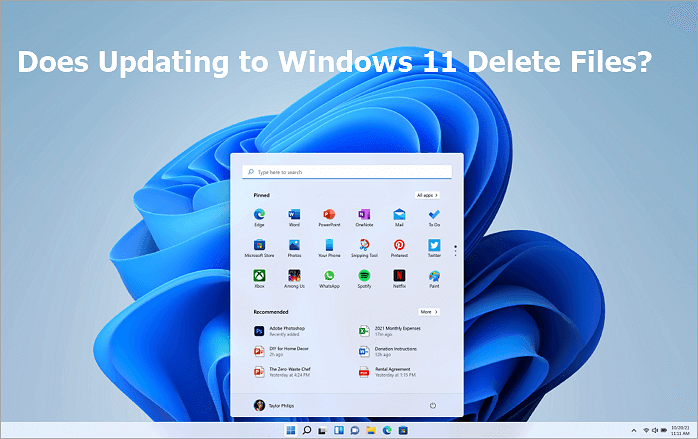
Will My Files Be Deleted When I Upgrade to Windows 11
Upgrading Windows 10 to Windows 11 will not erase all your files, but you may lose some data if you don't select the "Keep personal files and apps" option during the setup process. However, you will lose some features and settings when upgrading to Windows 11.
- News & Interests
- Math Input Panel
- Desktop Wallpaper
- Quick Status
- Touch Keyboard
- Tablet Mode
- Wallet...
Microsoft is removing the ability to upgrade to Windows 11 for free from Windows 10, but you can still upgrade for free by following specific steps, which will be available until Windows 11 is released.
How to Upgrade Windows 10 to Windows 11 for Free
Before downloading Windows 11 ISO files, check the system requirements and know everything about it. To upgrade Windows 10 to Windows 11 for free, follow the steps below, but note that Insiders users cannot directly click the Check for updates button for a full Windows 10 to Windows 11 upgrade when the official version is available.
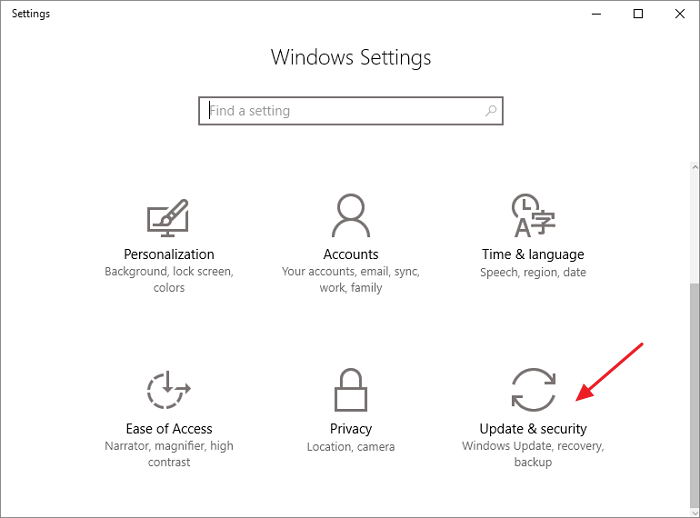
Step 1. Press the Windows key + S to open the search bar, type "Settings" and click on it to open the Settings app. Then, in the Settings app, click on "Update & Security".
Step 2. To join the Windows Insider Program, navigate to the "Windows Insiders Program" page and click "Get Started". This will require you to sign in with your Microsoft account to proceed.
Step 3. To get the early Windows 11 preview build, follow the instructions to choose the experience and channel you want to get it on your computer. Choose the "Dev channel" to get the early preview build.
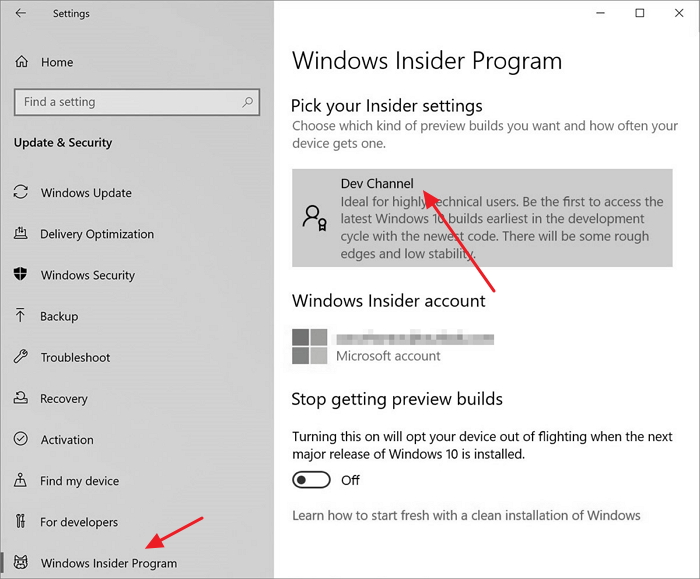
Step 4. Confirm the "Privacy Statement" and terms and click "Restart Now".
Step 5. After restarting, go to Settings > Privacy > Diagnostics & feedback to check if the "Optional Diagnostic Data" switch is On, then return to Settings > Update & Security > Windows Update and click "Check for updates" to see the latest Insider Preview build for Windows 11.
Step 6. Wait for Windows 11 to automatically download and install on your computer.
How to Recover Deleted/Lost Files After Updating to Windows 11
Even if you experience data loss issues after a system upgrade, you can recover deleted files using data recovery software. Qiling hard disk data recovery software is effective in Windows 11, 10, 8.1, 8, 7, XP, and Vista, and can recover lost videos, pictures, documents, and audio files after deletion, formatting, partition loss, OS crash, or other data loss scenarios.
Best Data Recovery Tool in Windows 11
- Data recovery services can recover data from various storage devices, including Hard Disk Drives (HDD), Solid-State Drives (SSD), Secure Digital (SD) cards, memory cards, flash drives, USB drives, and pen drives. These services can help retrieve lost, deleted, or corrupted files and data from these devices, regardless of the operating system or file system used.
- It can repair damaged or corrupt JPEG/JPG photos on various storage devices, including hard drives, sd cards, and memory cards.
- Qiling specialists offer remote consultation and assistance for free and high-quality cases, providing necessary support.
Download a file recovery software and follow these steps to restore lost data. First, try the trial version to see if the software can scan the drive and find your lost files. If it works, you can then proceed with the full version to recover your lost data.
Step 1. Select file types
Launch Deep Data Recovery. Select file types and click "Fast Scan" to initiate the recovery process.

Note: You can choose different search modes based on where and why the data was lost.
Step 2. Select a location and start scanning
Choose the partition where you lost data. Then, click "Scan".

Step 3. Filter and preview files
Use the file format filter on the left or upper right corner to find the specific files you need, and then click the "Preview" button or double-click a file to view its content.

Step 4. Recover lost data or files
Select the file that you want to recover, click the checkbox next to it, and click "Recover" to restore the lost data to a secure place.
Conclusion
Upgrading to Windows 11 won't delete any data if you choose the "Keep personal files and apps" option. If data is lost during the upgrade, Deep Data Recovery can help recover it, making the process easy and fast.
Related Articles
- Netgear NAS Recovery: Safe Software to Restore NAS Data
- Free Download JPEG Recovery Software to Recover Your Photos
- Download Data Recovery Wizard Free Edition!
- How to Recover Deleted Emails in Yahoo from Years Ago
- [SOLVED] USB Keeps Disconnecting and Reconnecting Windows 11/10
You're about to learn four effective solutions to fix the error of a USB device randomly disconnecting and reconnecting in Windows 11/10/8/7. These solutions can help troubleshoot the issue, and the step-by-step guide will walk you through the process. - Remove Virus That Automatically Delete Files
If a virus is automatically deleting files when you try to open them, you can try a few simple fixes.
Products
Articles & Tutorials
- Data Recovery
- Data Backup
- File Recovery
- File Backup
- System Backup and Restore
- Disk and Partition Clone
- Technical articles
- Mobile articles
- Disk Master Help
- Windows Data Recovery Tutorials
- Windows Secure Delete Tutorials
- Windows Partition Management Tutorials
- Windows File Backup and Restore Tutorials
- Windows System Backup and Restore Tutorials
- Windows Disk Backup and Restore Tutorials
- Windows Clone Tutorials