[SOLVED] USB Keeps Disconnecting and Reconnecting Windows 11/10
Microsoft Community: Windows 10 USB Device Disconnects and Reconnects Often
The USB connectivity issue on Windows 10 can be frustrating. A possible solution is to disable and re-enable the USB root hub. To do this, go to Device Manager, find the USB root hub, right-click on it, select "Disable device," and then enable it again. This can resolve the issue. Additionally, updating your USB drivers to the latest version may also help.
Source: https://answers.microsoft.com/en-us/windows/forum/all/windows-10-usb-device-disconnects-and-reconnects/7b93eabd-0ea3-444e-8671-1f5dcf460fc0
USB keeps disconnecting and reconnecting on your computer? Keep calm, it's actually quite easy to fix. Here are 4 solutions to solve the error - USB randomly disconnects. They have helped other users resolve the problem.
| Workable Solutions | Step-by-step Troubleshooting |
|---|---|
| Fix 1. Try Quick Fixes | Connect your USB devices or flash drives to another computer > Try a different USB port...Full steps |
| Fix 2. Reinstall USB drive | Click on Windows key + X and then, select "Device Manager". Locate and expand...Full steps |
| Fix 3. Run USB Troubleshooter | Download Windows 10 USB Troubleshooter. The utility will detect and prompt you to select...Full steps |
| Fix 4. Disable Power Saving | Again, enter the Device Manager interface and find the Universal Serial Bus controllers option...Full steps |
Fix 1. Try Quick Fixes to Solve USB Disconnecting and Reconnecting
When your USB drive randomly disconnects, check if it's a faulty USB port causing the issue in Windows 10. To troubleshoot, follow these steps.
Step 1. Connect your USB devices or flash drives to another computer.
If the USB drive is working properly on the other computer, then your computer (instead of the USB device) is most likely at fault. If it still keeps disconnecting, then move on to step 2.
Step 2. Try a different USB port.
If the USB device works well after changing the USB port, that is expected. If the USB still keeps disconnecting, try to update the USB drivers to see if it resolves the issue. You can also try to plug the USB device into a different computer to see if the problem is with the computer or the device.
Fix 2. Reinstall the Universal Serial Bus Controllers Driver
The Universal Serial Bus controllers' issue can be the reason for USB disconnecting and reconnecting. To fix this error, you can solve the driver issue first by following these steps.
Step 1. To access the Device Manager in Windows, click on the Windows key + X, and then select "Device Manager" from the menu.
Step 2. To expand "Universal Serial Bus controllers" in the Device Manager Window, follow these steps: In the Device Manager, navigate to the "Universal Serial Bus controllers" section. Right-click on it and select "Expand" from the context menu. This will display a list of all USB controllers installed on the computer, including any USB host controllers, USB root hubs, and other USB-related devices.
If it's a regular USB drive, it will be listed as a "USB Mass Storage Device".
If your USB 3.0 device keeps disconnecting on Windows 10/8/7, look for the "USB 3.0 Extensible Host Controller" in Device Manager.
Step 3. To uninstall the "Standard USB 3.0 eXtensible Host Controller", right-click on the option and select the "Uninstall" option.
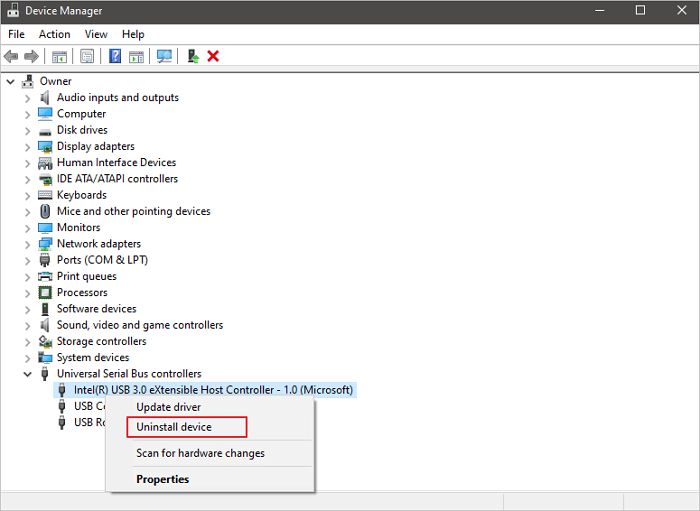
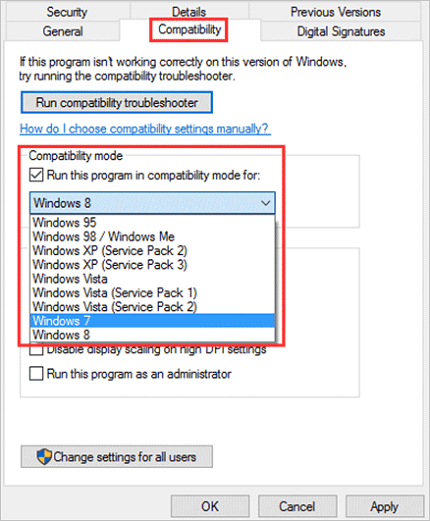
If your computer's Universal Serial Bus (USB) ports are not working, try restarting your computer. If that doesn't work, download the latest version of the Universal Serial Bus controllers driver from the manufacturer's website and install it in Compatibility mode. This may resolve the issue.
- Right-click the setup file and choose "Properties" from the popup list.
- To resolve the issue, select the "Compatibility" tab and choose an older Windows OS, such as Windows 7, from the dropdown menu.
- Let the driver install and check the functionality.
Fix 3. Run Windows 10 USB Troubleshooter
If your USB is experiencing issues, running the Windows 10 USB Troubleshooter may resolve the problem. This automated tool checks the USB connection for any known issues and can help troubleshoot the problem. To run the troubleshooter, follow the steps to initiate the automated check.
Step 1. Download Windows 10 USB Troubleshooter.
Download URL: https://m.majorgeeks.com/files/details/microsoft_windows_usb_troubleshooter.html
Step 2. The utility will detect and prompt you to select the device you want to fix, such as a USB drive, and then click the "Next" button.
Step 3. Click the "Close" button.
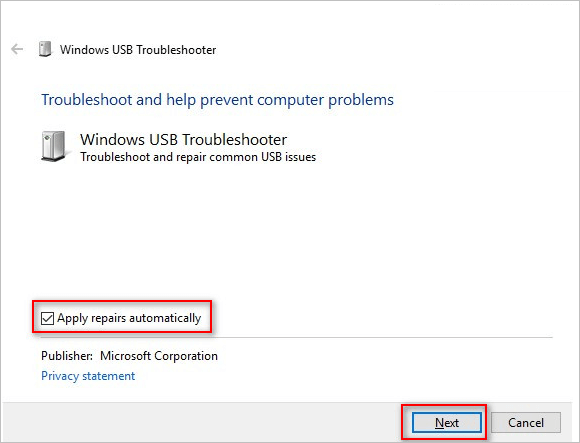
After completing the steps, the Windows USB Troubleshooter will check and attempt to fix any issues with your USB ports.
Fix 4. Disable the Power Saving Option
Some users have reported success in resolving the issue of a USB device keeping disconnecting and reconnecting by turning off the power management option, which may be causing the device to be constantly powered on and off. If the solutions mentioned earlier do not work, this method can be tried.
Step 1. In the Device Manager interface, find the Universal Serial Bus controllers option.
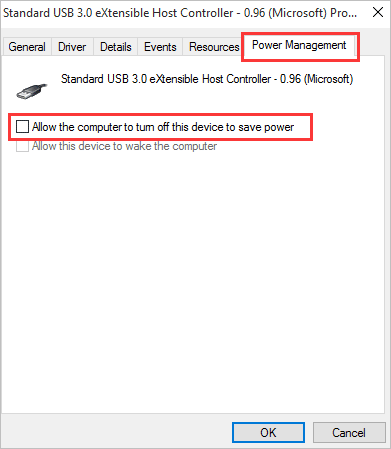
Step 2. To access the properties of the "USB 3.0 eXtensible Host Controller", right-click on the option and select "Properties" from the context menu.
Step 3. In the Power Management section, uncheck the "Allow the computer to turn off this device to save power" option and press "OK" to save the change.
How to Recover Data from a USB Even It's Inaccessible
Qiling hard disk data recovery software can help restore data from inaccessible USB drives. This software can also recover data from SD cards, memory cards, hard drives, and SSDs with simple steps. It's designed to recover lost files, photos, documents, and videos when a device is formatted, damaged, or inaccessible.
You can quickly recover your lost USB data by downloading and running a data recovery software. This tool can help restore your lost files and get your USB drive back to its original state.
Step 1. Select file types and click "USB/SD Scan" to start.
Launch Deep Data Recovery on your PC. Select the file types you want to recover and click "USB/SD Scan" to proceed with the recovery process.

Note: You can choose different search modes based on where and why the data was lost.
Step 2. Choose the USB drive to scan
Choose your USB drive where you lost important files. Click "Scan" to start the recovery process.

Step 3. Check and preview USB drive data
To quickly locate a specific type of file after scanning is finished, you can utilize the Filter feature and the Search option.

Step 4. Restore flash drive data
After finding lost files on a USB drive, click "Recover" to restore them, and save the recovered files to a safe location on your PC, not back to the USB drive.
Conclusion
Have you resolved the issue of the USB disconnecting and reconnecting error? If not, feel free to reach out to us with any additional problems you're experiencing. We're here to help and would love to hear your thoughts on the matter.
Consult with Qiling data recovery experts for one-on-one manual recovery service, which includes a FREE diagnosis, followed by a personalized recovery plan tailored to your specific needs.
- To fix errors and restore data from various storage devices, including internal hard drives, solid-state drives, external hard drives, and USB flash drives, as well as recover data from all RAID levels, you can use specialized software. This software can help diagnose and repair issues with the storage devices, recover lost or deleted data, and restore data from RAID configurations, including RAID 0, RAID 1, RAID 5, and RAID 6.
- To recover a lost partition that cannot be restored by data recovery software, you can try using a partition recovery tool like Qiling Partition Recovery. This software can scan the entire hard drive and recover the lost partition, even if it's been deleted or formatted.
- Bad sectors on a hard drive can be fixed using built-in disk checking tools like chkdsk in Windows or fsck in Linux. These tools scan the disk for errors and attempt to repair or recover data from bad sectors.
- Fix disks that become GPT protected partitions
- Wipe data, unformat hard drive, Install/uninstall software or driver, etc.
Related Articles
- How to Fix a Slow WD External Hard Drive Without Losing Data
- Unhide USB Files Using Windows, CMD, or Software
- SD Card Recovery Software Free Download Full Version with Crack
- Downloads Folder Not Responding on Windows 10? Fix It Now!
If you're unable to access your Downloads folder or it's not responding in Windows 10, this article will guide you through two reliable solutions to fix the issue without losing any data. - Solutions: Cannot Open External Hard Drive and Files/Folders
The solutions for an unresponsive external hard drive or inaccessible files are divided into two parts. If the hard drive itself won't open due to specific errors, try using Deep Data Recovery Free to retrieve files from an inaccessible HDD, external HDD, USB flash drive, or memory card.
Products
Articles & Tutorials
- Data Recovery
- Data Backup
- File Recovery
- File Backup
- System Backup and Restore
- Disk and Partition Clone
- Technical articles
- Mobile articles
- Disk Master Help
- Windows Data Recovery Tutorials
- Windows Secure Delete Tutorials
- Windows Partition Management Tutorials
- Windows File Backup and Restore Tutorials
- Windows System Backup and Restore Tutorials
- Windows Disk Backup and Restore Tutorials
- Windows Clone Tutorials