Solutions: Cannot Open External Hard Drive and Files/Folders
Case 1. Cannot Open External Hard Drive
If an external hard drive is recognized by the computer but won't open, it could be due to a software issue, such as corrupted files or a malfunctioning driver. In this case, you can try reinstalling the drive's software or updating the computer's operating system.
We collected the most frequently encountered errors that accompany the hard drive not opening issue and tested out corresponding solutions. The common errors include various issues that can be resolved with troubleshooting steps, such as checking for loose connections, updating drivers, and running disk checks, among others.
- The disk in drive X: is not formatted. Do you want to format it now?
- You need to format the disk in drive X: before you can use it.
- The drive X: is not accessible. Access is denied.
- It seems like Drive X is currently inaccessible due to a corrupted file or directory, making it unreadable.
- The issue with Drive X, which appears as xxGB RAW in Disk Management, is preventing it from being opened as a normal drive. This could be due to various reasons, such as a corrupted file system, a missing or damaged boot sector, or a partition table that is not properly formatted.
Some reasons for a connected hard disk failing to open may include virus infection or unusual system configuration, which can be resolved by trying various approaches to diagnose and troubleshoot the issue.
How to Recover Data When External Hard Drive Can't Open
If you have important data waiting for recovery, you can use Deep Data Recovery to retrieve files from an inaccessible HDD, external HDD, USB flash drive, or a memory card.
Qiling External Hard Drive Recovery Software
When dealing with an inaccessible, unreadable, or non-opening hard disk drive, data recovery is the top priority. To evaluate the effectiveness of Qiling hard disk data recovery software, you can try its demo version, which is available for download on the page before making a purchase.
Step 1. Connect your external hard drive to your computer using a correct USB cable, then run Deep Data Recovery. Choose the file types you want to recover and click "Fast Scan" to begin the process.

Note: You can choose different search modes based on where and why the data was lost.
Step 2.The external disk will be displayed under External drives in the next window. This software supports a wide range of external disk brands, including WD, Seagate, Toshiba, LaCie, SanDisk, Samsung, and others.
Select the external hard drive and then click the "Scan" button.

Step 3. Once the scan process begins, the software will identify and display more lost and deleted data, which will be organized in the scan results. The recovered data will be easily accessible, allowing you to quickly find specific files or folders by type or through a search function with exact file names.

Step 4. After scanning, you can preview the files found by Deep Data Recovery's algorithms. Select the desired files and click "Recover" to retrieve them. To prevent data overwriting, save the recovered data to a different drive than the original Seagate drive.
Fix 1. Format the external hard drive
To summarize, after retrieving your data, you can format the external hard drive, which is likely corrupted, to save time and effort.
You can format a hard drive using cmd, disk management, and third-party hard drive formatting software. For example, you can use Windows Disk Management to format a hard drive without installing any additional software.
Step 1. To open the Disk Management tool in Windows, press the Windows key + R to bring up the Run dialog box, type "diskmgmt.msc" and press Enter. This will open the Disk Management window, where you can view and manage your computer's disks and partitions.
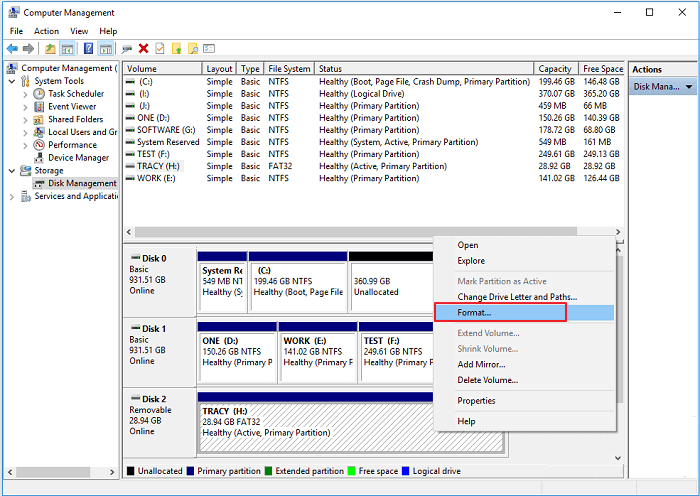
Step 2. To check the status of an external drive in Windows Disk Management, right-click on the drive and select Format if it's shown as RAW or unallocated, which will erase all data on the drive.
Step 3. Select a file system like NTFS and click OK.
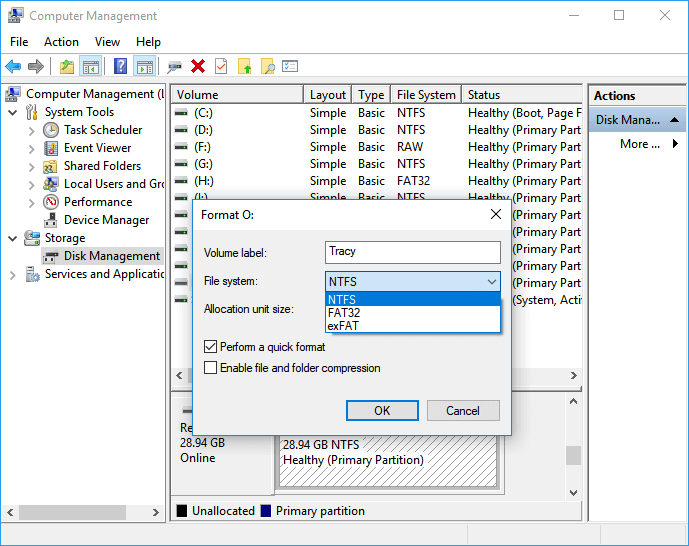
This method can help resolve the issue when the external hard drive cannot be opened due to file system corruption, allowing you to format and reuse the drive.
Case 1 The external hard drive won't open and cannot run chkdsk, which can be frustrating. To troubleshoot, try disconnecting and reconnecting the drive, ensuring it's properly seated and powered on. If that doesn't work, check for any loose connections or damage to the drive's cable or housing.
Your external hard drive not opening and chkdsk not finding errors suggests a possible hardware or file system issue. Try running a disk check in the Disk Management console, or use a third-party tool like CrystalDiskInfo to scan the drive. If the issue persists, you may need to reformat the drive, which will erase all data, so be sure to back up any important files first. If you're still having trouble, consider contacting the manufacturer's support or a professional data recovery service for further assistance.
Case 2 If an external hard drive is detected but won't read or show up in My Computer, it could be due to a faulty connection, a corrupted file system, or a driver issue. To resolve the problem, try restarting the computer, checking the connection, and updating the driver. If the issue persists, try running a disk check on the external hard drive, and if that doesn't work, consider using a data recovery software to retrieve any important files.
To access your 80GB USB Hard Drive, try plugging it into a different USB port on your computer, as sometimes a faulty port can cause issues. If that doesn't work, restart your computer and see if the drive appears in the 'My Computer' folder. If it still doesn't show up, try using the built-in Disk Management tool to assign a drive letter to the drive.
Case 3 If your external hard drive is asking to format it, it's likely due to a software or file system issue. Try restarting your computer and the external drive, then try to access it again. If that doesn't work, you can try using a third-party software like Disk Drill or Deep Data Recovery to scan the drive and retrieve any recoverable data.
Your external hard drive is showing up as Local Disk K in the computer, but there's no storage reading, and it's prompting you to format it. This is likely because the drive is not being recognized by the computer, or the partition table is corrupted. You can try to format it, but be aware that formatting will erase all data on the drive. If you want to recover your data, you may need to use data recovery software or take the drive to a professional data recovery service. If you're not sure what to do, it's always a good idea to consult with a professional or contact the manufacturer's support for assistance.
Fix 2. Fix I/O error using the linked page
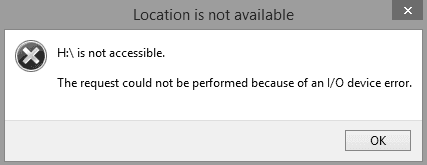
If your hard drive is recognized but can't be opened due to an "I/O device error," you can try running CHKDSK or changing the transfer mode for the drive in IDE Channel Properties to fix the issue.
The I/O device error on an external hard drive can be caused by a variety of factors, including faulty hardware, corrupted files, or software issues. To troubleshoot the problem, try checking the drive's connections, running a disk check, and updating the drive's firmware.
Fix 3. Request Admin privileges
To fix the issue of not being able to access an external hard drive due to lack of admin privileges, take ownership of the drive to gain permissions. This can be done by right-clicking on the drive, selecting "Properties", then clicking on the "Security" tab, clicking on "Edit" and adding your user account to the list of users with permissions, and finally clicking "OK" to apply the changes. This should allow you to access the external hard drive without any issues.
Step 1. Right-click on the inaccessible hard drive, and select Properties.
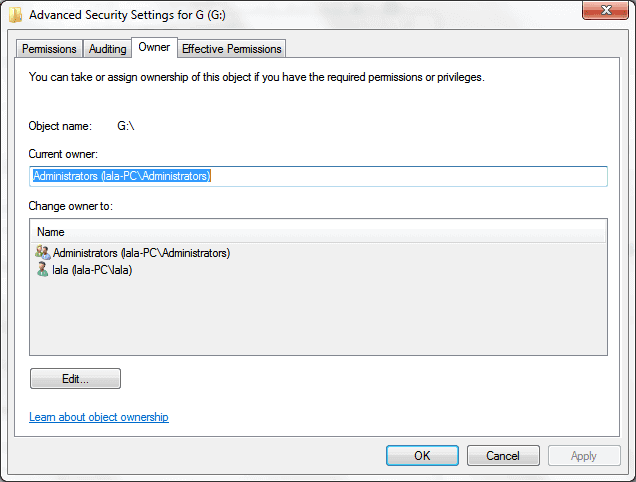
Step 2. To modify the ownership of a specified account, go to the Security tab, switch to the Advanced section, and click the Edit button. Then, on the Owner tab, make the necessary changes to the ownership.
Case 2. Cannot Open Files on External Hard Drive
As the issue of not being able to open an external hard drive persists, it's becoming increasingly concerning. Some users are reporting that they can access the disk drive normally, but the files and folders within it are inaccessible, leading to a potentially disastrous scenario for organizations that rely on uninterrupted access to enterprise resources, where using reliable project management software could make a significant difference.
In this case, you cannot directly use the data recovery software as we advised in the beginning, because the success of this technique is not guaranteed. The good news is that we have been able to solve the files not opening issue before, and I'm going to post the links here for reference.
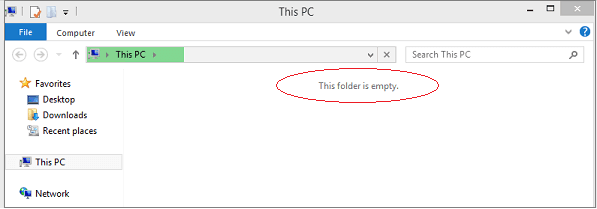
Case 1. When you open an external hard drive and try to open a folder in it, you get an error saying 'This folder is empty.'
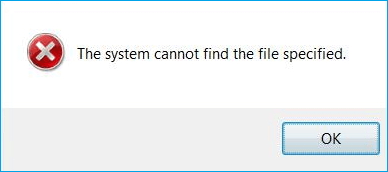
Case 2. The error "The system cannot find the file specified" in Windows occurs when the operating system is unable to locate the file you're trying to open. This can happen due to various reasons such as the file being moved or deleted, the file path being incorrect, or the file being corrupted. To resolve this issue, you can try checking the file path, looking for the file in its original location, or checking the recycle bin to see if the file was accidentally deleted.
Related Articles
- Repair Not Working SanDisk Memory Card without Losing Data
- What Is an SD Card and What Is It Used For
- [2022 Tips] Fix Corrupted or Damaged SD Card Without Losing Data
- External Hard Drive Can be Detected But Not Opening
- How to Recover Deleted Files from Network Drive Shared Folder
Since there's no shared drive recycle bin, recovering deleted files from a network shared folder can be more challenging than from a local hard drive. - Top 9 Ways to Recover Folders Disappeared from Desktop Mac and Windows 10/8/7
If your folders have disappeared from your desktop on Mac or Windows, you can restore lost desktop files in 9 ways. One effective method is using Qiling data recovery software, which can retrieve lost or missing files with simple steps.
Products
Articles & Tutorials
- Data Recovery
- Data Backup
- File Recovery
- File Backup
- System Backup and Restore
- Disk and Partition Clone
- Technical articles
- Mobile articles
- Disk Master Help
- Windows Data Recovery Tutorials
- Windows Secure Delete Tutorials
- Windows Partition Management Tutorials
- Windows File Backup and Restore Tutorials
- Windows System Backup and Restore Tutorials
- Windows Disk Backup and Restore Tutorials
- Windows Clone Tutorials