Repair Not Working SanDisk Memory Card without Losing Data
If your SanDisk SD card is not showing up on your phone or PC, try restarting the device, checking the card for physical damage, and ensuring it's properly inserted. If it still doesn't show up, try using a card reader to connect it to your PC, and if that doesn't work, try formatting the card. If you're unable to access your data, consider using data recovery software to recover your files.
| Workable Solutions | Step-by-step Troubleshooting |
|---|---|
| Fix 1. Repair the SD card not working or not detecting | Method 1. Apply SD card repair software...Full steps Method 2. Update driver and format it into NTFS...Full steps |
| Fix 3. Recover the SanDisk SD card data for free | Step 1. Run free SD card recovery software Step 2. Scan the SD card Step 3. Select files and recover...Full steps |
Problem: SanDisk SD card not found by phone or PC
Your SD card stopped working suddenly, and your phone and laptop can't detect it. You've tried other SD cards and they work fine, suggesting the issue is with your specific card. You need to recover a video from the card by next week, so you need a solution ASAP. Here is how to fix the issue.
Customers on forums.sandisk.com are experiencing issues with their SanDisk memory cards, with some reporting a malfunctioning problem. The affected cards include SanDisk Extreme Pro/Plus micro SD/SDHC/SDXC cards, as well as XQD cards used in digital cameras. Many users are wondering why their cards are no longer working as they should, prompting a flurry of similar posts from both old and new customers.
Regardless of the capacity of the memory card, whether it's 2GB, 32GB, 256GB, or any other size, the issue of the card not being recognized or readable by a device is a common problem that can occur due to various reasons, leading to consequences such as inability to take pictures, install apps, transfer files, or even access the card itself.
Fix SanDisk SD card not working or detected in Windows 10/8.1/8/7
To repair a not working or undetectable SanDisk memory card, you can either follow a specific troubleshooting guide or send it to the manufacturer for repair. This will help restore the card to a reusable state.
Method 1. Run a disk checkup to repair SanDisk memory card failed error
If your SanDisk memory card is experiencing internal errors, you can try running a disk check using the CMD command to fix the issues. Alternatively, you can use a free partition manager software to help repair the card.
You can use free partition manager software to check and repair your SanDisk memory card. This software can help identify and fix issues with the card's partition table, which can cause problems with data access and storage. By running the software, you can ensure that your memory card is properly formatted and that any errors are corrected, helping to prevent data loss and ensure smooth performance.
If you prefer simple methods, you can simply apply Qiling Partition Master Free with its Check partition feature to repair SanDisk memory card now.
To check and repair your SanDisk memory card using the Command Prompt, follow these steps:
The CMD CHKDSK command should not be used on a SanDisk memory card without first recovering data from the card using reliable file recovery software, as it will erase all data on the card.
Step 1: To open the Command Prompt as an administrator in Windows, press the Windows key + X to bring up the Quick Links menu, then click on Command Prompt (Admin).
Step 2: To run the chkdsk command on your external hard drive, type `chkdsk /f c:` (replace 'c' with the actual drive letter of your external hard drive) and press Enter. This will initiate the checking process.
Step 3: When it's finished, type "exit" and hit Enter to complete the process.
To revive a SanDisk SD card, most of the time, checking and repairing bad sectors and file system corruption will make it appear normally on the phone, camera, or PC. If it's still not working, it may be invisible in Windows Disk Management or Windows command prompt, in which case, the next method should be tried.
Method 2. Update SanDisk memory card driver and format it into NTFS
Step 1: Update SanDisk memory card driver
- Open "Computer" and choose "System Properties".
- To resolve the yellow exclamation mark next to "USB controller" in the Device Manager, click on the "+" next to "USB controllers" on the left, then click on the specific USB controller with the yellow exclamation mark, and select "Update driver" to search for and install updated drivers. If this doesn't resolve the issue, try uninstalling and then reinstalling the USB controller driver. If the problem persists, consider restarting your computer or seeking further assistance from a technical support specialist.
- Right-click to update the driver software, click on "Update Driver Software" and then select "Automatically search for driver software online".
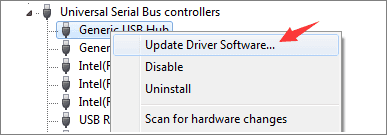
Step 2: Format and reset SanDisk memory card to NTFS/FAT32
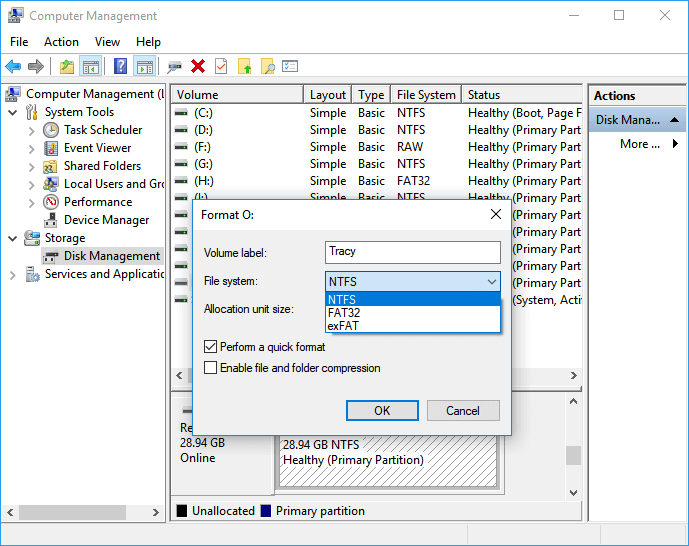
If updating the driver doesn't work, you can try formatting the drive to NTFS or FAT32 to make the computer recognize it. You can recover data before or after a quick format.
- To open Disk Management, press the Windows key + R to open the Run dialog box, then type `diskmgmt.msc` and press Enter. This will open the Disk Management utility in Windows 10, 8.1, 8, or 7.
- You can then right-click on SanDisk memory card and select "Format".
- To set the file system for your SanDisk memory card, you can choose between NTFS and FAT/FAT32. NTFS is a more modern file system that supports larger file sizes and is more secure, but it may not be compatible with older devices.
How to Recover data from not working SanDisk memory card free
If your SanDisk storage device, such as a memory card, USB drive, external hard drive, or SD card, becomes inaccessible, undetectable, or unrecognized, don't tamper with it. Instead, keep it safe and then follow the steps to recover your important data.
Download professional data recovery software
Deep Data Recovery software is highly recommended for recovering data from SanDisk memory cards and other storage devices. The full version can be activated for unlimited data restoration, and it can be downloaded for free.
Recover data from SanDisk memory card
When a SanDisk memory card is not working or not detectable, Deep Data Recovery can help scan, display, and restore all data with ease, making it a reliable solution for recovering data from malfunctioning SanDisk memory cards.
Step 1. Select file types and click "USB/SD Scan" to start
- Download and install Deep Data Recovery on your Windows PC.
- To properly connect your SanDisk/Lexar/Transcend SD card to your computer, you should use a card reader. Simply insert the SD card into the card reader, and then plug the card reader into a USB port on your computer. This will allow your computer to recognize the SD card and transfer files to and from it.
- Open Qiling SD card recovery software. Select file types and click "USB/SD Scan" to begin the recovery process.

Note: You can choose different search modes based on where and why the data was lost.
Step 2. Select the SD card to scan
- Select the SD card you want to scan and click "Scan" to proceed.

Step 3. Check for scan results
- Wait for the scanning process to complete.
- Click "Filter" and select one or more file types to display, such as Pictures, Word, Excel, PDF, Videos, and others.
- Click "Preview" to check if they are the wanted files.

Step 4. Recover SD card data
- Choose desired files and click "Recover".
- To avoid overwriting the original data, it's recommended to save the recovered files to a different location, such as a computer, an external hard drive, or another SD card. This will ensure that the recovered files are safely stored and can be accessed without any risk of data loss.
Related Articles
- Free Download the USB Data Recovery Software Full Version
- How to Fix Overheated Hard Drive and Recover Data [Symptoms, Causes & Fixes]
- [SOLVED] USB Keeps Disconnecting and Reconnecting Windows 11/10
- Fix External Hard Drive Not Showing Full Capacity on Windows & Mac
- How to Fix Corrupted Database/Data on PS4
The 'Database is corrupted, PS4 will restart' issue can be a frustrating problem for many users. Fortunately, it's a relatively easy issue to resolve, and by following the provided details, you can quickly fix the corrupted database on your PS4 and get back to gaming in no time. - How to Get Back Deleted WhatsApp Messages on Computer/iPhone
You can recover deleted WhatsApp messages, making it easy to get back what's been lost.
Products
Articles & Tutorials
- Data Recovery
- Data Backup
- File Recovery
- File Backup
- System Backup and Restore
- Disk and Partition Clone
- Technical articles
- Mobile articles
- Disk Master Help
- Windows Data Recovery Tutorials
- Windows Secure Delete Tutorials
- Windows Partition Management Tutorials
- Windows File Backup and Restore Tutorials
- Windows System Backup and Restore Tutorials
- Windows Disk Backup and Restore Tutorials
- Windows Clone Tutorials