How to Fix Overheated Hard Drive and Recover Data [Symptoms, Causes & Fixes]
If your computer's hard drive is overheating, it can cause data loss, slow performance, and even complete system failure. To prevent this, ensure good airflow around your computer, clean dust from the vents and fans, and consider upgrading to a solid-state drive (SSD) which is more resistant to heat.
Most hard drives, such as Seagate and Western Digital, have a maximum temperature threshold of around 140°F (60°C), and electrical components begin to degrade past this point, while temperatures between 25°C to 40°C are considered acceptable.
Quick navigation to fixing overheated hard drive.
| Workable Solutions | Step-by-step Troubleshooting |
|---|---|
| Fix 1. Lighten Loading Burden | Press Ctrl + Alt + Del keys to open Windows Task Manager. Click "Processes"...Full steps |
| Fix 2. Remove Malware | Go immediately to remove a virus from computer, laptop...Full steps |
| Fix 3. Check bad sectors | Press Windows + X and invoke Command Prompt option...Full steps |
| Fix 4. Do HDD Cleaning | Use a small piece of cotton rag and a dip of alcohol to clean it yourself...Full steps |
Hard Drive Overheating Symptoms
- Unusual heat to touch.
- Running fans are louder.
- Files cannot open, corrupted.
- Computer high (100%) disk usage.
- Hard drive very slow suddenly to access or open files.
- Computer/laptop suddenly shut down, displaying a completely blue screen.
- The drive is experiencing frequent bad sector errors, causing it to malfunction and display error messages when trying to access it. This is likely due to physical damage or wear and tear on the drive's mechanical components, or possibly due to a software issue.
- Your hard drive is making unusual noises, such as a clicking sound or occasional whirring, which may indicate a potential issue.
When a hard drive is experiencing symptoms such as overheating, accompanied by a sense of heat, it's likely that a hard drive failure is imminent. This can cause a PC or laptop to shut down abruptly, resulting in the hard drive not booting and data becoming inaccessible.
Hard Drive Overheating Causes
- Block air flow
Uncover the fans with anything that's blocking the air flow
- Malfunctioning fans
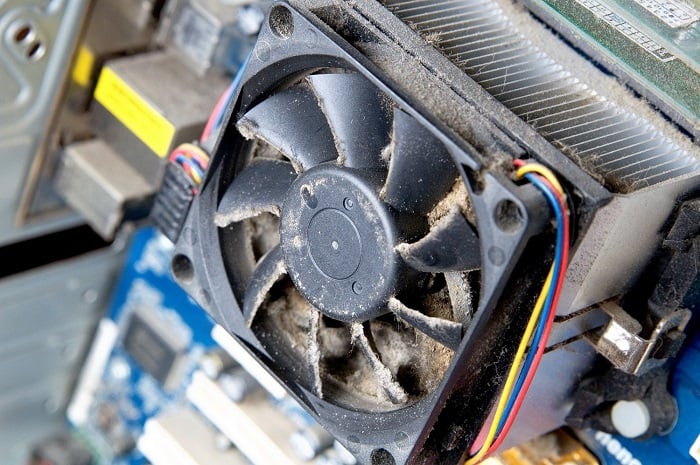
Regularly cleaning your fans can indeed make them more effective at circulating air, which can help keep your space cooler and more comfortable. It's a good idea to clean your fans every 3-6 months, depending on how often they're used. This can help remove dust and other debris that can accumulate and reduce airflow. By incorporating fan cleaning into your regular cleaning routine, you can enjoy the benefits of stronger, more efficient air circulation.
- Thick and heavy dust
Dust can impede airflow, hindering the cooling process and insulating components, while a cleaner environment allows for better hard drive performance.
Fix Hard Drive Overheating
If your hard drive is overheating and showing signs of corruption, dying, or eventual failure, there are four easy troubleshooting methods to consider. These include checking for dust buildup and cleaning the drive, ensuring proper airflow and cooling, running a disk check and repair, and updating the drive's firmware to the latest version.
1. Lighten the loading burden
Minimize the number of large-size applications that use high CPU resources and disk memory in Task Manager.
- To open the Windows Task Manager, press the Ctrl + Alt + Del keys simultaneously on your keyboard. This will immediately bring up the Task Manager window, where you can view and manage running processes, applications, and system resources.
- To free up system resources, click on the Processes tab, select the processes that are consuming the most CPU resources, and then click End Process to terminate them.
Further reading: How to fix 100% disk usage

2. Check and remove malware and virus
Be cautious if the task manager shows 100% disk usage but nothing is eating up the CPU, as the culprit might be computer viruses draining your computer's memory instead.
Go immediately to remove a virus from the computer/laptop.

3. Check bad sectors and prepare for the worse
A hard drive with too many bad sectors can lead to malfunctioning, making it difficult to load computer files and generating excessive heat.
- Warning
- Running chkdsk may fix bad sectors, but it can also lead to total data loss. To avoid this, perform data recovery first, and then proceed with the CMD method.
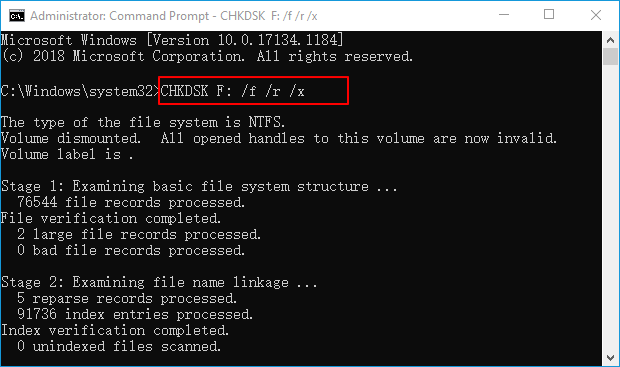
To check for bad sectors on your computer, you can use the chkdsk command. This command allows you to scan your hard drive for errors and bad sectors, which can cause your computer to slow down or even crash.
- Press Windows + X and invoke Command Prompt option.
- Right-click the Command Prompt and choose Run as administrator.
- On the Command Prompt window, type `chkdsk f: /f /r` and press enter, replacing `f` with the correct hard drive's drive letter.
If command line is not your ideal choice, you can apply this command-line alternative tool - Qiling CleanGenius. Use this one-click tool to fix the file system error on your hard drive.
Step 1. Download Qiling CleanGenius on your computer for free.
Step 2. The software should be run. On the left panel, click "Optimization" and select "File Showing".
Step 3.Go to "Choose drive" and select the drive with a file system error, then check the "Check and fix file system error" option and click "Execute" to address the issue.
Step 4. Once the Qiling CleanGenius has completed the repair process, you can click on the provided link to view the results of the repair.
Since Chkdsk can't repair bad sectors on its own, you can try using software to fix them, as described in the article on how to repair bad sectors.
4. Regularly do some hard drive cleaning
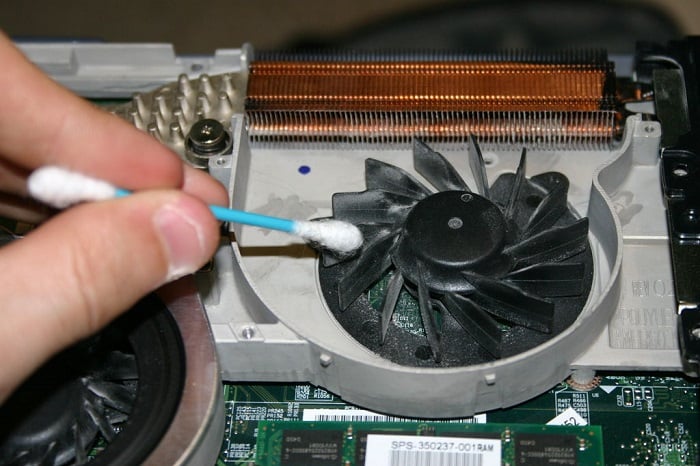
Using a machine in a fixed location for an extended period can lead to dust and debris accumulation in the air, causing the hard drive to overheat. A simple cleaning can be done with a cotton rag and alcohol, or a cotton bud for inner areas. For a more thorough cleaning, it's recommended to send the machine to a professional repair center.
Still Overheating? Take Care of Data!
Data rescue is a priority on an overheating hard drive that may automatically delete files or corrupt data. To prevent loss, it's best to copy the intact hard drive contents and paste them into a backup drive before the overheated hard drive fails completely.
Choice 1. Deep Data Recovery Professional
If your hard drive is overheating, it may not respond, take a long time to open files, or become completely inaccessible. In such cases, you'll need a data recovery program to recover files from the unresponsive, unreadable, or non-functional hard drive. Qiling hard disk data recovery software is a top choice due to its exceptional capabilities, speed, safety, and efficiency.
Choice 2. Deep Data Recovery with Bootable Media
To recover data from an overheated hard drive that can't boot, you can create a bootable USB drive and use Deep Data Recovery Pro to export inaccessible data without having to send the drive to a repair center.
Choice 3. Qiling Advanced Manual Data Recovery Service
If your overheating hard drive is not handled promptly, it can lead to increased bad sectors and eventually die. Software can't recover data from a dying hard drive, so it's best to hire a professional manual data recovery service to tackle the problem.
Related Articles
- Free Download Lenovo Data Recovery Software [for Laptop & Mobile]
- [Solved] USB Drive Detected But not Accessible
- Undo Disk Cleanup in Windows, No Data Loss
- How Long Do Hard Drives or External Hard Drives Last (If Unused)
- How to Recover Shift Deleted Excel Files from Windows PC
Want to recover a shift deleted Excel file in Windows 11/10/7? This article provides a solution for recovering shift deleted Excel files from your desktop or PC. - How to Recover Shift Deleted Word Documents
You can recover Shift deleted Word files using either Deep Data Recovery or by restoring them from auto backup files in Windows 10/8/7/XP.
Products
Articles & Tutorials
- Data Recovery
- Data Backup
- File Recovery
- File Backup
- System Backup and Restore
- Disk and Partition Clone
- Technical articles
- Mobile articles
- Disk Master Help
- Windows Data Recovery Tutorials
- Windows Secure Delete Tutorials
- Windows Partition Management Tutorials
- Windows File Backup and Restore Tutorials
- Windows System Backup and Restore Tutorials
- Windows Disk Backup and Restore Tutorials
- Windows Clone Tutorials