[Solved] USB Drive Detected But not Accessible
Your Sandisk USB flash drive may be malfunctioning due to a hardware issue, and you can try to format it using a different computer or software, but be aware that this will erase all data on it.
Error: USB Drive Appears on My Computer but Not Accessible
If you're tired of dealing with a USB drive that's detected but not accessible, you're not alone. We've all been there, and it's frustrating. Fortunately, we've got some troubleshooting steps to help you fix the issue. Just try them one by one until your problem is fixed.
When you said the USB is detected but is not accessible, did you mean the pen drive not showing data or that the pen drive detected but not showing in My Computer?
Method 1. If USB Drive Just Cannot Be Opened
If your computer can detect a USB drive but you can't access it, you can use a data recovery tool like Deep Data Recovery to retrieve your data. This tool can recover data from drives that are inaccessible, corrupted, damaged, or RAW.
To restore files from a USB flash drive, follow the video and text guides below. They will guide you through the process of retrieving your files effortlessly.
Step 1. Select file types and click "USB/SD Scan" to start
Launch Deep Data Recovery software on your Windows PC, select the desired file types, and click "USB/SD Scan" to initiate the recovery process.

Note: You can choose different search modes based on where and why the data was lost.
Step 2. Select a drive and start scanning
Hover over the partition where you lost data and click "Scan".

Step 3. Check and preview scanned files
To narrow down the scan results, use the file format filter on the left or upper right corner. This will help you find the specific files you need. Once you've filtered the results, you can preview the content of a file by clicking the "Preview" button or double-clicking on it. This allows you to see the file's content before deciding what to do with it.

Step 4. Recover lost data to a secure location
To recover lost data, select the file by checking the box next to it, then click "Recover" to restore the data to a secure location. It's recommended to store the recovered data on a different disk to avoid overwriting the original lost data.
Other key features of Qiling data recovery software:
- To recover data from an emptied Recycle Bin, you can use a data recovery software that can scan the computer's hard drive and restore deleted files. This process can be done on Windows or Mac computers.
- 1-800-RECOVER
- Data recovery software can repair corrupted files during the recovery process on Windows 11/10/8/7 and macOS. This feature allows users to recover files that were previously inaccessible due to corruption, making it a valuable tool for restoring lost data.
Method 2. If Pen Drive Is Detected But Not Showing in File Explorer
To open Disk Management, press the Windows+R key to open Run, type diskmgmt.msc in the empty box, and tap OK.
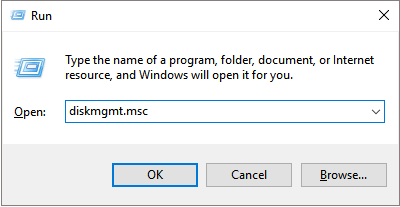
Does your USB drive appear in Disk Management
If your USB pen drive is not showing up in Windows, check if it's recognized in Windows Disk Management. If not, try the following solutions: Check if the USB drive is properly inserted into the USB port. If it is, try using a different USB port or a different computer to rule out any issues with the drive itself.
If the USB drive appears in Disk Management:
The error message suggests there are errors or corruptions on the disk, and it's recommended to try data recovery software to recover data from the USB drive and format the device to repair it.
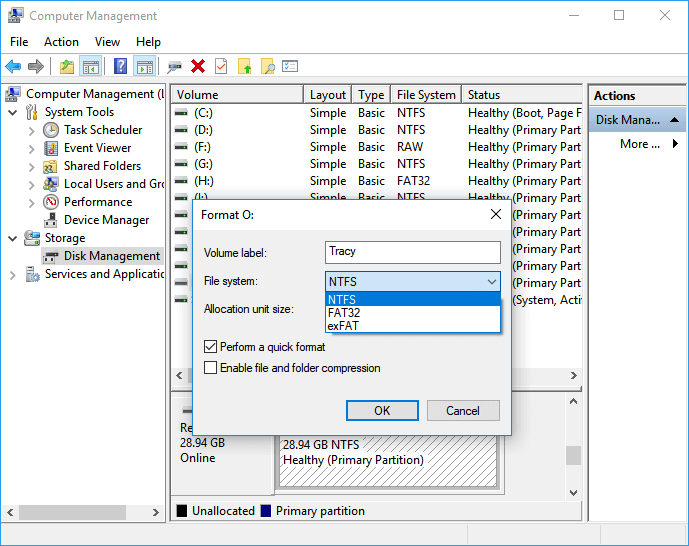
To format the USB pen drive:
Step 1. Right-click the removable disk partition and choose Format...
Step 2. Select a proper file system and perform a quick format. Click OK.
If the USB drive doesn't appear in Disk Management:
1) Go to Device Manager, 2) check if the USB flash drive is listed, 3) update the USB flash drive driver to see if it resolves the issue.
Step 1. Open "Computer" > select "System Properties".
Step 2. To resolve the issue, click on the "Device Manager" icon on the left taskbar, expand the "USB controllers" section by clicking on the "+" (plus) icon next to it, and look for a yellow exclamation mark indicating a problem with one of the USB controllers.
Step 3. Right-click and choose "Update Driver Software"
Step 4. Click "automatically search for driver software online... "
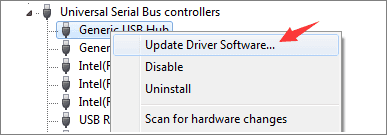
Wait patiently and let the driver be installed, then reboot your computer. Then reconnect your USB drive to the PC and check whether the USB drive can be accessed.
Related Articles
- FIX: Seagate External Hard Drive Not Working Without Losing Data
- Fix 'CHKDSK Is Not Available for RAW Drive/USB/SD Card' Error
- Fix External Hard Drive Not Initialized, I/O Device Error
- [Solved] Apricorn USB 3.0 External Hard Drive Not Recognized
- Top 10 Best SSD Recovery Software Windows and Mac 2022
SSD recovery software can help recover deleted data from solid-state drives, commonly used in laptops, gaming consoles, and supercomputers. If you accidentally delete critical data from your SSD, these tools can help. - Top 9 Best USB Recovery Software Free Download in 2025
Want to recover permanently deleted files from a USB drive? The best USB recovery software can help, and we've got the top 9 solutions for you.
Products
Articles & Tutorials
- Data Recovery
- Data Backup
- File Recovery
- File Backup
- System Backup and Restore
- Disk and Partition Clone
- Technical articles
- Mobile articles
- Disk Master Help
- Windows Data Recovery Tutorials
- Windows Secure Delete Tutorials
- Windows Partition Management Tutorials
- Windows File Backup and Restore Tutorials
- Windows System Backup and Restore Tutorials
- Windows Disk Backup and Restore Tutorials
- Windows Clone Tutorials