Fix 'CHKDSK Is Not Available for RAW Drive/USB/SD Card' Error
If you're encountering the error "CHKDSK is not available for RAW drive/USB/SD", there are two methods to resolve it. You can convert the RAW drive to a healthy drive using a third-party tool such as Qiling Partition Recovery, MiniTool Partition Wizard, or DiskGenius.
You can't run CHKDSK on a RAW drive, USB, or SD card. To fix the issue, you'll need to recover data from the drive, if possible, and then reformat and repartition the drive.
Your USB flash drive suddenly appeared as not formatted on your computer, and when you tried to run CHKDSK to fix the RAW file system error, Windows showed a message saying "CHKDSK is not available for RAW drives."
You can use a third-party tool like Qiling Disk Master or MiniTool Partition Wizard to convert the RAW USB drive to NTFS without losing any data. These tools can safely convert the file system and recover any inaccessible data. Alternatively, you can use a formatting tool like Rufus to create a new NTFS partition on the USB drive, though this will erase all data on the drive. If you want to preserve existing data, the first option is recommended.
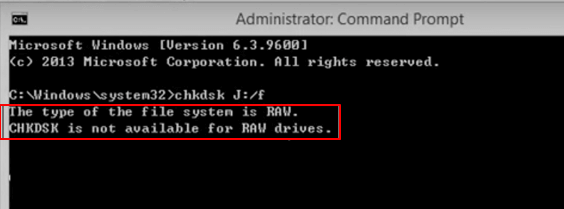
When a USB or storage device becomes RAW, the direct solution is to format it. However, if the CHKDSK command is not working, you can follow the tutorial steps below to restore your data from the RAW device and then change the file system from RAW to a proper format like NTFS or FAT32.
The safest way to fix a RAW drive is to first recover any recoverable data, then use other error checking tools to check and repair the drive, and finally, reformat the drive to remove the CHKDSK not available error.
1. Restore Data from RAW Drive/USB/SD Card
To restore data from a RAW storage device like a USB or SD card, you'll need the help of the best hard drive data recovery software, such as Deep Data Recovery.
This software supports deep scans and can recover all existing and lost data from RAW USB, SD card, or hard drive with simple steps on Windows 10/8/7. To get started, simply download and install the free software, then follow the provided tips to successfully retrieve your data from the RAW storage drive.
Step 1. Select file types
Run Deep Data Recovery and select the file types. Click "USB/SD Scan" to start the recovery process.

Note: You can choose different search modes based on where and why the data was lost.
Step 2. Select and scan the RAW partition
If the RAW partition has a partition label, you can directly select it from the drives list and click "Scan" to look for the lost files. If the RAW partition loses its label, it will be recognized as "Lost Partition", so select the "Lost Partition" and click "Scan" to initiate a full scan on the RAW drive.

Step 3. Preview found data from the scan result
After the scan is completed, all available files in the RAW hard drive will be displayed, allowing you to view and select the files you want to recover. You can sort the scanned data by file format or search directly in the "Search files or folders" box to quickly find the desired files.

Step 4. Recover data from RAW partition
To recover data from a RAW drive, select all files and click "Recover" to retrieve all data. Then, choose another internal or external hard drive to save the recovered data and click "OK" to initiate the RAW drive recovery process.
If data recovery software can't restore RAW files, you can still try to recover the data using Qiling RAW recovery services, which may be able to retrieve the data.
Consult with Qiling data recovery experts for one-on-one manual RAW recovery service, which includes a free diagnosis. After the diagnosis, we could offer the following services:
- Repair damaged RAW drive without formatting
- Recover data from RAW drives, including BitLocker encrypted drives
- Recover lost partitions and repartitioned drives
2. Fix/Repair 'CHKDSK Is Not Available for RAW Drive/USB/SD' Error
After restoring data from the RAW USB/SD card, you can now find methods here to repair and fix the 'CHKDSK is not available' error.
Method 1. Run Disk Error Checking to fix the CHKDSK not available error
Step 1: To access the properties of a RAW USB or SD card in Windows Explorer, right-click on the device and select 'Properties'.
Step 2: Click the 'Tools' tab and select Check under Error checking.
Step 3: To resolve the CHKDSK not available error, click on "Scan drive" to initiate the Disk Error Checking process and fix any disk errors.
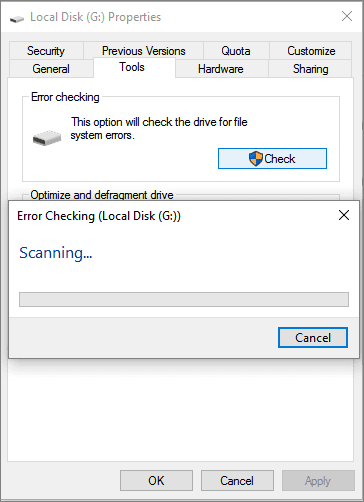
You can simply wait for the process to complete, and your USB or SD card should be accessible once it's done.
Method 2. Fix CHKDSK not available issue with CHKDSK alternative tool
To fix the CHKDSK not available error, you can try using a CHKDSK alternative tool, such as Qiling Partition Master, which can effectively help you remove the error from your storage device on Windows 10/8/7.
The software helps repair bad sectors and fix corrupted file systems on USB drives and SD cards by checking partitions with just a few clicks.
Format and reset the RAW drive/USB/SD file system to NTFS
After removing bad sectors and repairing the corrupted file system from a RAW drive or USB, you can follow these guidelines to format and reset the RAW USB/SD card file system to NTFS. Once the corrupted file system is repaired, you can proceed with formatting the device to NTFS, which will restore its file system to a healthy state.
Step 1: Connect the RAW USB/SD card/external hard drive to your PC.
Step 2: To format the RAW drive, open Windows Explorer and right-click on the RAW drive, selecting the "Format" option.
Step 3: To reset the file system to NTFS or FAT32, go to the Disk Management tool, select the drive you want to change, and click on the "Change" button. Then, choose the desired file system (NTFS or FAT32) from the dropdown menu and click OK to confirm the operation.
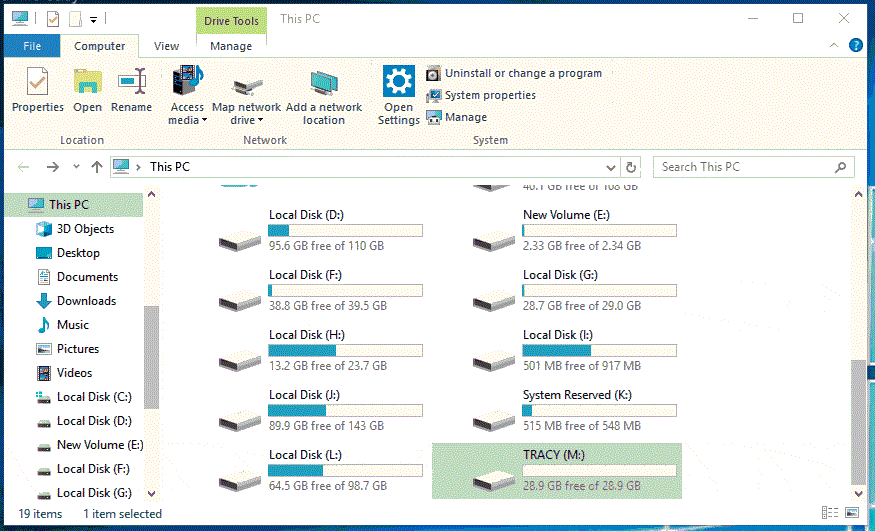
Once the process is complete, you can safely use your USB, SD card, or external hard drive to save data again.
Related Articles
- How Do I Get My Computer to Recognize a USB Device [Solved]
- How to Recover Cache Files on Android SD Card (Only 3 Steps)
- How to Find and Recover Hidden Files on Memory Card
- Recover Data from Encrypted SD Card
- Recover My Files Full + License Code with File Recovery Software
I recovered my files without using Recover My Files Crack key by downloading a free file recovery software with a license code. I followed the instructions to recover my lost files with ease. - How to Recover Data from Hard Disk Which Is Not Detecting Easily
If your hard disk or external hard disk is not detecting. Qiling hard drive data recovery software can help you easily recover data from a hard disk or external hard disk that is not detected, recognized, or won't read.
Products
Articles & Tutorials
- Data Recovery
- Data Backup
- File Recovery
- File Backup
- System Backup and Restore
- Disk and Partition Clone
- Technical articles
- Mobile articles
- Disk Master Help
- Windows Data Recovery Tutorials
- Windows Secure Delete Tutorials
- Windows Partition Management Tutorials
- Windows File Backup and Restore Tutorials
- Windows System Backup and Restore Tutorials
- Windows Disk Backup and Restore Tutorials
- Windows Clone Tutorials