Recover Data from Encrypted SD Card
You locked your SD card on your Samsung phone to prevent others from accessing or viewing files stored on it.
You can try using data recovery software specifically designed for encrypted SD cards, such as Deep Data Recovery or Deep Data Recovery. These tools can help you recover lost data from an encrypted SD card, but be aware that the encryption process may still pose some challenges for data recovery. It's also worth noting that some SD cards may be more difficult to recover data from than others, depending on the encryption method used and the condition of the card.
| Workable Solutions | Step-by-step Troubleshooting |
|---|---|
| Fix 1. Decrypt SD card with password | Insert the SD card to the source phone, restart the phone. Go to Settings...Full steps |
| Fix 2. Decrypt SD card without password | 1. Restore with third-party decryptor; 2. use diskpart clean all command...Full steps |
Overview of SD Card Encryption and Decryption
SD cards have become a staple in digital cameras, Android phones and tablets, and other devices, allowing users to store photos, videos, and audio files safely and portably. As their popularity has grown, so has the demand for third-party encryption software, which enables users to lock their data on SD cards with a password, providing an additional layer of security and protection against unauthorized access.
Here is a brief introduction to SD card encryption and decryption:
SD card encryption is a secure way to protect your data from being accessed without permission. You can use your Android phone or tablet to encrypt the SD card, or utilize a third-party tool for added security. This way, only you will be able to access the files saved on the SD card, as a password will be required to unlock them.
SD card decryption methods vary depending on the encryption method used. If the card was encrypted using a phone, the phone itself can be used for decryption. If a dedicated encryption tool was used, that tool will also be required for decryption.
- Notice:
- The password set for encrypting the SD card serves as the decryption key.
- Remembering the password is crucial, as forgetting it can make data recovery from an encrypted SD card extremely difficult.
If you're struggling with decrypting an SD card and performing SD card recovery, you can try the solutions provided on this page to resolve the issue on your own.
How to Decrypt an Encrypted SD Card
If you used a third-Using a party encryption tool to encrypt an SD card makes it inaccessible without the password, but the same tool can easily decrypt it. If the encryption was done on an Android phone, the only way to access the data on the SD card is to decrypt it.
Solution 1. Decrypt SD card with the password
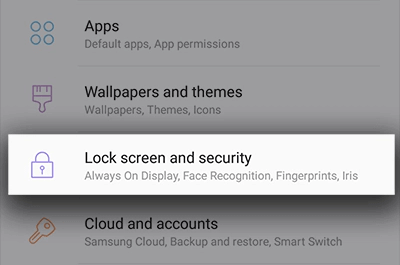
To decrypt the SD card with a password on the source Samsung cellphone, follow these steps: first, turn on the phone and navigate to the "Settings" menu; then, select "Lock screen and security" and choose "Other security settings"; next, select "SD card encryption" and enter the password; finally, confirm the password to decrypt the SD card.
- Step 1:Insert the SD card into the source Samsung phone, then restart the phone.
- Step 2: Go to "Settings" and tap on "Lock screen and security".
-
- Step 3: Scroll to the bottom and tap on "Decrypt SD Card".
-
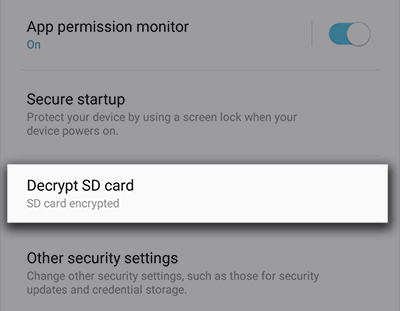
- Step 4: Tap on "DECRYPT SD CARD" and enter your password.
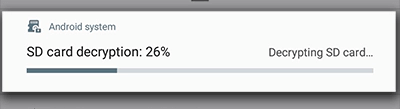
- Step 5: Wait for the decryption process to finish, keeping the device charged throughout the process.
- The more data stored on the SD card, the longer it takes to decrypt.
-
You can't decrypt an SD card on a different phone due to varying encryption algorithms and decryption methods between devices, so it's best to decrypt the card on the original phone to access all saved data.
Solution 2. Decrypt SD card without password
Some users may be wondering how to decrypt an SD card when they've forgotten the password. Fortunately, there are methods available to resolve this issue, and following them can help retrieve access to the encrypted data.
Method 1. Restore SD card encryption password with a third-party app
There are apps available that can decrypt an encrypted SD card by restoring the password, such as FExplorer, which can help access the content on the card.
You can download it from the App Store and follow the steps below to decrypt the SD card:
Step 1. Restore the password of encrypted SD card
- Keep the SD card inserted in your phone and connect your phone to the PC via a USB cable.
- To access your iPhone's file system, download FExplorer from the App Store and run it on your phone.
- To access your device's internal storage, locate a folder named "mmcstore" and rename it to "mcstore.txt".
- Copy the file to your PC and open it with Notepad. Then you'll be able to view the password of the encrypted SD card.
Step 2. Decrypt the SD card with the found password.
To decrypt the SD card, first, get the encryption key from the SD card by running the command `cat /mnt/sdcard/key`. Then, use the encryption key to decrypt the SD card using the command `openssl enc -d -aes-128 -in /mnt/sdcard/encrypted_file -out /mnt/sdcard/decrypted_file -k <(cat /mnt/sdcard/key)`.
Method 2. Decrypt SD card by using diskpart clean all command
If you don't need to save files on your SD card, you can treat it as a normal device on your new phone. To do this, use the DiskPart clean all command, which will simplify the process. This will allow you to use your SD card as a regular storage device without the need to save files on it.
- Step 1:To insert the SD card into your PC via an SD card reader, simply locate the reader, insert the SD card into it, and then connect the reader to a USB port on your computer. This will allow your PC to recognize the SD card and access its contents.
- Step 2: Right-click Windows icon on the Desktop, select Search, type cmd.
- Step 3: Bring up Command Prompt and type diskpart and hit enter.
- Step 4: Type list disk and hit Enter.
- Step 5: To continue the process, type `select disk 1` (replace 1 with the disk number of your SD card) and press Enter.
-

Step 6: Type clean all and hit Enter. Wait for the process to complete.
Step 7: Type create partition primary and hit Enter.
Step 8: Type format fs=fat32 and hit Enter.
After the process, you can insert the SD card into the old phone or the new phone to reuse it as external storage again.
Bonus Tip: Recover lost or deleted files from SD Card
After decrypting the SD card with a password, you should be able to access and use the SD card and its saved data again. However, if you've lost data on the SD card, you can try using reliable SD card data recovery software to help retrieve it.
Here, Qiling data recovery software is recommended for its easy-to-use feature.
Notice: To recover files from an encrypted SD card, you first need to decrypt the card, which may require following previous steps to unlock it. If the SD card cannot be decrypted, the recovery process may fail. Once unlocked, you can proceed with the file recovery process.
This software also supports deleted, formatted, or permanently deleted file recovery on SD card, making recovery straightforward with just 3 simple steps.
Step 1. Select file types and click "USB/SD Scan" to start
- Download and install Deep Data Recovery on your Windows PC.
- Use the proper way to connect your SanDisk/Lexar/Transcend SD card to the computer.
- Open Qiling SD card recovery software, select file types, and click "USB/SD Scan" to initiate the recovery process.

Note: You can choose different search modes based on where and why the data was lost.
Step 2. Select the SD card to scan
- All connected drives will display here. Select your SD card and click "Scan".

Step 3. Check for scan results
- Wait for the scanning process to complete.
- To narrow down the search results, click on the "Filter" option and select one or multiple file types that you'd like to see, such as Pictures, Word documents, Excel spreadsheets, PDFs, or Videos, among others.
- Click "Preview" to check if they are the wanted files.

Step 4. Recover SD card data
- Choose desired files and click "Recover".
- To avoid overwriting the original files, it's recommended to choose a different location to save the recovered files instead of the original SD card. This ensures that the recovered files are stored safely and don't get lost again.
Related Articles
- Fix and Restore External Hard Drive Shows Only 32GB to Full Capacity
- Fix SanDisk Cruzer Not Recognized Issue
- External Hard Drive Keeps Freezing or Freezes Computer (3 Solutions)
- Fix Micro SD Card Not Detected in PC, Android Mobile Phone or 3DS
- Red Dead Redemption 2 Lost Save Game, How to Recover?
If you've accidentally deleted the saved files of Red Dead Redemption 2. You can recover your lost progress with the help of Qiling data recovery software, which makes it easy to recover lost files with simple steps. - How to Remove Password from Excel with or Without Password
To remove a password from Excel online or when opening, you can follow the steps outlined in this article, which also covers how to remove a password without one.
Products
Articles & Tutorials
- Data Recovery
- Data Backup
- File Recovery
- File Backup
- System Backup and Restore
- Disk and Partition Clone
- Technical articles
- Mobile articles
- Disk Master Help
- Windows Data Recovery Tutorials
- Windows Secure Delete Tutorials
- Windows Partition Management Tutorials
- Windows File Backup and Restore Tutorials
- Windows System Backup and Restore Tutorials
- Windows Disk Backup and Restore Tutorials
- Windows Clone Tutorials