Fix Micro SD Card Not Detected in PC, Android Mobile Phone or 3DS
Micro SD card not detected
- on Windows 10 computer:
When plugging a 2GB Micro SD card into a Windows 10 laptop, if it's not showing up, it's possible that the card is corrupted or not recognized by the system. To troubleshoot, try checking the card for physical damage, ensuring it's properly inserted, and running a disk check on the card. If issues persist, consider formatting the card or using a different card reader to rule out hardware problems.Micro SD card repair software that can help to recover my data?"
- on Android mobile phone:
"My mobile is not detecting a microSD card. And I try to access it with my PC, it is still not showing up. Does anyone know how to recover data from an undetected Micro SD card? I have important data over there."
Fix Micro SD card not recognized by PC, Android phone or 3DS
Micro SD cards are widely used in PCs, Android phones, 3DSs, cameras, and other digital devices to save data. However, they can sometimes get damaged and stop being recognized, resulting in various symptoms such as not showing up on Android mobile or My Computer, appearing but unable to open, or displaying errors like "Please insert a disk into removable disk", "Android phone cannot find micro SD card", or "There are no valid media". In these situations, fixing the unreadable SD card and recovering data becomes a pressing problem.
Step 1. Recover data from Micro SD card not detected
If your SD card can't be detected by your PC but shows up in Disk Management, you can try using Qiling data recovery software. This free data recovery software makes recovery easy and fast, requiring only three steps to restore lost or deleted files such as photos, documents, videos, and more from your PC, laptop, USB, or SD card.
You can easily recover lost data from your SD card by downloading and using this SD card recovery software, allowing you to restore your files on your own.
Step 1. Run Deep Data Recovery. Select file types and click "USB/SD Scan" to start.

Note: You can choose different search modes based on where and why the data was lost.
Step 2. To recover lost data, connect your SD card, memory card, or CF Card to your computer, launch Qiling memory card recovery software, and select the SD card from the Devices section. Click "Scan" to initiate a search for your lost data.

Step 3. The software will automatically start a scan, which is powerful enough to find all lost files, including those with lost file names. After scanning, you can find deleted items from the tree-view panel on the left. If you're looking for a specific type of file, such as photos, documents, videos, or emails, you can click "Filter" to narrow down the search.

Step 4. You can directly double-click the files to preview the content. After this, you can choose wanted files and click "Recover" to restore them to a secure location on your PC or other external storage devices.
Step 2. Repair corrupted Micro SD card not detected or showing up
Here are three methods to fix an SD card that is not detected:
Method 1. Update driver for Micro SD card
1. Open "Computer" and choose "System Properties".
2. In the Device Manager, click on the arrow next to "USB controllers" to expand the list, then click on the "+" symbol next to it. A yellow exclamation mark will appear next to the problematic USB controller, indicating a driver issue.
3. Right-click on the device and select "Update driver software". Then, click "Automatically search for updated driver software online" to allow Windows to search for and install the latest driver for the device.
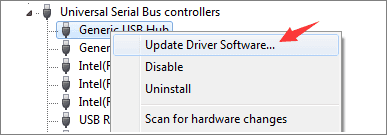
Wait patiently and let the driver be installed and reboot your computer. After doing so, you can try to reconnect your Micro SD card with a computer and check whether it can be detected or not.
Method 2. Format Micro SD card using Disk Management tool
1. Click Start and go to Control Panel.
2. Click Administrative Tools and then click Computer Management.
3. When the window opens, click on Disk Management and then find the device in the drive viewer.
4. To directly format the Micro SD card, right-click on it and select Format.
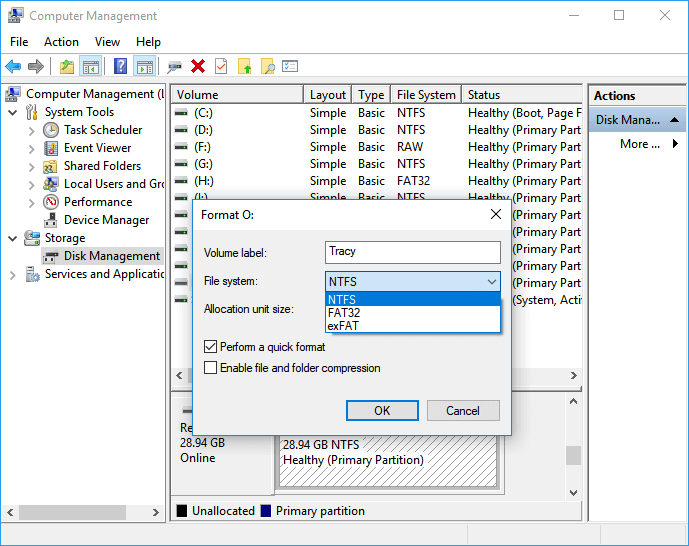
Disk Management is not the only tool you can use to format a micro SD card. You can also use Windows, the Command Prompt, and various software to achieve the same result.
Method 3. Repair corrupted or unreadable Micro SD card with CMD
1. Press Windows Key + X button to bring up the power users menu.
2. In the power users menu, select the Command Prompt (Admin) option.
3. Click Yes when you're presented with a UAC window asking permission to launch the Command Prompt as Administrator.
4. In the new Command Prompt window, type chkdsk E: /f /r /x, replacing E with your Micro SD card's letter.
Qiling CleanGenius is a a user-friendly computer fixing tool that's both safe and lightweight, making it the perfect alternative to the CHKDSK command. With just one click, this tool enables you to easily fix damaged file systems, providing a hassle-free solution for resolving system issues.
Step 1. DOWNLOAD Qiling CleanGenius on your computer and complete the installation.
Step 2. Run the software. Click "Optimization", and then choose "File Showing".
Step 3. Select the drive with a corrupted file system. Tick the "Check and fix file system error" option and click "Execute".
Step 4. Wait the tool performs the repairing task. After that, click the "here" button to check the drive.
Related Articles
- How to Recover Deleted Recordings on Sky Q and Sky Plus Box
- How to Fix 'the device is not ready' on USB Flash Drive/HDD
- Fix Hard Drive Not Detected/Recognized in BIOS Without Losing Data
- How to Fix 'The semaphore timeout period has expired'
- Best Get Data Back Full Version Crack Alternative Free Download
Download best alternative software to replace Get Data Back full version crack and let the NTFS, FAT, FAT32, exFAT, EXT recovery software to get data back from all drives, USB memory stick and memory card. - Hard Drive Recovery| Recover Files from a Hard Disk
If you've lost data on your hard drive, there are easy methods to recover it. Our guide provides step-by-step instructions on how to perform hard drive data recovery on Windows 11/10/8/7 and Mac, allowing you to restore your hard drive data quickly and easily.
Products
Articles & Tutorials
- Data Recovery
- Data Backup
- File Recovery
- File Backup
- System Backup and Restore
- Disk and Partition Clone
- Technical articles
- Mobile articles
- Disk Master Help
- Windows Data Recovery Tutorials
- Windows Secure Delete Tutorials
- Windows Partition Management Tutorials
- Windows File Backup and Restore Tutorials
- Windows System Backup and Restore Tutorials
- Windows Disk Backup and Restore Tutorials
- Windows Clone Tutorials