How to Fix 'the device is not ready' on USB Flash Drive/HDD
"You've encountered an issue with accessing USB flash drives and external hard drives after a Windows 10 update. The error message 'device is not ready' is misleading since the drive's light is blinking and its letter is visible in Disk Management. To quickly fix this and access your data, try restarting your computer or checking the drive's connection. If the issue persists, consider running a disk check or seeking assistance from the drive's manufacturer support."
| Workable Solutions | Step-by-step Troubleshooting |
|---|---|
| 1. Recover data from the drive | Select the hard drive which becomes inaccessible on your PC. Click "Scan"...Full steps |
| 2. Check the connection | Plug out the device. After a few seconds, plug it in all the USB ports in turn until the...Full steps |
| 3. Re-install your device driver | Go to Device Manager, right-click the name of your device, select Uninstall...Full steps |
| 4. Run a disk check | Right-click on the drive which you wish to check and select Properties...Full steps |
| 5. Other effective solutions | Run Sfc scan to check for corruptions > Run hardware and device troubleshooter...Full steps |
How to Fix "the device is not ready" Error?
The "device is not ready" error on Windows is a common issue that can occur with various digital devices, including flash drives, CD/DVD media, external hard drives, internal HDDs, virtual disk managers, or Diskpart. This error is often caused by a damaged device, hardware failure, compatibility issues, connection problems, or Windows file system corruption. Each device may have specific solutions, but the underlying reasons are generally similar.
1. Flash drive or external hard drive - Location is not available. The device is not ready
When you try to open a removable disk, such as a USB stick, flash drive, memory card, or external HDD, and get a "device not ready" error, it means Windows can't connect to it. First, check the connection to resolve the issue.
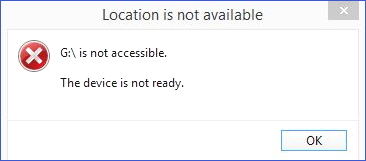
2. Internal hard drive - Location is not available. The device is not ready
The error "the device is not ready" is often displayed when a hard drive is installed on a local computer, suggesting that the issue lies with the present drive. Bad sectors are commonly the culprit behind this problem, as they can cause the hard drive to malfunction.
3. Virtual Disk Manager - The device is not ready
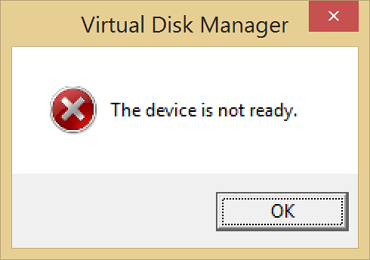
The "Device not ready" error in Virtual Disk Manager typically occurs when there's an issue with permissions or drive mapping between the operating system and the VM manager. This can prevent the virtual disk from being recognized or accessed, resulting in the error message.
4. Diskpart It seems like you're experiencing an issue with Dsikpart. The error message "The device is not ready" suggests that there might be a problem with the device itself or the connection to it. Have you tried restarting the device or checking the cables and connections?
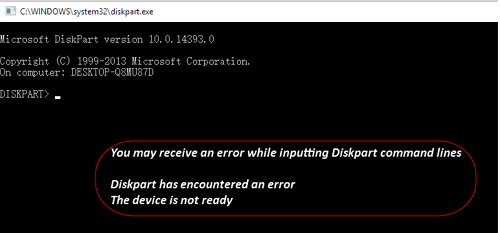
If your hard disk fails or the storage controller on the mainboard becomes corrupted, you may encounter this error.
When a Windows computer encounters a "device is not ready" error, it can cause the internal or external disk to become inaccessible. This issue can be caused by either hardware or software problems, despite the disk being recognized and visible on the computer. If you're experiencing this error, don't worry - you can recover your data and resolve the issue by following the provided troubleshooting methods.
# 1. Recover Data from the Inaccessible Hard Drive
When a hard drive or USB stick shows the "device is not ready" error, it means you can't access the data on it normally.
Download Qiling Hard Drive Recovery Software
When your hard drive is damaged, don't hesitate to download Qiling hard drive recovery software, which is the most qualified recovery software that supports accessing hard drive without formatting and recovering data.
Step 1. Run Deep Data Recovery. Select file types and click "Fast Scan" to begin the recovery process.

Note: You can choose different search modes based on where and why the data was lost.
Step 2. Select the hard drive that has become inaccessible on your PC, and click "Scan" to initiate a scan and locate the data on that hard drive.

Step 3. After scanning, you can view and verify the found files on the scanning result window. The "Deleted Files" and "Other Lost Files" folders hold all recovered files. You can also use the "Filter" feature to quickly locate a specific type of file. Next, preview the files and decide which ones you want to retrieve.

Step 4. Select the items you want to restore, click "Recover", choose a secure location, and click "OK" to recover lost data from an inaccessible hard drive.
#2. Try Every Way to Check the Connection
To avoid unnecessary mistakes, ensure a secure connection between the hard drive and the computer. If the hard drive is not working properly, try to rule out any connection issues by checking the cables and connections. This includes verifying that the power cord, data cables, and any other cables are securely connected to the correct ports on both the hard drive and the computer.
- 1) Unplug the device, wait a few seconds, then plug it back in, trying each USB port one by one until it works normally again.
- If the issue persists, replace the USB cable with one that matches the device and reconnect it to the OS.
- If the issue persists after trying the previous steps, take the storage device to another computer to see if the problem is with the device or the original computer. If it works on the other computer, it indicates a problem with the original computer's USB ports, which can be repaired by the user.
# 3. Re-install Your Device Driver
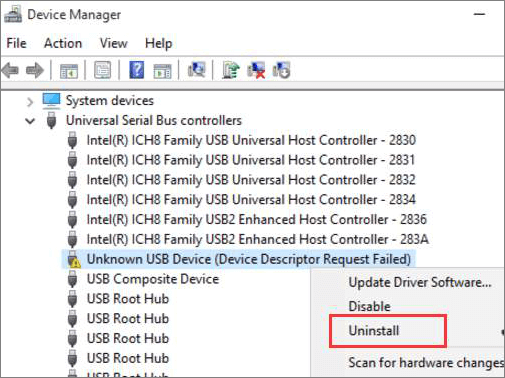
On Windows 10/8/7, a common software issue is "the device driver is not installed, is corrupted or missing". To resolve this, try reinstalling the device driver to fix the "device is not ready" warning.
- 1) Go to Device Manager, right-click the device name, select Uninstall.
- 2) Keep your device connected. Restart the PC and Windows will attempt to reinstall the driver.
# 4. Run Disk Check to Fix Hardware Issues
Run a disk check to detect and potentially fix file system errors or bad sectors on the drive, which may be causing the "device is not ready" error.
- 1) Right-click to check the free space on a drive, click on the drive which you wish to check and select Properties.
- To check the drive for file system errors, click on the "Tools" tab and then click on the "Check" button under the "Error-checking" option. This will initiate a scan to identify and potentially fix any errors on the drive.
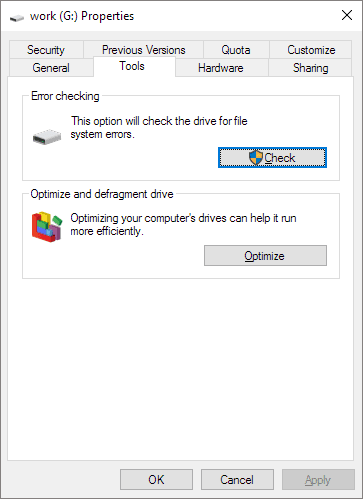
- Follow the wizard to complete the disk error check and restart your computer to repair the errors that were found.
- You can also use CMD with administrator privilege to remove bad sectors.
- There is a more user-friendly option to check and repair bad sectors, offering more powerful capabilities.
If command line is not your ideal choice, you can apply this command-line alternative tool - Qiling CleanGenius. Use this one-click tool to fix the file system error on your hard drive.
Step 1. Download Qiling CleanGenius on your computer for free.
Step 2. Run the software and click on "Optimization" in the left panel, then select "File Showing" from the options.
Step 3.To resolve a file system error on a drive, go to the "Choose drive" option, select the drive with the error, check the "Check and fix file system error" option, and then click "Execute".
Step 4. Once the Qiling CleanGenius has finished the repair process, you can click on the "here" link to view the results of the cleaning and repair operation.
# 5. Run SFC Scan to Check for Corruptions
The System File Checker (SFC) in Windows can help resolve connection and detection problems caused by damaged or corrupted system files, which can lead to incorrect drive connections to the operating system.
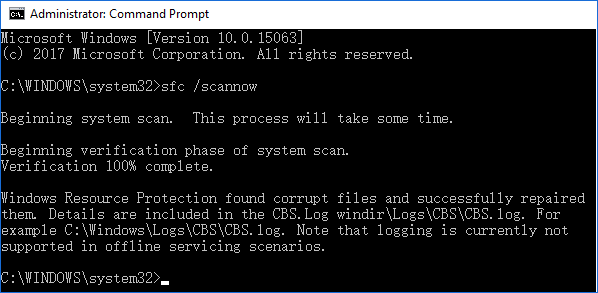
- Press the Windows key + X to bring up the menu, then select Command Prompt (Admin) from the options.
- 2) In the Command Prompt, type sfc /scannow and hit Enter.
# 6. Run Hardware and Device Troubleshooter
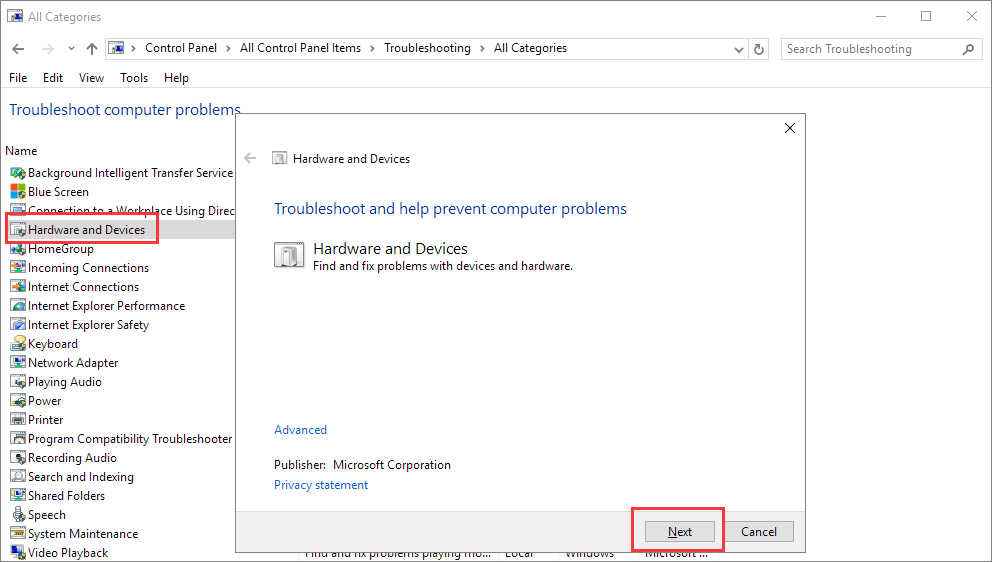
To address controller issues, which are one of the potential culprits, you'll need to go through this step to check and repair bad registry values and any malfunctioning controllers. Windows Hardware and Device Troubleshooter, an inbuilt auto-troubleshooting program, can help detect any discrepancies in the hardware and attempt to fix them.
- 1) Navigate to Control Panel > Troubleshooting.
- To configure a device, click on "View all" on the left pane, and then select "Configure a device" from the options under "Hardware and Sound" on the right pane.
- The program will check for problems and guide you through the process with an onscreen wizard, allowing you to follow the steps to resolve any issues.
- 4) Select either "Apply this fix" or "Skip this fix", and depending on your choice, you may need to restart your computer for the fixes to be effective.
# 7. Other Doable Methods Regarding 'the device are not ready'
If your hard drive is marked as 'Not initialized', 'unallocated', and 'Raw' in Windows Disk Management and displays the error 'The device is not ready', there are a few methods that may help resolve the issue. These methods could potentially resolve the problem and get your hard drive functioning properly again.
- Right-click on the drive partition, choose "Initialize Disk", select a partition style (GPT or MBR), and click "OK".
- To create a new simple volume, right-click on the unallocated space and select "New Simple Volume". Then, follow the wizard to specify a file system and drive letter for the new volume.
- 3) Raw: Right-click to format the Raw drive, click on it and select "Format..." from the context menu. Choose a suitable file system and perform a quick format to complete the process.
Conclusion
The error "The device is not ready" is often accompanied by various heading error messages in different storage devices. This issue is typically caused by hardware or software malfunctions, resulting in a non-functional hard drive.
To resolve the 'device not ready' error, consider the seven methods outlined, and if you're experiencing issues with an inaccessible hard drive, prioritize data recovery before attempting other solutions.
Have you tried all the collected solutions to fix the not-ready device in Windows 10, 8, or 7? We hope that at least one of the given methods has eliminated your worries.
- 1. Recover data from the not ready device
- 2. Try every way to check the connection
- 3. Re-install your device driver
- 4. Run disk check to fix hardware issues
- 5. Run Sfc scan to check for corruptions
- 6. Run Hardware and Device Troubleshooter
- 7. Fix not initialized/unallocated/Raw status in Disk Management
Related Articles
- How to Repair Memory Card Not Formatted
- SD Card Showing Wrong Size: Restore Full Capacity on SD Card Without File Loss
- SanDisk Memory Card Repair Tool Free Download for Windows/Mac
- [Fixed] Drive Is Not Accessible, Access Is Denied in Windows 10/8/7
- How to Recover Data from A Fusion Disk
Stop suffering from fusion disk data loss, we can help. Qiling Mac data recovery software safely recovers deleted or lost files from fusion drives, allowing you to install it, scan the storage device, preview, and recover your data. - How to Recover Data from Time Capsule Hard Drive
If you've lost or deleted files from your Time Capsule, a device with an internal hard drive, you can recover them using Deep Data Recovery software. This reliable and easy-to-use tool can help you recover data from your Time Capsule hard drive in a simple and straightforward process.
Products
Articles & Tutorials
- Data Recovery
- Data Backup
- File Recovery
- File Backup
- System Backup and Restore
- Disk and Partition Clone
- Technical articles
- Mobile articles
- Disk Master Help
- Windows Data Recovery Tutorials
- Windows Secure Delete Tutorials
- Windows Partition Management Tutorials
- Windows File Backup and Restore Tutorials
- Windows System Backup and Restore Tutorials
- Windows Disk Backup and Restore Tutorials
- Windows Clone Tutorials