[Fixed] Drive Is Not Accessible, Access Is Denied in Windows 10/8/7
Your Seagate external hard drive stopped working and you get a popup saying "Location not available: G:\ is not accessible. Access is denied" when trying to open it on Windows 10. To fix this, try unplugging and replugging the drive, checking for any loose connections, or running a disk check using the built-in Check Disk tool (chkdsk) to identify and potentially fix any issues with the drive. If the problem persists, you may want to consider running a virus scan or checking for any software conflicts that could be causing the issue. If none of these steps resolve the problem, it may be worth contacting Seagate support or a professional data recovery service for further assistance.
How Do I Fix Access Denied Error on an External Hard Drive?
If you've ever found yourself in a situation where a hard drive partition is inaccessible, you know how frustrating it can be. But don't worry, there are ways to fix the "drive is not accessible" error without losing your precious data.
| Workable Solutions | Step-by-step Troubleshooting |
|---|---|
| Get Permission to fix the error |
|
| Recover data & format the disk |
|
Overview of the Access Denied Error
External hard drives may display a "Location is not available" error message, along with "Drive X: is not accessible. Access is denied" details, preventing users from accessing their files, a common issue reported on various Windows operating systems.
To demonstrate how this problem arises and how to resolve it, I created the exact situation on my own computer and followed the same steps to fix the issue.
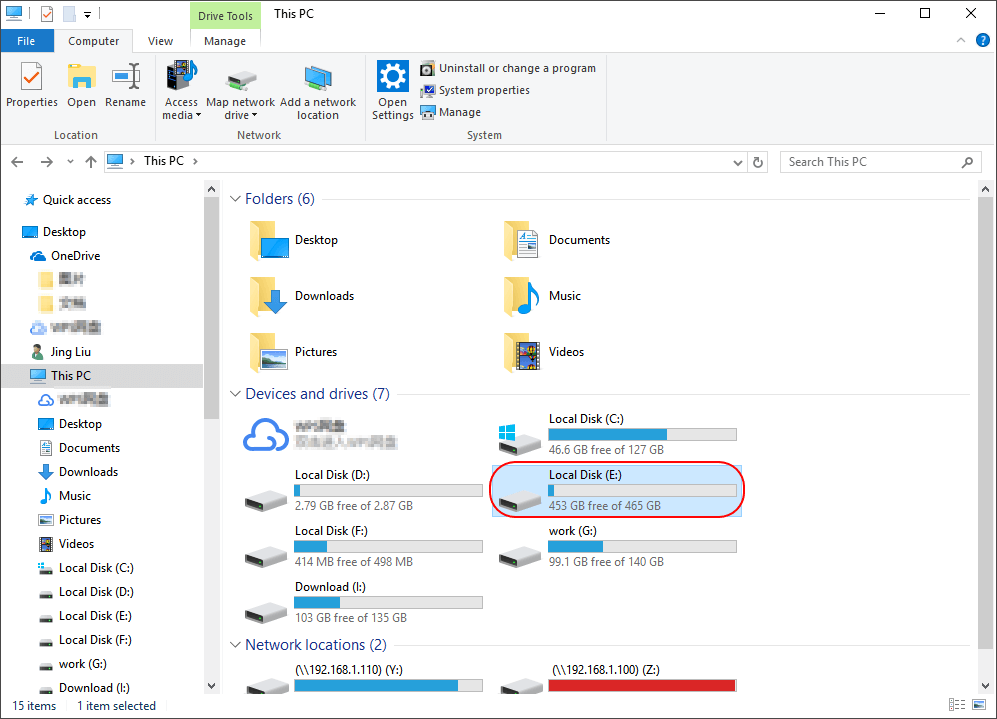
I disabled user authorization in the E: drive properties to test the solution. This can be done on any existing drive partition, such as D:, F:, or G:, that's experiencing the same error. For example, I modified the E drive properties on my own computer, resulting in a greyed-out NTFS drive with lost free and used space information.
When I double-clicked on the E:\ drive, I got the error message "E:\ is not accessible. Access is denied" as expected.
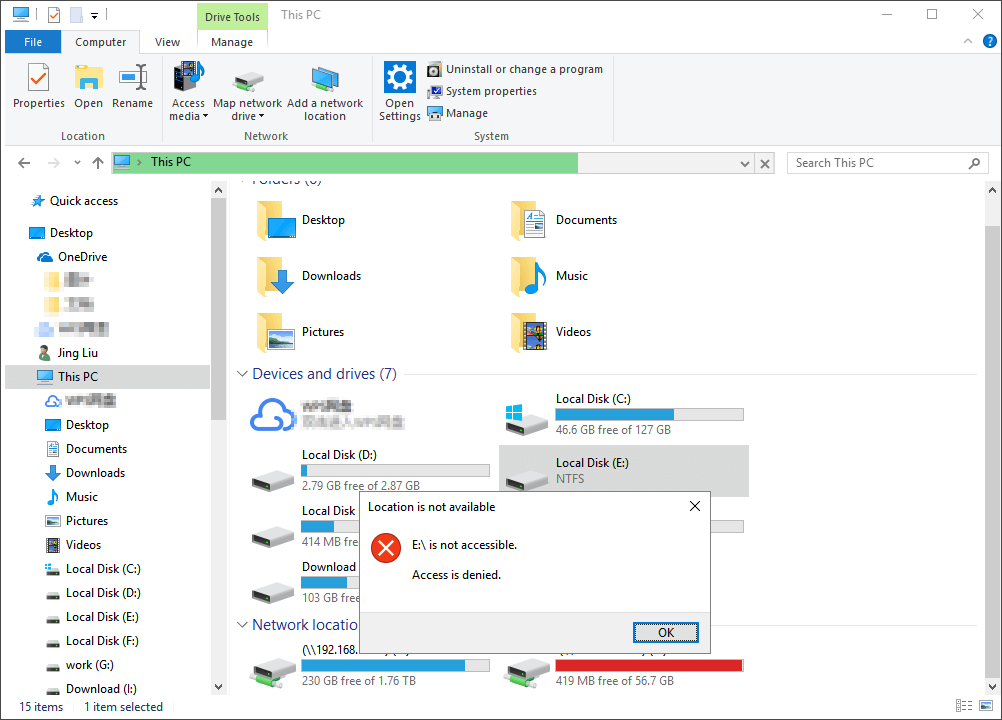
When I click "OK", nothing changes here.
Are you interested in watching a video guide before reading it, and here it is...
1. Get Permission to Fix "Drive is not accessible. Access is denied" Error
When your external hard drive displays the "Drive is not accessible. Access is denied" error message, it typically indicates that you lack the necessary privileges to access the disk partition. To resolve this issue, you'll need to take ownership of the partition to obtain the required permission.
Step 1. Right-click on the inaccessible hard drive, select "Properties", then switch to the "Security" tab to see the reason why you can't open it, and click "Advanced" to continue.
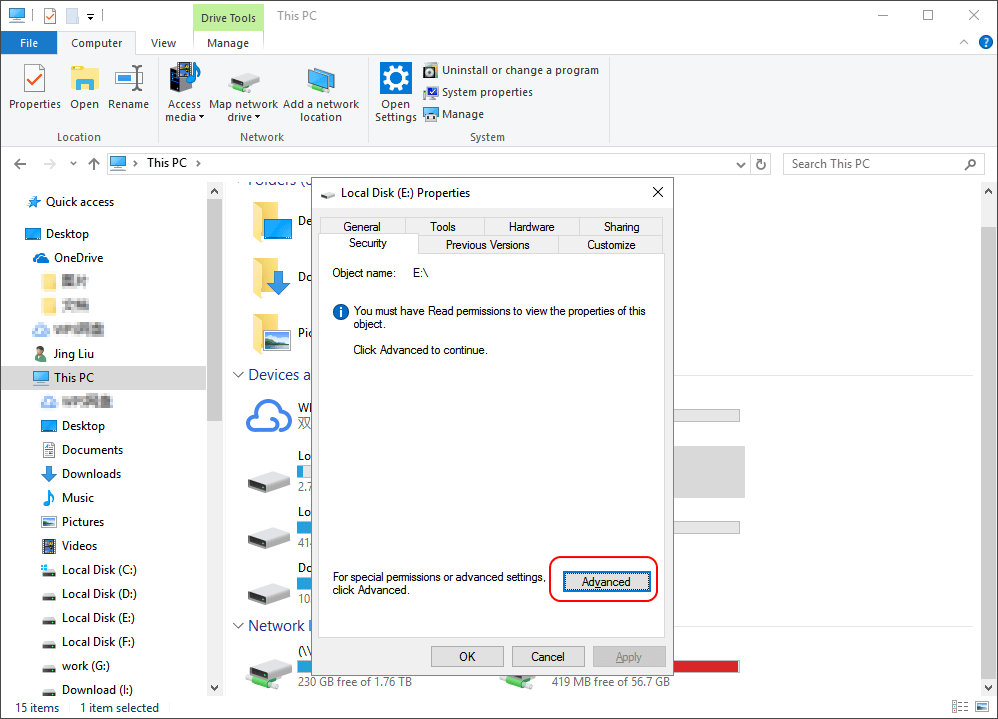
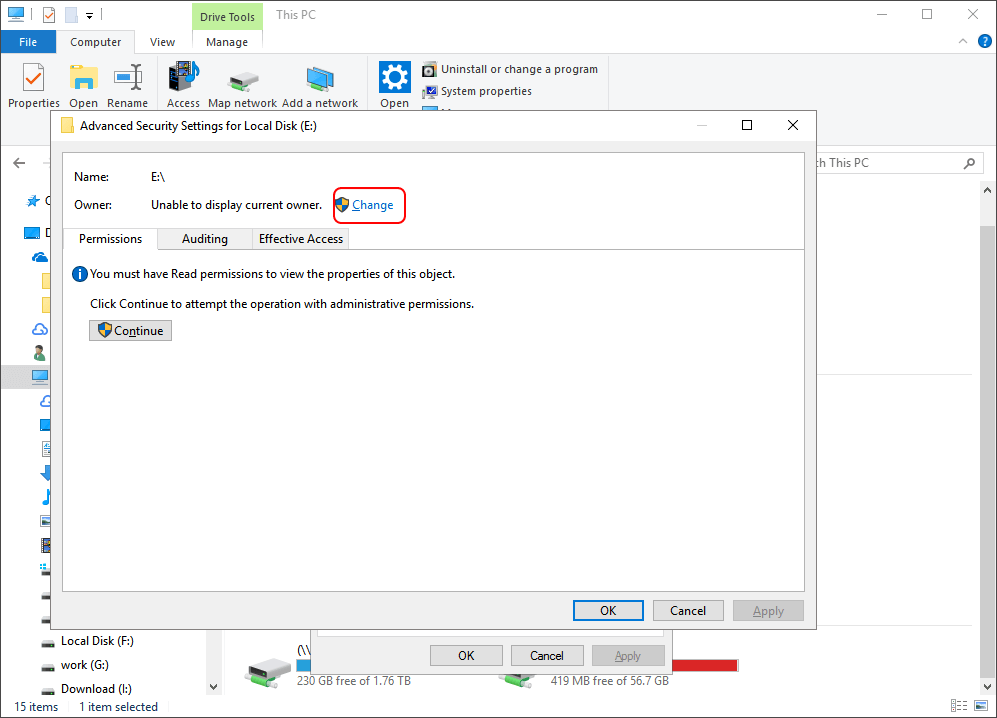
Step 2. Click "Change" to attempt the operation with administrative permissions.
Step 3. To select a user or group, first choose the "Advanced" option, then in the Common Queries section, select "Find Now" to get a list of search results of user names.
Windows adds four user groups to the Security settings, including Authenticated users, Administrators, Users, and systems. Adding only Administrators and System would prevent access to the disk and its properties, such as used and free space. To allow access, the User's account needs to be added to the Security settings.
To add the "Authenticated Users" group to the list of users, click on the "Authenticated Users" option in the list, then click "OK" to add it to the list.
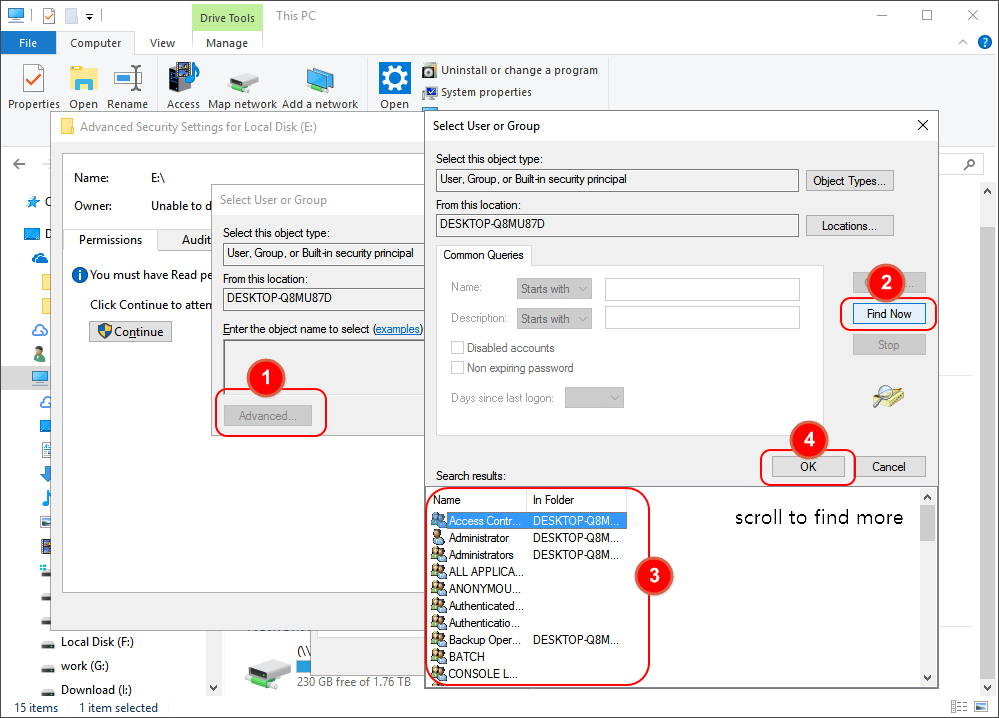
Tip: If you're unsure which section you're missing in the Security settings, try adding a few more names in the same way until you get the right permission. If that doesn't work, you can choose "Everyone" to allow access with no limits.
Step 4. After confirming the changes, the issue with drive E was resolved, and it displayed normally in the Explorer, allowing for smooth access without any further error messages.
2. Recover Data and Format Disk to Fix "Access Is Denied" Error
If Windows Explorer properties can't help, you can try to recover data from the inaccessible hard drive and format the disk for repair.
How to Recover Data from Inaccessible Drive
Deep Data Recovery is a useful tool that can help you recover data from corrupted hard drives, inaccessible hard drives, and RAW drives, even when Windows detects the hard drive but you've lost access to it.
Now, free download this file recovery and run it to get data off.
Step 1. Run Deep Data Recovery on your Windows PC. Select file types and click "Fast Scan" to start the recovery process.

Note: You can choose different search modes based on where and why the data was lost.
Step 2. Select the hard drive that has become inaccessible on your PC and click "Scan" to let Deep Data Recovery scan and find your hard drive data.

Step 3. After the scan, you can view and verify the found files on the scanning result window. The "Deleted Files" and "Other Lost Files" folders hold all your lost files. You can also click "Filter" to quickly locate a specific type of file. Next, preview the files to decide which ones you want to retrieve.

Step 4. To recover data from an inaccessible hard drive, select the items you want to restore and click "Recover". Choose a secure location, such as a healthy physical drive on your PC or another external storage device, and click "OK" to start recovering all lost data.
Format the Hard Drive to Fix Access Is Denied Error
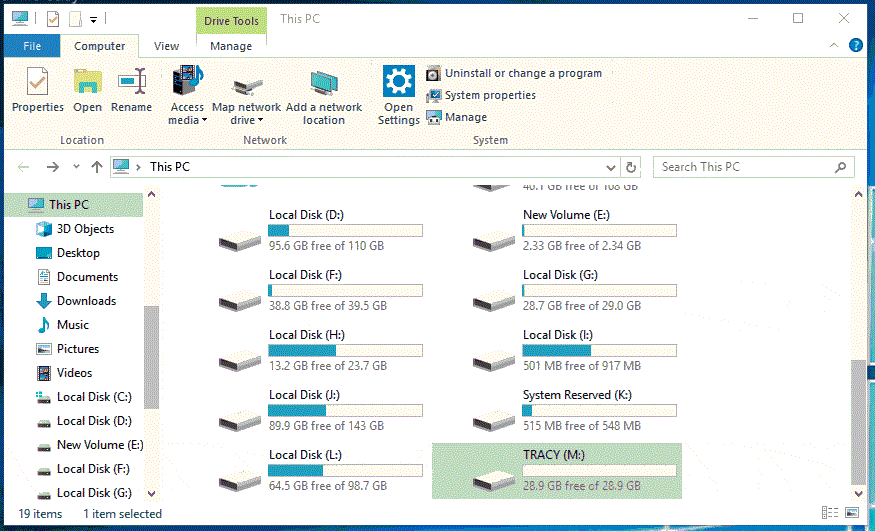
After the data recovery has finished, go to My Computer or This PC, right-click the disk you need to repair, and then choose "Format". In the pop-up window, you can set a file system and cluster size, then click the "OK" button.
Conclusion
To resolve the "Access Denied" error on Windows 10/8/7 storage devices, you can try two practical fixes. Firstly, you can gain access permissions from File Explorer by right-clicking on the device, selecting "Properties", and then clicking on the "Security" tab to adjust the permissions.
Some of you may still have relative questions related to this issue. Check the following three questions and you may find desired answers.
Frequently Asked Questions
1. What is not accessible?
When referring to a physical area or goal, "not accessible" means it's inaccessible or unattainable. In a computer context, a "not accessible" error indicates that the current storage device is inaccessible, preventing you from opening it or accessing saved files and data on the device.
2. Why is my hard drive access denied?
When an external or internal hard drive displays the "Drive is not accessible. Access is denied" error, it typically indicates a lack of privilege to access the disk partition. This error often occurs due to issues with the drive's permissions, file system corruption, or problems with the drive's hardware.
To resolve the problem, you need to take ownership and obtain the necessary permissions.
3. How do I fix Access Denied hard drive not accessible Windows 10?
To fix an Access Denied error on your Windows 10 hard drive, you'll need to take ownership of your computer.
- One way to resolve the issue is to obtain the authentic permission from Windows as described in Fix 1 on this page.
- The other way to fix the device is to force it to be accessible by changing its file system by formatting it. This can be done by following the steps listed in Fix 2.
If you're having trouble opening a hard drive, USB, or file folder due to an 'Access Denied' error, you can try more practical fixes to restore your data. To do this, you can follow the steps outlined in the article "Fix Hard Drive/USB/File Folder 'Access Denied' Error" to troubleshoot the issue and recover your data on your own.
Related Articles
- Fixe Maxtor External Hard Drive Not Recognized/Not Working Without Data Loss
- Repair a Corrupted Pen Drive/SD Card for Free
- All Things You Should Know About RAID 1
- How to Fix 'USB Says/Shows No Media in Disk Management' Error
- Windows Update KB4023057: How to Get and Restore Data After Windows Update
KB4023057 is a Windows update that was initially released in 2017, but its necessity for Windows 10 and 11 users is unclear. If you're unsure whether you need this update, you can check for updates in your Windows settings. - Fixed: Recent Documents Not Showing in Word 2013 2016 on Windows 10/8/7
If Microsoft Office Word 2016 or 2013 no longer shows the Recent Documents list below the Open option, you can't open an edited Word document via the Recent option. However, you can restore the disappeared list of recent documents and recover the lost Word file with the help of Deep Data Recovery.
Products
Articles & Tutorials
- Data Recovery
- Data Backup
- File Recovery
- File Backup
- System Backup and Restore
- Disk and Partition Clone
- Technical articles
- Mobile articles
- Disk Master Help
- Windows Data Recovery Tutorials
- Windows Secure Delete Tutorials
- Windows Partition Management Tutorials
- Windows File Backup and Restore Tutorials
- Windows System Backup and Restore Tutorials
- Windows Disk Backup and Restore Tutorials
- Windows Clone Tutorials