Flash Drive Data Recovery Software: Recover Files from a USB or Pen Drive
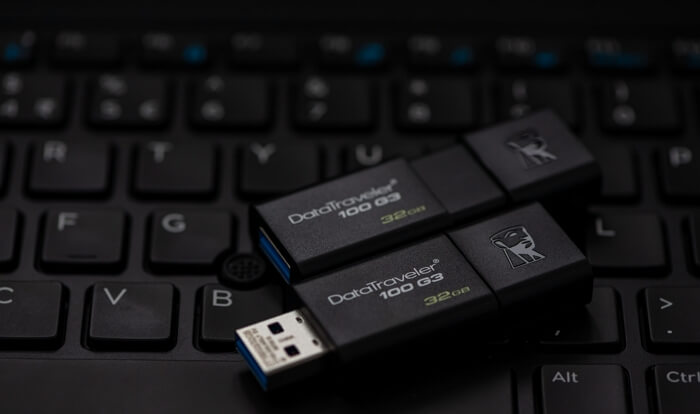
A USB flash drive is a data storage device that uses a USB interface, available in various shapes and sizes from brands like SanDisk, Kingston, and Lexar.
USB flash drives come in three main types: USB 2.0, USB 3.0, and the latest USB 3.1, which offers the fastest transfer speed. While convenient for storing data, USB flash drives are also prone to data loss due to various reasons.
What Causes Data Loss from Flash Drive/Pen Drive
Data loss on a USB flash drive or pen drive can occur due to various reasons, including a poor connection, virus infection, file system error, and sudden power outage. The three main factors contributing to data loss are particularly significant, making it essential to take preventive measures to safeguard your valuable data.
- Formatting a flash drive is a common reason for losing data, which can occur accidentally or intentionally. When a drive is formatted, all data on it is erased, making it essential to back up critical files before doing so to avoid losing important information.
- Data loss can also be caused by the corruption of a USB drive, which can occur if the drive is not properly ejected before being unplugged or if it becomes physically damaged, potentially allowing some data to be recovered with specialized services.
- Accidental deletion of files is a common reason for USB data loss, often occurring when a user deletes a file or folder by mistake or when a file becomes corrupted and cannot be recovered.
If you've experienced data loss on your USB flash drive or pen drive, it's crucial to stop using the drive right away and seek professional help. Consider using a reputable USB data recovery software or consulting a professional data recovery service to recover your lost data. They can help you get back on track and retrieve your important files.
Free Download Flash Drive Data Recovery Tool
If the drive is not physically damaged, you can try using a data recovery software program, which can often successfully recover data from corrupted or deleted files, and research to find one compatible with your operating system and flash drive.
Deep Data Recovery is a versatile USB data recovery tool, offering various features and benefits, including the ability to recover data from corrupted or damaged USB drives, retrieve deleted files, and recover data from formatted or repartitioned drives. It also supports recovery from various file systems, including NTFS, FAT, and exFAT, and can recover data from USB drives of various sizes.
- The USB flash drive supports all types of USB, including USB 1.0-1.1, USB 2.0, and USB 3.0-3.2. This means you can plug it into any USB port and transfer data quickly and efficiently, regardless of the USB version available. Its versatility makes it a reliable and convenient option for transferring files between devices.
- Retrieve various types of USB devices, including sticks, pen drives, external hard drives, digital cameras, and mobile devices.
- You can recover files from flash drives of various brands, including Kingstone, SanDisk, Buffalo, WD, and others.
- 200+ files from USB drives can be recovered using data recovery software, which can scan the drives and restore deleted, corrupted, or formatted files, including videos, audio files, images, documents, and archives, by analyzing the drive's file system and recovering the data that was previously stored on it.
What Can Pen Drive Data Recovery Software Do
Qiling flash drive data recovery software offers comprehensive solutions to recover files from a USB drive in various situations, providing full-around methods for data retrieval.
Recover formatted flash drive:
Formatting a USB disk can be a frustrating experience, often resulting in data loss. However, with a pen drive recovery program, you can unformat your drive and recover your lost files, effectively restoring your formatted USB drive. Learn more about recovering files from a formatted USB drive.
Retrieve dead USB stick:
A dead or broken flash drive can cause reading/writing errors or corrupt USB files, but using USB recovery software can scan the drive and recover dead USB data.
Recover deleted files from pen drive:
If you accidentally delete important files from a pen drive or remove files from a USB drive permanently, you can use a USB data recovery tool to quickly recover the deleted files.
Recover corrupted files USB drive:
USB data loss can occur when a flash drive is damaged, resulting in a corrupted file system and preventing access to files. Fortunately, a USB recovery program can safely recover corrupted files, helping to restore lost data.
Recover Data from Flash Drive Step by Step
Data recovery software makes it easy to recover deleted files from a USB drive. Simply connect the USB or pen drive to your computer, download and install the software, launch it, and follow the instructions - your lost data can be recovered quickly.
Step 1. Launch the USB data recovery tool and select USB.
After installing the pen drive recovery tool, you can run it and select your USB flash drive or pen drive with the files you need to restore in the main window.
Step 2. Scan and preview USB files.
To recover deleted files from a flash drive, click the "Scan" button to initiate the process, which will quickly display deleted files. You can then use the search or filter features to locate recoverable files, preview any file type, and select the desired files to recover.
Step 3. Recover data from USB.
To recover a USB drive, click the Recover button and specify a different location, like a PC or external hard drive, to save the recovered files. Do not save them back to the original USB drive, as this could overwrite the data.

What's the Best USB Recovery Software for PC
When traditional backup methods fail, USB recovery software can be a lifesaver. These tools allow you to recover lost data from your USB drive even if other methods have been unsuccessful. We recommend checking out our article on the top USB recovery software for PC, which includes a range of options that can help you retrieve your lost data.
- Deep Data Recovery
- Deep Data Recovery for Windows
- Deep Data Recovery Software for Windows
- PhotoRec
- SysTools Pen Drive Recovery
LEARN MORE
The top 9 best USB recovery software choices in 2022 for both Windows and Mac include: Deep Data Recovery, Qiling file recovery software, PhotoRec, R-Studio, DiskGenius, Wondershare Recoverit, and MiniTool Power Data Recovery. These software options offer a range of features and capabilities to help recover lost or deleted data from USB drives, making them essential tools for anyone looking to recover important files or data.
How to Recover Flash Drive Data Without Software (3 Ways)
Here are three methods to recover a flash drive without using software:
Method 1. Restore Hidden Files on USB Using CMD
Here's how you can show hidden files from a flash drive using command lines in Command Prompt: To show hidden files from a flash drive, open Command Prompt, navigate to the flash drive's directory, and type the command "dir /a" followed by the drive letter (e.g.
Step 1. To connect your flash drive to your computer, plug it into a USB port. The computer should automatically recognize the device and prompt you to take further action, such as formatting or copying files.
Step 2. Open the Command Prompt and type in the following command:
attrib -h -r -s /s /d e:\*.*

Step 3. The command `ls -a /dev/disk1` will display all hidden, system, and read-only files on a flash drive, where `/dev/disk1` is the path to the drive, and the number `1` represents the letter assigned to the drive (e.g., `e` for the first drive, `f` for the second, etc.
Method 2. Use Previous Versions to Undelete USB Files
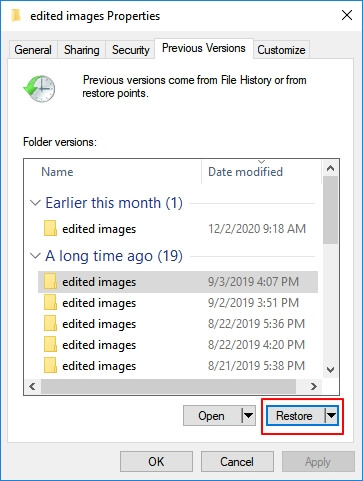
To recover deleted files from a flash drive using Windows, you can utilize the Previous Versions feature, which allows you to restore files that were previously saved. This feature is available in Windows 10 and earlier versions. Simply right-click on the flash drive, select "Properties," and then click on the "Previous Versions" tab.
Step 1. To recover a file, right-click on the file you want to recover and select "Properties."
Step 2. Under the "Previous Versions" tab, select the desired file version and click "Restore."
Method 3. Use a Data Recover Service for USB Recovery
If the drive is physically damaged or suddenly changes to RAW, you'll need to send it to a professional data recovery service, which will have the tools and expertise to attempt to recover your data.
Qiling 1-Data recovery service recovers lost data from corrupted USB drives with advanced skills and equipment in a lab.
Consult with Qiling data recovery experts for one-on-one manual recovery service, which includes the following services after a FREE diagnosis:
- Unformat flash drive and restore lost files
- Repair RAW USB flash drive or pen drive without formatting
- If your external hard drive, SD card, or other storage device has become RAW, it means the file system has been corrupted or deleted. To fix a RAW partition, you can try using a data recovery software like Deep Data Recovery to scan the device and recover any recoverable files.
FAQs About USB Data Recovery
When it comes to recovering files from a USB drive or pen drive, there are various situations that can be encountered. In case the drive is not recognized or is showing up as a RAW drive, a bootable USB drive with a recovery software like Deep Data Recovery can be used to scan and recover files. If the drive is corrupted and is showing an error message, a data recovery software like Deep Data Recovery can be used to scan and recover files.
1. How to recover deleted files from a flash drive?
To recover deleted files from a flash drive, do as below:
Step 1. Download and install Qiling USB recovery software.
Step 2. Connect the flash drive/USB stick to your computer.
Step 3. Run the tool and select your USB to scan.
Step 4. Preview and recover your lost USB files.
2. How to recover files from USB for free?
You can recover files from your USB for free using the free version of Qiling pen drive data recovery software, which allows you to recover up to 2GB of data without any cost.
3. What's the best flash drive recovery software for PC and Mac?
The top 9 best USB flash drive recovery tools are:
- Deep Data Recovery
- Deep Data Recovery
- TestDisk
- Data Rescue
- Undelete 360
- Deep Data Recovery
- PhotoRec
- R-Studio
- Stellar data recovery software
4. How to recover files from a corrupted USB flash drive?
Step 1. Connect your corrupted drive to the computer and start Qiling file recovery tool.
Step 2. Choose your USB and click scan for lost files.
Step 3. Preview files found. Click Recover to restore.
5. How to recover deleted data from a formatted flash drive?
To recover data from a formatted flash drive, first, stop using the drive to prevent overwriting any remaining data. Next, download and install a reliable data recovery software, such as Deep Data Recovery or Qiling file recovery software, and follow the software's instructions to scan the flash drive for recoverable files.
Step 1. Connect your formatted flash to your PC or Mac.
Step 2. Launch Qiling USB recovery tool. Scan for formatted files.
Step 3. Preview and recover founded files to a secure place.
6. How to recover deleted files from a flash drive without software?
To recover deleted files from a USB flash drive without using software, you have two methods. Firstly, you can try to recover files by connecting the USB drive to a computer and checking if the deleted files are still accessible in their original location.
- If you've lost files on your Windows computer, you can try using previous versions of Windows to restore them from backups. This method allows you to access older versions of files that were saved automatically by Windows. To do this, go to the "Previous versions" tab in the Properties window of the file or folder you want to restore, and select the version you want to restore from.
- If you've lost files due to a virus, you can try using a data recovery service to get them back. Alternatively, you can turn to experts who specialize in file recovery to help you retrieve your lost data.
7. How to recover permanently deleted data from a pen drive?
You can recover permanently deleted data from a pen drive using a robust USB recovery program, which can scan the drive and retrieve lost files even after they have been permanently deleted.
Step 1. Connect your pen drive to your computer.
Step 2. Run Qiling pen drive data recovery tool. Select your pen drive and scan for files.
Step 3. Choose the file type you want to recover and click the "Recover" button to restore.
8. How can I fix a corrupted USB flash drive?
Before attempting to repair a damaged or broken flash drive, it's recommended to first use data recovery software to recover any important files. Once the data has been recovered, you can then try to fix the flash drive using various methods, such as reformatting, replacing the USB connector, or using a USB repair tool.
- To fix the corrupted USB, check and fix the error using the Windows Check tool. This tool can help identify and repair any issues with the USB drive, allowing you to recover your data and get back to using the drive as usual.
- To repair a corrupted file system using CHKDSK commands in the Command Prompt, follow these steps:
- Fix 3. Consult a data recovery service to fix the corrupted USB without losing data.
Navigate to the complete tutorial on USB flash drive repair.
Conclusion
Recovering data from a USB drive is a delicate process, but it is possible with the right tools and knowledge. When attempting to recover data, it's essential to note that the process requires a gentle approach to avoid causing further damage to the drive. With the correct methods and equipment, it is possible to retrieve data from a USB drive, but it's crucial to exercise caution to prevent any further data loss.
- Any data written to the drive should be done so in a way that does not overwrite existing data, and should be done in a controlled and safe manner, such as by using a backup and restore process. This will help prevent data loss and ensure that the drive remains in a usable state.
- To recover data from a damaged drive, connect it to a computer using a USB cable and launch a data recovery program. There are many options available, both commercial and free, so choose one that suits your needs and follow the instructions provided.
- Once the recovery process is complete, save the recovered data to a safe location, such as an external hard drive or cloud storage, and create backups of essential files to prevent future data loss.
Related Articles
- USB Fixes: Troubleshoot/Repair Corrupted USB Erros in 2022 [Full Guide]
- Hard Drive Recovery| Recover Files from a Hard Disk
- Chrome History: How to View, Delete, and Recover
- Windows Repair Tools and Services [Windows 10/11]
- How to Recover Deleted/Lost Files from Pen Drive
When you delete files from a pen drive, unlike a computer, they are not moved to the recycle bin and are instead permanently deleted. This means that you have no way to recover them unless you use a data recovery tool, which is what this article shows you how to do. - How to Recover Deleted/Lost Files on ASUS Laptop
Here are the 3 efficient ways for ASUS laptop recovery if you don't know how to recover deleted files from ASUS laptop. You can free download ASUS data recovery software to recover files from ASUS computer now!
Products
Articles & Tutorials
- Data Recovery
- Data Backup
- File Recovery
- File Backup
- System Backup and Restore
- Disk and Partition Clone
- Technical articles
- Mobile articles
- Disk Master Help
- Windows Data Recovery Tutorials
- Windows Secure Delete Tutorials
- Windows Partition Management Tutorials
- Windows File Backup and Restore Tutorials
- Windows System Backup and Restore Tutorials
- Windows Disk Backup and Restore Tutorials
- Windows Clone Tutorials