Best USB Recovery Software for Deleted Files
How to Recover Deleted Files from Flash Drive
1. Connect your USB drive to your computer, launch Deep Data Recovery, select the USB drive, and click "Scan" to begin the recovery process.
2. Wait for the scan process to complete. When the scan is complete, choose the files you wish to recover from the list of recovered files.
3. Preview and recover files from your USB drive.
USB flash drives are small, portable, and easy to use, making them a convenient option for storing and transferring data. They plug into any computer via a USB port and are more durable than external hard drives due to the absence of internal moving parts, despite having less storage capacity.
The widespread use of USB drives often leads to data loss issues, especially due to incorrect operations or USB device problems. If you're facing a data loss problem with your USB flash drive, try using a reputable USB recovery software to help you recover your lost files.
USB Recovery Software Free Download
If you're looking for reliable USB recovery software, Deep Data Recovery is a great option. It can recover all your important files and folders from USB hard disk drives and undelete files from USB flash drives.
Qiling is a data recovery software that allows users to recover data from various removable media drives, including pen drives, compact flash, secure digital cards, and more. It can also recover deleted files, even those permanently deleted using Shift+Del keys or emptying the Recycle Bin.
How to Recover Deleted Files from a USB Flash Drive with USB Data Recovery Software
Qiling USB data recovery software This USB recovery tool makes it easy to recover deleted files from your USB flash drive, including popular formats like MPEG, WAV, midi, jpg, gif, and jpeg. Whether data loss was caused by accidental deletion, formatting, a virus attack, or USB corruption, this tool can help restore lost files.
To recover deleted files from a USB flash drive, download the Qiling USB data recovery software and follow the video or text tutorial to retrieve the lost files with just a few clicks.
Follow the steps below to recover data using Deep Data Recovery. First, download and install the software on your computer. Then, launch the program and select the drive or partition where your lost data was stored.
- Tip
- To avoid potentially losing data, don't store more files on the same USB drive before recovering the existing ones. If you've already done that, you can try using Deep Data Recovery, which may still be able to recover some files, but any overwritten files will be unrecoverable.
How to recover files from a USB drive:
Step 1. Select file types and click "USB/SD Scan" to start
Launch Deep Data Recovery. Select the file types you want to recover and click "USB/SD Scan" to proceed with the recovery process.

Note: You can choose different search modes based on where and why the data was lost.
Step 2. Choose the USB drive to scan
Choose your USB drive where you lost important files. Click "Scan" to start the recovery process.

Step 3. Check and preview USB drive data
After scanning is complete, you can quickly find a specific type of file using the Filter feature and the Search option.

Step 4. Restore flash drive data
After finding lost USB drive files, click "Recover" to restore them. Save the recovered files to a safe location on your PC, rather than back to the original USB drive. This will help prevent any further data loss.
Key Features of Deep Data Recovery
Losing USB files can be frustrating, but Qiling makes recovery as simple as a click. In addition to its USB data recovery capabilities, Qiling has a few other notable features.
- Recover data after accidental deletion using Shift+Del keys
- To retrieve files from a logically corrupted, damaged, or bad sector infected drive, you can try the following steps:
- You can easily restore files and folders even after a 'Drive not formatted' message is displayed on your computer by using a data recovery software. This software can scan the drive and recover lost files and folders, even if the drive has been formatted.
- Data loss can occur due to human error or a virus, resulting in the retrieval of infected data.
- Recover lost data and formatted or damaged files before fixing and repairing a corrupted storage device.
- This software is designed to be user-friendly, allowing even non-technical individuals to easily recover lost data. Its intuitive interface and guided process make it simple to navigate and use, even for those without extensive technical expertise.
Recover Files from a Corrupt or Unresponsive USB Flash Drive
Device errors, in addition to deletion and virus attacks, can also cause USB drive data loss. A corrupted or damaged USB flash drive can cause serious data loss, and may display error messages when connected to a computer, making it unreadable by Windows. This can happen when the USB drive is physically damaged or has become corrupted, leading to a range of error messages.
Important: If your USB flash drive is showing error messages, use a professional data recovery software to recover files before performing any repair actions.
Error 1: "USB device not recognized"

Many users have encountered the issue "The last USB device you connected to this computer malfunctioned and Windows does not recognize it" when connecting a USB drive to a computer. This error may occur due to several logical reasons, including a malfunctioning USB device, a faulty USB port, a corrupted USB drive, or a conflict with other USB devices connected to the computer.
- USB connection issues
- File system errors that make your USB flash drive RAW
- Drive letter issues
- USB drive errors
- Hardware damages
If your USB flash drive is not recognized or detected, there are several effective ways to repair and fix it, but first, make sure to back up or recover your data. You can click on the link for a full guide on how to troubleshoot and resolve the issue, which may be caused by a file system problem.
- To recover files from a RAW USB drive, you can use the Qiling USB recovery tool. This tool is designed to recover data from a RAW USB drive without formatting it. Once you've downloaded and installed the tool, simply connect the RAW USB drive to your computer, launch the tool, and follow the on-screen instructions to recover your files.
- To fix the issue of an unallocated USB drive, you can update the drive's partition table by using a tool like Disk Management or a third-party software. Once the partition table is updated, you can create a new partition on the USB drive using the same tool. This will allocate the space on the drive and make it usable again.
- To resolve the issue of a USB drive not being detected, you can try changing its drive letter to make it detectable. This can be done by going to the Disk Management console, right-clicking on the USB drive, and selecting the option to change its drive letter. This should allow the system to recognize and detect the USB drive.
- To resolve the issue, check the USB port for any blockages or damage. If the port is clear, try changing the USB connection to a different port on the device or computer. This may help the device recognize the USB.
Error 2: "USB device not formatted"
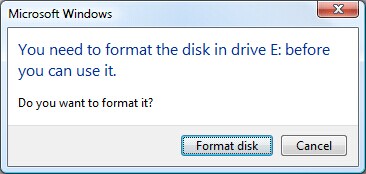
The error "You need to format the disk in Drive X: before you can use it" occurs when a USB drive is not recognized by the PC, requiring a format to make it usable.
Unplugging a removable storage drive while in use or experiencing issues such as virus attacks, faulty operations, or physical damage can lead to a "USB drive not formatted" problem.
- Warning
- To fix a USB flash drive not formatted error without losing data, do not click "Format Disk" as it will delete the stored data while reformatting the drive. Instead, use a USB data recovery tool to safely retrieve your data first, and then use the following tips.
- Step 1. Recover files from the unformatted (RAW) USB flash drive
- Step 2. Format the USB flash drive to fix the USB drive not formatted error
- Step 3. Back up files to protect data on your USB drive
Error 3: "USB drive is not accessible"
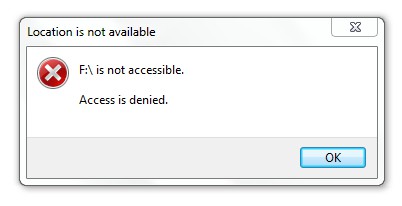
The "drive is not accessible" error may appear unexpectedly and prevent you from accessing your USB flash drive and the data on it, often due to an unrecognized file system, power failure, or virus infection.
If your USB drive is corrupt and inaccessible, take proactive steps to recover your data from the damaged drive first. Then, troubleshoot the issue with practical solutions to get your USB drive up and running again.
- Fix 1. Remove USB drive not accessible in File Explorer
- Fix 2. Recover data and format the USB flash drive
Bonus Tip: How to Avoid Data Loss on the USB Flash Drive
With most USB flash drives now having large capacities, they can store thousands of documents, pictures, movies, e-books, and other data. Losing this important data can be a significant problem, which is why it's best to back up the data beforehand, rather than relying on professional data recovery software to retrieve it.
Here are a few useful tips to prevent data loss on a USB flash drive: Regularly back up your data to a cloud storage service or an external hard drive, use a reliable antivirus software to protect against malware, avoid overwriting existing data, and use a password or encryption to secure your files. Additionally, avoid storing sensitive information on your USB drive, and keep your USB drive away from physical damage, such as extreme temperatures, water, or physical drops.
Back up your data regularly
To prevent important data loss, make backups regularly, either manually or using schedule backup software for automatic backups.
Keep your computer up to date
To keep your computer and USB drive safe, upgrade to the latest version with recent antivirus software, patches, drivers, and OS updates, which will protect against viruses, malware, spyware, and other threats that can corrupt or erase data.
Avoid physical damage
Carrying a USB device is extremely convenient, but it's still crucial to keep it in a safe place to prevent physical damage.
Prevent sudden power outage
Using a power protector is crucial to prevent data corruption caused by power outages, which can damage both your PC and your flash drive, leading to unexpected loss of data.
Disconnect your USB flash drive safely
When you're finished using a USB device, don't simply unplug it. Instead, follow the proper steps to safely remove the device, which typically involves clicking on the "Safely Remove Hardware" option in your computer's settings or right-clicking on the device icon in your system tray. This helps prevent data corruption and ensures a smooth shutdown.
The Bottom Line
The USB flash drive has become a staple of portable devices due to its portability, large capacity, robustness, fast speed, and ease of use. However, like other media, USB devices can still fail, resulting in data loss. Fortunately, Qiling's top-rated USB recovery software offers a simple and effective solution to retrieve lost data from USB flash drives, pen drives, SD cards, and memory cards, making it possible to restore lost data even after a failure.
People Also Ask Questions About USB Recovery Windows 10
If you're struggling to recover deleted files from a USB drive, you're not alone. Many users face this issue, and it's great that you're looking for a solution.
1. Can USB data be recovered?
You can recover data from a USB drive by using USB recovery tools. Some users suggest using Command Prompt to recover data, but this only works when the files are hidden on the USB and not when the data is lost or deleted.
If your USB flash drive's files are deleted, formatted, or lost, you can use USB data recovery software like Deep Data Recovery to recover your data.
2. How do you recover files from a flash drive?
To recover files from your USB device for free, you can try the built-in Windows 10 feature, File Recovery. This tool allows you to retrieve deleted files from your USB drive without needing any additional software. To do this, simply connect your USB device to your computer, go to the Start menu, type "File Recovery" in the search bar, and select the "File Recovery" app.
Step 1. Connect the USB flash drive to your computer and launch Qiling USB data recovery software.
Step 2. Deep Data Recovery will thoroughly scan your USB flash drive and find all your lost data on it.
Step 3. Select the desired files and click "Recover" to save them to a secure location on your PC or external storage device.
3. How do I fix a corrupted flash drive?
You can fix a damaged flash drive by reinstalling the USB drive, which can be done by following the steps to repair a corrupted USB drive without formatting.
Step 1. Right-click Start menu icon and choose Device Manager.
Step 2. To recover data from a corrupted USB drive, first, click on "Disk drives" in your computer's file explorer. This will list all the available drives, including your corrupted USB drive.
Step 3. Right-click on the drive and choose the Uninstall device.
Step 4. Unplug the USB drive.
Step 5. Once the USB is reconnected to the computer, the latest driver will be automatically reinstalled.
4. How can I recover my formatted USB for free?
To recover the formatted USB drive safely and effectively for free, Deep Data Recovery Free is your optimal choice.
Step 1. Connect a formatted USB drive to your computer, then launch Deep Data Recovery. Check if the USB drive appears in the drive list. Select the USB and click "Scan" to proceed.
Step 2. Wait for the scan to complete. Once the scan is finished, you can click "Filter" to quickly narrow down a specific type of file.
Step 3.To recover corrupted files, double-click on them to preview them individually, then select the desired files and click the "Recover" button.
Related Articles
- How to Recover Data from Micro SD Card
- Btrfs Recovery Software: Recover Deleted/Lost Files from Btrfs Drives Synology/QNAP
- How to Recover Files Too Large for Recycle Bin
- How to Remove Recycle Bin from Desktop Windows 10/11 in 3 Ways
- How to Recover Data from Lenovo Laptop (Yoga/Thinkpad Covered)
If you need to recover data from a Lenovo laptop, including Lenovo Yoga and Thinkpad models, there are three possible methods to retrieve your lost files. These methods can recover a wide range of data types, including photos, documents, videos, and more. - How to Recover Deleted Photos from Picasa
If you've lost photos from Picasa on Windows or Mac, either accidentally or intentionally deleted them, you can try recovering them with these simple 3 steps.
Products
Articles & Tutorials
- Data Recovery
- Data Backup
- File Recovery
- File Backup
- System Backup and Restore
- Disk and Partition Clone
- Technical articles
- Mobile articles
- Disk Master Help
- Windows Data Recovery Tutorials
- Windows Secure Delete Tutorials
- Windows Partition Management Tutorials
- Windows File Backup and Restore Tutorials
- Windows System Backup and Restore Tutorials
- Windows Disk Backup and Restore Tutorials
- Windows Clone Tutorials