How to Remove Recycle Bin from Desktop Windows 10/11 in 3 Ways
The Recycle Bin is a built-in feature of Windows and cannot be deleted permanently. However, if you want to remove it from your desktop, you can simply right-click on it and select "Remove from desktop" or "Hide" to keep your desktop clean.
This tutorial provides three easy methods to remove the Recycle Bin from the desktop on Windows 11, Windows 10, Windows 8, and Windows 7. Simply select your Windows version and follow the corresponding steps to hide the Recycle Bin from your desktop.
If you accidentally delete important files from your computer's Recycle Bin, You can use a professional file recovery tool called Deep Data Recovery to recover deleted or permanently deleted files from Windows.
Method 1. Remove Recycle Bin from Desktop Windows 10 in Settings
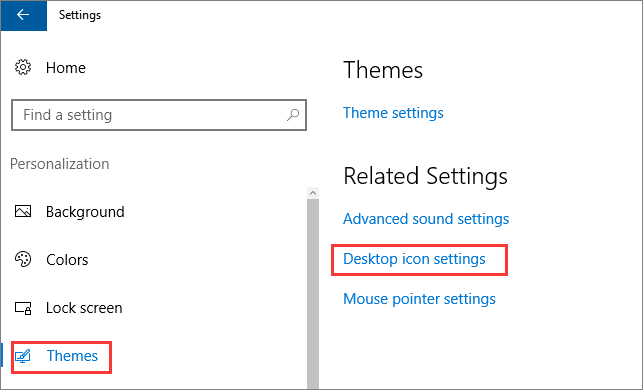
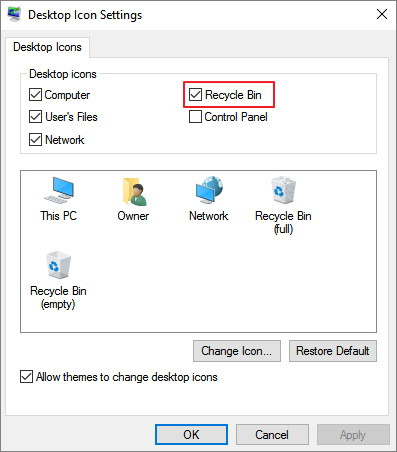
To get rid of the Recycle Bin on your desktop in Windows 10 or Windows 11, simply follow these easy steps. You can remove the Recycle Bin from your desktop by right-clicking on the desktop, selecting "Personalize" from the context menu, clicking on "Themes" in the Settings window, and then clicking on the "Related settings" button. From there, click on "Desktop icon settings" and uncheck the box next to "Recycle Bin" to remove it from your desktop.
Step 1. To access the Windows Settings, press the "Win + I" keys simultaneously, which will open the Windows Settings window. From there, select the "Personalization" option. Alternatively, you can right-click on your desktop and choose "Personalize" from the context menu.
Step 2. To access the Personalization Settings window, select "Themes" in the left panel, and then click on "Desktop icon settings" under "Related Settings".
Step 3. To remove or hide the Recycle Bin from the desktop, uncheck the "Recycle Bin" box and click "Apply".
Method 2. Remove Recycle Bin from Desktop with Registry in Windows 10
Editing the Windows registry can be a practical way to remove the Recycle Bin icon from the desktop, but it's recommended to back up the registry first to avoid any potential issues.
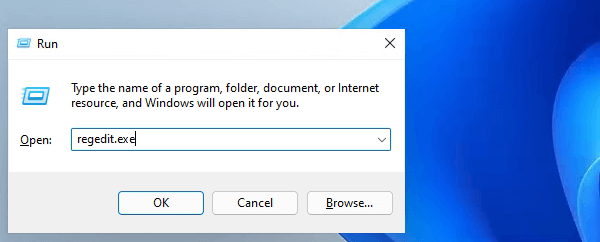
Step 1. Press Win + R keys to open the Run tool.
Step 2. Type Regedit in the Run box and click "OK".
Step 3. Go to HKEY_LOCAL_MACHINE\SOFTWARE\Microsoft\Windows\CurrentVersion\Explorer\Desktop\NameSpace.
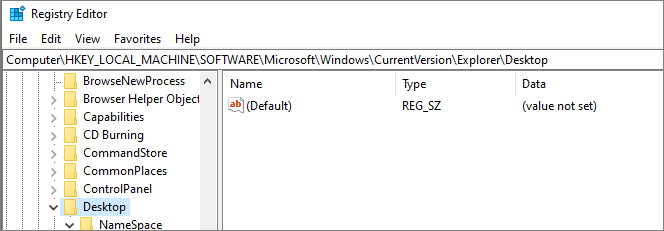
Step 3. Find the registry key: 645FF040-5081-101B-9F08-00AA002F954E and delete it.
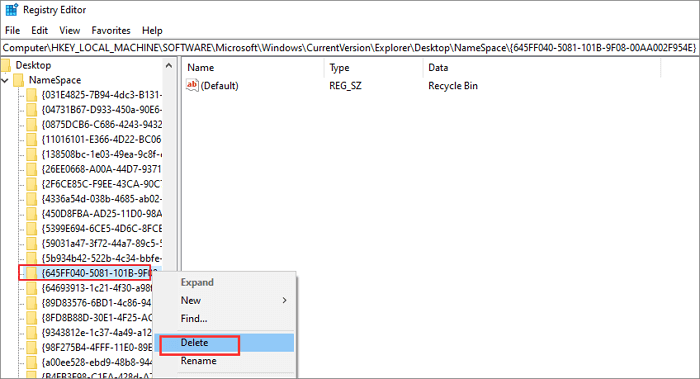
Step 4. To remove the Recycle Bin icon from the desktop, you can exit the Registry and restart your computer. This will cause the icon to disappear from the desktop.
Method 3. Hide Recycle Bin from Desktop with Local Group Policy Editor
To remove Recycle Bin from the desktop on Windows 11, you can use the Local Group Policy Editor.
Step 1. Right-click the Windows button and choose "Run".
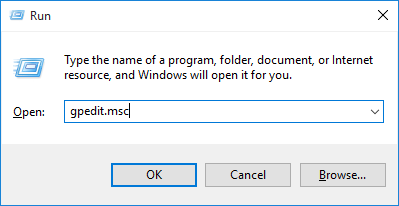
Step 2. Type gpedit.msc in the Run box and click "OK".
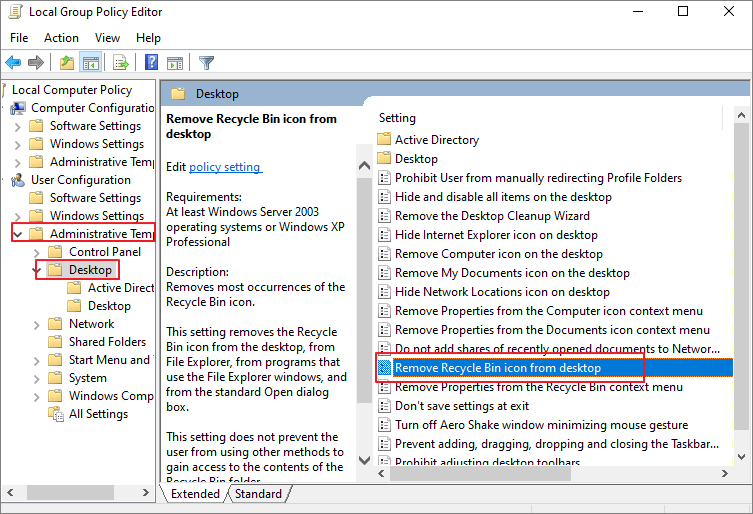
Step 3. To remove the Recycle Bin icon from the desktop, go to the Administrative Template, and double-click on "Desktop > Remove Recycle Bin icon from desktop".
Step 4. To remove the Recycle Bin from desktop, File Explorer, programs that use the File Explorer windows, and standard Open dialog box, check the box next to "Enabled" and then click "Apply" and "OK".
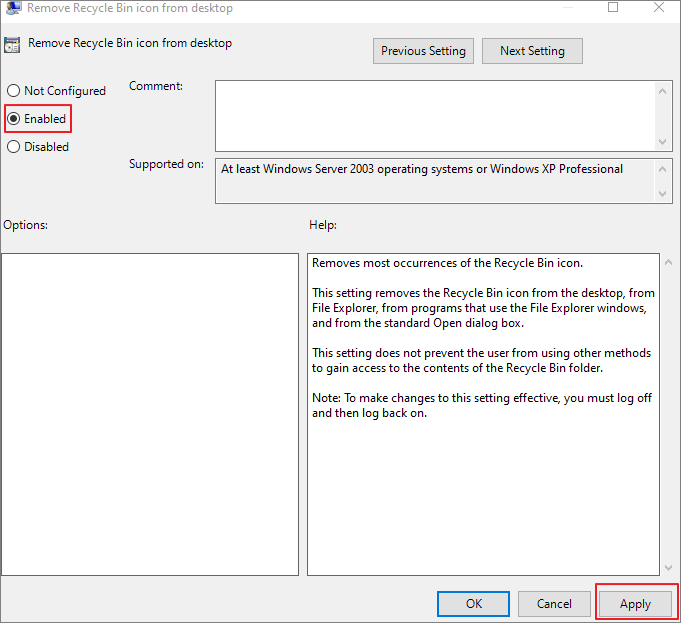
Step 5. Restart your computer and make this setting work. If you need to restore Recycle Bin later, just choose the "Disabled" or "Not Configured" options in this window.
How to Recover Permanently Deleted Files from Recycle Bin Windows 10
Removing the Recycle Bin from the desktop will permanently delete files temporarily stored there, making them inaccessible on your computer. If you need to recover crucial files, data recovery software can help.
Deep Data Recovery is a powerful tool that uses advanced algorithms to recover data from various file systems, including NTFS, FAT32, EXT, ExFAT, and HFS+, on a range of storage devices such as hard drives, solid state drives, external devices, memory cards, USB drives, and more. It can recover any type of lost file.
What can Deep Data Recovery do?
- Data recovery software can help recover lost data due to various reasons such as accidental deletion, formatting, operating system crashes, virus attacks, and lost partitions, among others. This software can scan the affected storage device, identify the lost data, and recover it in its original format, allowing users to retrieve their important files and data.
- Recover deleted files, including emails, photos, videos, audio, music, and documents from any storage device, such as computers, phones, or external drives, using advanced data recovery software and techniques.
- Restore files from formatted, inaccessible, or corrupted storage devices
- Retrieve lost data on various operating systems, including Windows 11/10/8/7/Vista/XP, Windows Server, and macOS 11.2 to 10.9, using a reliable data recovery software.
You can recover deleted or lost files in just three steps by downloading a free data recovery program.
Step 1. Run Deep Data Recovery. Select file types and click "Recycle Bin Scan" to start the recovery process.

Note: You can choose different search modes based on where and why the data was lost.
Step 2. Qiling data recovery software starts with a quick scan to find all deleted files, followed by a deep scan to detect more lost files. After scanning, you can use the "Filter" feature to select a specific file type, such as Pictures, Word documents, or videos.

Step 3. Once you've located the files you want to restore, you can double-click them for a full preview. Then, select the target files and click "Recover". To avoid data overwriting, save the recovered files to a different volume or an external USB drive.
More Information on Windows 10 Recycle Bin
Check the following content to learn how to remove Recycle Bin icon from desktop on Windows 7/8.
1. Where Is the Recycle Bin in Windows 10
To find the Recycle Bin on Windows 10, navigate to the desktop, and look for the Recycle Bin icon, which typically resembles a wastebasket. Alternatively, you can type 'Recycle Bin' in the Windows search bar to locate it. Once you've found the Recycle Bin, you can open it to view and manage your deleted files. If you're unable to find the Recycle Bin on your desktop, you can also try searching for it in the Start menu or taskbar.
If the Recycle Bin icon is missing from your desktop, you can restore it by following these steps. In both Windows 10 and Windows 11, the Recycle Bin icon is typically located in the upper-left corner of your desktop by default. If you're unable to find it, you can restore it by following the steps to add it back to your desktop.
- Adding Recycle Bin to desktop in Settings
- Creating Recycle Bin Shortcut from $RECYCLE.BIN
- Recovering disappeared Recycle Bin using Windows PowerShell
2. How to Restore Recycle Bin?
See a quick way to restore Recycle Bin in Settings:
Step 1. Right-click on your desktop.
Step 2. Choose Personalize to open Personalization in Settings.
Step 3. To access desktop icon settings, click on the Themes tab and select "Desktop icon settings" under the Related Settings section.
Step 4. Check the box next to "Recycle Bin" in the options menu, click "Apply" and then "OK".
3. How to Remove Recycle Bin from Desktop Windows 7?
To hide the Recycle Bin from the desktop in Windows 7 and Vista, follow these steps. First, right-click on the Recycle Bin icon on the desktop and select "Properties" from the context menu.
Step 1. Right-click your desktop.
Step 2. Select Personalize in the context menu.
Step 3. In the Personalize appearance and sounds window, click on "Change desktop icons" to make changes to the desktop icons.
Step 4. Uncheck the "Recycle Bin" box and click "OK".
To show or hide desktop icons, you can click the Start button, type "desktop icons" in the search box, and select "Show or hide common icons on the desktop".
4. How to Hide Recycle Bin from Desktop Windows 8?
To remove the Recycle Bin from your desktop on Windows 8, you can right-click on the Recycle Bin icon and select "Remove from desktop" from the context menu. This will remove the Recycle Bin icon from your desktop, but it will still be accessible from the Start screen or by pressing the Windows key + E to open File Explorer.
Step 1. To access the desktop icon settings, swipe in from the right edge of the screen.
Step 2. Select "Search" and look for desktop icons.
Step 3. Choose "Show or hide common icons on the desktop".
Concluding Words
These are the full instructions on how to remove Recycle Bin from desktop on Windows 10, Windows 11, as well as previous Windows 7/8. Even you are an ordinary user, you can follow the solutions in this guide to hide Recycle Bin smoothly.
If unexpected data loss occurs due to accidental deletion or emptying the Recycle Bin, it's essential to act quickly and use Qiling data recovery software to restore lost files promptly.
Related Articles
- 9 Best Word Repair Tools for Windows 10
- Deep Data Recovery 14.2.0 Crack with License Code 2022
- How to Recover Deleted Files from CD, CD-RW, DVD & DVD-RW
- Ext4 File Recovery: How to Recover Deleted Files from Ext4 Linux
- How to Restore Previous Version of Files (4 Ways)
Want to restore previous versions of files in Windows? You can do so by clicking on the article, which provides 4 effective methods to recover edited or overwritten files in Windows 7, 8, 10, 11, and other versions. - 7 Fixes | This Device Cannot Start Code 10!
Learn how to fix this device cannot start code 10 via seven fixes in this guide. Besides, you can get top-rated data recovery software for Windows to recover files.
Products
Articles & Tutorials
- Data Recovery
- Data Backup
- File Recovery
- File Backup
- System Backup and Restore
- Disk and Partition Clone
- Technical articles
- Mobile articles
- Disk Master Help
- Windows Data Recovery Tutorials
- Windows Secure Delete Tutorials
- Windows Partition Management Tutorials
- Windows File Backup and Restore Tutorials
- Windows System Backup and Restore Tutorials
- Windows Disk Backup and Restore Tutorials
- Windows Clone Tutorials