Top 10 Best Word Repair Tools [FREE DOWNLOAD]
Possible Reasons for Word File Corruption
Working with MS Word documents comes with the risk of file corruption due to various reasons such as system crashes, unsaved work, system updates, virus attacks, hardware failure, and more. These conditions can lead to the loss of important data, causing frustration and wasted time. Understanding these potential risks can help you take preventive measures to safeguard your Word files and avoid the hassle of recovering corrupted documents.
- System crashes: System crashes often occur unexpectedly and without warning, even during routine tasks. In some cases, a system crash may result in the loss or corruption of files, such as Word documents, which may only be recoverable after restarting the system.
- Unsaved work: After a long day of work, it's easy to forget to save your Word documents and shut down your system without thinking. As a result, your updated document may not be saved on your system or may be corrupted, leading to lost work and frustration.
- System updates: File corruption can occur due to various reasons, including system updates. When a system update is performed, especially after a restart, it can cause file corruption, leading to issues with documents such as Word files. The user may find their work corrupted or lost after the update.
- Virus attack: To prevent viruses from damaging your files, install up-to-date antivirus software to protect them.
- Hardware failure: Hardware failure can be a primary reason for word file corruption, and in such cases, using file recovery tools is necessary to recover the word file.
Top 10 Best Word Repair Tools [Free Download]
Here are some of the best free Word repair tools that can help you recover corrupted Word files, although the success of recovery depends on the level of corruption and sometimes the damage may be beyond repair.
1. Deep Data Recovery
Deep Data Recovery is a reliable and user-friendly tool that offers advanced features, making it ideal for small business users. Its deep scan process and data recovery capabilities make it stand out, and its safety features are a plus. However, the recovery process can be slow compared to other tools. Despite this, we highly recommend Deep Data Recovery for its reliability and advanced features.
Compatibility: PDF, Word (DOC/DOCX), PPT, Excel, JPG, JPEG, MP4, MOV
Pros:
- Easy to use
- Preview options available
- Support corrupted Word documents in 2003/2007/2010/2013/2016/2019
- Software can be used to repair damaged files in various types, such as corrupted Excel files, which can be recovered using tools like Excel Recovery or Repair Excel. These tools scan the file for errors and attempt to rebuild the file structure, allowing users to recover their data.
Cons:
- Paid licenses are a little expensive
To repair corrupted Word documents using Qiling file repair tool, follow these steps: download and install Qiling on your computer, then select the corrupted Word file you want to repair; the tool will scan the file and display a preview of the recoverable data; if the file is recoverable, Qiling will guide you through the repair process, which may involve selecting the recovery options and saving the repaired file; once the repair is complete, you can open the repaired Word document to verify its contents.
Step 1. Launch Deep Data Recovery, select the file types you want to recover, and click "Fast Scan" to begin the recovery process.

Note: You can choose different search modes based on where and why the data was lost.
Step 2. This software allows you to scan your disk and repair damaged Word, Excel, PPT, and PDF files in a single process, making it easier to fix corrupted documents.

Step 3. Qiling data recovery and repair tool will scan for all lost and corrupted files, allowing you to find target files by file type or search for them by name in a search box.

Step 4. Deep Data Recovery can automatically repair damaged documents, allowing you to recover and save Word, Excel, and PDF files to a safe location after previewing them.
2. Stellar Phoenix Word Repair
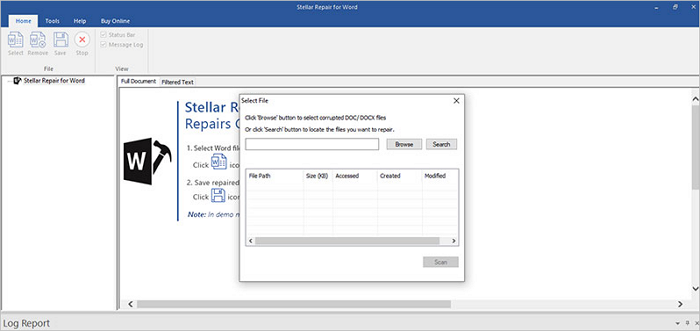
Stellar Phoenix Word Repair is a reliable data recovery tool that can quickly recover and repair corrupted MS Word files, restoring the original text, images, and relevant content. It offers both simple and advanced repair options, making it a user-friendly solution for recovering damaged Word files.
It is a user-friendly tool that offers a simple repair feature, but unfortunately, it doesn't perform efficiently when it comes to speed. For optimal results, you may need to rely on the advanced repair option, which can be a bit slow. Overall, this tool is best suited for personal and small business users.
Compatibility: Doc, Docx, XLS, XLSX, PDF
Pros:
- Easy to use
- Analyzes disk in search of all DOC files
Cons:
- Doesn't permit you to select multiple files
3. Repair Doc File Software
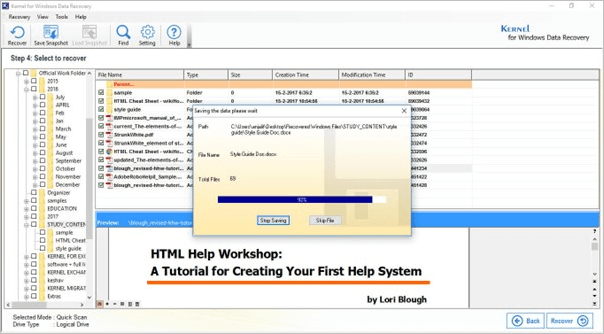
Repair Doc File Software is an authentic tool for repairing damaged MS Word files, designed to tackle server corruption and recover files without any changes. It is optimized to quickly recover large-sized Word documents and features a simple, user-friendly interface, making it ideal for personal use.
Compatibility: DOC, DOCX
Pros:
- Simple interface
- User-friendly
- Multi-Word file recovery options
Cons:
- Supports limited file formats like Word file, DOC, and DOCX
4. DataNumen Word Repair
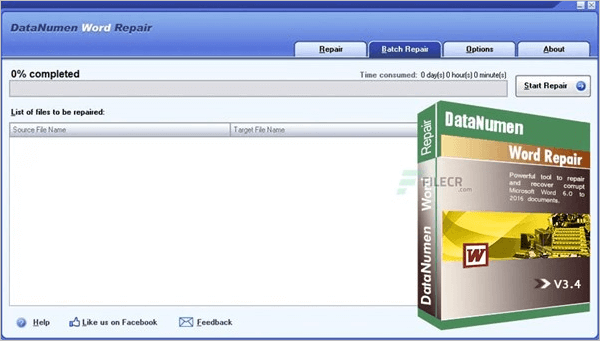
DataNumen Word Repair is a reliable and powerful tool that uses an advanced scanning process to quickly and safely recover damaged or corrupted Word documents (DOC and DOCX files), making it ideal for personal use due to its user-friendly interface.
Compatibility: DOC, DOCX
Pros:
- User-friendly
- Easy to use
- Safely recover your Word file
Cons:
- Slow processing
5. Remo Repair Word
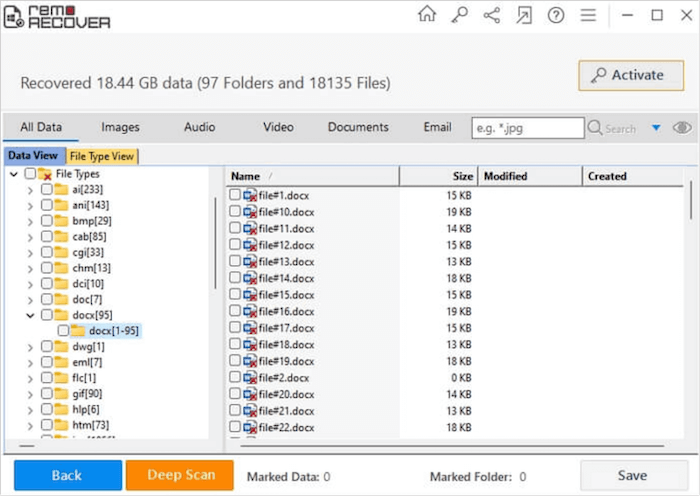
Remo Repair Word is a popular tool for repairing corrupt Word documents. It can fix DOC and DOCX files, including embedded objects, quickly and securely. Its simple interface and fast repair capability make it a recommended choice for personal and small business use.
Compatibility: DOC, DOCX
Pros:
- Affordable
- User-friendly
- Quick repairing process
- Accuracy
Cons:
- Supports only DOC and DOCX files
6. DocRepair

If you're looking for a professional file recovery software for MS Word files and documents, DocRepair is the best choice, as it can quickly restore damaged and corrupted Word files, is safe to use, and has a quick repair process, making it a great option, especially for personal use, although it only supports the Windows system.
Compatibility: DOC, DOCX
Pros:
- Simple and lightweight tool
- Reasonable
Cons:
- Support only Word files (.DOC, .DOCX)
7. WordFix
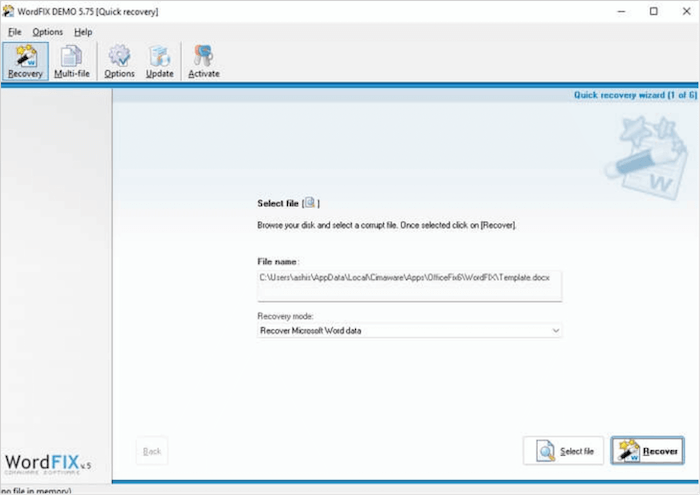
WordFix is a reliable tool that quickly recovers corrupted or damaged Microsoft Word files, preserving all elements as the original file. It offers a safe and efficient recovery process, making it suitable for both professional and personal use, with a user-friendly interface.
Compatibility: DOC, DOCX
Pros:
- Easy to use
- Safely recover MS Word files
- Affordable
- Fast repairing process
Cons:
- Only support. DOC and DOCX file
8. S2 Recovery Tools for Microsoft Word
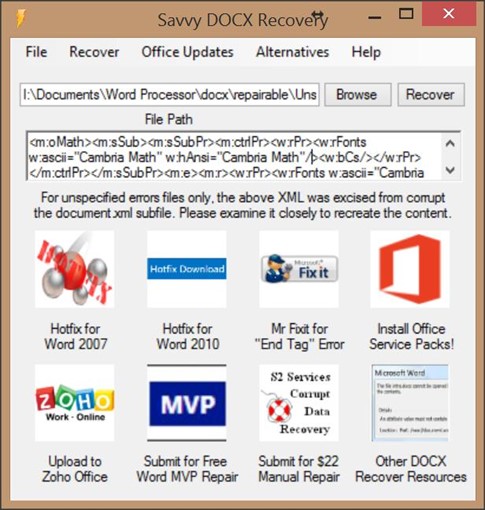
2 Recovery Tools for Microsoft Word is a handy and trusted Word repair tool that can easily and safely recover corrupted or damaged Word files, supporting Windows OS and available for free download. It features additional proprietary methods of DOC and DOCX recovery, one-button access for MS Word file recovery methods, and more.
Compatibility: DOC, DOCX
Pros:
- Free to download
- Fast processing
- Safe to use
- Simple interface
Cons:
- Supports only Word files
9. Recovery Toolbox (Online Word Repair Tool)
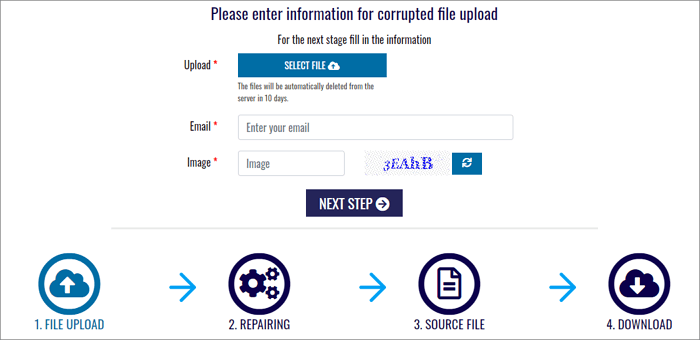
If you need to repair a Word file, you can visit the official website of Recovery Toolbox, which offers a free online repair tool, as well as a paid version. The process is simple: you upload the file to their server, they fix it, and then you can download the repaired file.
Compatibility: DOC, DOCX, RTF
Pros:
- Straightforward to use
- Fast processing for smaller files
- Offers software version
Cons:
- Not recommended for sensitive documents
10. Online OffficeRecovery (Online Word Repair Tool)
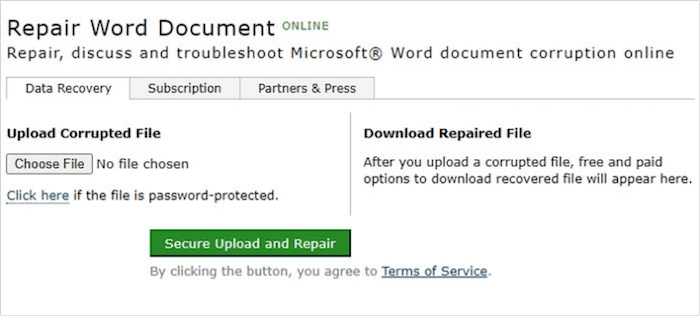
Online OfficeRecovery is an online Word Repair Tool that allows users to upload their file and choose between free and paid options to recover their Word file. The tool is easy to use, but the free version has a 2-week processing time, making it a last resort.
Pro:
- Secure upload files
- The software supports all modern file versions, including 2007, 2003, 2002, 2000, and 97.
Cons:
- The free version of the service has limitations, as files are only delivered within a 14-day timeframe.
- Heavy blocking for bots can lead to a poor user experience for regular users, as it can cause delays, errors, and frustration when they try to access or use certain features or services. This can be particularly problematic for users who rely on these features or services for important tasks or activities.
How to Choose the Best Word Repair Tool
We'll provide a comparison tool to help you choose the best repair tool for your needs.
| Tool | User-friendly | Supported file formats | Support system |
| Deep Data Recovery | Yes | Word, PDF, JPEG, JPG | Windows, Mac |
| Stellar Phoenix Word Repair | Yes | DOC, DOCX, XLS, XLSX | Windows |
| Repair Doc File Software | Yes | DOC, DOCX | Windows |
| DataNumen Word Repair | Yes | DOC, DOCX | Windows. Mac |
| Remo Repair Word | Yes | DOC, DOCX | Windows |
How to Recover Unsaved Word Documents
If you've lost an unsaved Word document, don't worry! There are two effective solutions to recover it. You can try using the AutoRecover feature in Microsoft Word, which automatically saves a copy of your document at set intervals. If you've enabled this feature, you may be able to find a recovered version of your document in the AutoRecover folder.
- Solution 1. Recover unsaved Word documents from Temporary files
- Solution 2. Recover unsaved Word documents from AutoRecover
Let's know the detailed steps of these two working solutions to recover unsaved Word documents.
Solution 1. Recover unsaved Word documents from Temporary files
To recover unsaved Word documents, follow these steps. You can quickly retrieve them from Temporary files. Simply navigate to the location where your Word documents are saved, click on the "File" tab, select "Recent" and then "Manage Documents.
Step 1. To recover unsaved documents in MS Word, open the program and click the File tab in the upper left corner. From the drop-down list, select Manage Document and then choose Recover Unsaved Documents.
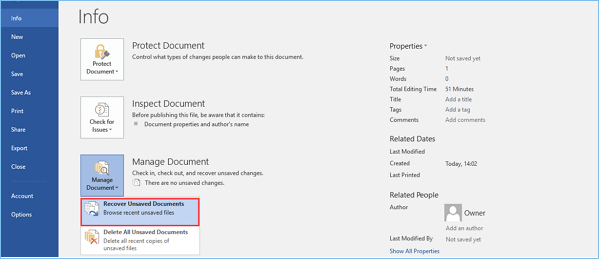
Step 2. If you're missing a file, check the dialog box for it. If it was recently unsaved, it should be listed there.
Step 3. Open the recovered Word document and click the Save As button in the top banner.
Solution 2. Recover unsaved Word documents from AutoRecover
You can recover unsaved Word documents by using AutoRecover, which creates temporary files with a ".asd" extension. To do this, follow the steps below.
Step 1. To find the AutoRecover file location, open the Word program and go to File > Options. In the left navigation panel, click Save, and then copy the AutoRecover file location path. Finally, paste the path into File Explorer to locate the AutoRecover files.
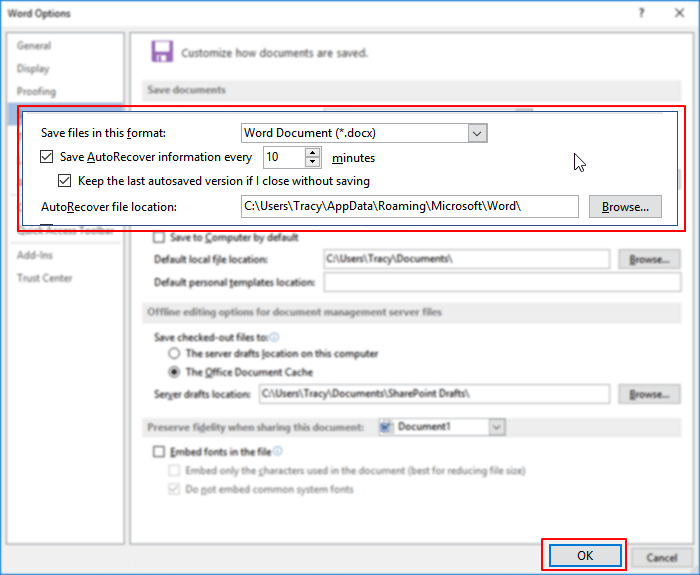
Step 2. To recover the unsaved document, go to the File Explorer, locate the unsaved document, and copy the ".asd" file.
Step 3.To recover an unsaved Word document, go to the Word app and click on File > Open > Recover Unsaved Documents at the bottom.
Step 4. Open the recovered Word file and paste the copied ".asd" file into it.
How to Recover Deleted Word Files in Windows 10/11
If you accidentally delete a Word file and want to recover it quickly, we recommend using the Deep Data Recovery tool, which has advanced features and quick solutions to recover not only Word files but also deleted photos, videos, and PDFs.
This recovery tool stands out for its ability to recover various types of data, including photos, videos, documents, and more, from a wide range of devices, including smartphones, computers, and cameras. Its user-friendly interface and advanced algorithms ensure that even the most complex data recovery tasks are completed efficiently and effectively.
- Deleted file Recovery: This tool can easily recover accidentally deleted files even after emptying the recycle bin.
- Raw Recovery: The Deep Data Recovery feature includes a raw recovery option that thoroughly scans storage devices to identify and safely recover all recoverable files.
- Formatted Recovery: Many people face data loss due to hard drive format, but a tool can help recover all kinds of data from formatted HDD, SSD, SD card, Flash Drive, Pen Drive, and USB drive.
- Nas Data Recovery: This tool can easily recover all types of data from the NAS server, and what's more, it supports all NAS brands and file types, making it a versatile and reliable solution for data recovery needs.
- Secure data recovery process: The Deep Data Recovery process is a streamlined and efficient method that allows for complete data recovery with just three clicks, making it accessible to anyone and capable of recovering deleted data within a few minutes.
- Repair damaged/corrupted photos: This advanced tool can repair damaged/corrupted JPEG/JPG photos on various storage mediums, providing a preview option after scanning for lost files.
To recover deleted files via Deep Data Recovery, follow these steps:
Step 1. Launch Deep Data Recovery, select the desired file types, and click "Fast Scan" to initiate the recovery process.
Note: You can choose different search modes based on where and why the data was lost.
Step 2. Click the "Scan" button to scan the disk and identify corrupted documents. This software allows you to repair damaged Word, Excel, PPT, and PDF files using a straightforward process.
Step 3. Qiling data recovery and repair tool scans for all lost and corrupted files, allowing you to find target files by type or search for them by name.
Step 4. Deep Data Recovery can automatically repair damaged documents, allowing you to preview and recover Word, Excel, and PDF files to a safe location after previewing them.
Conclusion
When it comes to Word repair tools, you have several options, but which one to choose? The key is to understand your needs before selecting the right tool, as each one has its advantages and disadvantages. No tool is 100% perfect, so consider your budget and requirements wisely. We recommend Deep Data Recovery, which is top-rated and highly effective for data or file recovery.
Related Articles
- Word Cannot Complete the Save Due to a File Permission Error Mac/Windows 10
- How to Recover Deleted Files from Laptop/PC on Windows 10/8/7
- Recycle Bin Empties Itself: How to Stop Recycle Bin Auto Deletion in Windows 7/8/10
- Download USB Pen Drive Repair Software Full Version with Crack
- Recover Cropped Image| How to Revert Edited Photo to Original
You can revert an edited photo to its original version online by using various tools and methods available on PC, Mac, and iPhone. - Hard Drive Recovery| Recover Files from a Hard Disk
Have you ever lost your hard drive data? We compiled super easy methods to perform hard drive data recovery on Windows 11/10/8/7 and restore hard drive data on Mac. Read on to get the full guide to recover hard drive data in no time.
Products
Articles & Tutorials
- Data Recovery
- Data Backup
- File Recovery
- File Backup
- System Backup and Restore
- Disk and Partition Clone
- Technical articles
- Mobile articles
- Disk Master Help
- Windows Data Recovery Tutorials
- Windows Secure Delete Tutorials
- Windows Partition Management Tutorials
- Windows File Backup and Restore Tutorials
- Windows System Backup and Restore Tutorials
- Windows Disk Backup and Restore Tutorials
- Windows Clone Tutorials