USB Flash Drive Repair Software Full Version Alternative
The USB flash drive repair software, also known as a USB repair tool, is designed to repair a USB flash drive or USB flash drive without formatting or losing data. It's particularly helpful when the device is corrupted or inaccessible due to a virus attack, file system corruption, hardware malfunction, improper shutdown, or any other type of device failure.
Avoid Unsafe USB Flash Drive Repair Software Downloads
After official software is released, some users search for free cracked versions, serial keys, keygens, serial numbers, or license codes from unknown websites.
However, we strongly recommend avoiding cracked software. Instead of helping with data recovery, it may harm your data or computer in these ways:
- Further data loss
- Privacy leaking
- Account security issue
- Virus attack, malware infection, etc.
Cracked USB flash drive repair software is unsafe and may fail to download because of invalid paths, broken links, or hidden malware.
Download free alternative software to repair USB USB flash drive without losing data
To protect your data and revive your USB or USB flash drive, consider downloading Qiling, a free data recovery software, as an alternative to using CMD, a free Windows built-in hard drive repair software, to recover data and repair your USB USB flash drive.
This solution works as a USB flash drive repair and recovery tool while avoiding risks such as virus infection or privacy issues. Use the official version for a safer and more reliable repair process.
To fix and repair your USB or USB flash drive without losing any data, you can follow these guidelines. First, ensure the drive is properly connected to your computer.
# 1. Recover data with Qiling free data recovery software
Before repairing the USB or USB flash drive, you can try using free data recovery software, such as Deep Data Recovery Free Edition, to recover your lost data with ease.
This program enables recovery of various file types, including images, videos, audio files, emails, and documents, with a 2GB free data recovery limit. If your lost data exceeds this limit, you can upgrade to Deep Data Recovery Professional for unlimited recovery. The recovery process remains the same.
Step 1. Choose file types and click "USB/SD Scan" to start
To recover data from a USB drive, connect it to your computer and launch Qiling USB data recovery software. Choose the file types you want to recover and click "USB/SD Scan" to start the process.

Note: You can choose different search modes based on where and why the data was lost.
Step 2. Run USB Data Recovery Software
Select the drive labeled as an External drive, and click "Scan" to start searching for lost files.

Step 3. Scan and Search Lost Files on a USB Drive
Deep Data Recovery will thoroughly scan your USB flash drive/USB flash drive and find all lost data, then use the Filter feature to find wanted files.

Step 4. Restore All Lost Files from USB
A double-click will allow you to preview the files. Select the target files to restore and click "Recover" to save them to a secure location on your PC or other external storage devices.
Save your files to another secure location before making your USB flash drive or USB flash drive available for saving files again.
# 2. Repair USB USB flash drive with CMD - Windows free USB flash drive repair software
After restoring essential data from the USB, you can now apply CMD with the command below to repair USB USB flash drive:
Step 1: Type "cmd" in the search bar of your Start menu, hit enter.
Step 2: Double click "cmd. exe" under a list of programs to open CMD command line that allow you to fix your corrupted USB flash drive.
Step 3: To run a full disk check on a removable drive, such as a USB flash drive or SD card, type the command "chkdsk /X /f [drive letter]" in the Command Prompt. For example, if the drive letter is "G:", you would type "chkdsk /X /f G:". If the drive letter is "H:", you would type "chkdsk H: /f".
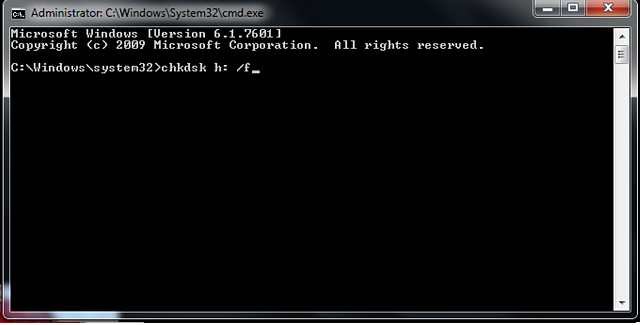
The CMD utility will repair the corrupted file system, making your device reusable again.
The CMD command lines offered here only work to repair corrupted file system and device inaccessible issues, but may not address more complex problems such as write-protected pen drives or non-working USB drives.
Tips to protect USB flash drive or USB data
To protect your USB flash drive or USB data, we recommend following some reliable tips. These tips can help safeguard your data and device from device failure, internal device error, or sudden file deletion by mistake. By implementing these measures, you can ensure the integrity and security of your data, making them your best tools to guard against potential risks.
# 1. Use Error checking to remove existing device error
Error checking is a tool in Windows OS that serves as an alternative to chkdsk, helping users identify and fix existing errors on storage devices.
Step 1:To resolve the issue with the corrupted USB, insert the device into your PC's USB port. Then, open the File Explorer on your computer.
Step 2: Right-click on the USB device, select Properties.
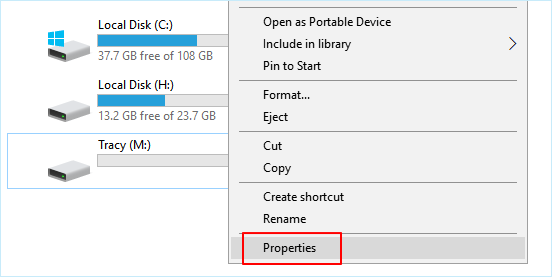
Step 3: Go to Tools, click the Check button under Error checking.
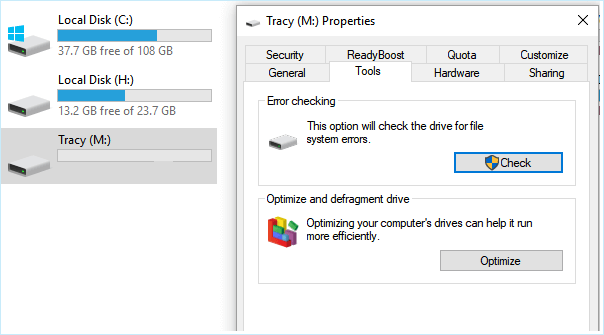
Step 4: Select Scan and repair drive.

Step 5: The wizard interface will continue to guide you through the process, and if any disk errors are detected, it will automatically prompt you to fix them.
# 2. Back up essential data regularly
To ensure the safety of your important data, it's recommended that you regularly back up your files to a hard drive, external hard drive, or USB USB flash drive. You can either make a copy of these files or use professional free backup software to back them up all at once.
It's recommended to back up your data on a secure device, such as an external hard drive or cloud drive, to ensure its safety and accessibility.
Related Articles
- Free Download Transcend JetFlash Online Recovery Tool
- Download Free USB Flash/Pen Drive Repair Tool and Recover Data
- How to Fix Missing DLL Files in Windows 10/8/7 [Full Guide]
- Look! 5 Methods to Fix PNG Files Not Opening in Windows 10/11
- How to Open Password Protected Excel Files
If you're having trouble opening password-protected Excel files, Our guide can help with all the correct methods to unlock them. - Microsoft Outlook 2016/2013/2010 Not Responding in Windows 10/11 (5 Fixes)
When Outlook not responding in Windows 10, the first thing you should do is restoring the lost Outlook emails. Find effective methods here and you can restore all lost Outlook emails and repair not working Outlook with ease.
Products
Articles & Tutorials
- Data Recovery
- Data Backup
- File Recovery
- File Backup
- System Backup and Restore
- Disk and Partition Clone
- Technical articles
- Mobile articles
- Disk Master Help
- Windows Data Recovery Tutorials
- Windows Secure Delete Tutorials
- Windows Partition Management Tutorials
- Windows File Backup and Restore Tutorials
- Windows System Backup and Restore Tutorials
- Windows Disk Backup and Restore Tutorials
- Windows Clone Tutorials