How to Open Password Protected Excel Files
Excel Is Password Protected, How to Open?
In recent years, protecting essential files with a password has been a necessary measure to secure them. With the rise of cyber theft, it's crucial to be vigilant, especially when handling work-related data and statistics. To avoid potential issues, it's recommended to password protect all work computers, laptops, and electronic devices at all times.
You can still open an Excel file that has been password protected, and this article will guide you through the process if you've forgotten the password.
Three Ways to Open/ Unlock Password Protected Excel File
Microsoft has implemented security measures to protect Excel files, but this can become a problem if you forget your password. Fortunately, there are three ways to open password-protected Excel files.
| Workable Solutions | Step-by-step Troubleshooting |
|---|---|
| 1. Use Known Password | The first step is to go to the destination of your to-be-opened document and double-click it...Full steps |
| 2. Unlock Excel by VBA Code | The quickest method to launch VBA Editor is to hit the Alt and F11 keys simultaneously...Full steps |
| 3. Modify the File Extension | One of the most crucial things you must do before the operation starts is establish...Full steps |
Method 1. Open Password Protected Excel File with Known Password
To access a password-protected Excel file using a known password, simply input the password, and the file will be displayed next to you in a matter of seconds.
Step 1. The first step is to go to the destination of your to-be-opened document and double-click it, or right-click on the selected file and choose 'open'.
Step 2. Since the sheet you're trying to view is password-protected, you'll be asked to enter the password in a pop-up, which will temporarily unprotect the document, allowing you to view its contents.
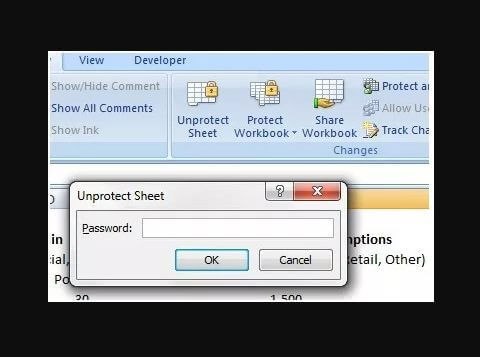
Step 3. Once you've entered your password, click the "OK" button at the bottom right of the pop-up, and you'll be taken to the file to view and work on.
This section is considered the simplest and quickest because it works with any Excel version, including Excel 2007, Excel 2010, Excel 2016, and above.
Method 2. Unlock Excel Spreadsheet without Software by VBA Code
VBA, or Visual Basic for Applications, is a programming language created by Microsoft that is included with Microsoft Office. It can be used for a wide range of activities, from managing lists of various objects to predicting and budgeting, as well as evaluating scientific data and producing charts.
One of its benefits is its capacity to assist you in unprotecting Excel spreadsheets without the need for any third-party software, making it a convenient option. To do this, you can follow these four simple steps.
Step 1. To resolve the issue, open the Microsoft Excel file in question.
Step 2. To quickly launch the VBA Editor, press the keys Alt and F11 simultaneously. This will open the VBA Editor in your Microsoft Office application.
Step 3. The next stage is to include an Insert Menu module.
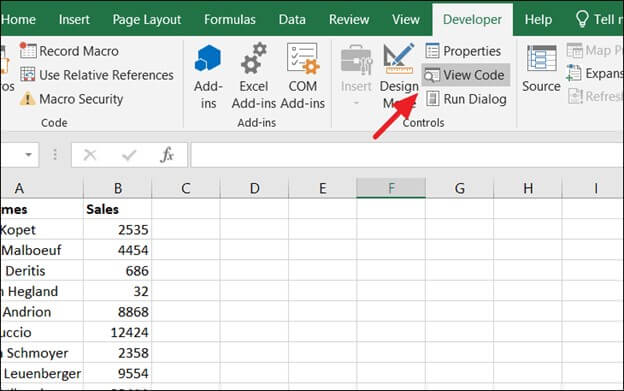
Step 4. After you've opened the code window, you'll need to enter the following lines of code.
|
>Sub UnProtectWorkbook() On Error GoTo ErrorOccured Dim pwd1 As String, ShtName As String pwd1 = InputBox("Please Enter the password") If pwd1 = "" Then Exit Sub ShtName = "Workbook as a whole" ActiveWorkbook.Unprotect Password:=pwd1 MsgBox, "The workbook's structure has been Unprotected." Exit Sub error occurred: MsgBox "Workbook could not be UnProtected - Password Incorrect." Exit Sub End Sub |
Step 5. After entering the code lines into the code box, click the "Save" button to save your file in a worksheet that supports macros.
Step 6. Press F5 to carry out the preceding actions.
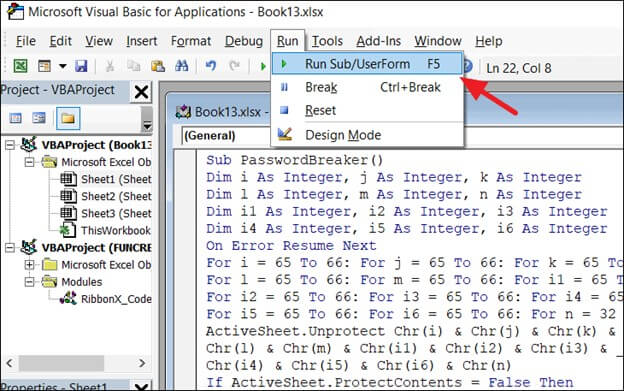
To unprotect Excel files without software, you can use VBA code by carefully following the procedures. This will allow you to bypass the password protection and access the file.
Method 3. Open Protected Excel by Modifying the File Extension
While these techniques may not be ideal for newer Microsoft Office versions, they can still work well for Microsoft Office 2010 or earlier versions. By altering the file extension, you can read or open protected Excel files by following these simple steps.
Step 1. Before the operation starts, establish a password-protected backup of the Excel file to ensure data security and integrity.
Step 2. After creating a backup, you must rename the file by right-clicking on the excel sheet and selecting the "rename" option.
Step 3. Regardless of whether your file is a .csv or a .xls extension, it's time to convert it to a .zip extension.
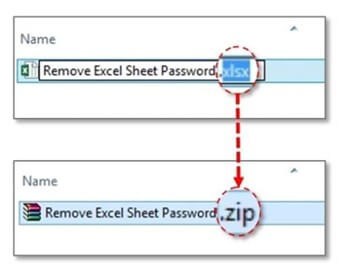
Step 4. Once you've renamed the file and changed its extension to .zip, you can proceed to unzip the contents of the zip file. This can be done using a file archiver like WinZip or the built-in zip utility on your computer, depending on your operating system.
Step 5. You need to find a file that ends with the extension .xml.
Step 6. After locating the file with the .xml extension, double-click it to open it in an XML editor.

Step 7. In Excel, you can locate your target term by holding down the Ctrl and F keys simultaneously, searching for the term "SheetProtection".
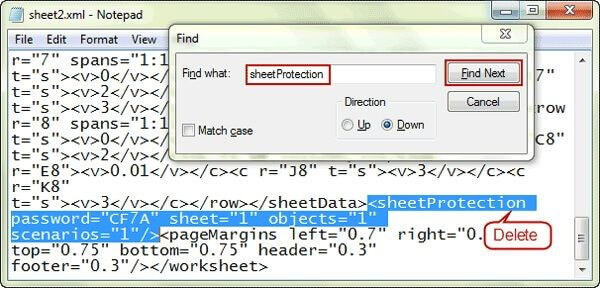
Step 8. Remove the term from the file after you've discovered it.
Step 9. Save the file after eliminating the word.
Step 10. After saving the file, change the file extension from .zip to .xls or .csv, whichever you prefer.
After completing the ten procedures, all your worksheets will be made unprotected, allowing you to access any of your files without needing to enter a password.
Also read: Lost Bitlocker Recovery Key? Here's How to Get It Back
How Open/Repair a Corrupted Excel File (2 Ways)
If a file won't open due to corruption, the easiest solution is to use Microsoft Office repair software, which can help access and potentially recover the faulty file.
There are two primary techniques for opening a corrupt Excel file:
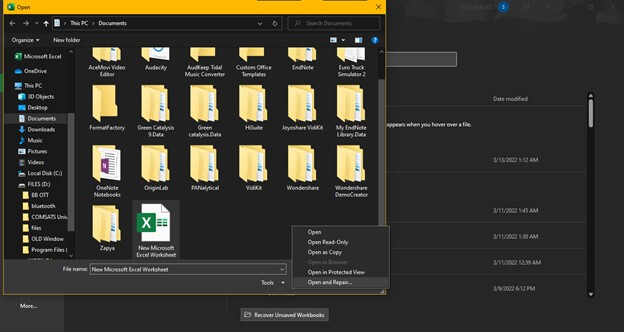
1. Repair Damaged Excel Files with the Open and Repair Method
The Open and Restore method can manually repair corrupted Excel files without the need for a backup. To do this, the following steps must be taken.
Step 1. Select the "Microsoft Office" tab.
Step 2. Click the "Open" button.
Step 3. Choose the corrupt files when the 'Open' dialog box appears.
Step 4. Click the arrow, then choose "Open and Repair".
Step 5. Select the "Repair" option.
2. Repair and Open Excel with a File Repair Tool
When dealing with corrupt files, it's not uncommon for software to be used to open them. However, it's essential to exercise caution when choosing a third-party tool to avoid compromising data, and instead opt for a reliable and trustworthy product that can safely open the file without putting privacy at risk.
Deep Data Recovery is the most commonly recommended product on the market to recover XLSX files, which can be fixed quickly and efficiently. It is available for both Windows and Mac operating systems through its Repair Toolkit.
- Possible to fix all corrupt Excel files.
- You can remove viruses in Excel files.
- The ability to repair damaged files simultaneously is a significant advantage.
- The software is able to repair various types of damaged Excel files, including formulas, cell comments, photos, tables, chart sheets, and charts.
- Excel worksheet characteristics are preserved while using this function.
The following are the steps to repair an Excel file using Deep Data Recovery:
Step 1. Launch Deep Data Recovery. Select the file types you want to recover and click "Fast Scan" to begin the recovery process.

Note: You can choose different search modes based on where and why the data was lost.
Step 2. This software allows you to fix damaged Word, Excel, PPT, and PDF files in the same steps. It enables you to scan a disk with corrupted documents and recover them.

Step 3. The Qiling data recovery and repair tool scans for all lost and corrupted files, allowing you to find target files by type or search for them by name in a search box.

Step 4. Deep Data Recovery can automatically repair damaged documents, allowing you to preview and then recover repaired Word, Excel, and PDF files to a safe location.
Final Words
Managing multiple passwords for professional and personal files can be overwhelming. If you're struggling to recall the password for an Excel spreadsheet, with Deep Data Recovery, you can easily open password-protected Excel files and regain access to your important data.
Related Articles
- Top 14 Best Free Video Repair Software for Windows/Mac
- Excel Recovery Tool Full Version Free Download: Recover Corrupted Excel File
- XML Repair| How to Repair/Recover Corrupted XML Files
- Full Recovery of Files And Folder Structure
- MS SQL Recovery Software to Recover MDF/NDF File
MDF or NDF files can become deleted, damaged, or inaccessible due to various issues like hardware problems, SQL Server bugs, OS malfunctions, sudden system shutdowns, or virus attacks. In such cases, Qiling MS SQL Recovery can be a helpful tool to recover the MDF or NDF file with ease. - 2 Fixes to Resolve Memory SD Card Says Full But No Files On It Error
If your camera's memory SD card shows as full but doesn't display any files, This issue can be resolved by following the instructions on this page.
Products
Articles & Tutorials
- Data Recovery
- Data Backup
- File Recovery
- File Backup
- System Backup and Restore
- Disk and Partition Clone
- Technical articles
- Mobile articles
- Disk Master Help
- Windows Data Recovery Tutorials
- Windows Secure Delete Tutorials
- Windows Partition Management Tutorials
- Windows File Backup and Restore Tutorials
- Windows System Backup and Restore Tutorials
- Windows Disk Backup and Restore Tutorials
- Windows Clone Tutorials