How to Recover Deleted Files from CD, CD-RW, DVD & DVD-RW
You can try using a CD/DVD recovery software to attempt to recover deleted files from your CD-RW. These programs scan the CD for recoverable data and can sometimes retrieve lost files, but success is not guaranteed and depends on the condition of the CD and the type of files that were deleted.
| Workable Solutions | Step-by-step Troubleshooting |
|---|---|
| Repair the Damaged CDs |
Step 1. Clean the surface. Step 2. Apply some toothpaste...Full steps |
| Bonus Tip - Recover Data |
Step 1. Select a location and start scanning. Step 2. Preview and select the files. Step 3. Recover lost data...Full steps |
Top 3 Free CD DVD Data Recovery Software
CD-RW and DVD-If you've accidentally deleted files from a CD-RW or DVD-RW disc, you know how frustrating it can be to try and recover them. Fortunately, there are efficient CD/DVD data recovery solutions that can help, including recovering deleted files from CD, CD-RW, DVD, or DVD-RW discs, as well as recovering lost or inaccessible data from formatted, damaged, or scratched CDs/DVDs. To help you get your data back, we've identified three top-rated free CD/DVD data recovery software options.
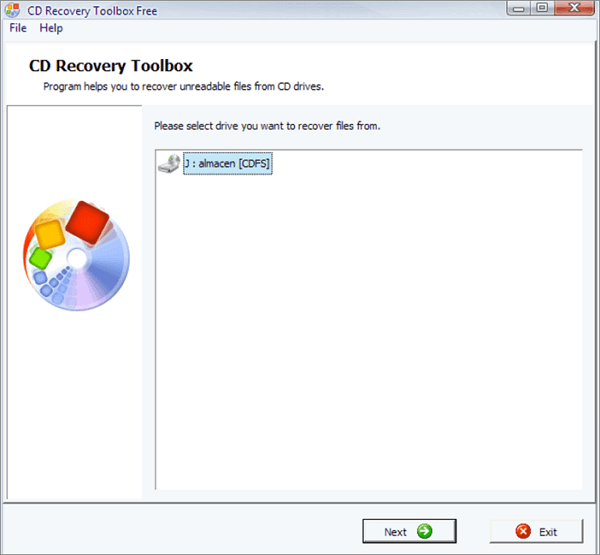
1. CD Recovery Toolbox
Scan any CD or DVD disks to find and restore the possible maximum amount of data, files or information, considered as lost, with the help of this software.
Disadvantage: N/A
2. CDCheck
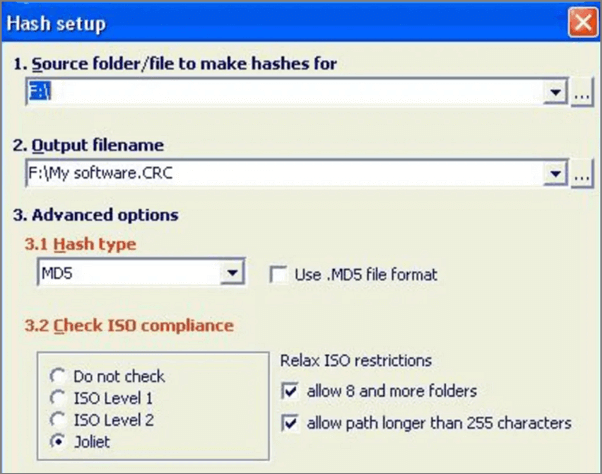
Advantage: Scan CD's, recover CD's, salvage fragments.
You have to register, activate your account, log in, and request a free license through CDCheck online.
3. Unstoppable Copier
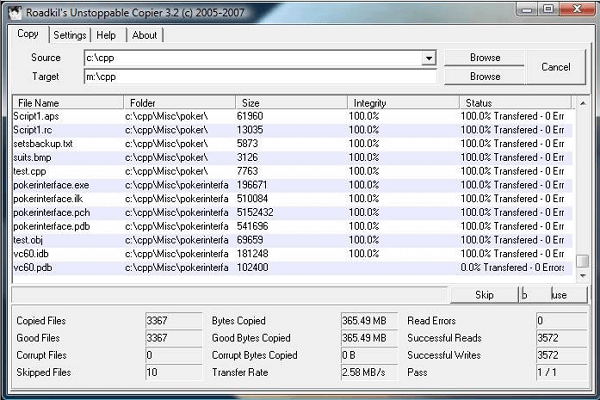
Advantage: Small program. Easy to use.
The program may not restore all missing data from damaged media, but it's still worth trying.
A comparison of the three free CD/DVD data recovery software reveals their respective advantages and disadvantages, ultimately helping you choose the best option for your specific case and effectively recover deleted files from CD-RW or DVD-RW discs.
How to Repair the Damaged CDs
If your CDs have been damaged, you can try manual repair to make the disc playable again. A simple and easy method is to clean the disc with toothpaste or some polish. This can help remove minor scratches and scuffs, making the disc playable once more. Just be sure to apply a small amount of the cleaning agent to a soft cloth and gently rub it onto the affected area, then wipe clean with a dry cloth.
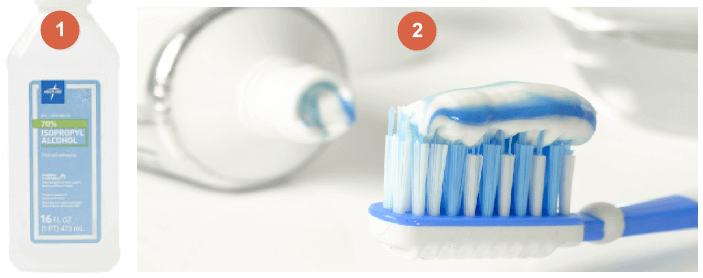
Step 1: Clean the surface of the disc with a soft lint-free cloth, and use rubbing alcohol to remove any grease spots.
Wipe the surface gently with a soft, lint-free cloth to remove any fingerprints or dust particles, taking care not to scrub too hard.
Step 2: Apply toothpaste to the scratched surface and gently rub it in with a cloth, starting from the center and moving outwards.
If you successfully remove the scratch, you should notice an improvement over time, but the effectiveness can be highly variable.
Extra Tip: Recover Lost Files with Deep Data Recovery
Qiling Data Recovery Wizard Free Version is a software that can recover lost files from various storage devices, including HDD, SSD, SD cards, memory cards, and USB flash drives, but it cannot recover data from CDs or DVDs. Despite this limitation, it can still help in most data loss situations, making it a useful tool for computer users of all levels due to its ease of use and simplicity.
- Data recovery software can help recover deleted, formatted, and inaccessible data in various data loss situations, including accidental deletion, system crashes, hardware failures, and virus attacks.
- Recover lost files with ease, including photos, audio, music, and emails, from any storage device or location, ensuring a safe and complete recovery process.
- Recover data from various storage devices including the recycle bin, hard drive, memory card, flash drive, digital camera, and camcorder.
Step 1. Launch Qiling file recovery software on your Windows computer. Select file types and click "Fast Scan" to start the file recovery process.

Note: You can choose different search modes based on where and why the data was lost.
Step 2. Click on the location where you lost the files and click the "Scan" button. This will start the recovery process.

Step 3. The software will immediately start scanning the drive, displaying deleted files soon. If you find the target files during the scan, you can stop the scan. To find the desired file quickly, you can use the file format filter.

Step 4. To recover lost files, select the desired files, such as Word, Excel, PDF, photos, videos, or emails, and click the "Recover" button. Alternatively, you can choose a different location to store the recovered files.
Related Articles
- How to Recover Deleted Emails in Yahoo from Years Ago
- There Is a Problem with This Drive. Scan the Drive Now and Fix It
- How to Recover Permanently Deleted Excel File in Windows 10, Mac, iPhone, and Android
- Fix Corrupt Master File Table. CHKDSK Aborted Error in Windows 10/8/7
- How Fix Not Able to Launch Sticky Notes Error
If Sticky Note is not opening, or Sticky Notes has failed to initialize (Quit), you can try the following three methods to troubleshoot and resolve the issue. First, check if the Sticky Notes app is running in the background and close it. If that doesn't work, try restarting your computer. - Retrieve Deleted Files not in Recycle Bin
If you're unable to find deleted items in your Recycle Bin, you can retrieve them using powerful data recovery software like Qiling or by using the CMD.
Products
Articles & Tutorials
- Data Recovery
- Data Backup
- File Recovery
- File Backup
- System Backup and Restore
- Disk and Partition Clone
- Technical articles
- Mobile articles
- Disk Master Help
- Windows Data Recovery Tutorials
- Windows Secure Delete Tutorials
- Windows Partition Management Tutorials
- Windows File Backup and Restore Tutorials
- Windows System Backup and Restore Tutorials
- Windows Disk Backup and Restore Tutorials
- Windows Clone Tutorials