How to Recover Permanently Deleted Excel File in Windows 10, Mac, iPhone, and Android
When you delete Excel files from your computer and empty the Recycle Bin or Trash Bin, they may seem gone, but they're not destroyed immediately. Instead, Windows or Mac marks them for deletion and removes them from the file system database, giving you a chance to recover deleted Excel files.
This tutorial provides step-by-step guides on how to recover deleted Excel files on various devices, including Windows 10, Mac, iPhone, and Android phones, as well as recover unsaved Excel files quickly.
Part 1. How to Recover Deleted Excel File Not in Recycle Bin Windows 10
Important: After deleting an Excel file, it's essential to refrain from any further actions on the computer and avoid saving new data to the space where the Excel files were previously stored to prevent overwriting. To recover deleted Excel files, follow these steps.
1. Recover Permanently Deleted Excel Files with Data Recovery Software
If you've deleted Excel files on your PC, start by checking the Recycle Bin to see if they can be restored. Alternatively, you can try using the Ctrl+Z buttons to undelete them. However, if you've permanently deleted the files or cleaned out the Recycle Bin without backups, the most effective way to recover them is by using a professional data recovery tool.
Deep Data Recovery is a powerful software that can restore deleted files, even after emptying the Recycle Bin or formatting the disk.
Download Data Recovery Application
- Recover deleted, formatted, and corrupted Excel in different data loss situations.
- Support Office Version: Office 2003 - 2019 (including recover lost Word, Excel, and PowerPoint).
- Recover deleted Excel files from various storage devices, including the emptied recycle bin, hard drive, memory card, SD card, and USB flash drive.
To recover a deleted Excel file, you can use Qiling file recovery software. First, download and install the software on your computer.
Step 1. Select file types
Launch Deep Data Recovery, select the file types you want to recover, and click "Fast Scan" to initiate the process.

Note: You can choose different search modes based on where and why the data was lost.
Step 2. Select location and click "Scan"
Click on the drive or folder where the Excel files are located, then press the "Scan" button to start the recovery process.

Step 3. Locate your excel files
To quickly locate the Excel files from the scan results, click the "Documents" option in the left panel, select "Excel", and click "Preview" to verify the files are the desired ones.

Step 4. Recover Excel files
Select the desired Excel files, click the "Recover" button, and choose a folder to save the recovered Excel files to another location.
2. Restore Deleted Excel Without Software from Previous Versions
If you don't like using a third-party program, here is a way to restore deleted Excel files without software through the previous backup versions. This method only works when Windows Backup functionality is enabled.
Step 1. Locate the folder that used to contain the file. Right-click it, then select "Properties".
Step 2. To view all the previously stored versions of an Excel file, open the "Previous Version" tab. This will list all the versions of the file that were saved prior to the current one, allowing you to access and restore any of these older versions as needed.
Step 3. Click on the correct version of the document and select the "Restore" option to retrieve it.

Bonus Tips: Restore Unsaved Excel in Windows 10/8/7
To restore unsaved Excel files in Windows 10/8/7, you can use the AutoRecover feature in Excel, which automatically saves your work at set intervals. If you've lost an unsaved file, go to the "Recent" tab in Excel, click on "Manage Workbooks" and then "AutoRecover" to see if the file has been recovered.
Step 1. To access the "Manage Workbook" feature, open a new Excel file and navigate to the "File" tab, then select "Info" from the dropdown menu, and finally click on "Manage Workbook".
Step 2. To recover an unsaved Excel workbook, go to the "Recover Unsaved Workbooks" option in the menu, select the unsaved workbook from the list, and then click "Open" to load it.
Step 3. To recover an unsaved worksheet, click the "Save As" button on the yellow bar at the top of the screen. This will allow you to save the current version of the worksheet with a new file name.
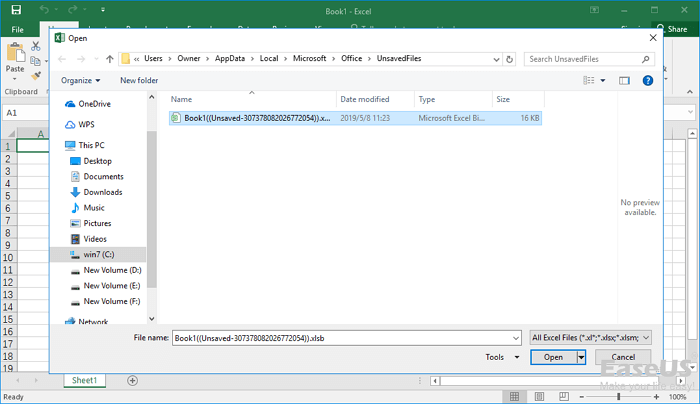
Don't miss: The full guide to recover unsaved Excel files on 2016/2013/2010/2007
Part 2. How to Recover Deleted Excel Files on Mac Effortlessly
To recover deleted Excel files from a Mac, you can easily retrieve them from the Trash bin if they haven't been emptied. However, if the deletion was permanent or resulted from mistaken deletion, disk formatting, a virus attack, or partition loss, you can use Deep Data Recovery for Mac to recover the lost files.
- You can recover lost photos, videos, documents, and emails with just three steps. First, identify the device or account where the lost data was stored. Then, determine the reason why the data was lost, such as a device crash, accidental deletion, or a cyber attack.
- Support recovery on Mac-A storage device is a peripheral that allows you to store and retrieve data. Common types include hard drives, which use spinning disks and mechanical heads to read and write data; fusion drives, which combine a hard drive with a solid-state drive (SSD) for improved performance; SSDs, which use flash memory to store data quickly and efficiently; USB drives, which are small, portable storage devices that plug into a computer's USB port; and memory cards, which are used in digital cameras and other devices to store images and other data.
- The software supports data recovery of over 1000 file types, including popular formats like DOC, XLS, PPT, JPG, PNG, AVI, MP4, MP3, and many more, with a total count of over 1000 supported file types.
To recover lost Excel files on a Mac, download a document recovery software that can help restore them in just 3 steps.
Step 1. Launch Deep Data Recovery. Select file types and click "Fast Scan" to begin the recovery process.
Note: You can choose different search modes based on where and why the data was lost.
Step 2. To recover lost Excel files, select the location where they were lost and click the "Scan" button. This will initiate a search for the files in that location.
Step 3. Deep Data Recovery for Mac starts a quick scan and a deep scan on the selected disk volume, displaying the scanning results in the left pane.
Step 4. By Path and Type, you can quickly filter the Excel files you've lost earlier. Select the target files and click the "Recover Now" button to get them back at once.
See More: Restore Unsaved Excel File on Mac from AutoSave
AutoSave automatically saves a new Excel document that has been created but not saved yet, while AutoRecover can help users retrieve unsaved Excel files on Mac. If both options are enabled, you can retrieve unsaved files on Mac in Excel 2010 - 2016.
Step 1. Go to "Applications" >" Utilities" > "Terminal".
To make all items visible in the Finder, type `defaults write com.apple.Finder AppleShowAllFiles true` into Terminal and press "Return".
Step 2. Click "Finder" > press "Return" on your Mac.
Type /Users/username/Library/Containers/com.microsoft.Excel/Data/Library/Preferences/AutoRecovery and click "Go" to open Excel's AutoRecovery folder.
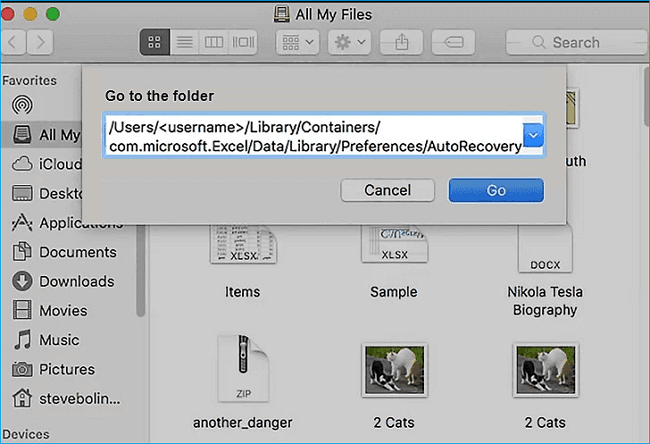
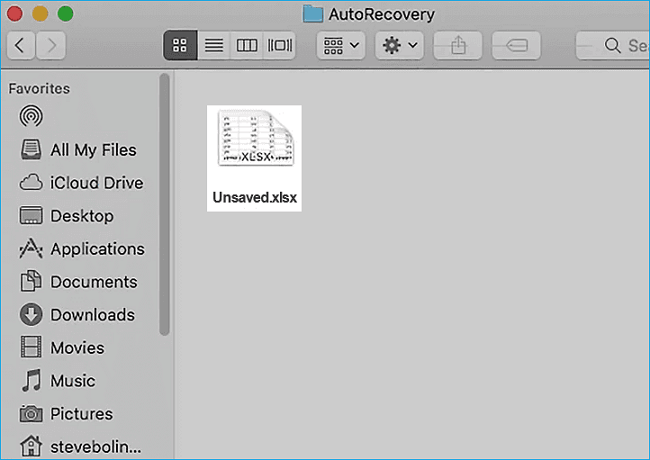
Step 3. To recover unsaved Excel files on a Mac, first locate the files by searching for them in the Finder or checking the Excel autosave locations, which are usually found in the user's Library folder. Once the files are found, you can recover them by copying them to a safe location, such as the Desktop or a designated recovery folder. This will ensure that the files are saved and can be accessed again.
Also read: How to recover unsaved Word document on Mac
Part 3. How to Retrieve Deleted Files on iPhone/iPad
If you've accidentally deleted a file from your iPhone or iPad, there's still hope to recover it. You can try using Qiling's iPhone data recovery software to retrieve deleted photos, videos, messages, and other files from your iOS device.
Step 1. Choose the Recovery Mode
Connect your iPhone to your PC, launch Qiling MobiSaver, and select the recovery mode as "Recover from iOS Device" before clicking "Start".
Step 2. Scan iPhone and Find Lost Data
Qiling MobiSaver automatically scans your iPhone, including iPhone 13/12/11/X/XR/XS/8/7/6/5/4, to find and recover present and even some lost data.
Step 3. Preview and Restore iPhone Data
You can recover lost data from your iPhone, including photos, videos, contacts, SMS, notes, voice mails, and other files, regardless of the model (iPhone 13/12/11/X/XR/XS/8/7/6/5/4). Once you've selected the data you want to recover, click "Recover" and save it to a different location.
Part 4. How to Recover Deleted Excel Files on Android
For users who need to recover deleted Excel files or other documents on their Android devices, Qiling MobiSaver for Android, a professional Android data recovery software, can provide assistance.
To recover data using this method, you'll need to root your phone first, which is a crucial step before proceeding with the process.
Step 1. Connect your Android phone to the computer, then install and run Qiling MobilSaver for Android.
Step 2. Scan Android phone to find deleted Excel files.
Step 3. Preview and recover deleted Excel files from Android phone.
Wrap Things Up
After reading this guide, you'll know how to recover deleted Excel files in different situations and on various devices. If you've forgotten to save Excel files, you can try the solutions provided to get them back. It's also a good idea to take regular backups of your Excel files, which will allow you to easily restore them even in the event of a system crash or permanent file deletion.
Qiling data recovery tool for Windows and Mac offers the most comprehensive methods to recover deleted or lost files due to various reasons such as accidental deletion, hard drive formatting, emptying Recycle Bin, OS crash, or virus attack. You can free download this software to get back and protect your data with ease.
Related Articles
- Recover Deleted Files from USB Flash Drive/External Hard Drive
- Top 10 Best Free SD Card Data Recovery Software (100% Working)
- Recover Access Files with Access Database Recovery Software
- How to Recover Deleted Files/Folders in Windows 11 [Ultimate Guide]
- Ring Deleted Video Recovery: How to Recover Deleted Ring Doorbell/Camera Videos
The Ring app is good at protecting your home security. However, you might want a Ring deleted video recovery service after accidentally deleting a Ring doorbell video, or many videos at a time for evidence. Here is how to recover deleted Ring doorbell videos on a Mac and PC. - See Deleted Messages on WhatsApp Without Any App
This article will explore a few essential and effective ways to recover or see lost WhatsApp messages. Various methods will be discussed to recover accidentally or deliberately deleted WhatsApp messages, providing users with options to retrieve their lost communications.
Products
Articles & Tutorials
- Data Recovery
- Data Backup
- File Recovery
- File Backup
- System Backup and Restore
- Disk and Partition Clone
- Technical articles
- Mobile articles
- Disk Master Help
- Windows Data Recovery Tutorials
- Windows Secure Delete Tutorials
- Windows Partition Management Tutorials
- Windows File Backup and Restore Tutorials
- Windows System Backup and Restore Tutorials
- Windows Disk Backup and Restore Tutorials
- Windows Clone Tutorials