There Is a Problem with This Drive. Scan the Drive Now and Fix It
5 Solutions to Fix There Is a Problem with This Drive
A guide with 5 effective solutions is provided to resolve the error "there is a problem with this drive on removable disks." Follow the information below to troubleshoot and resolve the issue.
| Workable Solutions | Step-by-step Troubleshooting |
|---|---|
| Fix 1. Recover Data with Software | Connect your USB drive to your computer. Download Deep Data Recovery...Full steps |
| Fix 2. Do as Recommended | On the prompted window, choose "Scan and fix (recommended)" and then click "Repair drive"...Full steps |
| Fix 3. Repair Bad Sectors | Download Qiling Partition Master and install it. Right-click the disk that you want to check...Full steps |
| Fix 4. Run CHKDSK | Press the "Windows" key and type cmd. Right-click "Command Prompt"...Full steps |
| Fix 5. Use Troubleshooter | Type msconfig at the start and hit "Enter" to open System Configuration Utility...Full steps |
There Is a Problem with This Drive. Scan the Drive Now and Fix It
When a USB flash drive is connected to a computer, an error message may appear on the screen, stating "There is a problem with this drive. Scan the drive now and fix it." This message typically indicates that the drive is experiencing issues that need to be resolved, and the computer is prompting the user to run a scan to identify and fix the problems. The scan process can help detect and resolve issues such as corrupted files, incorrect drive formatting, or other problems that may be preventing the drive from functioning properly.

Windows users may encounter an error message when inserting a removable storage device, prompting them to scan and fix the disk due to potential issues with files on the device. This warning appears on Windows 10, 8.1, 8, 7, and Vista, indicating a problem that may arise when the device is removed before all files have been written to it.
Causes - Why This Error Happens
By answering the following questions, you'll clearly figure out the reasons why Windows prompts a scan and fix the error, and be able to fix the error message and prevent it from preventing you from using your device properly.
Question 1 - Did you correctly use the 'Safely remove the hardware' option to disconnect the USB drive? Or did you just abruptly pull it out from the USB port?
Question 2 - Did you use the USB drive across many devices, such as different PCs, cameras or game consoles?
Question 3 - Did you see other errors before 'There is a problem with this drive' occurs? Such as 'The file or directory is corrupted and unreadable' or 'not accessible fatal device hardware error'?
The error 'There is a problem with this drive' when scanning and fixing a USB drive can be caused by several general factors, including improper removal of the drive, a virus infection, or file system corruption.
Solutions - How to Fix Scan And Fix Error (5 Solutions)
If you're getting the error 'There is a problem with this drive. Scan the drive now and fix it' every time you connect a USB flash drive or SD card to a Windows computer, try running the built-in Windows tool 'Check Disk' (chkdsk), checking the drive's file system, and formatting the drive as a last resort. Additionally, you can try running a virus scan, checking for corrupted files, and using a third-party disk repair tool to fix the issue. If the problem persists, consider using a different USB drive or SD card.
- 1. Recover Data from a Scan and Fix
- 2. Run Scan and Fix
- 3. Repair Bad Sectors
- 4. Use Windows Troubleshooter
- 5. Perform a Clean Boot
Solution 1: Recover Data from a Scan and Fix HDD (Very Important)
If your USB flash drive or memory card has been affected, you can try closing the error message window and continue using it, but be aware that it may not work for long. For most people, running the scan to fix the error will result in the drive becoming inaccessible, leading to the loss of all data. In this case, it's highly recommended to use data recovery software to transfer the data to a safe location.
Deep Data Recovery is a reliable choice for recovering data from a USB hard drive that's infected with the error 'There is a problem with this drive. Scan the drive now and fix it'. It's free, easy to use, and has other notable features.
- Data recovery software can help recover deleted, formatted, and inaccessible data in various data loss situations, including accidental deletion, formatting, virus attacks, and hardware failures. It can also recover data from different storage devices, such as hard drives, solid-state drives, USB drives, and memory cards, and from different file systems, including NTFS, FAT, and HFS.
- Recover photos, audio, music, and emails from any storage device with a safe and complete solution.
- You can recover data from various storage devices, including the recycle bin, hard drive, memory card, flash drive, digital camera, and camcorder.
To recover data from a USB drive, connect the USB drive to your computer, then download and install Deep Data Recovery software to access and retrieve your lost data.
When a problem is encountered on a drive, always take the first step to rescue data. Additionally, Deep Data Recovery can effectively handle various data loss situations, including accessing an inaccessible hard disk without formatting, undeleting, unformatting, and recovering a RAW drive and more.
Solution 2: Do as Recommended (Scan and Fix)
When the disk pops up with an error, Windows will prompt you to scan and fix the removable disk before using it, suggesting to scan for file system errors, but only do it after transferring data to a safe place.
Step 1: On the prompted window, choose "Scan and fix (recommended)" and then click "Repair drive".
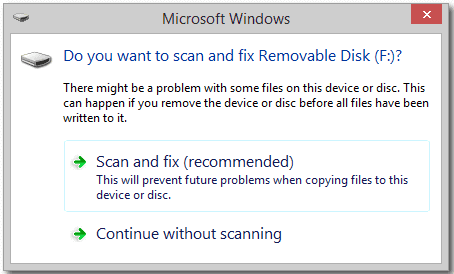
Step 2: Wait until Windows finds and repairs file system errors. Close the window when finished.
Step 3: Restart the PC. See if the error persists.
Solution 3: Check & Repair Bad Sectors
Bad sectors on a hard drive can cause errors and issues, but they can often be repaired using tools like CHKDSK. If bad sectors are found, running CHKDSK can help fix the problem.
First - Check the Bad Sectors
Qiling free partition software is trusted and recommended by millions of users, making it a nice choice for checking bad sectors on hard disks, USB flash drives, pen drives, SD memory cards, and other storage devices without formatting.
Step 1. Open Qiling Partition Master, right-click the disk you want to check, and click "Advanced" > "Surface Test" to run a surface test on the disk.
Step 2. The operation will be performed immediately, and all bad sectors will be marked as red.
The process of scanning a hard drive for bad sectors involves running a diagnostic tool that checks each sector of the drive to see if it's functioning correctly. This process can take some time, depending on the size of the drive and the speed of the diagnostic tool being used.
Second - Run CHKDSK
Follow these steps to run CHKDSK:
Step 1: Press the "Windows" key and type cmd.
Step 2: Right-click "Command Prompt" and choose "Run as administrator".
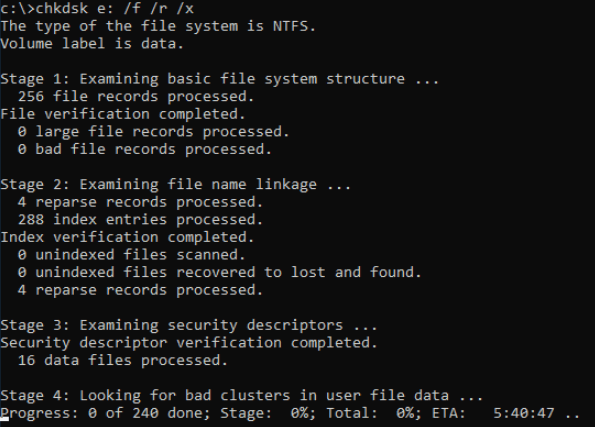
Step 3: Enter the following command: chkdsk e: /f /r /x
The command "chkdsk /f" is used to check and repair disk errors on the specified partition. The drive letter of the partition to be repaired should be replaced with "e" in the command.
CHKDSK Alternative
If you're not a fan of using the command line, there's an alternative tool called Qiling CleanGenius that can help fix file system errors on your hard drive. This one-click tool makes it easy to resolve the issue without having to navigate through complex command-line instructions.
Step 1. Download Qiling CleanGenius on your computer for free.
Step 2. The software should be run, and then the left panel should be clicked on "Optimization" and "File Showing" should be chosen.
Step 3.To resolve a file system error on a drive, go to the "Choose drive" section and select the drive with the error. Then, check the "Check and fix file system error" option and click "Execute" to initiate the repair process.
Step 4. After the Qiling CleanGenius completes the repairing process, click the "here" to view the result.
Third - Run SFC
If you suspect system file corruption, run the System File Checker (SFC) tool to repair damaged system files after running the CHKDSK tool.
Open Command Prompt and type this command: sfc /scannow
Solution 4: Use Windows Troubleshooter
The Hardware and Devices troubleshooter is a tool that can help fix errors on external storage devices, in addition to the other useful tools available.
Step 1: Open Control Panel and find Troubleshooter (or Troubleshooting) according to different Windows OS version.
Step 2: To fix the issue, click on "Configure a device" under the "Hardware and Sound" option, and then select "Advanced" from the window that appears, which will allow the system to automatically apply repairs.
Step 3: Click Next and follow the wizard to accomplish the repair process.
Solution 5: Perform a Clean Boot
Here are the steps to perform a clean boot and troubleshoot software conflicts:
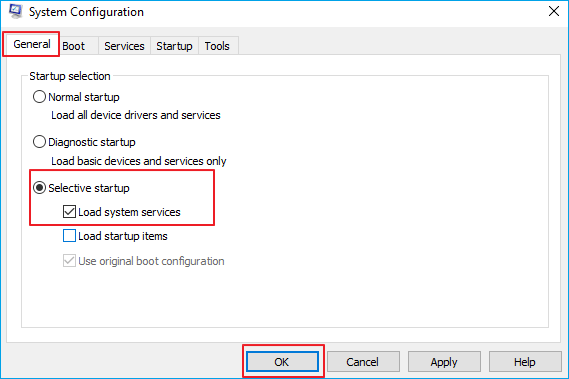
Step 1: Type msconfig at the start and hit "Enter" to open System Configuration Utility.
Step 2: To resolve the issue, go to the "General" tab, select "Selective Startup", clear the "Load Startup Items" checkbox, and ensure that "Load System Services" and "System Configuration Options" are selected.
Step 3: Click the "Services" tab. Select the "Hide All Microsoft Services" checkbox. Now click "Disable all".
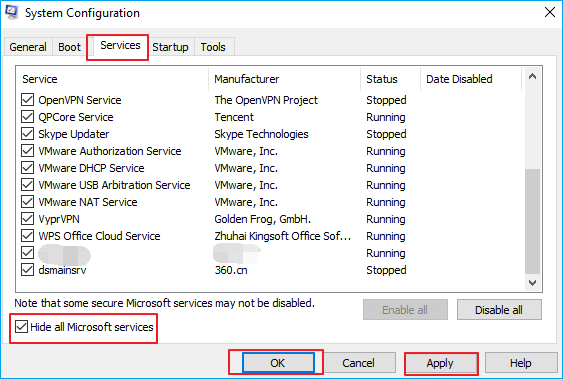
Step 4: Click "Apply"/"OK" and restart the computer. This will put Windows into a Clean Boot State.
The Bottom Line
To fix the "There is a problem with this drive. Scan the drive now and fix it." error without losing data, try running a full disk scan, checking for disk errors using the built-in Check Disk utility, and performing a System File Checker scan to ensure all system files are intact. If the issue persists, consider using Qiling Backup to scan and repair the drive.
To recover data from a USB flash drive that is no longer accessible, use Qiling data recovery software. Among the suggested 5 ways to scan and fix disk bad sectors and file system errors, find the best solution.
There's a Problem with This Drive FAQs
You can get further help with the questions and answers below. Read them one by one:
How do you fix there was a problem repairing this drive?
The ways to fix the problem with this drive error:
- 1. Recover Data from a Scan and Fix
- 2. Run Scan and Fix
- 3. Repair Bad Sectors
- 4. Use Windows Troubleshooter
- 5. Perform a Clean Boot
How do I scan and fix my drive?
To check and repair the file system the drive:
- 1. Right-click the USB drive or SD card and select Properties from its context menu.
- 2. To correct the issue, click on the Tools tab in the Excel menu and check the option under the Error-checking section. This will enable Excel to automatically detect and correct errors in the spreadsheet.
- 3. Click Scan and repair drive option to fix the issue.
Will scan and fix erase my data?
The Scan and Fix feature in Windows does not delete files every time you connect a removable disk. It only appears automatically when you connect a removable disk and scans it for issues, but it does not delete files unless you specifically tell it to.
Is it safe to cancel CHKDSK?
CHKDSK can't be stopped once started. It's best to wait for it to complete. Stopping the computer during the check can cause filesystem corruption.
Related Articles
- Btrfs RAID Recovery with NAS Data Recovery Software [Solved]
- Here is How to Fix DllRegisterServer Was Not Found
- How to Recover Deleted Files from CD, CD-RW, DVD & DVD-RW
- How to Create, Find and Watch Valorant Replays 2022
- IMO Delete Message Recovery: How to Recover IMO Chat History
If you deleted your chat history in the IMO app, you can try using a third-party IMO chat recovery software to recover the deleted or lost content, including photos, videos, audio, and other media files. - Free iPod Music Recovery
Qiling MobiSaver Free is a fast and safe solution for recovering lost data from an iPod. This free iPod recovery software provides easy to complete data recovery solutions to recover lost files from your iPod.
Products
Articles & Tutorials
- Data Recovery
- Data Backup
- File Recovery
- File Backup
- System Backup and Restore
- Disk and Partition Clone
- Technical articles
- Mobile articles
- Disk Master Help
- Windows Data Recovery Tutorials
- Windows Secure Delete Tutorials
- Windows Partition Management Tutorials
- Windows File Backup and Restore Tutorials
- Windows System Backup and Restore Tutorials
- Windows Disk Backup and Restore Tutorials
- Windows Clone Tutorials