How to Create, Find and Watch Valorant Replays 2022
| Workable Solutions | Step-by-step Troubleshooting |
|---|---|
| Valorant Replays/Clips | Valorant is one of the most fantastic action games available in the marketplace...Full steps |
| Create and Watch Valorant Replay | Launch the Valorant game > move ahead with the Settings > tap on the Locate Video option...Full steps |
| Find and Restore Valorant Replays | Select a drive and start scanning > check and preview scanned files > recover lost data...Full steps |
| Riot Valorant FAQs | How to download Valorant > how big is Valorant > how to change Valorant name...Full steps |
If you're looking to check out the replays of the Valorant 2022 game, you might have experienced a glitch. But this guide is here to help you successfully create, find, and watch Valorant replays from 2022. Follow along to get the complete information you need.
The majority of the e-Valorant's lack of a reliable recording feature is a notable drawback, making it difficult for players to create, find, and watch replays, especially during critical scenarios and glitches.
If you're a Valorant enthusiast looking to enhance your gaming experience with replays, stay connected with us for the ultimate assistance. We're here to help you create, find, and watch replays, taking your gaming experience to the next level.

Valorant Replays/Clips
Valorant is a highly engaging action game with millions of global players, offering exciting gameplay that can keep users engaged for hours. However, it lacks an in-game video recording option, forcing users to rely on third-party sources to create, find, or watch replays of matches.
The replay function in Valorant is currently experiencing lag, but developers are working to address this issue and introduce an inbuilt tool for creating, finding, and watching replays in the near future, in response to the growing demand from players.
Gamers in Valorant are eager for a replay feature that not only enhances gameplay but also adds to the entertainment value. While the game currently lacks an inbuilt replay option, players can still utilize external third-party tools to enjoy this feature. This would allow for a more immersive experience, perfectly balancing the Valorant agents and maps.
How to Create and Watch Valorant Replay
The replay feature allows repeat players to review their past matches, analyze their mistakes, and improve their gameplay. This enables them to refine their skills and make better decisions during future matches.
Although Valorant doesn't have a built-in video recording feature, users can still record game footage using an external tool like OBS (Open Broadcaster Software), a free and open-source cross-platform screencasting and streaming app that allows users to record videos and live stream on various platforms.
To successfully create and watch Valorant replays using OBS, follow the detailed step-by-step process carefully. This will ensure a smooth and effective experience.
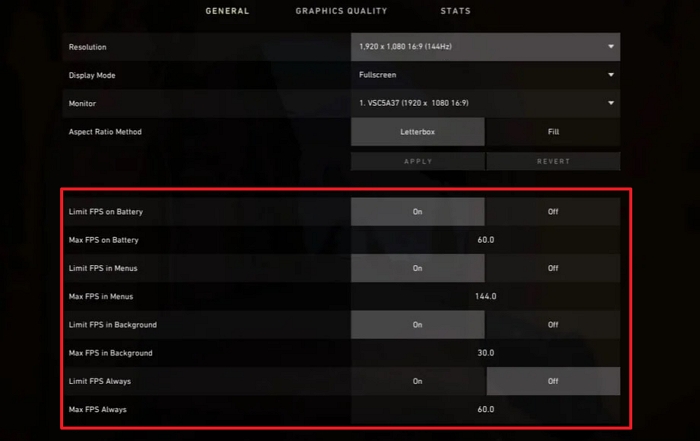
Step 1. To optimize Valorant's performance, launch the game, go to Settings, and select Locate Video or Graphics Quality. Then, limit all FPS-related settings, and enable sync to cap the frame rate at 60 FPS.
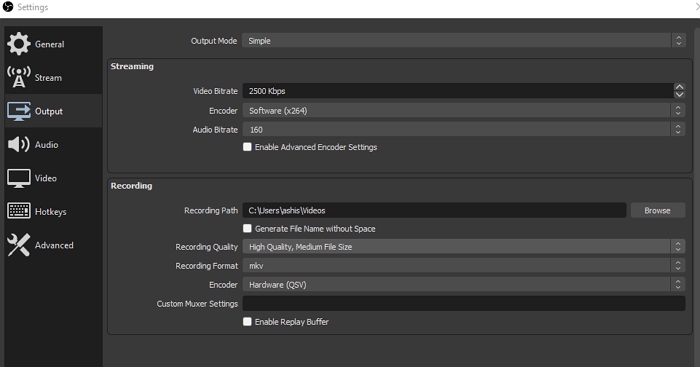
Step 2. To record a Valorant video, you'll need to configure the output settings in OBS. After opening OBS, go to File > Settings > Output, where you can configure the recording section. Select the highest possible settings and set the encoder to use hardware for the best results. This will help you effectively locate the output and record your Valorant gameplay.
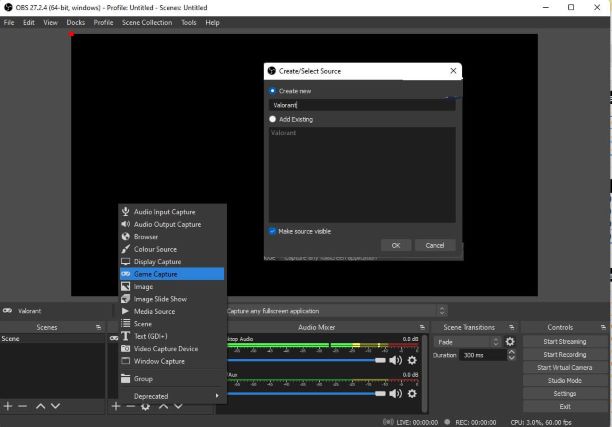
Step 3. To start, launch the game and get into ready mode, which is the stage where you are about to start the gameplay. Next, launch OBS, click on the plus icon under Sources, and select Game capture to give it a name.
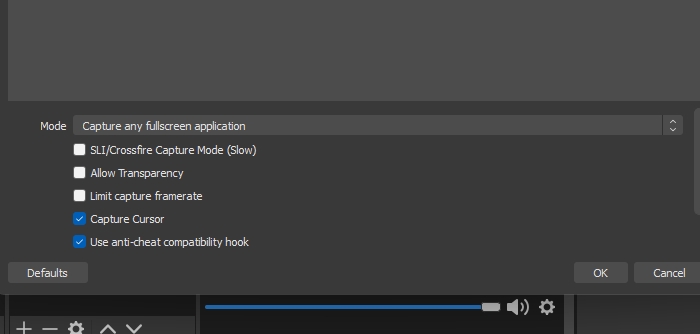
Step 4. In the next screen, you can select the mode, capture mode, transparency, limit capture framerate, capture cursor, and enable anti-cheat compatibility to avoid being flagged as a cheater.
Step 5. To record gameplay, start OBS, change the settings as needed, click the Start Recording button, and let it run in the background. Meanwhile, switch to the game and continue playing. For optimal results, record only full-screen applications to minimize distractions during replays.
How to Find and Restore Valorant Replays
If you're having trouble finding and restoring Valorant replays, you may want to consider using a data recovery tool like Deep Data Recovery, which can help you efficiently restore and repair lost or corrupted files.
Data removal or deletion involves removing or deleting data files from the directory structure, freeing up space and allowing for data recovery or repair. The Qiling data recovery software utilizes this space effectively and features a range of unique capabilities, including data recovery and repair.
- Recover formatted partition
- Repair corrupt/damaged photos
- Recover raw files
Step 1. Select file types and click "Fast Scan" to start
Launch Deep Data Recovery. Select file types and click "Fast Scan" to start the recovery process.

Note: You can choose different search modes based on where and why the data was lost.
Step 2. Select a drive and start scanning
Hover over the partition where you lost data, then click "Scan" to start the recovery process.

Step 3. Check and preview scanned files
To narrow down the scan results, use the file format filter on the left or upper right corner, and then preview the content of the desired files by clicking the "Preview" button or double-clicking them.

Step 4. Recover lost data to a secure location
To recover lost data, select the file, check the box next to it, and click "Recover" to restore the data to a secure location, avoiding the original disk where the data was lost.
How to Recover Deleted or Lost PS4 Game Files
If your PS4 lost save data due to deletion or formatting, you can try a PS game data recovery solution to recover the lost or deleted PS4 game files from the PS4 hard drive with ease.

Riot Valorant FAQs
We understand how frustrating it can be to have unresolved queries. To make it easier for you, we've compiled a list of the most frequently asked questions in this section, hoping that they will help clarify any confusion or issues you may have.
Q1. How to download Valorant?
Valorant is a free-Valorant is a tactical shooter game that offers exciting one-to-play action gameplay. It's a great addition to the gaming world, providing users with the freedom to hone their shooting skills in online gaming. If you're eager to download Valorant on your device, you can simply do so by following the necessary steps.
- Launch your web browser and then search for the Riot Games.
- Create an account on Riot Games.
- The game has a strict region setup that blocks players from other locations, assigning them to their respective regions after joining.
- Go to the official website of Riot and then search for the Valorant option here,
- Now search for the Play Free here in this segment and select the big red button available there.
- Once you've finished the process, you'll be taken to a page where you can freely download and install Valorant without any costs.
- To start playing Valorant, download the game from the official website, then double-click on the Valorant icon on your PC to open the client.
- To get started with the game, sign in with your Riot account.
- After logging into your account, Valorant will guide you through a brief tutorial, introducing you to the game and its mechanics. Go through the instructions carefully to ensure a smooth and hassle-free gaming experience.
Q2. How big is Valorant?
Valorant requires less than 8GB of free space to install, despite its 4GB gameplay size.
Q3. How to change Valorant name?
To change your name on Riot, log in to your account from your browser, navigate to the Riot ID tab, type in your new name, and click save changes. If the VALORANT client is open, close it first before making the change.
Q4. How to uninstall Valorant?
To uninstall Valorant on Windows, go to Settings, then Apps, search for Valorant, click on the three-dot menu icon, and select uninstall. After uninstalling, restart your PC to remove any leftover files.
The Bottom Line
in 2025, creating, finding, and watching Valorant replays can be achieved despite the game's lack of an inbuilt video recording feature. The detailed processes for doing so have been provided, and Deep Data Recovery has also been introduced as a solution. This guide aims to resolve various queries related to Valorant replays, and hopefully, it has been successful in doing so.
Related Articles
- Files Disappeared and Missing from Hard Drive
- How to Recover Files Too Large for Recycle Bin
- Download Data Recovery Wizard Free Edition!
- [Solved] - Window 10 Quick Access Files/Folders Missing
- Excel Recovery Tool Full Version Free Download: Recover Corrupted Excel File
You can download the full version of Qiling Excel file recovery software for free and use it to recover corrupted Excel files easily. This software allows you to recover corrupted Excel files, including XLS and XLSX files, and restore them to their original format. - Corrupted HTML File Recovery Solutions (Online & Offline)
Here, you can recover corrupted HTML files through an online file repair website and offline file repair software, specifically Deep Data Recovery.
Products
Articles & Tutorials
- Data Recovery
- Data Backup
- File Recovery
- File Backup
- System Backup and Restore
- Disk and Partition Clone
- Technical articles
- Mobile articles
- Disk Master Help
- Windows Data Recovery Tutorials
- Windows Secure Delete Tutorials
- Windows Partition Management Tutorials
- Windows File Backup and Restore Tutorials
- Windows System Backup and Restore Tutorials
- Windows Disk Backup and Restore Tutorials
- Windows Clone Tutorials